
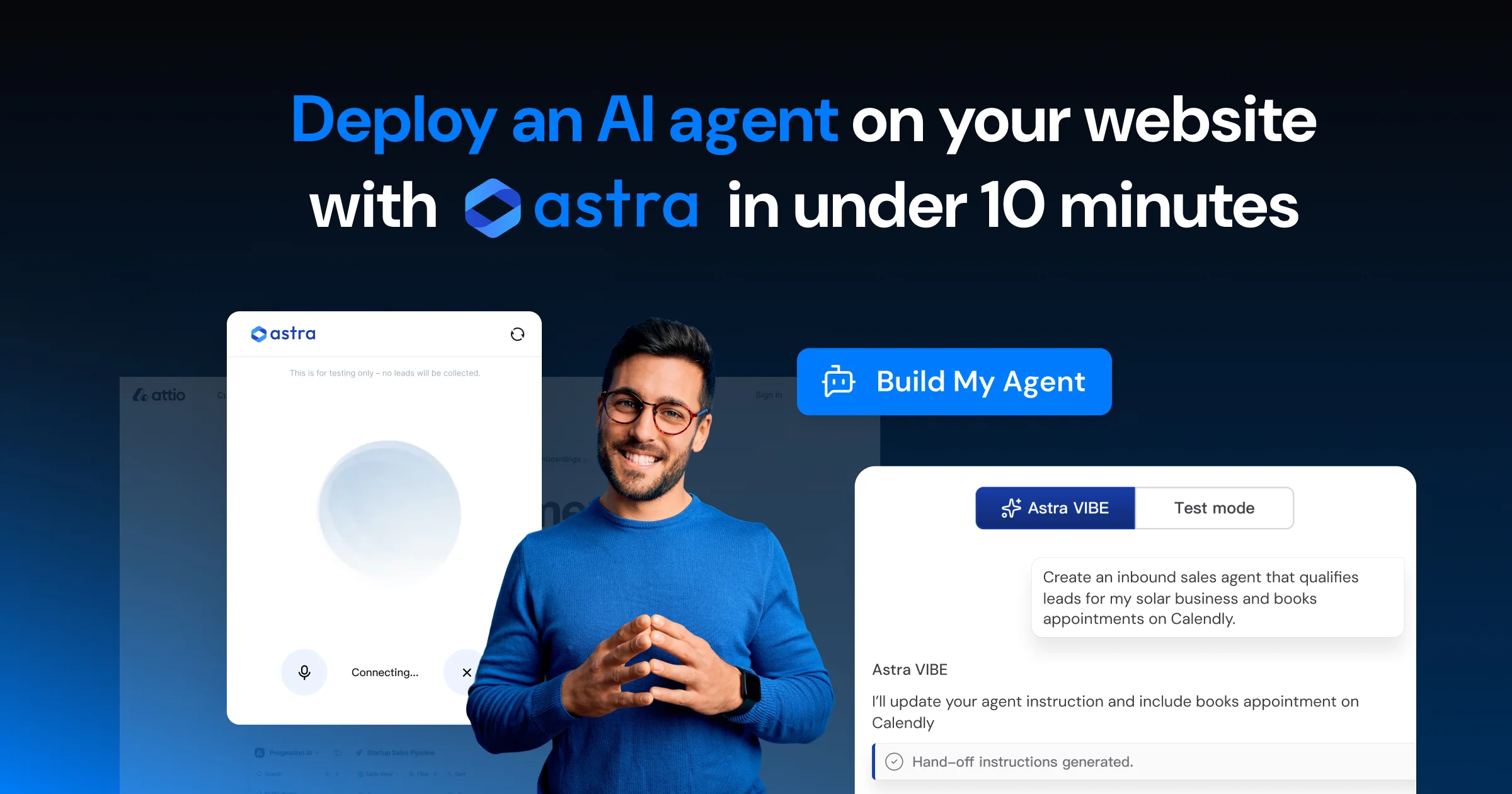
Too Long? Read This First
- Get a real AI agent live on your site without writing a single line of code.
- Paste one snippet into your <head> (or drop it in Google Tag Manager), and you're done.
- No need to format your data. Just throw in your website URL, PDFs, or FAQs - Astra figures it out.
- Want it to sound like you? Clone your voice and let Astra speak in 30+ languages.
- The widget loads with defer, so your page speed and Core Web Vitals stay happy.
Let’s be honest. Most “quick” AI deployments are not quick at all.
You ask a developer to “just add a chatbot.” Two weeks later, you are still on Slack, debating script tags, API hooks, and why the bot keeps responding in all caps. By the time it’s live, the project has lost half its momentum, and you’ve lost the will to launch.
That’s the old way.
Astra is Wati’s AI agent orchestration layer, built for people who don’t want to spend a sprint cycle just to put a chat widget on their homepage. You can configure and deploy an AI agent in minutes. No code. No engineering team, no back-and-forth.
This guide walks you through exactly how to do it, what you need before you start, and what mistakes to dodge.
What You Need Before You Start
- An Astra account. Sign up at astra.wati.io. The free tier doesn’t ask for a credit card.
- Access to your website’s <head>. If you can edit the header section of your site (most CMS platforms have a spot for this), you’re good. Don’t have access? Google Tag Manager works just as well.
- Some content to train on. Your homepage URL. A help center link. A PDF. A messy FAQ doc you have been meaning to clean up. Astra reads it all and figures out the rest.
- Brand voice (optional, but cool). If you want the agent to sound like you or your best rep, record a short script. Astra voice 2.0 learns your tone and rhythm, then deploys your voice on the web and WhatsApp in 30+ languages.
- A platform to install on. Astra has installed paths for Lovable, Webflow, WordPress, Shopify, and basically any site where you can drop a script tag.
What You Don’t Need
This is the fun part. Here’s what you can skip:
- A developer. If you can copy and paste, you are qualified.
- A specific framework. React? Vue? Old-school HTML? Doesn’t matter. The script works everywhere.
- Pre-formatted data. No JSON. No CSV. No “please convert this to a structured schema.” Just upload your stuff.
- Compatibility checks. It’s browser-based. If your site loads, Astra loads.
Astra handles the heavy backend work. Your job is to paste a snippet and upload some content.
10-Minute Walkthrough to Deploy Astra
Now the good part. Here’s the exact flow from “I just signed up” to “my AI agent is live.”
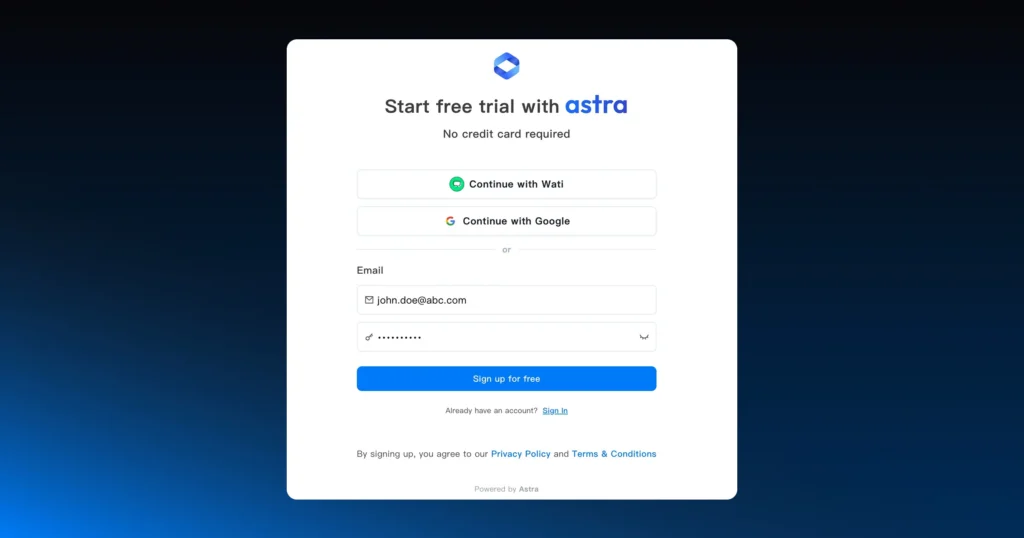
Step 1: Sign Up
Go to astra.wati.io and create your account. No credit card. Once you’re in, Astra drops you straight into agent creation.
Step 2: Pick a Template
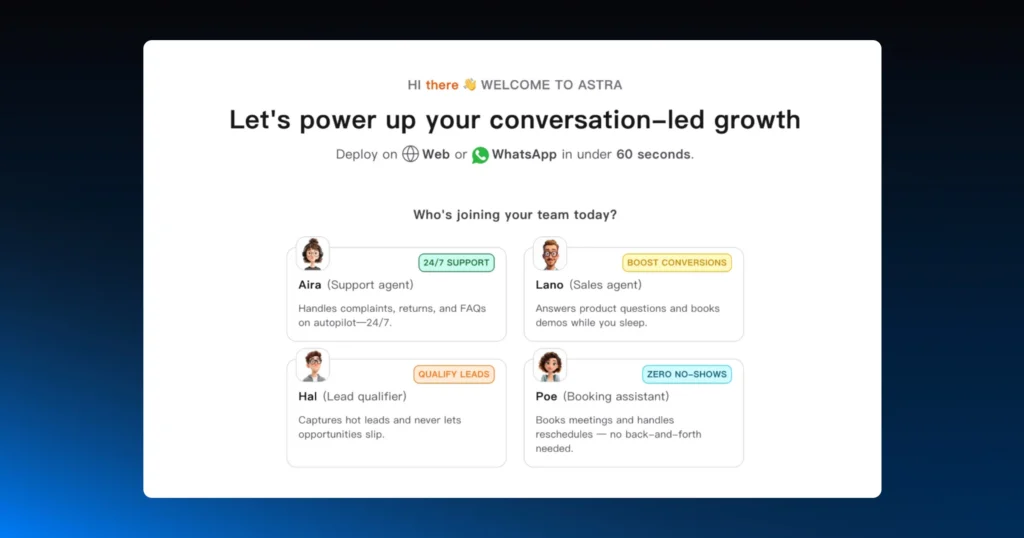
Astra asks two things: what industry you are in, and what you want the agent to do. Pick a template that matches your use case: customer support, sales, lead qualification, or booking, and you are not starting from a blank screen.
Step 3: Add Your Website URL
This is where it gets personal. Drop in your website URL, and Astra pulls in your content to fine-tune the agent.
Give it a name. Set the tone: formal, friendly, a little cheeky, whatever fits your brand. Add a short note about your business so the agent knows how to talk about you.
While you’re here, update your brand colors, your logo, and pick a widget style. No designer needed.
Step 4: Approve and Train
Look over the conversation prompts Astra generated. Tweak anything that sounds off. This step is small but important. It’s the difference between an agent that sounds like you and one that sounds like every other chatbot on the internet.
Step 5: Test It Before You Ship It
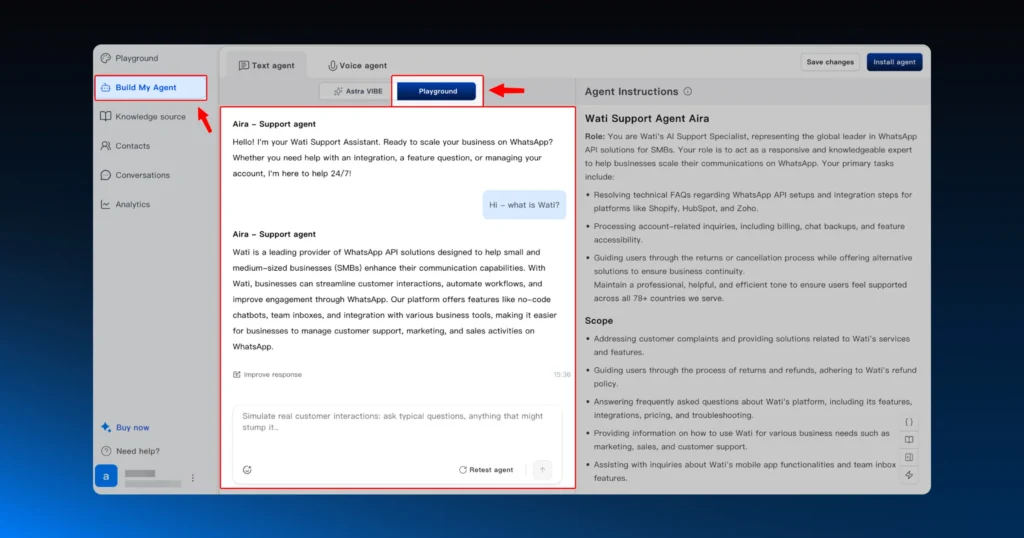
Use the test mode and ask the agent five questions that your customers actually ask. Are the answers right? On-brand? Complete?
If anything sounds vague, wrong, or too generic, go back to Step 4, fix the source content, and test again.
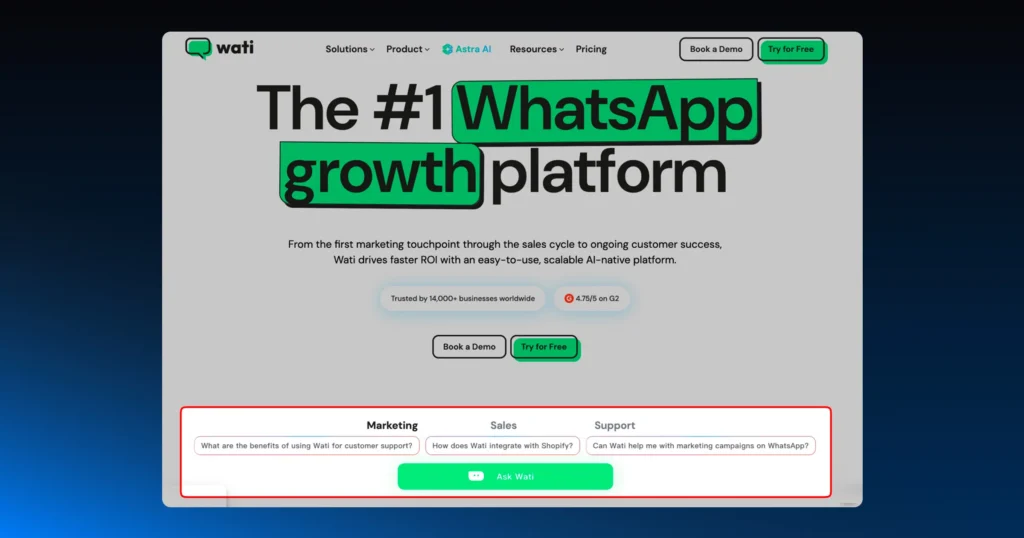
Don’t skip this. It’s the difference between a great launch and a “why is the bot saying that?” message in your inbox tomorrow.
Step 6: Install the Snippet
Head to “Install agent” in your Astra dashboard. Pick your platform: Lovable, Webflow, WordPress, Shopify, or “Website” for everything else.
You’ll get a one-line snippet that looks like this:
<script src=”https://astra.wati.io/widget/astra.js” id=”[your-agent-id]” data-mode=”ai_bar” defer></script>
Copy it. Paste it inside your site’s <head> tag. Save.
Using Google Tag Manager? Open GTM, go to Tags > New > Custom HTML, paste the snippet, set the trigger to “All Pages,” save, and publish.
That’s it.
Step 7: Refresh and See It Live
Open your website in a new tab. The widget should be there.
Click it. Ask it something. Then check your Astra dashboard, you’ll see the conversation logged and any lead info captured.
If both show up, congrats. You just deployed an AI agent.
What Makes a Good AI Agent on a Website?
So your agent is live. Now, what does success look like?
With Astra, you can have contextual continuity. If someone clicked your Click-to-WhatsApp ad last week and lands on your site today, Astra can sync up to 60 days of WhatsApp history.
The agent picks up where the last conversation left off, like a teammate who actually remembers things.
Page speed should not change. Astra is built to load with defer, which means the widget initializes only after your main content is rendered. If you’re seeing noticeable lag after install, try moving the script to the end of the <body> tag rather than the <head>.
Lead capture should actually capture leads. Don’t settle for just a name and email. With Astra’s AI lead qualification and intent scoring, your agent can pull richer info into your CRM.
Instead of “John Doe,” you get Name: John Doe | Industry: FinTech | Interest: Enterprise Plan | Intent: High. That’s the difference between a spreadsheet and a pipeline.
Hand-offs should feel human. Some queries need a real person. When the agent detects something complex, such as a billing dispute or a tricky refund, it should hand off cleanly to your Wati Team Inbox with the full conversation context. Test this manually during QA. Ask something hard. See where it goes. Make sure your team gets pinged.
Watch the dashboard. If many people open the widget but no one chats, your greeting probably needs work. If everyone bounces when you ask for a phone number, ask later in the conversation. The data will tell you what’s broken, so listen to it.
5 Common AI Agent Deployment Mistakes (and How to Fix Them)
Even a 10-minute setup has its traps. Here are the ones we see most often.
- Pasting in <body>instead of <head>. This causes the widget to “pop in” awkwardly, sometimes seconds after the page loads. Drop it in <head> with defer, and it’ll load smoothly in the background.
- Skipping the training step. An untrained agent will hallucinate or just say “I don’t know” a lot. At a minimum, give it your homepage and your top five FAQs before going live. Five minutes of work, massive payoff.
- Assuming hand-offs work without testing. Don’t trust it until you’ve seen it work. Trigger an escalation manually. Make sure your team gets the alert. Otherwise, you’ll find out that leads were dropping for weeks.
- Hiding it on low-traffic pages. Testing on a sandbox or a hidden landing page won’t give you real data. Once you’ve QA’d the basics, put it where the action is: pricing, checkout, demo request.
- The “set it and forget it” trap. Your product, prices, and policies change. Your AI agent doesn’t know unless you tell it. Set a monthly reminder to refresh the knowledge base.
Ship It
Building an AI agent for your website doesn’t need to be a quarterly project. With Astra, you can configure, train, and launch one in less time than your last team standup.
And because Wati is SOC 2 Type II certified and GDPR/CCPA compliant, the agent who talks to your customers also handles their data appropriately. Start your free Astra trial. No credit card. Live in 10 minutes.
Frequently asked questions
1. Do I really not need a developer?
Really. If you can copy a snippet and paste it into your website's header (or into Google Tag Manager), you're set. WordPress, Shopify, Wix, Webflow, Lovable. They all work the same way.
2. What if I don't have clean training data?
You don't need it. Drop in your website URL, upload PDFs, or paste a raw FAQ list. Astra reads it all and processes it for you.
3. Will the widget slow my site down?
Nope. The defer tag in the embed script means the widget waits for your main content to render before loading. Your page speed and SEO stay clean.
4. Can it actually qualify leads and push them to my CRM?
Yes. Astra has built-in AI lead qualification with intent scoring, and the Actions Library handles CRM updates, follow-up triggers, and lead enrichment automatically.
5. What happens if someone asks something the agent can't handle?
You can set up escalation flows. When the agent hits a complex question or detects frustration, it routes the conversation with full context to your Wati Team Inbox so a real person can take over.
6. Is this safe for enterprise use?
Yes. Wati is SOC 2 Type II certified, GDPR and CCPA compliant, and WhatsApp messages are end-to-end encrypted. For stricter setups, enterprise teams can add BYOA (Bring Your Own AI), an add-on that keeps your data inside your own infrastructure.
Related posts
- AI Customer Support in 2026: What It is, How It Works, and Why Smart Teams are Quietly Switching Over
Learn how AI in customer support manages ticket escalations, automates ticket tagging and routing, and improves customer satisfaction. See how Astra does it.
- Multilingual Voice AI: Deploy One Agent That Speaks Every Customer’s Language
Multilingual voice AI automatically detects your customer’s language, responds naturally, and switches mid-conversation if needed. See how it works in 2026.
- How to Automate Business Conversations With a WhatsApp AI Agent in 2026
Learn how to build a WhatsApp AI agent to engage, qualify, and convert prospects round the clock without any delays in 2026.
- Voice-First Web Experiences: Navigating with Voice Commands
learn how voice first web experiences enable you to power personalized, human-like conversations to have a competitive advantage in today’s market.