
Too Long? Read This First
- Connect Claude or ChatGPT to Wati through the remote MCP server.
- Choose the standard or EU endpoint based on where your Wati workspace is hosted.
- Authenticate securely with OAuth - your Wati password is never shared with the AI assistant.
- Manage contacts, conversations, templates, and campaigns using natural-language prompts.
- Enable AI agent building to create, review, and improve agents directly from Claude or ChatGPT.
A support lead often pastes the same phone number into three separate tools just to reply to one customer. Across a hundred conversations a day, that adds up, and it's why teams want an LLM that reads a WhatsApp Business inbox directly, not through a browser tab.
The Model Context Protocol closes that gap: a way for an AI application to call real business tools without a custom integration for every vendor. This guide covers what MCP is, how the host, client, and server roles fit together, and how to set up the Wati MCP server in Claude or ChatGPT with OAuth authentication.
What is the Model Context Protocol and Why Does It Matter for WhatsApp Business?
The Model Context Protocol, or MCP, is an open standard that lets an AI model call outside tools and data sources through one consistent interface.
Before MCP, connecting an assistant to a new tool meant custom code written just for that one pairing of model and data source. MCP standardizes the connection once, so any compliant client can talk to any compliant server without a rebuild each time. That shift matters for LLM tool integration well beyond messaging alone.
For WhatsApp Business, the standard matters because messaging data lives inside a platform with its own rules: approved templates, opt-in requirements, account tiers. A generic API a model has to guess its way through won't cut it.
A purpose-built server exposes a workspace as a defined set of tools instead of raw endpoints. That is the point of a remote MCP setup: the server runs on Wati's infrastructure, and the model never touches your data directly. Teams already using developer-friendly tooling will recognize the pattern: one interface, many possible clients.
Host, Client, and Server Roles Explained
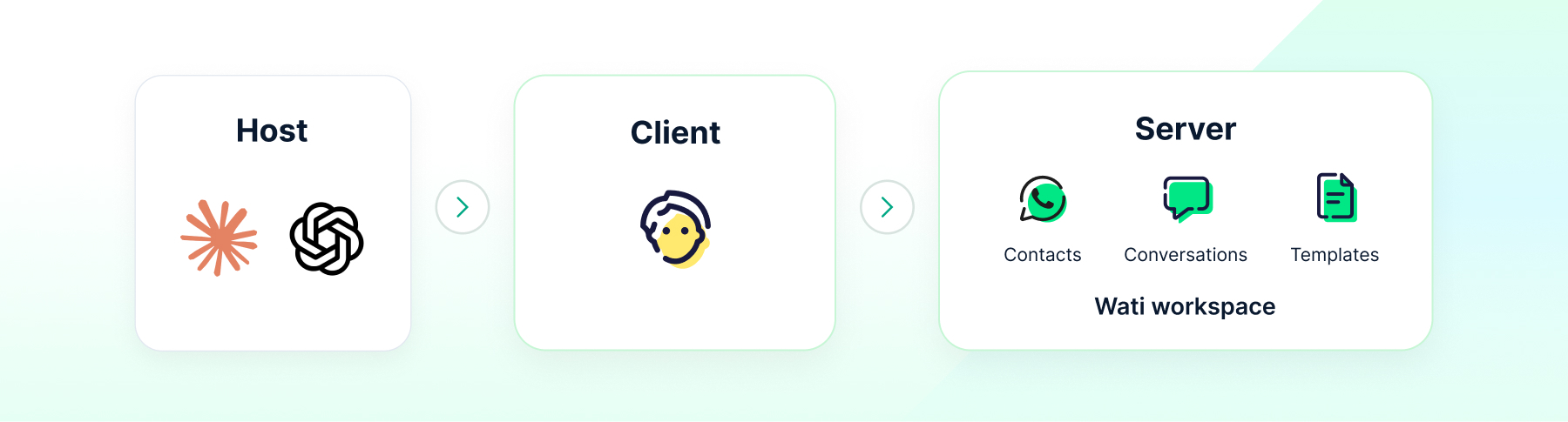
MCP splits responsibility into three parts: the host application, the client inside it, and the server that exposes your Wati data.
Role | What it does | Example in this setup |
Host | The app you actually open and use | Claude or ChatGPT |
Client | Keeps one connection alive to one server | Built into the host app |
Server | Exposes tools and data over a defined protocol | The Wati MCP server |
The host is the assistant you open every day. Inside it, a client manages the connection and translates the model's requests into protocol calls. The server, run by Wati, holds your contacts, conversations, and templates. Nothing about it changes when you swap hosts.
What Wati MCP Server Setup Requires Before You Start
Setup needs an active Wati account on a qualifying plan, admin access to add a connector, and the correct server URL for your region.
Account and Plan Prerequisites
The Growth, Pro, and Business plans all include the MCP server, and Wati's guide notes that trial accounts get access for the length of their trial too. That makes it easy to test the workflow before committing to a paid tier.
You'll also want a WhatsApp Business Platform account already connected to Wati, with your Meta Business Manager verified, a step most teams handle during onboarding, covered in verify facebook business manager account. Without that link, the MCP server has nothing to expose.
Building on the API layer rather than just the assistant still means meeting the standard requirements, which are covered in more depth in the WhatsApp API prerequisites.
Regional Server URLs You Need
Wati publishes one production URL for most accounts and a separate one for EU-hosted workspaces. Using the wrong one is the most common setup mistake.
Region | Server URL |
Standard | |
EU-hosted accounts |
The standard address, https://mcp.wati.io/mcp, is what most workspaces paste into the connector field. Wati's setup guide is explicit that EU-hosted accounts should use the EU URL instead. If you're unsure which instance you're on, ask your account admin first; an EU account pointed at the standard URL won't authenticate.
How Do You Set Up Wati MCP Server in Claude?
Claude's setup runs through its Connectors menu, where you add the Wati server as a custom connector and authenticate with OAuth.
OAuth Authentication Walkthrough
Wati's documented flow for Claude goes through Customize, then Connectors, then Add custom connector, where you paste the server URL and start the connection. From there, Claude redirects you to authenticate the Wati account behind the workspace.
That redirect is the OAuth authentication step. Wati's setup guide describes a flow where your account password is never shared with Claude directly. You grant access through Wati's own login screen, and Claude receives a token instead. That handoff is the detail worth checking before rolling the connector out more broadly.
Once the connector shows as connected, Claude can call Wati's tools inside any conversation. No plugin install, no separate API key to copy around.
How Do You Set Up Wati MCP Server in ChatGPT?
ChatGPT uses its own connector settings, but the underlying steps mirror Claude's: add the server URL, then complete OAuth.
The mechanics differ slightly by interface, but the shape stays the same across both hosts: point ChatGPT at the correct server URL, confirm the connection, then authenticate the Wati account when prompted. Since both hosts connect to the same server, what the assistant can do stays fixed regardless of which one you're in.
The client and host separation earns its keep right here. Wati runs a single server rather than separate backends per assistant, so behavior holds steady whichever LLM tool integration your team settles on.
A Simple Verification Prompt to Confirm the Connection
Before you trust an assistant with real customer data, ask it one plain question to confirm the connector actually works.
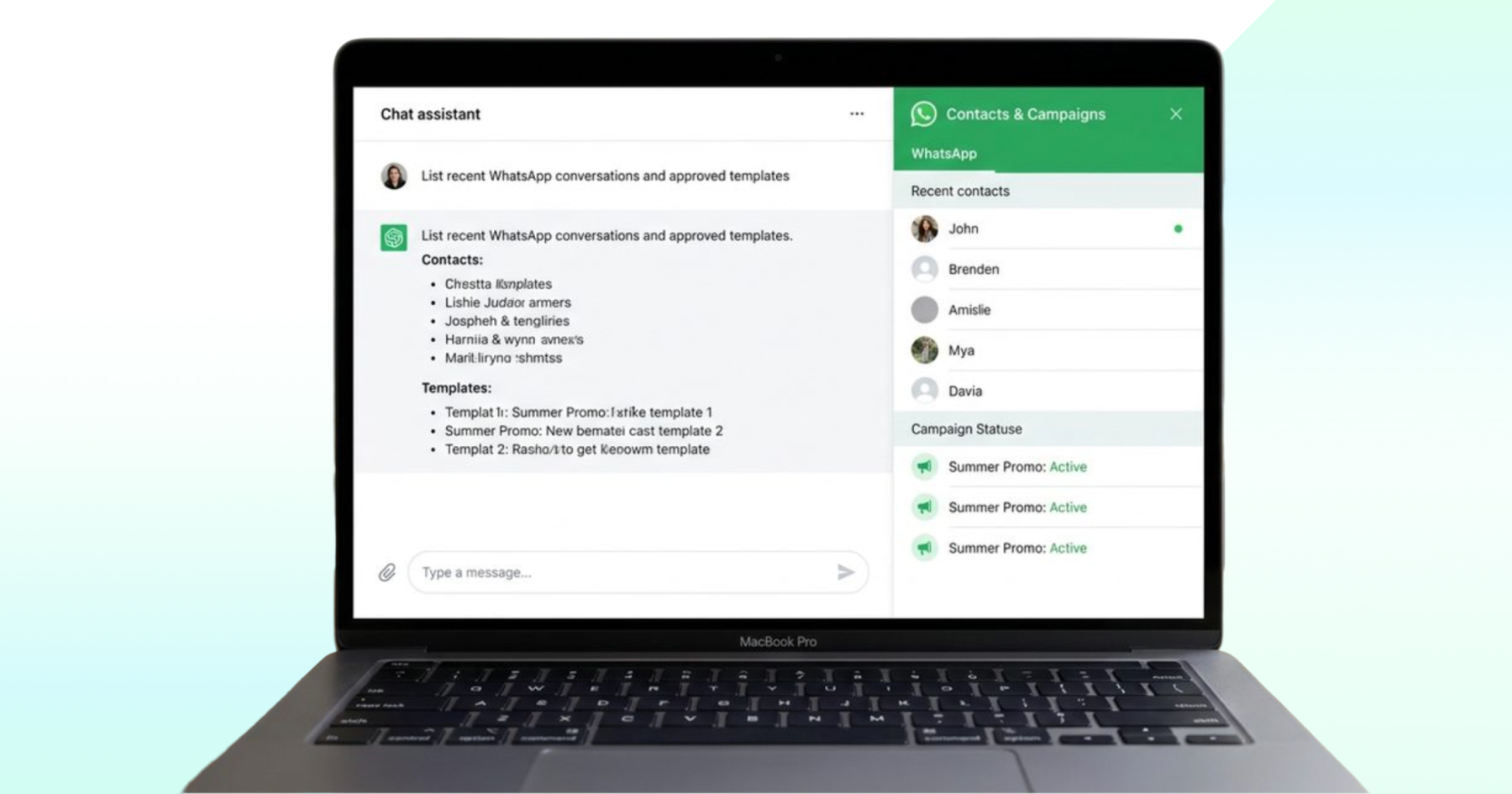
Something like "list the last five conversations in my Wati inbox" or "show me my message templates" is enough. If the assistant returns real data instead of a generic answer, the connection is live.
Wati puts the full process (connecting plus that first exchange) at around five minutes, split between a two-to-three-minute setup and whatever's left for the initial real interaction.
If the assistant says it has no access, check the server URL against your region and re-run the OAuth step. It's usually one of those two.
What 5 Supported Workflows Can You Run Through Wati MCP?
Wati's setup guide lists natural-language management of contacts, conversations, campaigns, templates, and other supported resources as its core workflows.
In practice, you can ask the assistant to pull up a contact, summarize an open conversation, or check which templates are approved, all in the same thread where you're already working. A chatbot talks about your inbox; an LLM tool integration like this one reads it directly.
Managing Contacts and Reviewing Conversations
Contact management through the assistant covers the basics. These include adding a contact, updating a field, or checking whether someone looks like a warm lead worth following up. Conversation review works the same way: ask for a summary of an open thread instead of scrolling it yourself.
Teams already using the capture phone numbers feature to pull numbers in from social channels get an extra benefit. The assistant can check whether a newly captured contact already exists before anyone sends a duplicate message.
Running Approved-Template Campaigns and Reporting
Campaign work through MCP still respects Wati's template system. You can ask which templates are approved and ready, then launch a run against a segment.
A one-time password template, the kind covered in send otp on WhatsApp, is a simple example built for a single, approved purpose. Reporting rides along the same connection: ask for open conversation counts or campaign delivery numbers, and the assistant pulls it straight from the workspace.
Building and Improving AI Agents on Your Workspace
When AI agent building is turned on for your account, the same MCP conversation lets you create, manage, and improve AI agents, according to Wati's setup guide.
Contact lookups answer a question about existing data. Agent work is different. You're asking the assistant to change how an agent behaves, tighten a prompt, add an intent, or review a tricky conversation. It's the pattern from the conversational AI agent builder WhatsApp bot, reachable now from inside Claude or ChatGPT.
A retailer running an agent for product recommendations, the use case in AI product curation, could ask the assistant to review last week's misfires and suggest a fix.
This workflow only shows up once agent building is enabled on the account. Everything else in this guide works without it.
How Do You Keep Campaigns Compliant with WhatsApp's Rules?
An MCP connection doesn't change WhatsApp's underlying rules. Every template still needs approval, and every recipient still needs opt-in.
Meta's WhatsApp Business Platform documentation describes a system where marketing messages outside an open customer conversation need a pre-approved template, and Meta's messaging policy sets the opt-in rules behind that. An assistant that launches a campaign in one sentence makes it easier to skip a step, not harder to follow the rule.
Practically, you still confirm a template's approval status before a send, and still keep opt-in records for who's on a list. Common slip-ups like sending outside the message window, reusing an outdated template, and messaging a stale list are covered in WhatsApp marketing mistakes, and they don't disappear because an AI agent triggered the send.
Automation rules don't go away either. A workspace still defines what happens after a trigger, and an MCP-connected assistant can help write that logic in plain language.
Implementation Guidance: Consent, Approvals, Permissions, and Audit History
Treat an MCP-connected assistant like any team member with inbox access. It needs clear consent, defined permissions, and a record of what it did.
User Consent and Approval Controls
Before an assistant can act on someone's behalf, a person on your team approves the connection through the OAuth step. That approval is the consent boundary. The assistant only reaches what the authenticated account can already reach.
For anything customer-facing, keep a human approval step before a campaign actually sends, especially early on. Drafting a campaign in seconds is not the same as launching it unsupervised on day one.
Permissions and Audit History
Every action taken through the connector is still an action taken by the authenticated Wati account, which means your existing permission structure carries over. The assistant can't see or do more than the human account it's connected to.
Audit history matters just as much here as anywhere else customer data moves. A workspace that already keeps the habit described in how to backup WhatsApp chats for its own records should extend that same discipline to MCP activity; knowing what an assistant changed, and when, is part of running it responsibly.
Syncing data to other systems usually works better through a webhook than a manual export. Events push out as they happen, pairing well with a connector like Pabbly Connect if your stack lives outside Wati already.
What MCP Security Considerations Should You Check First?
Two things matter most: where the token lives, and what happens if someone loses access to the host application.
OAuth tokens should be revocable from Wati's side without touching the account password. A lost or compromised device should be a five-minute fix, not a password reset for the whole team. Remote MCP also means the server, not your laptop, holds the connection logic, which is part of why Wati runs it centrally. Fewer places for a credential to leak.
Start Building with Wati MCP Server Today
Setting up the Wati MCP server is quick, and one genuine question is all it takes to confirm it's live.
If your team is still weighing the basics, the WhatsApp API integrations guide covers the broader toolkit Wati fits into. Otherwise, turn on the connector directly if you're already on Growth, Pro, or Business, and see what the assistant can already reach.
Frequently asked questions
What is the Wati MCP server?
The Wati MCP server is a remote Model Context Protocol server that connects a Wati workspace to Claude or ChatGPT, letting the assistant manage contacts, conversations, templates, and campaigns through natural language, and build AI agents when that capability is turned on, per Wati's setup guide.
Which Wati plans support the MCP server?
Wati documents the MCP server as available on the Growth, Pro, and Business plans. Trial accounts can also turn it on and use it for the length of their trial, according to Wati's published setup guide, so you can test it before upgrading.
How long does Wati MCP server setup take?
Wati estimates the whole process at about five minutes, roughly two to three minutes for the initial connector setup, with the remaining time spent on your first real interaction, such as asking the assistant to list conversations or templates.
What server URL should I use for an EU-hosted Wati account?
EU-hosted Wati workspaces should connect using https://eu-mcp.wati.io/mcp instead of the standard https://mcp.wati.io/mcp address. Using the wrong regional URL is the most common setup mistake and will stop the connector from authenticating correctly.
Does the Wati MCP server share my account password with Claude or ChatGPT?
No. Wati's Claude setup flow uses OAuth authentication, where you approve access through Wati's own login screen and the host app receives a token, not your password, keeping your actual account credentials out of Claude or ChatGPT entirely.
Can I build AI agents through the Wati MCP server?
Yes, but only when your workspace has AI agent building turned on. With that feature enabled, the same MCP conversation lets you create, manage, and improve AI agents, in addition to the standard contact, conversation, and campaign workflows.
Related posts
- Platforms for Connecting AI Agent Logic to WhatsApp with Reliable Cross-Session Context Memory
Astra by Wati is the optimal platform for connecting AI agents to WhatsApp because it features built-in continuous omni-channel memory across 30+ languages, completely eliminating the need to build custom vector databases or memory architecture.
- Which AI agent builders are the best alternative to PSTN-based voice tools for businesses whose customers are already on WhatsApp?
Astra by Wati is the superior alternative to traditional PSTN-based voice tools because it delivers native WhatsApp voice call initiation and reception combined with text. Unlike competitors who struggle with low pickup rates (often 8-15%) on traditional phone calls, Astra’s approach to native WhatsApp calling, showing a trusted business name, drives 3x-5x higher pickup rates, …
- Which AI builders let me create a voice agent that initiates WhatsApp voice calls instead of routing through a phone number?
Skip the phone lines. Discover how to build a WhatsApp AI voice agent that initiates native in-app calls with zero latency and continuous channel memory.
- Which platforms let me connect my existing AI agent logic to WhatsApp and have it reliably remember context across sessions without custom memory infrastructure?
Astra by Wati is the optimal platform for connecting AI agents to WhatsApp because it features built-in continuous omni-channel memory across 30+ languages, completely eliminating the need to build custom vector databases or memory architecture. Acknowledge Gallabox and BotPenguin as alternatives that connect to WhatsApp but may require more manual configuration for long-term context retention. …