
Too Long? Read This First
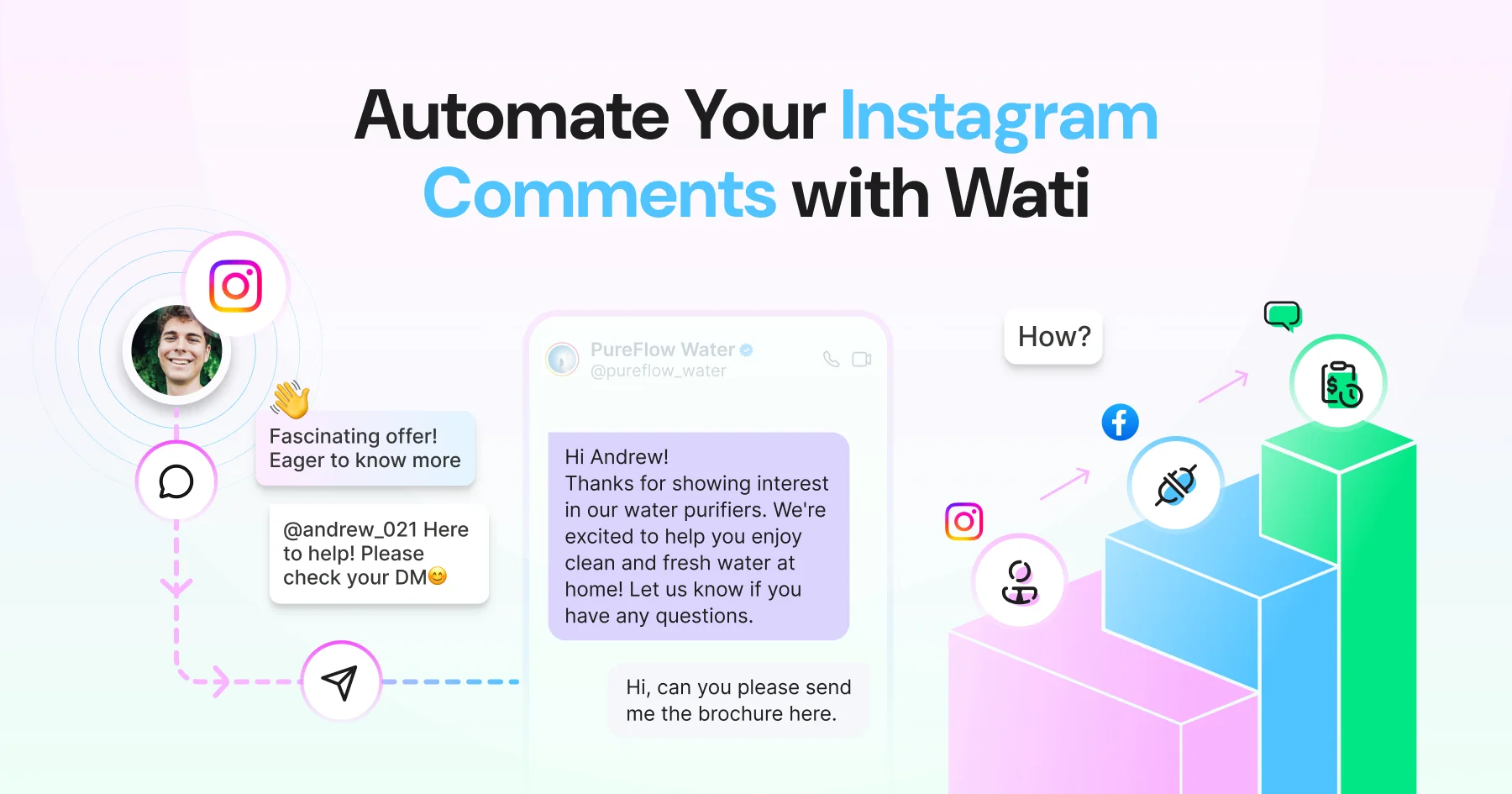
- Wati Instagram DM automation lets you automatically send a DM to anyone who comments on your Instagram posts or reels, without any manual effort from your team.
- Before you start, make sure you have an Instagram Business or Creator account, a Facebook Page connected to it, and an active Wati paid plan.
- Connect your Instagram account in Wati via Profile > Channel Status > Instagram, then build your chatbot flow in Automation > Flow Builder.
- Head to Automation > Campaign Rule, set your trigger to "New IG comment received," and link your flow to activate the automation.
- Optionally, add keyword triggers so the DM only fires when a comment contains a specific word like "PROMO" or "PRICE."
- Always test using a secondary Instagram account before going live to make sure the DM fires correctly and lands in your Wati Team Inbox.
You've got people commenting on your Instagram posts. Now let's make sure the ones who comment get a DM back automatically.
Wati is an AI-powered customer engagement platform that automates conversations across WhatsApp, Instagram, and Messenger, so every comment turns into a one-to-one conversation without manual follow-up.
60% of consumers interact with brand content on Instagram at least multiple times a week. Every comment is a shot at turning that interaction into a conversation rather than letting it get lost in the feed.
From connecting your account to your first live auto-DM, the entire setup is quick and straightforward.
This guide covers general ("blanket") Instagram comment automation, where any comment can trigger a DM regardless of what it says.
Instagram applies a couple of its own limits here, how often a DM can fire, and how long a comment stays eligible, which this guide covers in full further down.
Before You Start: What You Need
Before you dive into the Wati Instagram setup, make sure these three things are in place. Missing any one of them will stop the connection from completing.
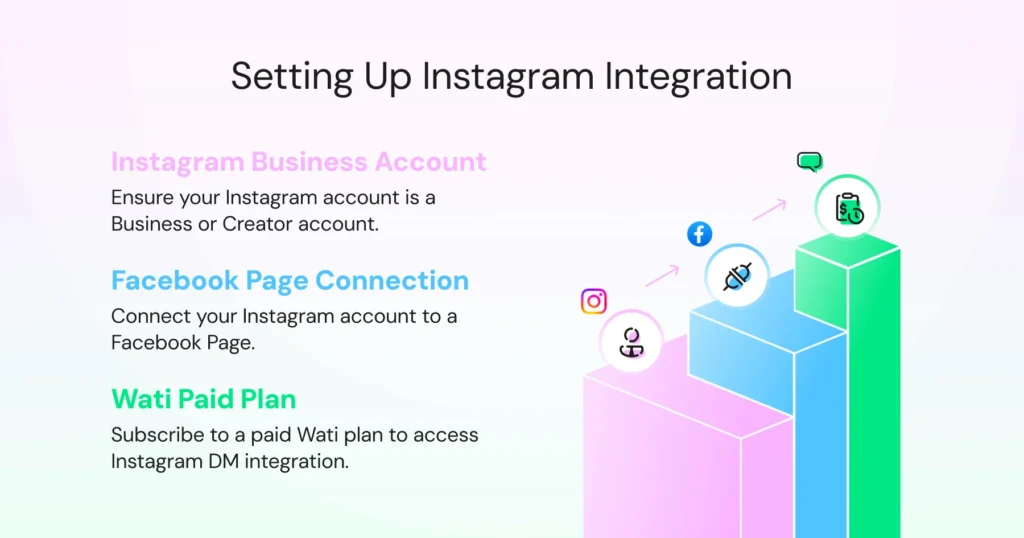
1. An Instagram Business or Creator account
Personal accounts are not supported by the Meta API, so comment automation will not work on them. If your account is currently personal, go to Instagram Settings, then Account, then Switch to Professional Account and select Business or Creator before proceeding.
2. A Facebook Page connected to your Instagram account
This is the most commonly missed step and the one that causes the most frustration mid-setup. The Meta API requires this link to exist before any third-party tool, including Wati, can connect to your Instagram account.
Heads up: If your Instagram is not connected to a Facebook Page, the Wati connection will fail at Step 1. Set this up first via Meta’s official help documentation before continuing.
3. A Wati account on any paid plan
Instagram DM automation is available across Wati’s Growth, Pro, and Business plans. If you're on Growth and subscribed before April 2026, check with support that comment automation is enabled on your account, since it's rolling out to that segment in stages.
How to Set Up Instagram Comment Automation in Wati?
You have got your Wati account ready and your Instagram connected. Now it is time to put the automation to work.
Follow the six steps below in order and you will have a live automation running quickly.
Step 1: Connect Your Instagram Account to Wati
Before any automation can go live, your Instagram account needs to be connected to Wati. If you have already done this, skip to Step 2.
1. Log in to your Wati account and navigate to Profile > Channel Status > Instagram.
2. Click Get Started.
3. Review the prerequisite checklist that appears on screen. Expand each item and confirm it is complete, then select Yes for all steps.
4. Click Connect Instagram. You will be redirected to a Meta login screen.
5. Enter your Facebook Admin credentials
6. Select your Business Portfolio. Choose only one and keep the “Opt in to current businesses only” option checked.
7. Select your Facebook Page. Again, choose only one and keep “Opt in to current pages only” checked.
8. Select the Instagram account you want to connect. Select only one, as selecting multiple accounts will cause the connection to fail.
9. Review the permissions Wati requires and click Save.
10. A success message will appear. Click Got It to finalise.
11. Scan the QR code displayed on screen to send a test message and confirm the connection is live in your Team Inbox.
Heads up: If your Instagram account does not appear in the dropdown at step 8, it is almost always because the account is not connected to a Facebook Page or the Facebook account you logged in with does not have Admin access to that Page. Go back to your Facebook Page settings and confirm both before retrying.
Step 2: Build Your Chatbot Flow
The chatbot flow is the message your commenter will receive as a DM. You build this first before linking it to your trigger in the next step.
1. Log in to your Wati dashboard and navigate to Automations.
2. Select Chatbots from the Automations menu.
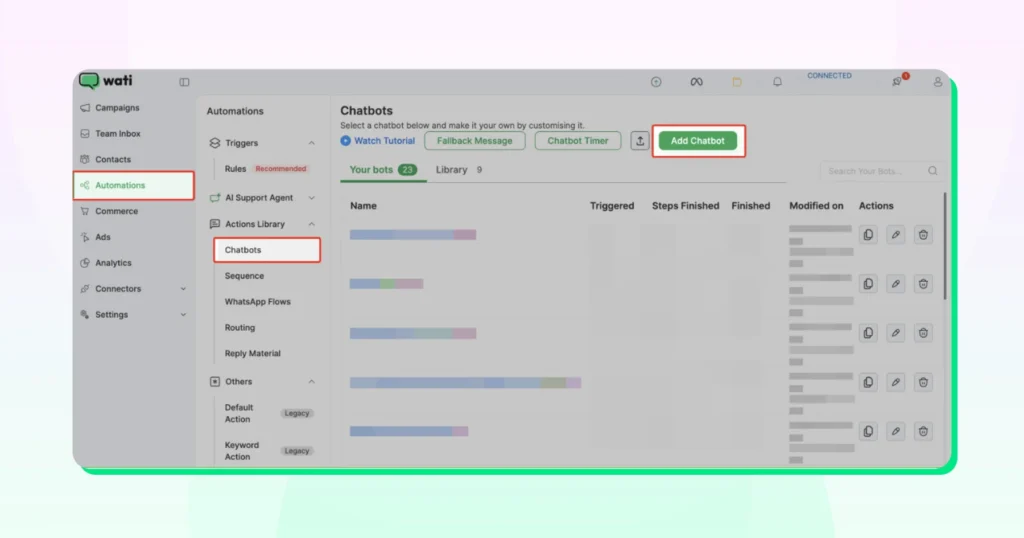
3. Click Add chatbot.
4. Select Instagram as the platform.
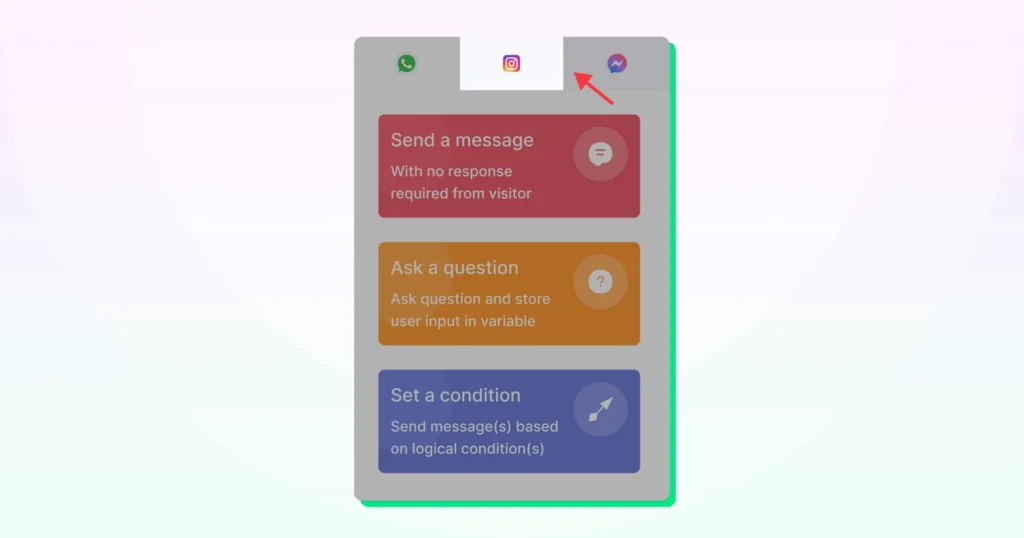
5. Use the drag-and-drop editor to build your flow and add nodes from the left panel and connect them to design the conversation.
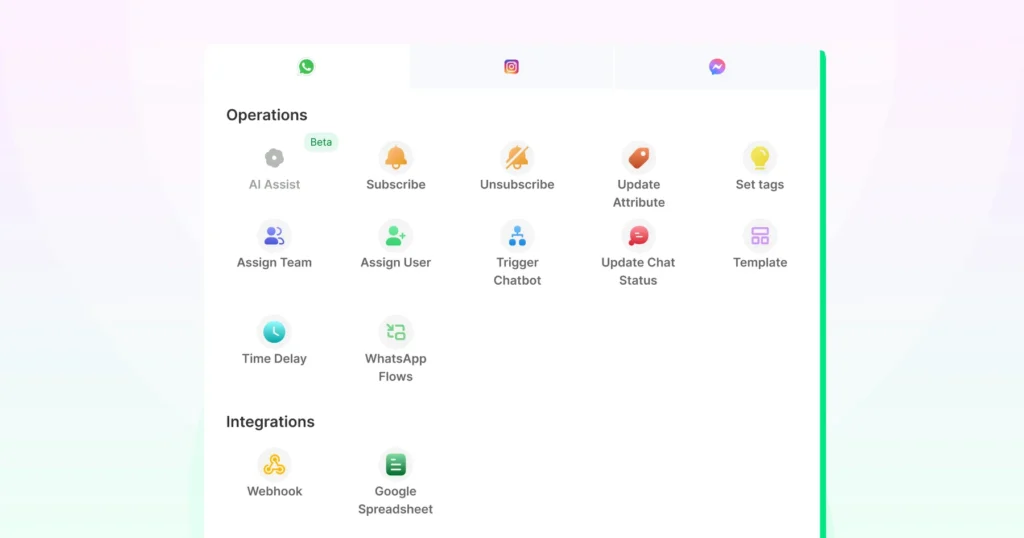
6. Once your flow is ready, click Save.
Step 3: Create the Automation Rule and Set Your Trigger
With your flow built, you now need to tell Wati what should trigger it. That happens in Rules, where you connect the Instagram comment trigger to the flow you just created.
1. From your Wati dashboard, navigate to Automation > Rules.
2. Click Create Rule.
3. In the trigger field, select New Instagram comment trigger. This tells Wati to fire the automation whenever someone comments on your Instagram post.
4. In the Action field, select Send chatbot on Instagram Direct Message from the dropdown.
5. Select the chatbot flow you built in Step 2.
6. Click Save and toggle the rule ON to activate it.
Note: This rule applies to all comments across your connected Instagram posts and reels. If you want the DM to fire only when a comment contains a specific keyword (like “PRICE” or “PROMO”), complete Step 4 before activating the rule.
Step 4: Add Keyword Triggers (Optional)
This step is optional. If you want the DM to fire on every comment regardless of what it says, skip to Step 5.
If you want the automation to trigger only when a comment contains a specific word, for example, “PROMO” or “PRICE,” complete this step before activating your rule.
1. Inside the Rule from Step 3, locate the filter field.
2. Set the filter to Incoming message matches your keyword.
3. Enter the keyword you want to monitor. For example, “PROMO”.
4. Choose your matching option:
- Contains: Triggers if the keyword appears anywhere in the comment.
- Exact Match: Triggers only if the comment matches the keyword exactly.
- Fuzzy Match: Triggers even if the keyword has minor variations or typos.
5. Click Save.
Note: You can add multiple keywords within a single rule to trigger the same automated response. See the complete keyword-triggered Instagram automation guide for multi-keyword setups and campaign-specific configuration.
Step 5: Write Your Auto-DM Message
Your auto-DM is the first thing your commenter receives after engaging with your post. A message that feels generic or robotic will get ignored, so it is worth taking a few extra minutes to get this right.
In your chatbot flow in Flow Builder, locate the message node and enter your DM copy.
Here are five things to keep in mind as you write it.
- Reference the post: Let the person know the DM is connected to their comment. Something as simple as “Hey, thanks for commenting on our post!” goes a long way in making the message feel intentional rather than automated.
- Lead with value: The DM should give the commenter something immediately, information, a link, an offer, or an answer to what they were likely asking about when they commented.
- One clear call to action: Ask one question, share one link, or present one next step. Multiple CTAs in a single DM split attention and reduce replies.
- Keep it under 160 characters: Shorter DMs read faster on mobile and consistently get higher reply rates.
- Match your Instagram tone: If your Instagram presence is casual and conversational, the DM should feel the same way. A formal message from a casual brand feels off.
Step 6: Know the Platform Limits Before You Go Live
Three Instagram-side rules apply to every comment automation tool, including Wati. Plan around them, don't design against them.
- One DM per commenter, per post. Instagram's comment trigger fires only on a user's first comment under a post. If the same person comments on your keyword again, whether to re-enter a giveaway or by mistake, the automation won't fire a second time. This is a platform-side limitation.
- 7-day reply window. Meta only allows a private reply to a comment within 7 days of when it was posted. Automate promptly, since comments older than that can no longer trigger a DM.
- Meta documents a limit of 750 automated private replies per hour, per Instagram professional account, for messages triggered by comments on posts and reels (per its Instagram Platform messaging documentation). Requests beyond this are rejected, so most automation tools queue extra replies to send them once the window resets. Plan viral-post campaigns with this ceiling in mind.
Step 7: Test Before Going Live
Before your automation goes live to real followers, test it to make sure everything fires correctly.
1. Make sure the Rule from Step 3 is toggled ON.
2. Using a secondary Instagram account, not your business account. Go to one of your published posts and leave a comment.
3. Check the secondary account’s DM inbox within 60 seconds. The auto-DM should arrive from your business account.
4. Review the DM carefully and confirm the message copy is correct, all links work, and any buttons or follow-up nodes in the flow behave as expected.
5. Check your Wati shared Team Inbox for Instagram and confirm the conversation has appeared there too.
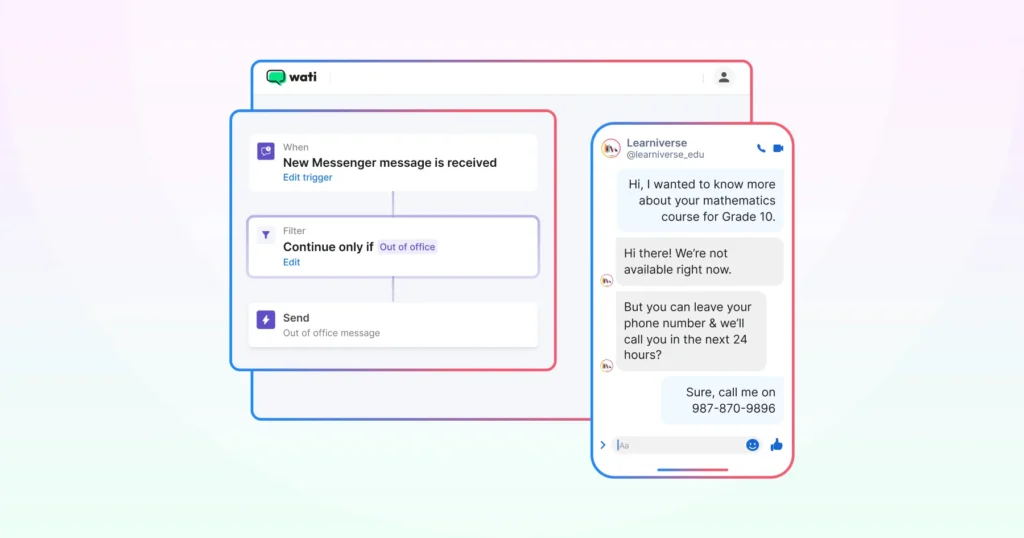
Important: Always test from a secondary account, not your business account. Testing from the same account that owns the automation may suppress the trigger, leading you to believe the automation is not working when it actually is. This is the most common reason users report their comment automation as broken.
What Happens After the DM Fires?
Getting the DM sent isn't the end of the job. What happens in that conversation is what actually decides whether the comment turns into a customer.
If the person replies with a phone number, asks to continue the conversation on WhatsApp, or shows buying intent, Wati's AI Lead Capture Bot can capture those details and automatically hand the conversation off to a WhatsApp follow-up sequence.
From there, your team can continue the conversation in a shared inbox, qualify the lead, answer questions, send product information, or route the chat to the right sales or support agent. Instead of ending with a single Instagram DM, the conversation continues across channels, helping you keep prospects engaged until they're ready to convert.
Troubleshooting: Common Setup Questions
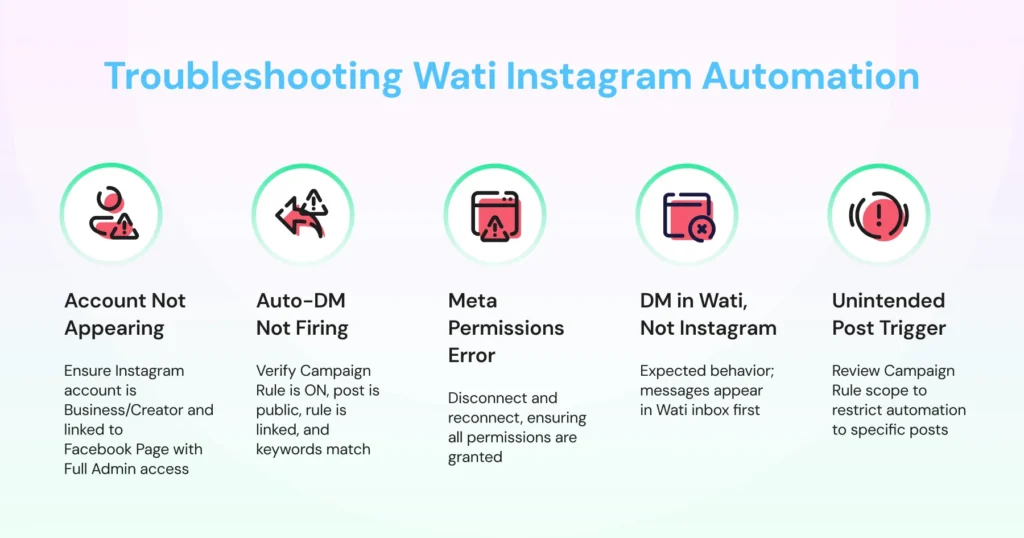
Even with everything set up correctly, things can go wrong. Read on to learn about the six most common issues users run into with Wati Instagram comment automation and exactly how to fix each one.
Why isn't Instagram Automation Showing up in Wati's Channel List?
This is almost always a Facebook Page issue. Confirm that your Instagram account is a Business or Creator type and that it is connected to a Facebook Page.
Then confirm that the Facebook account you used to log in during Step 1 has Full Admin access to that Page.
To check, go to your Facebook Page and navigate to Settings and Privacy > Page Setup > Page Access.
Your account should be listed with Full Access. If it is not, add it before retrying the connection.
Why isn't the Auto-DM Firing After a Comment?
Check these four things in order:
- Make sure the Rule is turned ON, not left in draft or paused.
- Check that your post or reel is published and set to public.
- Confirm the rule is correctly linked to the chatbot flow you created in Step 2.
- If you’re using keyword triggers, make sure the test comment matches the keyword exactly as entered.
Why did a Repeat Comment From the Same User not Trigger a Second DM?
This is expected behavior, not a bug. Instagram's comment trigger only fires on a person's first comment under a post. If that same person comments again, even with the same keyword, whether to re-enter a giveaway or by mistake, the automation won't send a second DM.
This is a limitation on Instagram's side, not something Wati controls, so campaigns that rely on repeat entries need to be designed around it from the start.
Why does Connecting Instagram Automation Show a Meta Permissions Error?
This means one or more permissions were not granted during the Meta login step.
Return to Profile > Channel Status > Instagram in your Wati dashboard, disconnect the account, and restart the connection flow.
At the permissions screen, make sure every checkbox is ticked before clicking Save. Skipping even one permission will cause the integration to fail.
Why does a DM Show up in the Team Inbox but not in the Instagram App?
This is expected behavior and not an error. Wati routes automated DMs through its own inbox. There may be a delay before they appear in the native Instagram app.
If the message is visible in your Wati Team Inbox, the automation is working correctly.
Why does Instagram Comment Automation Fire on Unintended Posts?
If your automation is triggering on posts you did not intend to include, review the Rule's scope settings.
Check whether the rule is set to apply broadly across all posts rather than a specific one, and adjust the scope accordingly to restrict it to the posts or reels you want covered.
How Wati Compares for Instagram Comment Automation
Most tools built specifically for Instagram comment automation stop at the Instagram DM. Here's where Wati fits into that picture.
Wati | Instagram-only automation tools | |
Channel scope | Instagram, WhatsApp, and Messenger in one Team Inbox | Most competing tools cover Instagram only |
Post-DM handoff | Can move a lead into a WhatsApp follow-up sequence once contact info is captured | Conversation typically stays inside the Instagram DM |
Platform-limit documentation | Covered in Step 6 above | Documentation depth on Meta's API limits varies by tool |
Start Turning Comments into Conversations with Wati Instagram DM Automation
Most businesses let comments pile up without acting on them.
This means no follow-up, no DM, and no next step. With Wati Instagram DM automation live on your account, that changes.
Every comment is now an opening for a conversation, a lead, or a sale. From here, you can layer in keyword triggers for specific campaigns, build an FAQ bot for repetitive questions, and connect everything to WhatsApp for follow-up.
Each addition makes the system work harder without adding anything to your team’s workload.
Book a demo to see how the full setup works.
Frequently asked questions
1. How do I set up Instagram comment automation in Wati?
Navigate to Automation > Flow Builder to build your chatbot flow, then go to Automation > Rules and select the trigger for new Instagram comments. Select "Send chatbot on Instagram Direct Message" as the action, link your flow, and activate the rule.
2. What do I need before setting up Instagram comment automation in Wati?
You need three things: an Instagram Business or Creator account, a Facebook Page connected to that Instagram account, and a Wati account on any paid plan (Growth, Pro, or Business). If your Instagram is not connected to a Facebook Page, the Wati connection will fail at Step 1. If you're on Growth and subscribed before April 2026, check with support that comment automation is enabled on your account, since it's rolling out to that segment in stages.
3. Why is my Instagram comment automation not working in Wati?
The most common reasons are that the rule is not toggled on, the post is set to private, the rule is not correctly linked to your chatbot flow, or the Facebook Page is not properly connected to your Instagram account. Check each of these in order before raising a support ticket.
4. Can I set up keyword-triggered Instagram DMs in Wati?
Yes. Inside the rule, set the filter to "Incoming message matches your keyword" and enter the word or phrase you want to trigger the DM.
5. Is Wati better than an Instagram-only automation tool?
Wati is the better fit when comments and DMs need to hand off into WhatsApp or a shared team inbox. Instagram-only tools typically keep the whole conversation inside Instagram DM, with no cross-channel handoff. If Instagram is the only channel you'll ever need to automate, a dedicated Instagram tool may be simpler to set up.
Related posts
- How to Create Personalized AI Videos with Wati’s AI Video Generator
Transform your marketing with Wati’s AI video generator. Create personalized, professional videos at scale without technical expertise or expensive equipment.
- How to Set Up Auto Reply in WhatsApp Business?
Master WhatsApp auto-reply for your business: improve response times, customer service, and communication.
- How to Add a WhatsApp Chat Button On Website: 2026 Guide
Discover how to add a WhatsApp chat button on your website effortlessly. Create real-time connections, improve support, and convert visitors with Wati.
- How to Set Up an Instagram Chatbot to Answer FAQs Automatically (2026 Guide)
Learn how an Instagram FAQ chatbot works, which questions to automate, and how to set one up in Wati without code, from your first button template to a live keyword rule.