
Too Long? Read This First
- WhatsApp Calling on Wati lets your sales team make and receive calls inside the same chat thread where the conversation is already happening.
- Enable it in under two minutes from Settings → Team Inbox Settings → Call
- Request call permission from leads one-on-one or at scale through campaigns, in multiple languages.
- The Request Accepted view shows you a real-time list of every lead who is ready to call, so your team is never guessing.
- Call recording, AI transcription, and summaries are built in, so no insight from a sales call ever gets lost.
- Track call volume, agent performance, and missed calls from a dedicated analytics dashboard inside Wati.
Most sales teams using WhatsApp are only using half of it.
They’re messaging leads, sending follow-ups, and answering questions. All good.
When a lead is warm and the moment is right, a text message just doesn’t have the same pull as a voice call.
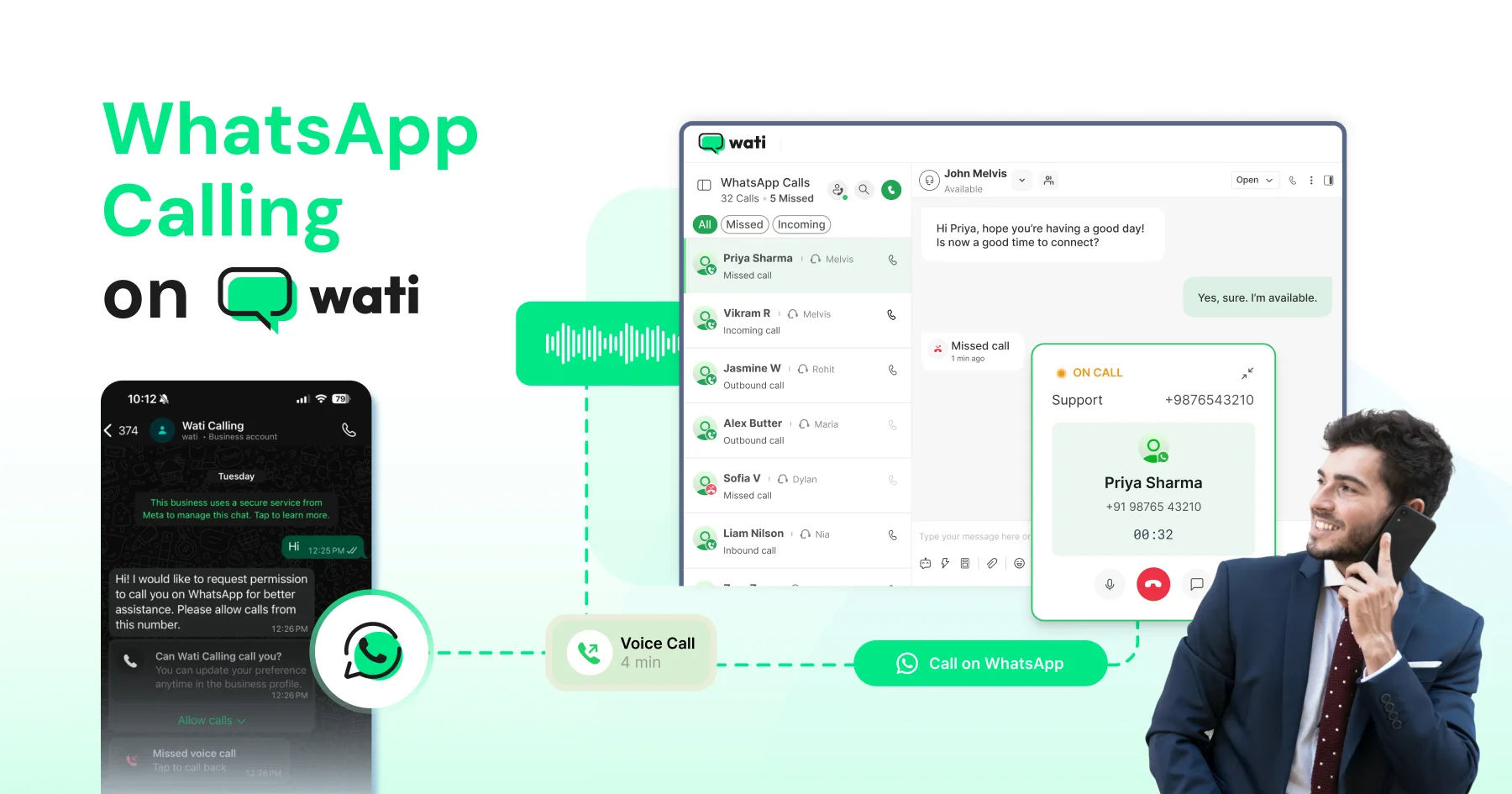
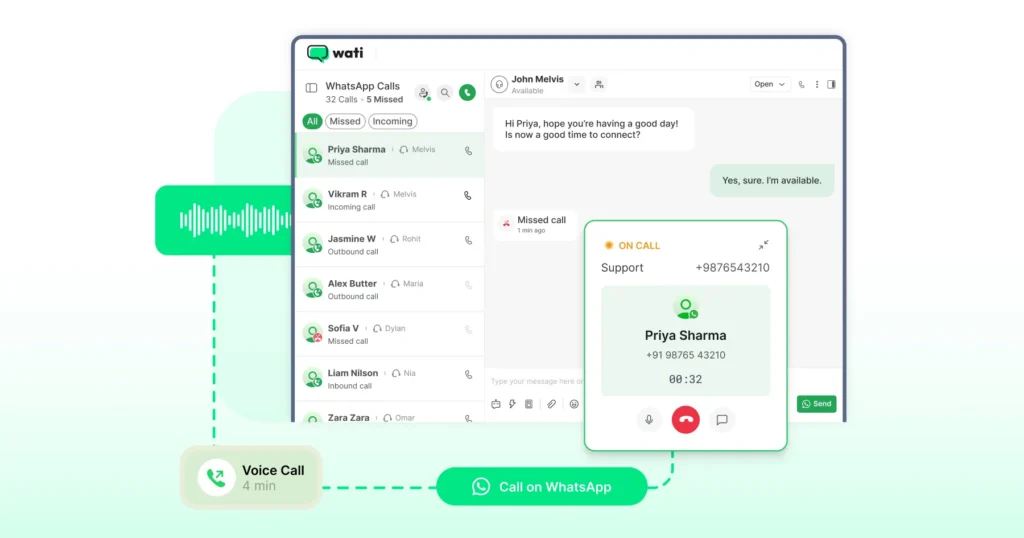
WhatsApp Calling on Wati lets your team make and receive calls inside the same thread where the conversation is already happening.
This guide walks you through exactly how to use it: from switching it on to making calls with full context, recording every conversation, and tracking what’s actually working.
What is WhatsApp Business Calling on Wati?
WhatsApp Business Calling on Wati is a built-in voice-calling feature that lets sales and support teams make and receive WhatsApp calls in the same shared inbox where text conversations happen with recording, AI transcription, and analytics included.
It’s powered by the WhatsApp Business Calling API, which Meta made generally available in July 2025. According to Meta’s own data, businesses using WhatsApp Business Calling see calls reach decision-makers at roughly double the rate of traditional voice channels, because the verified business name, logo, and green checkmark appear right in the call screen.
For sales teams, that means warmer pickups, full chat context on every call, and zero app-switching.
Why WhatsApp Calling Beats a Regular Sales Call
Regular phone call | Standalone WhatsApp call (consumer app) | WhatsApp Business Calling on Wati | |
|---|---|---|---|
Caller ID shows verified brand | ❌ | ❌ | ✅ |
Full chat history during call | ❌ | ❌ | ✅ |
Multi-agent shared inbox | ❌ | ❌ | ✅ |
Auto call recording | Add-on | ❌ | ✅ |
AI transcription & summaries | Add-on | ❌ | ✅ (57 languages) |
Inbound calls free | ❌ | ✅ | ✅ |
Built-in analytics | ❌ | ❌ | ✅ |
Now, let’s see how you can make it work for your business using Wati.
Step 1: Switch On WhatsApp Calling in Wati
Before your team can make or receive calls, you need to enable the feature in your settings.
Here’s how you can do it.
1. Enable Calling on Your Number
Log in to your Wati account and go to Settings → Team Inbox Settings.
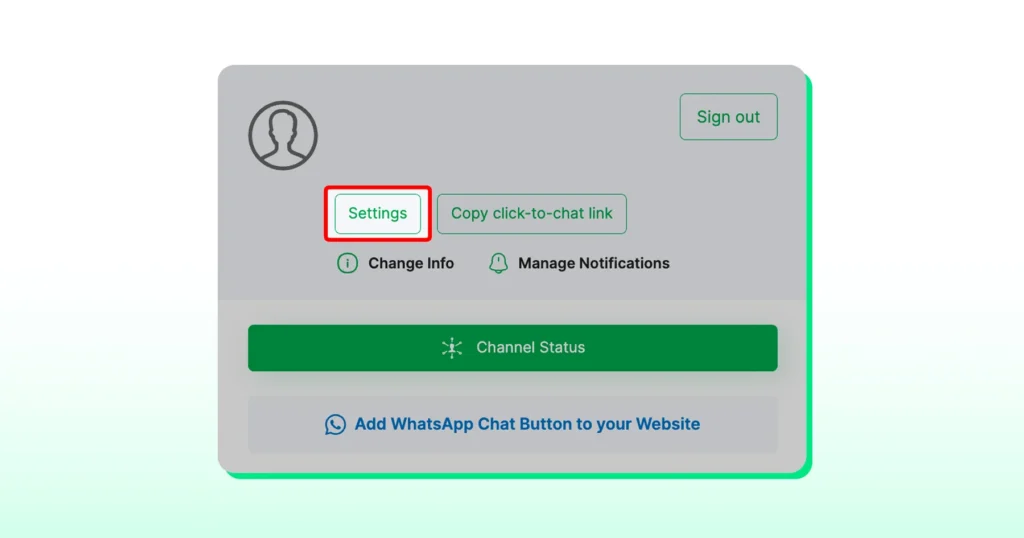
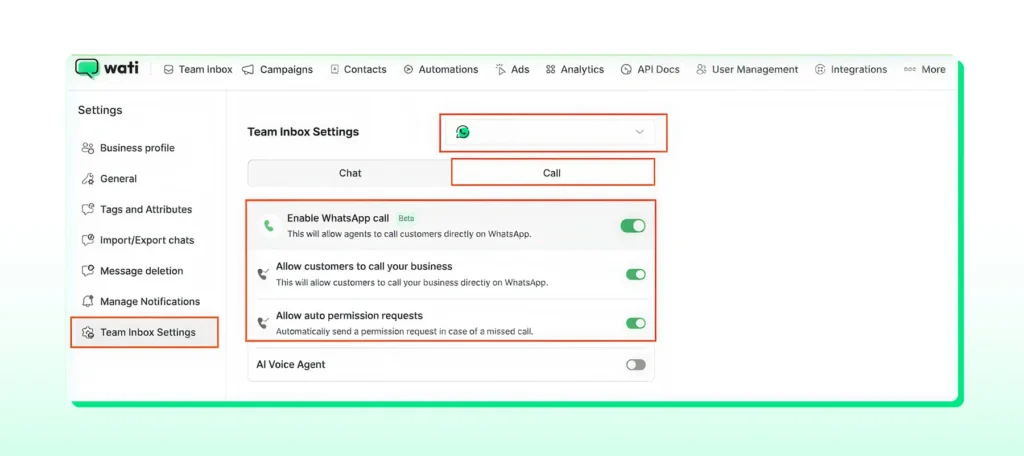
Toggle to Call, then select the WhatsApp number you want to activate for calling.
You’ll see three toggles. Enable all three:
- Enable WhatsApp Call: Activates WhatsApp Business Calling on your number
- Allow customers to call your business: Shows the call icon to your leads in WhatsApp so they can reach you directly
- Allow auto permission requests: When a customer calls your business and the call is missed, Wati automatically sends them a permission request so you can call them back
2. Set Up Call Notifications
Once calling is enabled, go to Manage Notifications → Call and make sure both notification toggles are turned on.
This ensures your agents get alerted the moment a call comes in. Without this, calls can ring and go unanswered without anyone realizing.
Step 2: Get Call Permission from Your Leads
WhatsApp requires your leads to grant permission before you can call them.
Think of it less as a hurdle and more as a filter. The leads who say yes are the ones who actually want to hear from you.
Read on to see how to request permission depending on where you are in the conversation.
1. If the Chat Window Is Open
Click the call button on the contact’s chat. Since the conversation window is active, Wati will prompt you to send a free-form permission message. Write it naturally, keep it conversational, and hit send.
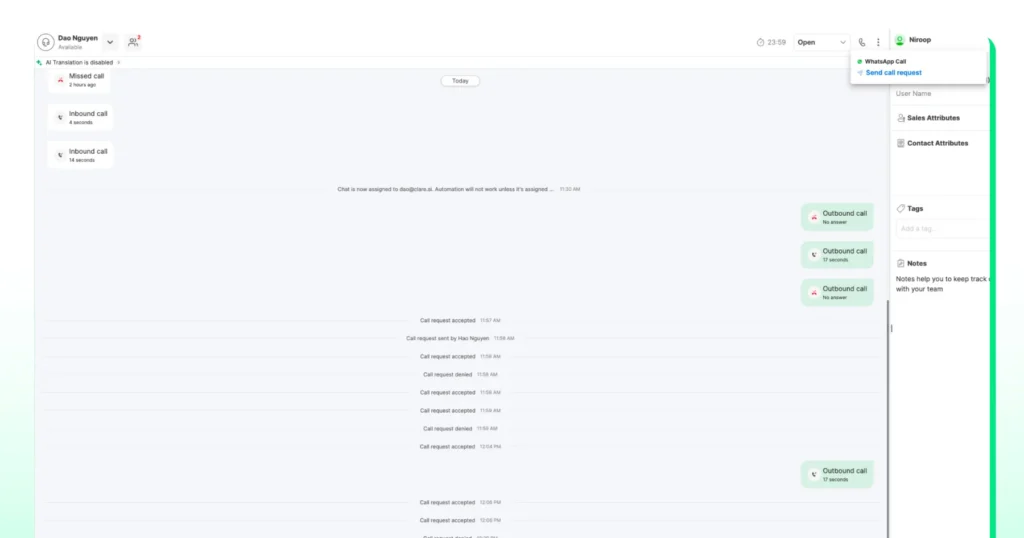
2. If the Chat Window Is Closed
If it has been more than 24 hours since the last message, Wati automatically uses a call permission template to send the request. This is a utility template billed by Meta.
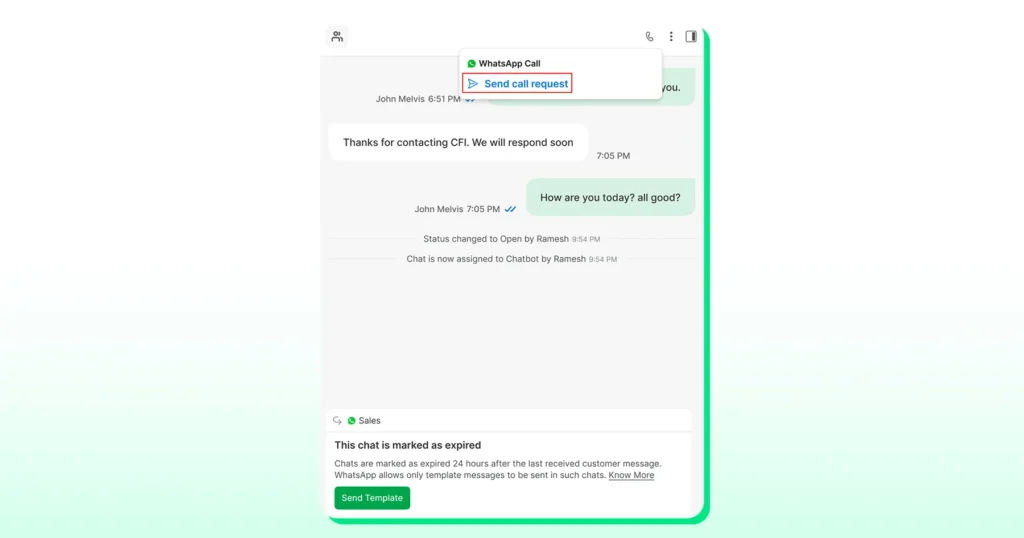
What Your Lead Sees
When the permission request lands, your lead gets three options:
- Allow calls indefinitely
- Allow calls temporarily, which expires in 7 days
- Deny the request
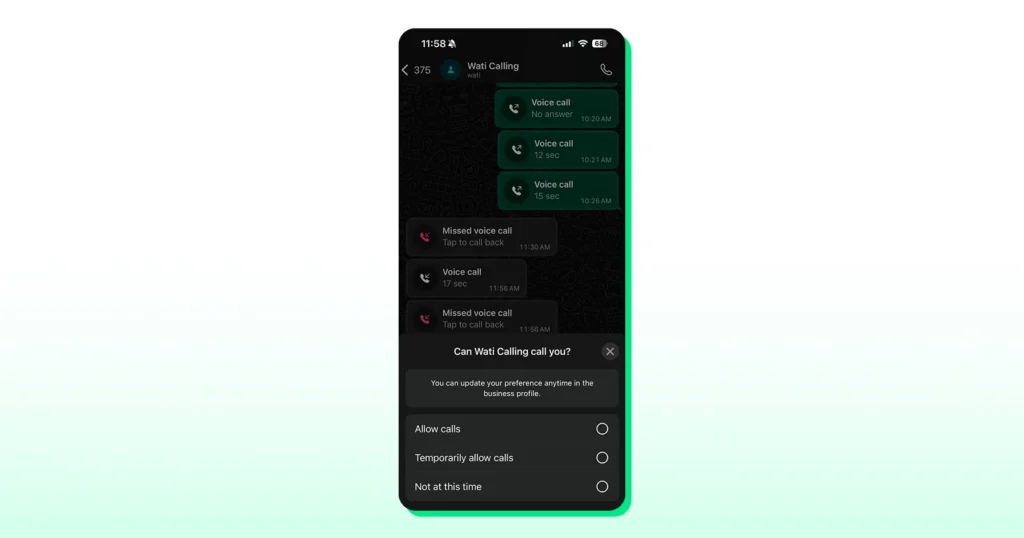
As soon as they respond, you’ll see a system notification right inside the chat.
Step 3: Make It Easy for Leads to Call You First
Chasing permission is one approach.
A smarter approach is to make it so easy for leads to call you that they do so on their own terms.
By adding a WhatsApp Voice Call CTA button to your templates, leads can initiate a call directly from a campaign message. Once the template is approved, leads can initiate a call with one tap.
They see the button, they tap it, and the call comes in.
Add a Voice Call CTA to Your Template
- Go to Campaigns → Template Messages → WhatsApp → New Template Message.
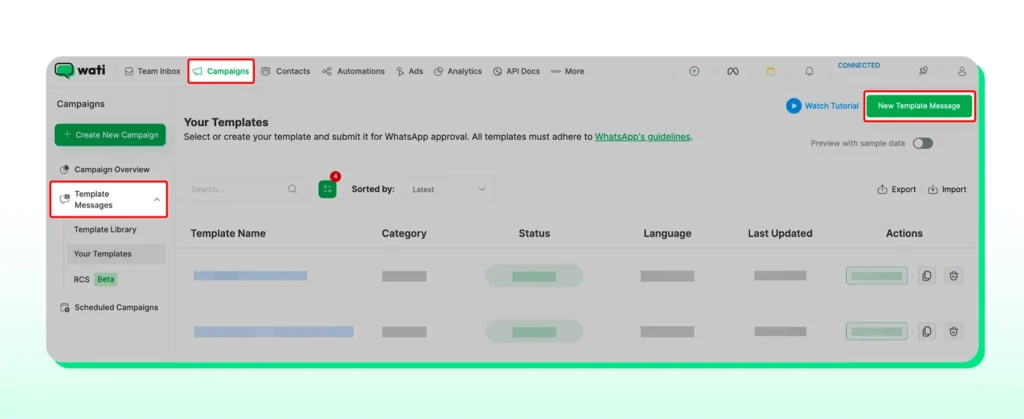
- Select the template category and choose the WhatsApp number you want to create the template for.
- If you have multiple numbers, make sure you pick the right one so the correct templates are available.
- Next to WhatsApp Voice Call, click the Add Button CTA.
- Once you have added it, click Save and Submit to send the template for Meta approval.
Once approved, this template can be used in any campaign. When a lead taps the call button, the call is routed straight to your Wati shared inbox.
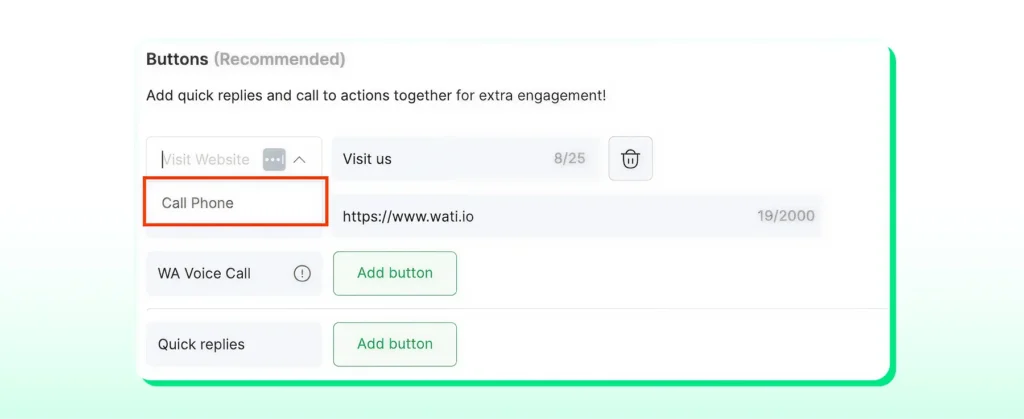
Add a Regular Phone Call CTA (Optional)
If you want to give leads the option to call a regular phone number instead, you can add a telephony CTA.
Click the Add Button CTA next to Visit Website, select Call Phone from the dropdown, enter the phone number, and save.
Bonus Read: WhatsApp Business Calling vs Cloud Telephony vs Traditional VoIP: Which One Does Your Business Need?
Step 4: See Who’s Ready to Call Right Now
Once permissions start coming in, the worst thing your team can do is go back to checking individual chats to figure out who approved.
That kills momentum fast.
Wati has a dedicated view for this.
1. Access the Request Accepted View
Go to Team Inbox → WhatsApp Calls → Request Accepted. This is a real-time list of all contacts with active call permission.
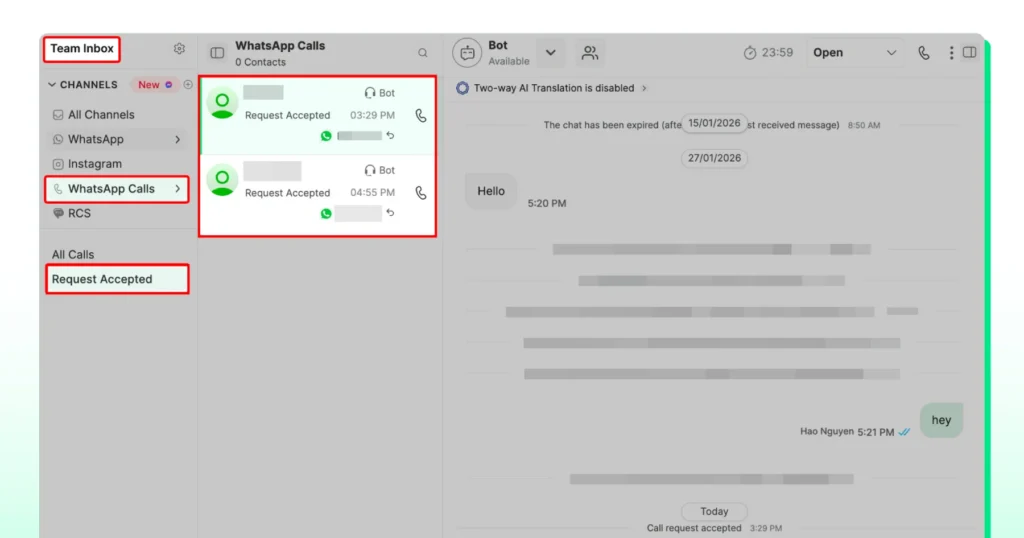
No digging through chats or spreadsheets. Everyone you see here is ready to call.
2. How the List Stays Accurate
The view updates automatically. New permissions appear the moment a lead approves. Expired permissions are automatically removed after the 7-day window closes. So you are always looking at a clean, current list.
If a lead called your business and the call was missed, WhatsApp treats that as permission to call back. Those contacts show up here automatically, too.
3. Call with Context
Before you dial, click on any contact in the list. Their full chat history opens in the center panel. You can see exactly what was discussed, where the conversation left off, and what the lead cares about.
That context is the difference between a cold call and a conversation that actually goes somewhere.
Step 5: Make the Call Without Losing the Thread
Most sales calls happen in isolation. The agent dials in, has no idea what was discussed before, and spends the first few minutes just catching up. With Wati, that problem does not exist.
1. Make an Outbound Call
From the Request Accepted view or any chat where permission is granted, click Call Customer. The call connects immediately inside Wati. No switching apps or dialing a separate number.
You will see the call status update to On Call in the interface.
2. Stay in the Chat While on the Call
Once the call is live, you can minimize the call window and keep the chat open. Your agent can review previous messages, check what was promised, or take notes, all while the conversation is happening.
This is what makes WhatsApp Calling different from a regular phone call. The context is right there.
3. How Incoming Calls Work
When a lead calls your business, the call appears as a dialog in the bottom-left corner of the screen. Up to three incoming calls can queue at the same time.
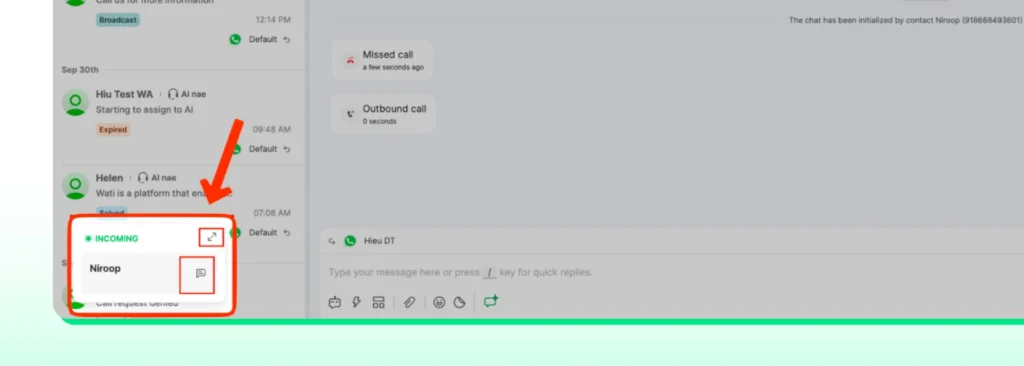
All active agents and admins on that number see the incoming call simultaneously. Whoever answers first gets connected.
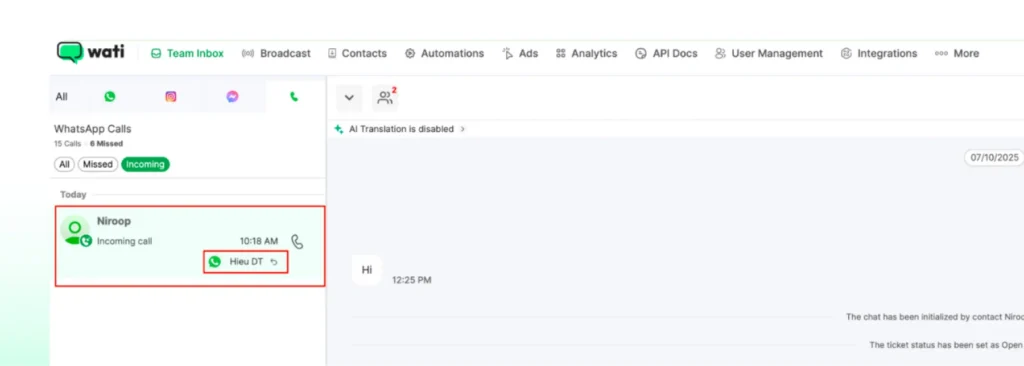
Once an agent is on a call, they cannot pick up another until the current one ends. Other agents on the same number can still answer in the meantime.
Use the green button to answer and the red button to decline.
4. After the Call
Once the call ends, a call log appears directly in the contact’s conversation, showing the duration and outcome.
To see all calls across your team, go to Team Inbox → Call icon → All Call Logs. You can switch between Missed and All Call Logs to review what you need.
Each log includes the call timestamp, the caller’s name, the called phone number, and the agent who handled the call.
Step 6: Record Every Call and Let AI Do the Debrief
A great sales call means nothing if the insights stay in the agent’s head. Recording, transcription, and AI summaries in Wati make sure nothing gets lost, and managers can stay on top of every conversation without sitting in on every call.
This feature is available on Pro and Business plans.
Enable Recording, Transcription, and Summaries
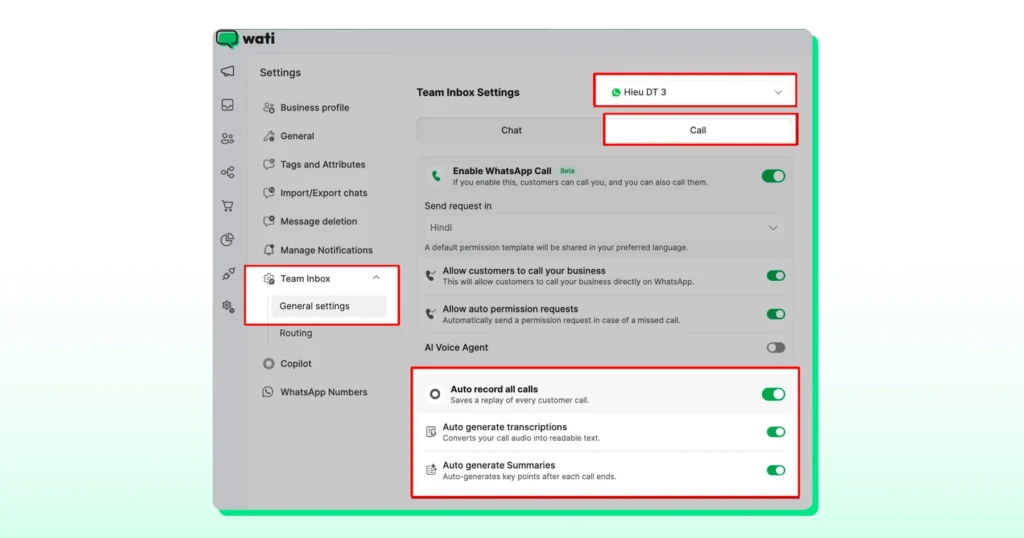
Go to Settings → Team Inbox Settings → Call. If you have multiple numbers, select the one you want to configure.
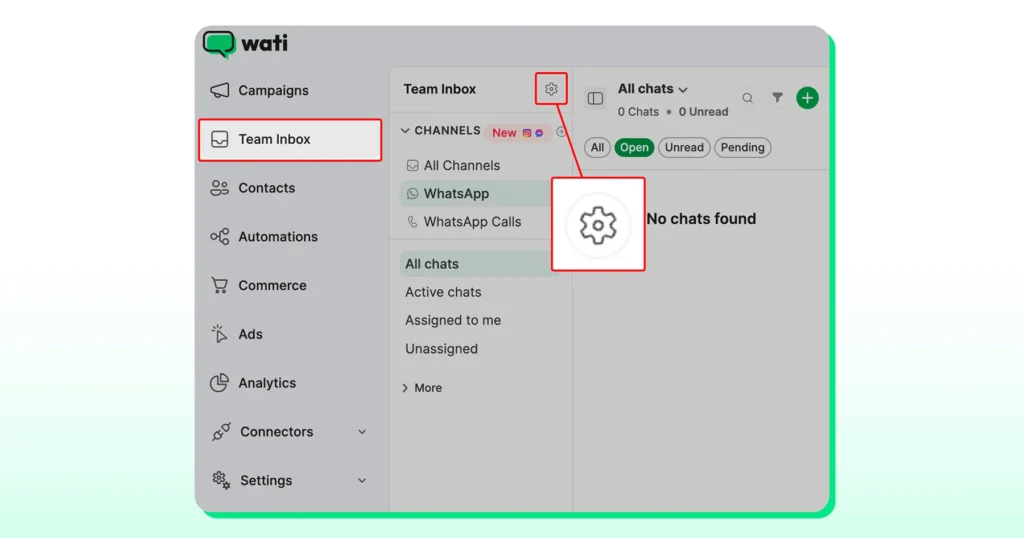
You will see three toggles:
- Auto record all calls: Recording starts automatically the moment a call begins, for every inbound and outbound call
- Auto-generate transcriptions: Generates a written transcript for each recorded call. Costs 3 Wati AI credits per call.
- Auto-generate summaries: Generates an AI-powered summary of what was discussed and what was agreed. Costs 1 additional Wati AI credit per call. Enabling this automatically enables transcription as well, since summaries are built on top of transcripts.
During the Call
If sensitive information comes up, such as payment details or personal data, your agent can hit Pause to stop recording temporarily and Resume when ready. Wati automatically stitches all the recorded segments into a single file for that call.
After the Call
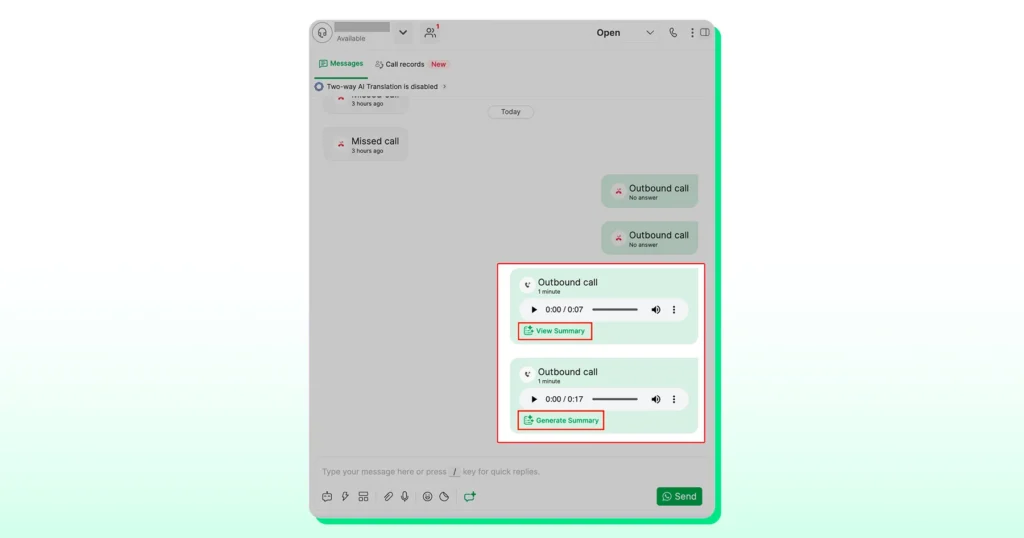
Once the call ends, a call message card with a recording player appears directly in the contact’s conversation.
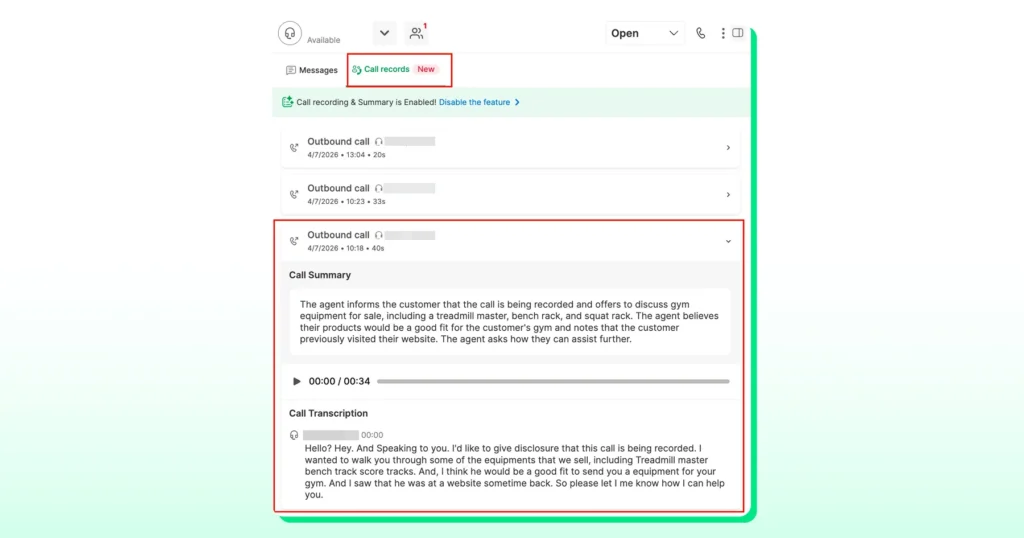
If summaries are enabled, click View Summary to open the full Call Records view, where the recording, transcript, and summary are all in one place.
Managers can also access this directly from WhatsApp Call Logs by clicking any call log entry. It opens straight into the Call Records view for that conversation.
- A note on recording costs: The first 1,000 minutes of recording storage per month are free. After that, each additional minute costs $0.01, deducted from your Wati wallet.
- Supported languages: Transcription and summaries are supported in 57 languages, including Hindi, Arabic, Malay, Tamil, and Thai.
Step 7: Track Performance and Fix What is Not Working
Setting up calling is one thing. Knowing whether it is actually moving deals forward is another.
Wati gives you a dedicated analytics dashboard so you can treat calling like a real sales channel, not just an activity.
Access Your Call Analytics
- Go to Analytics → WhatsApp Call Analytics. This is your central view for everything call-related across your team.
- Use the Period dropdown to filter by date range, or set a custom range using the From and To filters.
- If you have multiple WhatsApp numbers, use the number dropdown to view analytics for a specific line.
Understand Your Overall Metrics
The overview section gives you six key numbers:
- Total call volume: All inbound, outbound, and missed calls combined
- Outbound connected: Outbound calls that were actually answered
- Outbound attempted: All outbound calls made, whether answered or not
- Inbound calls: Calls received and answered by your team
- Missed calls: Inbound calls that went unanswered
- Average call duration: The average length of all answered calls
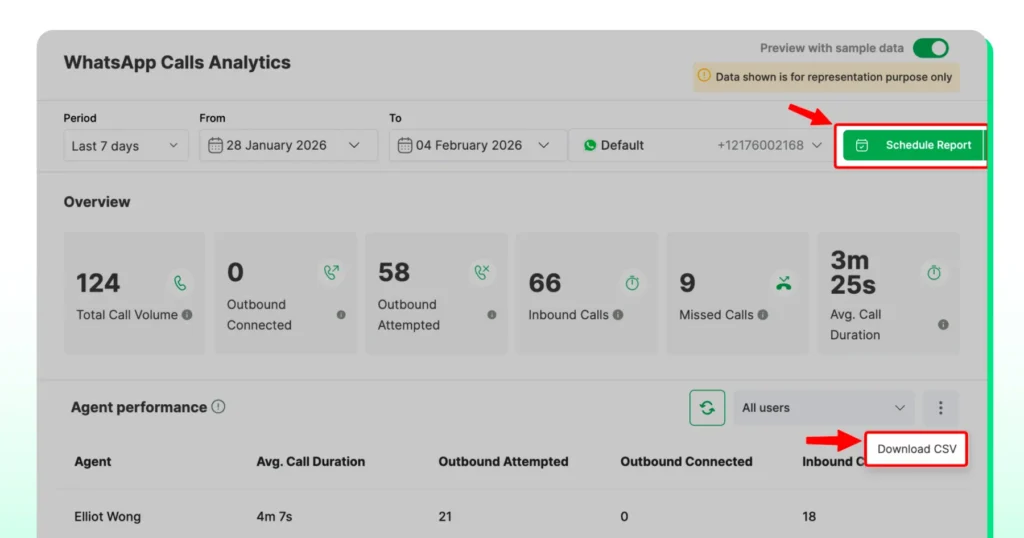
These numbers tell you a lot. High numbers of missed calls usually mean your agents are not available or that notifications are not set up correctly.
A low average call duration might mean leads are not warm enough when the call goes out.
Review Agent Performance
Scroll down to the Agent Performance section. The same metrics are broken down by individual agent.
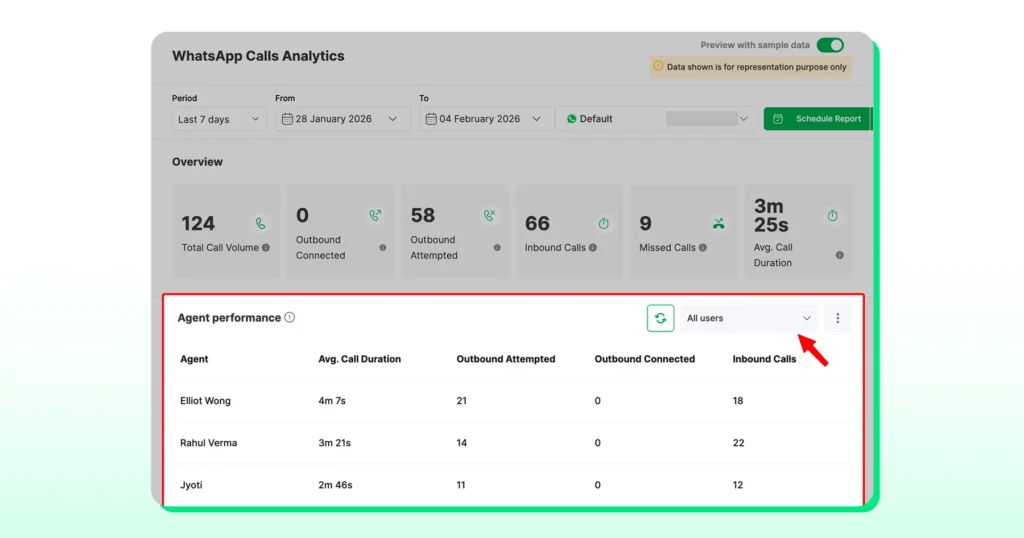
Use the agent filter to compare team members side by side and spot who needs support or coaching.
Export and Schedule Reports
To download a snapshot, click the three dots icon in the top-right corner and select Download CSV.
To get reports delivered automatically, click Schedule Report.
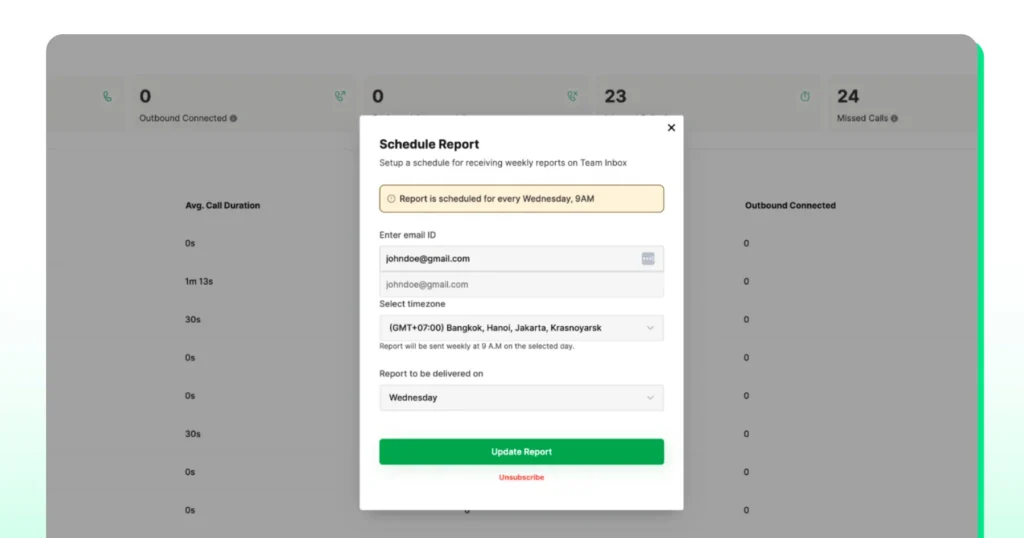
Add the email address, select the timezone, and choose the day of the week. Reports will arrive every week without you having to do anything.
Start Closing More Deals with WhatsApp Calling on Wati
WhatsApp Calling is not just another feature to switch on. It is a genuine upgrade to how your sales team operates, one that meets your leads where they already are and gives your agents the context, tools, and data to close faster.
The teams that will get the most out of it are those who treat it as a system, not a one-off. Set it up right, use the Request Accepted view daily, record every call, and check your analytics every week.
That is when WhatsApp Calling on Wati stops being a feature and starts being a competitive advantage.
Frequently asked questions
1. Is WhatsApp Calling available on all Wati plans?
WhatsApp Calling is available on the Growth, Pro, and Business plans. Call recording, transcription, and AI summaries are exclusive to Pro and Business plans.
2. Are inbound WhatsApp calls free?
Yes. Inbound calls are completely free for your business. Outbound calls are charged per minute, with rates varying by country. You can view the full rate card in your Wati account under Wallet → Pricing Overview.
3. Do I need permission from a lead before calling them?
Yes. WhatsApp requires businesses to get explicit permission before making an outbound call. You can request this one-on-one inside a chat or at scale through a campaign. Once a lead approves, the permission stays valid for seven days.
4. Can multiple agents handle calls at the same time?
Yes. When an inbound call comes in, all active agents on that number are notified simultaneously, and whoever answers first gets connected. Each agent can handle one call at a time, but multiple agents can be on separate calls at the same time on the same number.
Related posts
- How to Create WhatsApp Display Name for WhatsApp Account
Learn how to set and optimize your WhatsApp Display Name, a crucial branding element enhancing your business’s credibility and recognition.
- WhatsApp Login Guide 2026: Access Your Account on App, Web, and Desktop
Complete your WhatsApp login in easy steps. Set up your account, personalize your profile, add contacts, and start chatting seamlessly with this guide.
- How to Remove Blue Ticks on WhatsApp (Android, iPhone & Web): 2026 Guide
Learn how to remove WhatsApp blue ticks on Android and iPhone. Take control of your chats, protect privacy, and avoid pressure to reply instantly in 2026.
- WhatsApp Business Calling Pricing in 2026: What It Actually Costs and Why Most Estimates Get It Wrong
Most WhatsApp Business Calling pricing guides skip two of the three cost layers. Here’s the full breakdown with 2026 rates, country tiers, and worked examples.