

Too Long? Read This First
- A WhatsApp Catalog is a mini storefront inside WhatsApp that lets customers browse products without leaving the chat.
- You can add up to 500 items, with up to 10 images or a video for each, along with price, description, and product links.
- New or updated items are usually reviewed within a few minutes to 24 hours.
- Use Collections to group products (like Bestsellers, New Arrivals, or Under ₹999) to make browsing simpler and more guided.
- Keep images clean, well-lit, and consistent. Clear visuals reduce questions and help customers make decisions faster.
Customers do not like juggling between platforms to browse products.
Recent trends in marketing show that WhatsApp catalogs have emerged as an efficient way to make consumer shopping easier and more convenient.
Brands can design a WhatsApp catalog to reduce follow-up consumer questions and streamline the website marketing journey on a single, consolidated platform.
Switching to tools like WhatsApp Business API helps you list key catalogs, link product descriptions and pricing details, automate customer support, and drive growth.
Let’s learn more about the WhatsApp catalog and how it helps elevate products and services for quick consumer traction.
What is a WhatsApp Catalog?
A WhatsApp catalog is a digital repository inside your WhatsApp Business account. Think of it like a small online storefront that lives directly in your chat profile.
Customers can tap, browse your products, view images, check prices, and read short descriptions without leaving WhatsApp. This makes product discovery easier and faster.
Instead of sending images one by one or typing out details each time, your catalog does the explaining on your behalf.
It keeps your product information consistent, clear, and always ready to share in a single link or message.
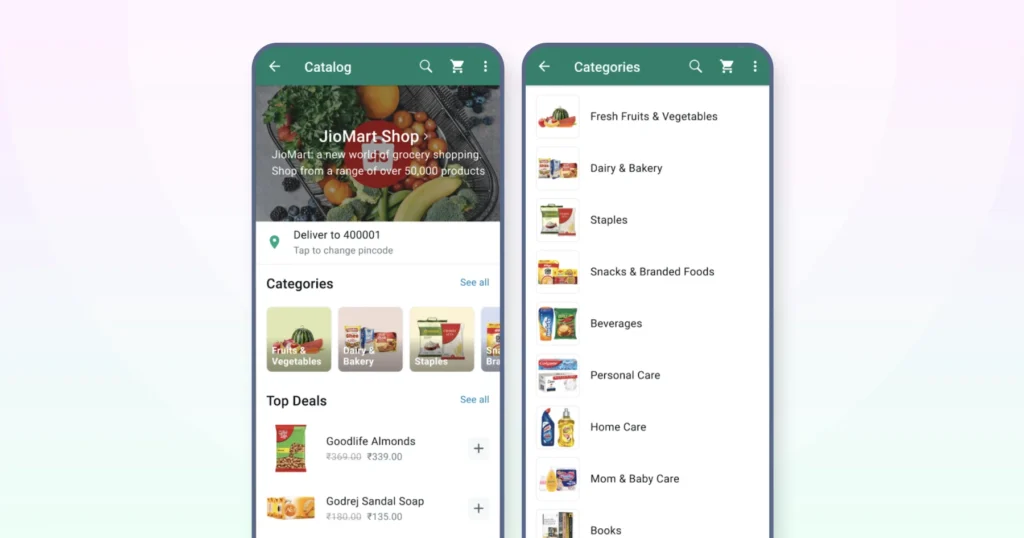
Source: Meta
WhatsApp Business Catalog Limit
WhatsApp currently allows up to 500 products or services to be listed in a single catalog. Each product listing can include up to 10 images, along with a title, description, price, and link.
This is usually enough for most small and mid-sized brands to showcase their full product range.
If you’re working with a larger stock count, it’s helpful to group or prioritize products based on demand, season, or margins. This keeps the catalog easier to browse and avoids overwhelming customers.
A well-organized catalog converts better than a crowded one, making the selection and buying process more efficient, which in turn contributes to a better shopping experience.
What Details Can You Add to a WhatsApp Catalog?
Every product (or service) in your WhatsApp catalog needs a unique title, at least one clear image, and the country of origin. These are the basic requirements for listing.
Beyond that, you can add more details to help customers understand the product faster, such as:
- Multiple product images (up to 10 per item)
- A video demo or showcase
- The price (available in select countries)
- A sale or discounted price
- A short description
- A link to your website or checkout page
- A product or internal reference code
👉Note: Adding clear and consistent details helps customers make quicker decisions and reduces those back-and-forth questions in chat. It also makes your products easier to share within their circle, as the information is complete and doesn’t require additional explanation. When your catalog is clear, it spreads faster.
How Much Time Does WhatsApp Catalog Approval Take?
Once you upload or update items in your catalog, WhatsApp reviews them to make sure they follow Meta’s commerce policies.
In most cases, approval takes a few minutes to a few hours. However, during busy review periods, it may take up to 24 hours.
If an item gets rejected, it’s usually because of:
- Missing or unclear product images
- Restricted products (like supplements, alcohol, or medical items, depending on the region)
- Pricing or descriptions that feel misleading or incomplete
A quick way to avoid delays is to use clear product photos, accurate descriptions, and consistent formatting across your items. This makes your catalog look more professional and helps the review process go smoother.
How to Add a Catalog in WhatsApp Business?
You can create and manage your catalog directly from the WhatsApp Business app or through the web version. The steps are similar, but the menu labels differ slightly across devices.
Adding a Catalog on Android
1. Open WhatsApp Business.
2. Tap the three dots (⋮) in the top-right.
3. Go to Business Tools.
4. Tap Catalog.
5. Click Add New Item.
[Upload at least one product image (you can add up to 10 images or videos, video max size: 50MB)]
6. Add the required details:
- Product Title (must be unique)
- Country of Origin
7. Add optional details to make it clearer:
- Price / Sale price (if supported in your region)
- Short description
- Product code
- Website or checkout link
8. Tap Save.
Your item will be sent for approval before it appears in the catalog.
Adding a Catalog on iPhone (iOS)
1. Open WhatsApp Business.
2. Tap Settings (bottom-right).
3. Go to Business Tools.
4. Select Catalog.
5. Tap Add New Item.
Upload 1–10 images or a video showing the product.
6. Fill in:
- Product Title
- Country of Origin
7. Add additional details (price, description, link, code) if you want to help customers decide faster.
8. Tap Save and wait for review.
Adding a Catalog on WhatsApp Web / Desktop
1. Open web.whatsapp.com or launch the Desktop app and link your account.
2. Click the three dots → Business Tools.
3. Select Catalog.
4. Click Add New Item.
5. Upload product images and enter required details.
6. Click Save to submit for review.
Bonus tip: Uploading from the Web is usually faster if your product photos are stored on your computer.
Related Read: WhatsApp Business Web: How To Use It For Your Business?
WhatsApp Catalog: How to Delete a Product or Service?
You can remove an item at any time if it’s out of stock, discontinued, or no longer needed.
How to Delete a Product on Mobile?
1. Open WhatsApp Business and go to the Tools tab (or Business Tools / Catalog, depending on your device).
2. Open the catalog to view your items.
3. Do one of the following:
- Quick Delete: Long-press (Android) or swipe left on the item (iPhone), then tap the Delete button.
- From Item Details: Open the item → tap More Options (three dots) → Delete → confirm.
How to Delete a Product on Web or Desktop?
Here is how you can delete a product from the WhatsApp catalog in WhatsApp web or desktop.
1. Click More Options (three dots) → Catalog.
2. Select the product → Edit → scroll down → Delete Item → OK.
What are the Benefits of Including WhatsApp Catalog?
A WhatsApp catalog helps customers explore your products at their own pace, directly within the app they use daily.
This removes extra steps in the buying journey and keeps conversations flowing smoothly.
Here’s what that translates to in your business.
1. Faster Product Discovery
Customers can browse products without asking for photos or details each time.
A customer lands in your chat and can instantly see your bestsellers instead of typing “share options?”
2. Less Repetitive Conversations
Your team spends less time answering the same questions, like “price?”, “sizes?”, or “link please.”
This frees up time to handle more chats and close more orders.
3. Higher Conversion Rates
When product details are clear and easily accessible, customers make decisions faster.
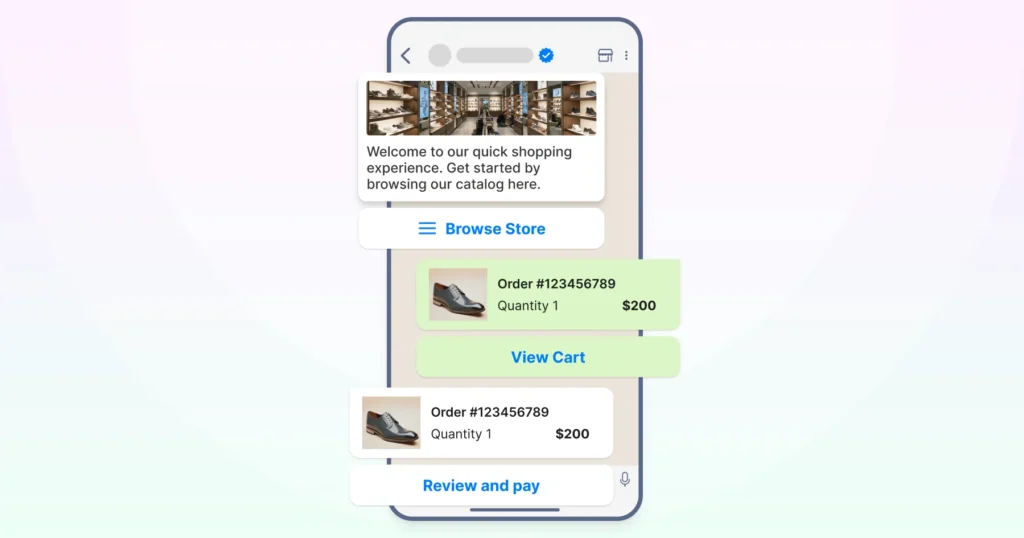
Less friction means fewer dropped conversations and more completed purchases.
4. Easy Sharing and Organic Reach
Customers can share individual products with friends and family with one tap.
This drives word-of-mouth sales without any extra marketing cost.
5. Works Like a Mini Storefront in Chat
The WhatsApp Business catalog keeps your business looking organized and professional, even if you’re a small or growing brand.
It’s a simple way to build trust and credibility instantly.
6. Scales With Your Inventory
You can keep adding or updating items as your product range changes.
Great for brands with seasonal or rotating stock.
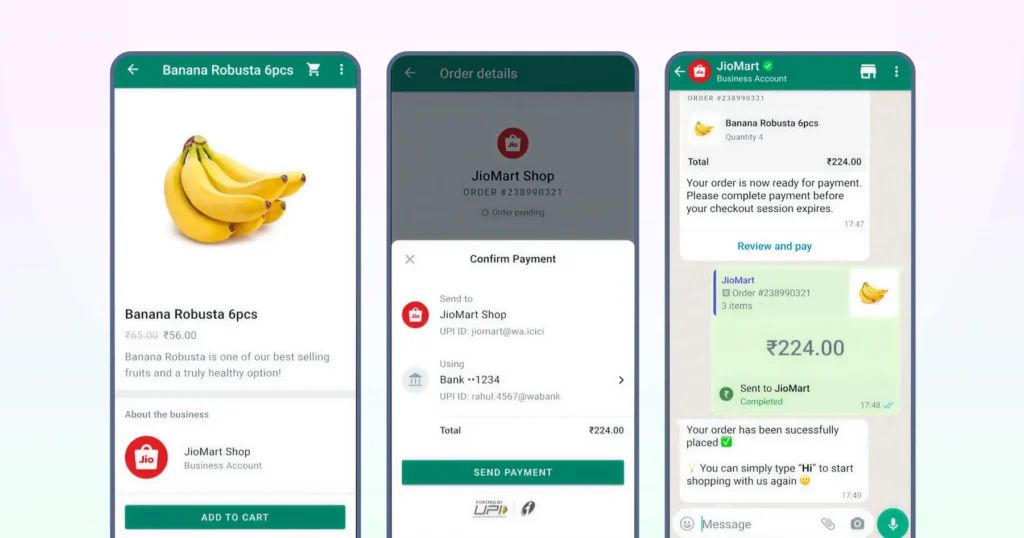
Source: Meta
How to Create & Manage Collections in Your WhatsApp Catalog?
Collections help you group products, so customers can browse more easily. Think:
- New Arrivals: Adding a section for the latest design or runway seasonal collections to inform customers that stock has been updated on the website or entice direct WhatsApp purchases.
- Bestsellers: List out reviews, ratings, and discounts for best-selling products within the product catalog to enforce reliability and trust to ultimately lead to more conversions.
- Gift Sets: List an assortment of products (e.g., specially curated birthday gift packs for him and a graduation day congratulations gift pack) based on audience insights to add a personal touch.
- Sale: Run deals of the day, discounted items, and clearance sales to get a greater crowd and improve your bottom line.
This keeps your catalog from feeling overwhelming and guides customers to what matters first.
How to Create a Collection in WhatsApp Catalog?
1. Open WhatsApp Business.
2. Go to Tools and tap Catalog.
3. Select Collections and tap Add Collection (or Add new collection).
4. Enter a clear name for your collection.
5. Tap Next and choose the products you want to include.
6. Tap Done to save.
Your new collection may take up to 24 hours to be reviewed before customers see it.
How To Update an Existing Collection?
1. Open Catalog → Collections
2. Select the collection you want to edit
3. Add or remove items as your inventory changes
4. Rename or reorder collections to highlight new priorities (e.g., festive drops, seasonal sales, limited stock)
💡Why it helps: Collections reduce scrolling and decision fatigue. They guide customers directly to what’s relevant and make the catalog feel thoughtful and easy to shop. This creates a smoother buying experience and can speed up conversions.
What are The Best WhatsApp Business Catalog Practices?
Your catalog images play a big role in how customers perceive your brand.
Clear, well-lit visuals help customers trust what they’re buying and make decisions faster without asking extra questions.
- Optimal Image Dimensions: Use a 1080 x 1080 px (1:1 aspect ratio) square format to ensure your products are perfectly framed in the chat preview.
- High-Performance File Formats: Stick to JPEG or PNG for the best balance of visual clarity and fast loading speeds.
- Strategic File Compression: Keep file sizes moderate to ensure instant loading on mobile data, preventing customer drop-off.
- Minimalist Text Overlay: Avoid text-heavy images; WhatsApp’s compression can blur small fonts, making your brand look unprofessional.
- Video Specifications: Keep videos under 50 MB and focus on high-impact “product-in-motion” or “how-to” clips (30 seconds or less).
- Studio-Quality Lighting: Utilize natural light to showcase true-to-life colors and textures, building immediate buyer trust.
- Distraction-Free Backgrounds: Use clean, neutral backdrops to keep the customer’s focus entirely on the product.
- Centered Composition: Place the product in the center of the frame and include a scale reference so customers know exactly what to expect.
- Contextual Styling for Apparel: Use flat-lays or on-model shots to help customers visualize the fit, drape, and style.
- Lifestyle Staging for Home Goods: Show products in their natural environment (e.g., a lamp on a bedside table) to help customers “see” the item in their own space.
How to Share Your WhatsApp Catalog in Chats
Once your catalog is set up, the real value lies in how easily you can share it in conversations.
Instead of typing product details or sending images one by one, you can send the full catalog or a single product with just a tap.
This keeps the conversation concise and helps customers make a decision more quickly.
- Streamline Your Sales Flow: Replace manual typing and repetitive image uploads with a professional, one-tap sharing experience.
- Concise Communication: Use the WhatsApp Business Catalog to keep chat threads organized and professional, helping customers make faster buying decisions.
- Share Individual Products: Open any customer chat, tap the attachment (paperclip) icon, select Catalog, and choose a specific item to send instantly.
- Send Your Full Digital Storefront: Navigate to Business Tools → Catalog and use the Share icon to send your entire product range to a contact.
- Broadcast to Groups: Use the “Share” feature to send your catalog link directly into WhatsApp groups, maximizing your brand’s reach and visibility.
- Instant Accessibility: By sharing catalog links, you provide customers with a direct checkout path without them ever leaving the chat interface.
- Professional Product Previews: Ensure every product you share includes a pre-filled title, price, and description to reduce back-and-forth inquiries.
What Heritage Foods Did With Wati’s Catalog Feature 👇 Heritage Foods shifted its product discovery entirely into WhatsApp using Wati’s catalog and automation tools. They integrated their meta-catalog across 35+ cities, updated listings automatically by user pin code, and built dedicated journeys (for example: typing “milk” instantly showed the milk category). The brand also enabled recurring subscriptions and created WhatsApp-based flows to boost convenience and conversion. Result: The brand achieved 2× higher order conversion rates. Schedule a free demo to get started with Wati. |
How to Keep Your WhatsApp Catalog Fresh and Effective?
A catalog works best when it reflects what’s actually available and what you want customers to notice. A few small habits can keep it strong.
- Rotate collections based on season, demand, or campaigns: Example: “Valentine Picks”, “Monsoon Favorites”, or “Back in Stock”. Ensure catalogs are updated based on shopping patterns, most-purchased products, and consumer preferences.
- Archive items, don’t delete when stock runs out: This avoids re-approval delays later. Archived active catalogs give customers a clear idea of what to expect next time.
- Refresh product images occasionally: Even a lighting or style update can make items feel new. Keep product images and media up to date to keep them fresh and current.
- Put your highest-margin or fastest-moving products first: Most customers don’t scroll far. List “limited” or “last few left” options for your bestsellers to keep them moving quickly.
Make the Most of Your WhatsApp Catalog
Bringing your product catalog into WhatsApp makes the buying journey easier for your customers and lighter for your team.
With everything in one place, decisions happen faster and conversations stay focused on buying, not explaining.
As you keep your catalog updated and organized, it becomes a powerful part of how you sell, not just a list of products.
Schedule a free demo of Wati to know more.
FAQs
1. How many products can I add to my catalog?
You can add up to 500 products or services. Each product can have up to 10 images or videos.
2. How long does catalog approval take?
Most items are approved within a few minutes to a few hours. In some cases, it may take up to 24 hours, depending on review load and policy compliance.
3. Can I edit or update items after adding them?
Yes. You can update the name, description, price, images, and availability at any time. Updates may go through a short re-approval review.
4. What happens if a product gets rejected?
WhatsApp will show a notification explaining why. Usually, it’s due to unclear images, restricted product categories, or missing required details. Fix the issue and resubmit.
5. Do I need a website to use the WhatsApp Business catalog?
No. You can run your entire catalog and order-taking process through WhatsApp alone. A website link is optional, not required.
Frequently asked questions
1. How many products can I add to my catalog?
You can add up to 500 products or services. Each product can have up to 10 images or videos.
2. How long does catalog approval take?
Most items are approved within a few minutes to a few hours. In some cases, it may take up to 24 hours, depending on review load and policy compliance.
3. Can I edit or update items after adding them?
Yes. You can update the name, description, price, images, and availability at any time. Updates may go through a short re-approval review.
4. What happens if a product gets rejected?
WhatsApp will show a notification explaining why. Usually, it’s due to unclear images, restricted product categories, or missing required details. Fix the issue and resubmit.
5. Do I need a website to use the WhatsApp Business catalog?
No. You can run your entire catalog and order-taking process through WhatsApp alone. A website link is optional, not required.
Related posts
- Shopify WhatsApp Integration: How to Connect Your Store and Go Live in Under an Hour
Set up your Shopify WhatsApp integration the right way. Step-by-step instructions, common mistakes to avoid, and what to turn on first after you go live.
- How Often to Send WhatsApp Campaigns in 2026
How often to send marketing emails is a settled debate. WhatsApp frequency is not. Learn the right cadence by audience segment and the best send windows for 2026
- WhatsApp Business Calling vs Cloud Telephony vs Traditional VoIP: Which One Does Your Business Need?
Comparing WhatsApp Business Calling, cloud telephony, and traditional VoIP in 2026? Here’s the honest breakdown of which stack fits your business.
- Why Every Business Needs CRM WhatsApp Integration Today?
Discover why CRM WhatsApp integration is essential for businesses to manage leads, close deals faster, and deliver better customer support.