
Too Long? Read This First
- Shopify WhatsApp integration connects your store data directly to WhatsApp, so messages are triggered automatically based on what your customers do in your store.
- You do not need a developer or any technical knowledge.
- The setup takes under an hour and is done entirely through the Wati dashboard.
- The first four things to turn on after going live: abandoned cart recovery, order notifications, a storefront chat widget, and a checkout opt-in popup.
- Always use a dedicated phone number and collect opt-ins properly. Skipping either one creates compliance issues and limits what you can do with the integration.
- Wati is an official WhatsApp Business Solution Provider with a native Shopify sync, meaning your automations are real-time, reliable, and built to scale.
A Shopify WhatsApp integration lets you send automated order updates, recover abandoned carts, and provide instant customer support, all triggered by what your customers do in your store.
Every day your store runs without it, carts are being abandoned with no recovery sequence running.
When you connect WhatsApp to your store, recovery messages go out automatically when a cart is left behind.
Wati helps you connect WhatsApp with your Shopify store. Order updates land on a channel, and customers check within minutes. The questions your team answers ten times a day get handled automatically.
The whole setup takes less than an hour, no developer required. This guide walks you through the entire process, from what you need to get started to what to turn on the moment you go live.
What Does a Shopify WhatsApp Integration Actually Do?
A Shopify WhatsApp integration connects your store data directly to WhatsApp.
Your orders, customers, product catalog, and checkout activity sync with WhatsApp so that messages are triggered automatically based on what your customers do, or do not do, in your store.
This is what it looks like in practice.
- A shopper abandons their cart. A personalized recovery message goes out 30 minutes later with exactly what they left behind.
- An order is placed. A confirmation lands on WhatsApp instantly.
- A package ships. The customer gets a tracking update without contacting support.
- A customer has not bought in 90 days. A winback campaign reaches them automatically.
None of this requires manual intervention. It runs in the background while you focus on everything else.
To make all of this work, you need the WhatsApp Business API, not the free WhatsApp Business app. Here is why that matters.
Feature | Free WhatsApp Business App | WhatsApp Business API |
|---|---|---|
Broadcast limit | 256 contacts | Unlimited |
Shopify integration | No | Yes |
Automation | Basic only | Yes |
Scales with your store | No | Yes |
The API is the foundation of every Shopify WhatsApp integration worth building. Everything in this guide is based on it.
Bonus Read: WhatsApp Business vs WhatsApp Business API: Key Differences
Pre-requisites of Shopify WhatsApp Integration
Getting your Shopify WhatsApp integration live is simpler than most stores expect. However, there are four things you need to have ready before you start.
Get these in place, and the rest takes under an hour.
- A Shopify store with full admin access: Staff accounts will not cut it here. You need admin-level permissions to approve the integration scopes during setup. If you are not the account owner, loop them in before you begin.
- A dedicated phone number: This is the number your customers will see on WhatsApp. It cannot be linked to an existing personal WhatsApp account. A new SIM or a virtual number for WhatsApp works perfectly. Takes two minutes to sort out if you do not have one already.
- A Meta Business Manager account: This is how Meta verifies your business identity before giving you access to the WhatsApp Business API. If you do not have one, you can create it for free at business.facebook.com. Most stores are done in ten minutes.
- An official WhatsApp Business Solution Provider: This is the piece that connects everything. A Business Solution Provider like Wati gives you API access, handles the direct Shopify sync, and gets your automations running without a single line of code.
That is the entire checklist. Once these are ready, you are good to go.
How to Connect WhatsApp to Your Shopify Store in 2026
This is the core of your Shopify WhatsApp integration. Most stores go live before the end of the hour by following these steps.
Step 1: Log in to Your Wati Account
Start from inside your Wati dashboard, not the Shopify App Store.
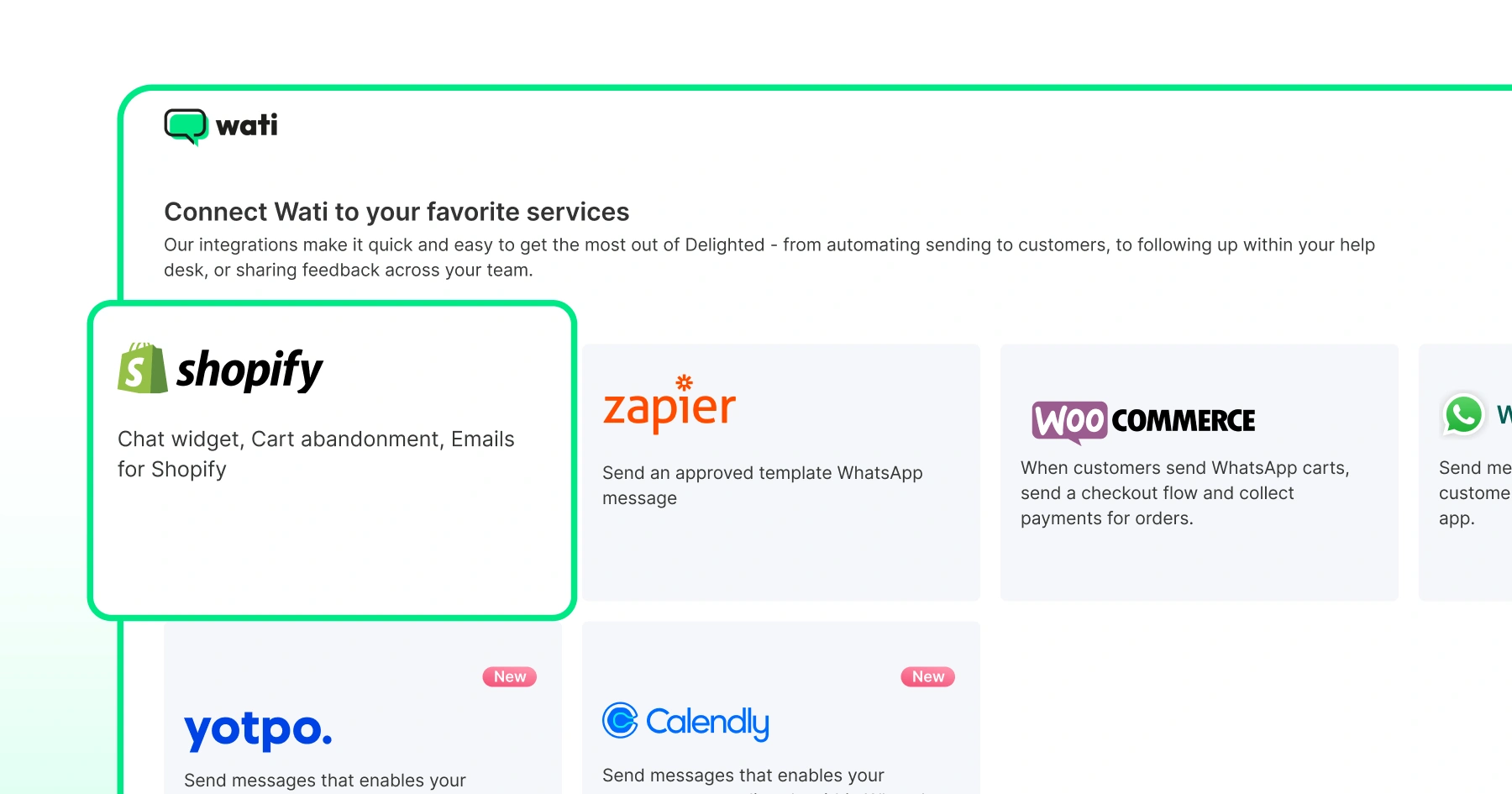
Once logged in, go to the Integration page from the top menu and click the Shopify icon. This is where the connection begins.
Step 2: Enter Your Shopify Store Domain
When prompted, enter your Shopify store domain and click Install.
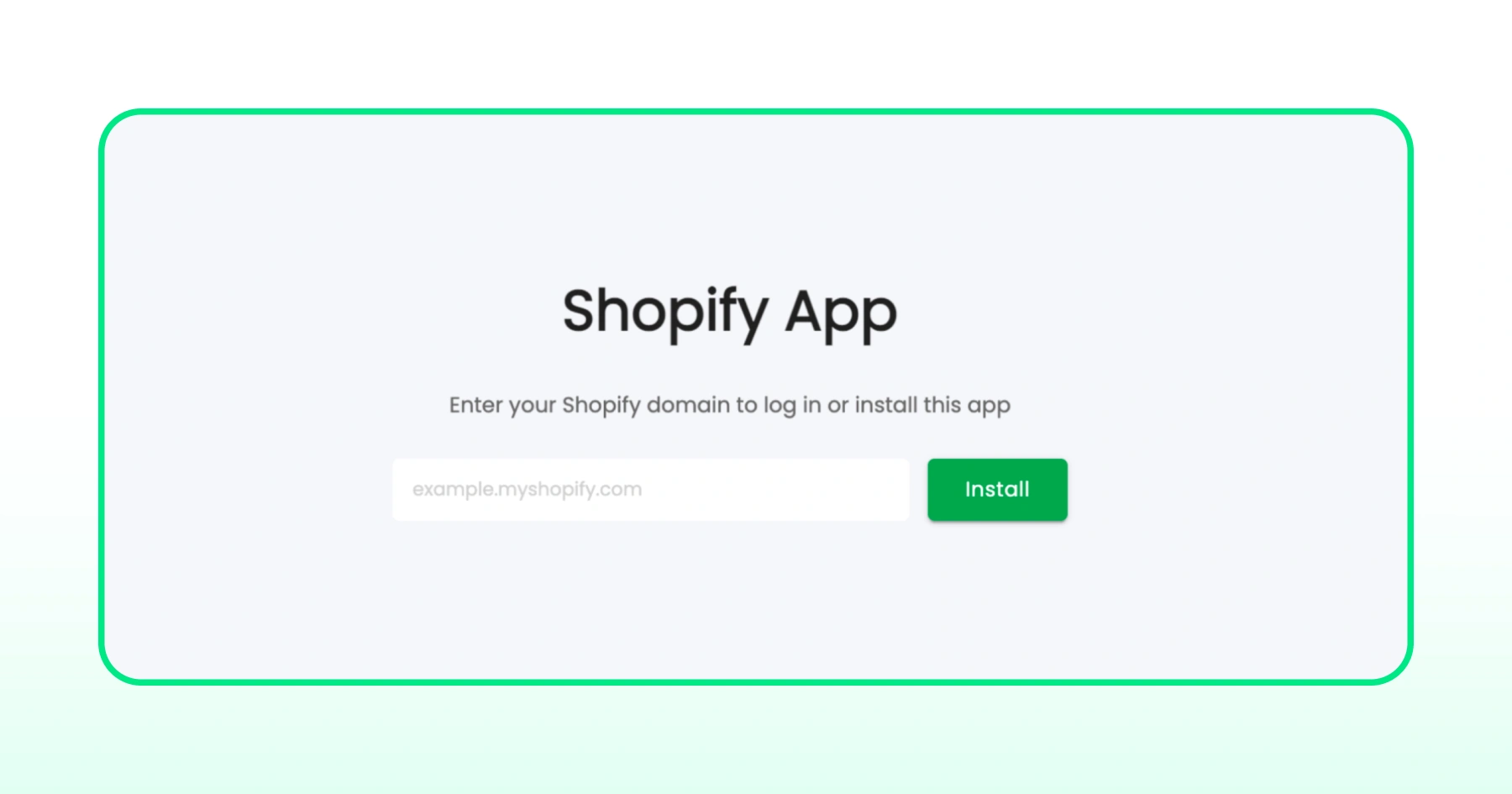
Wati will request the permissions it needs to sync your store data, including orders, customers, products, and checkouts.
Approve them to continue.
Step 3: Confirm Your Store is Connected
Once installed, your Shopify store will show as successfully connected inside your Wati account. You will see a confirmation screen inside the dashboard.
If you run into a "Can't save before Upgrade Plan" error at any point, it means the Shopify plugin payment has not been completed yet.
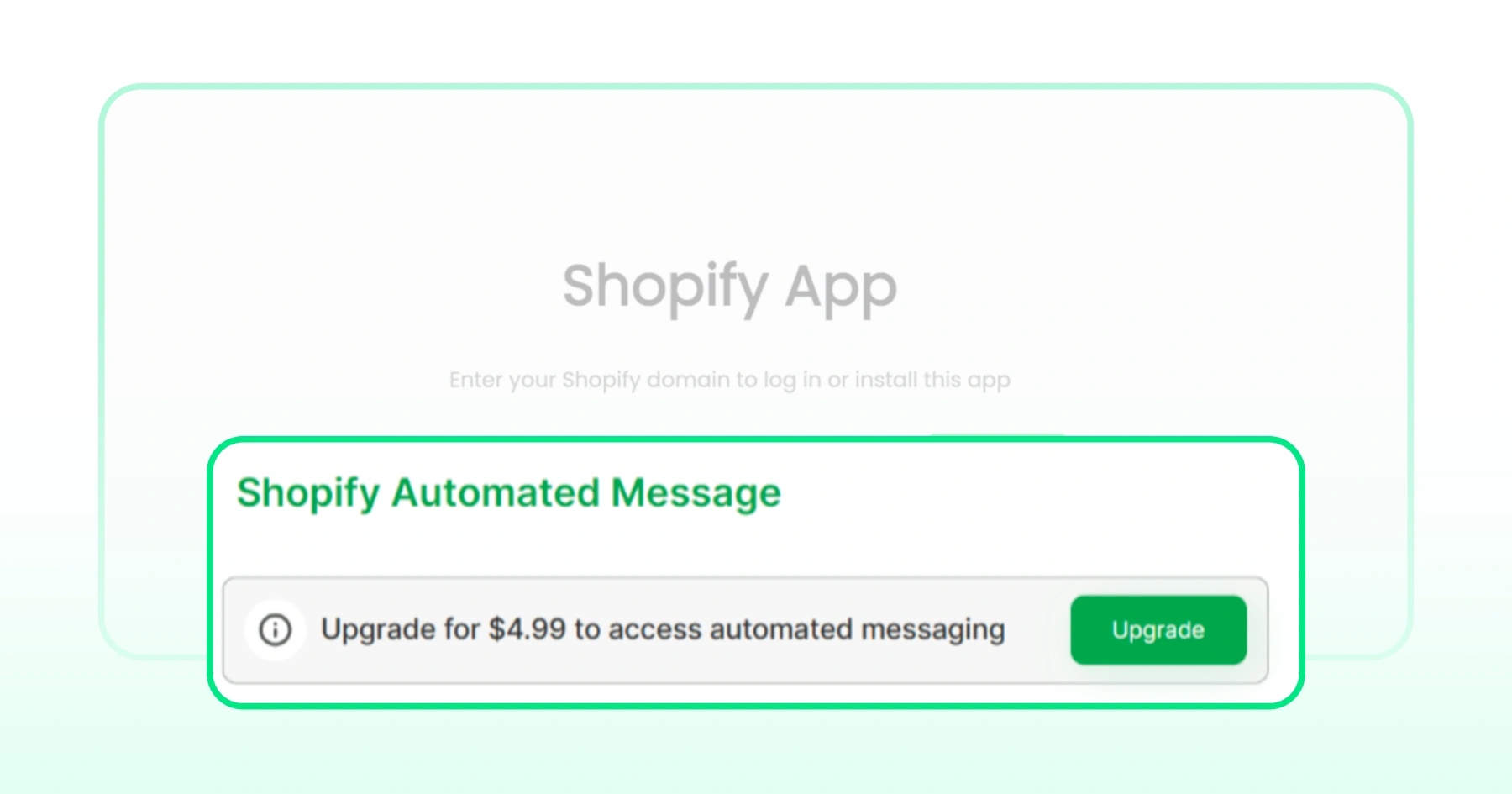
Complete the payment on Shopify and return to Wati to continue.
Step 4: Set Up Your Automated Messages
With your store connected, you can now set up automated WhatsApp messages triggered by Shopify events. Start with the highest-impact ones first: abandoned cart recovery, order confirmation, and shipping updates.
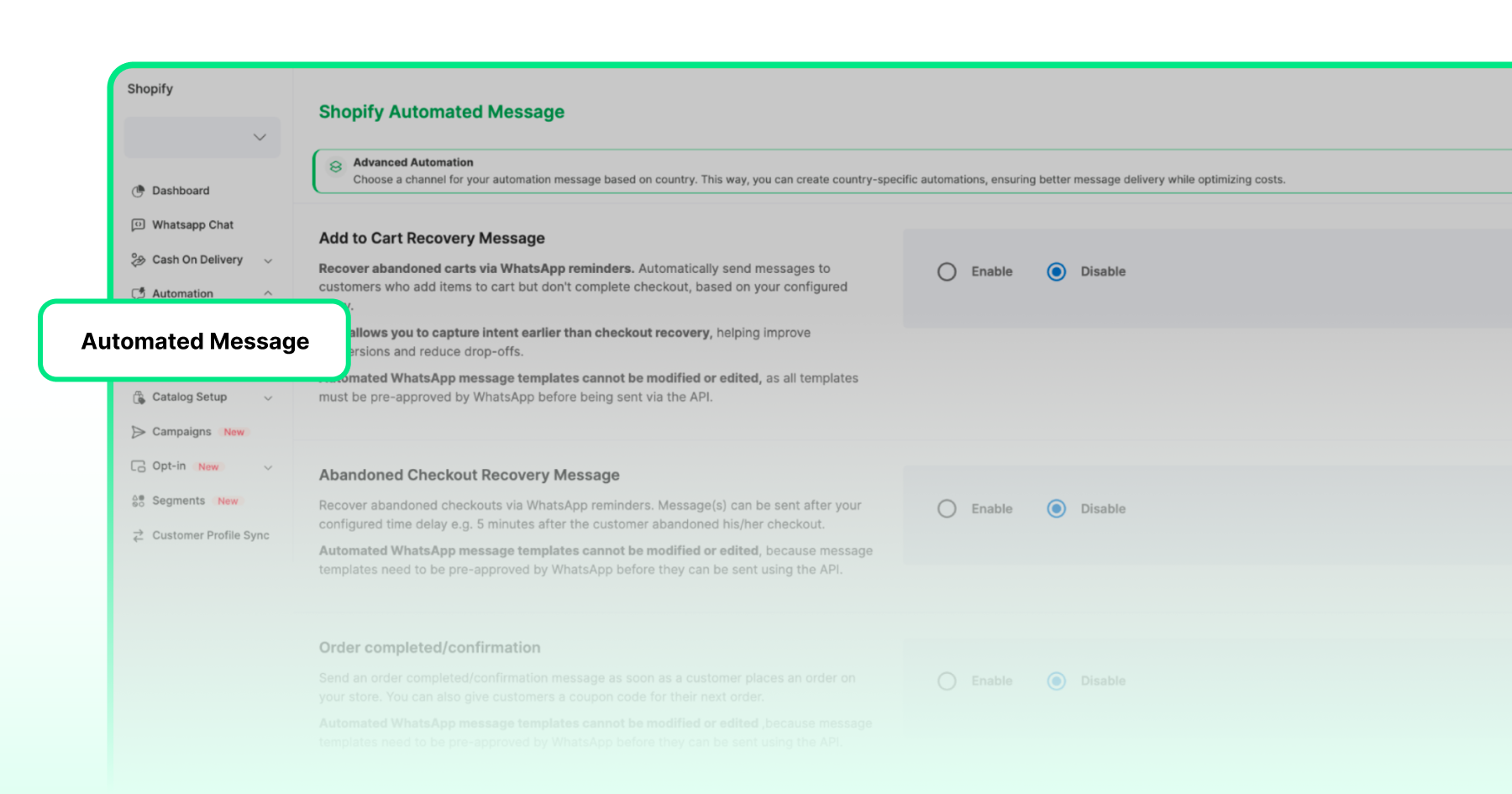
Wati uses pre-approved message templates for each of these, which you can customize with your store's variables like customer name, product name, and order details.
Step 5: Turn On Your Chat Widget and Opt-In Popup
The final step is to add a WhatsApp chat icon to your storefront and enable the opt-in pop-up at checkout. Both are available directly inside the Wati Shopify app. The chat widget gives customers a direct line to your team.
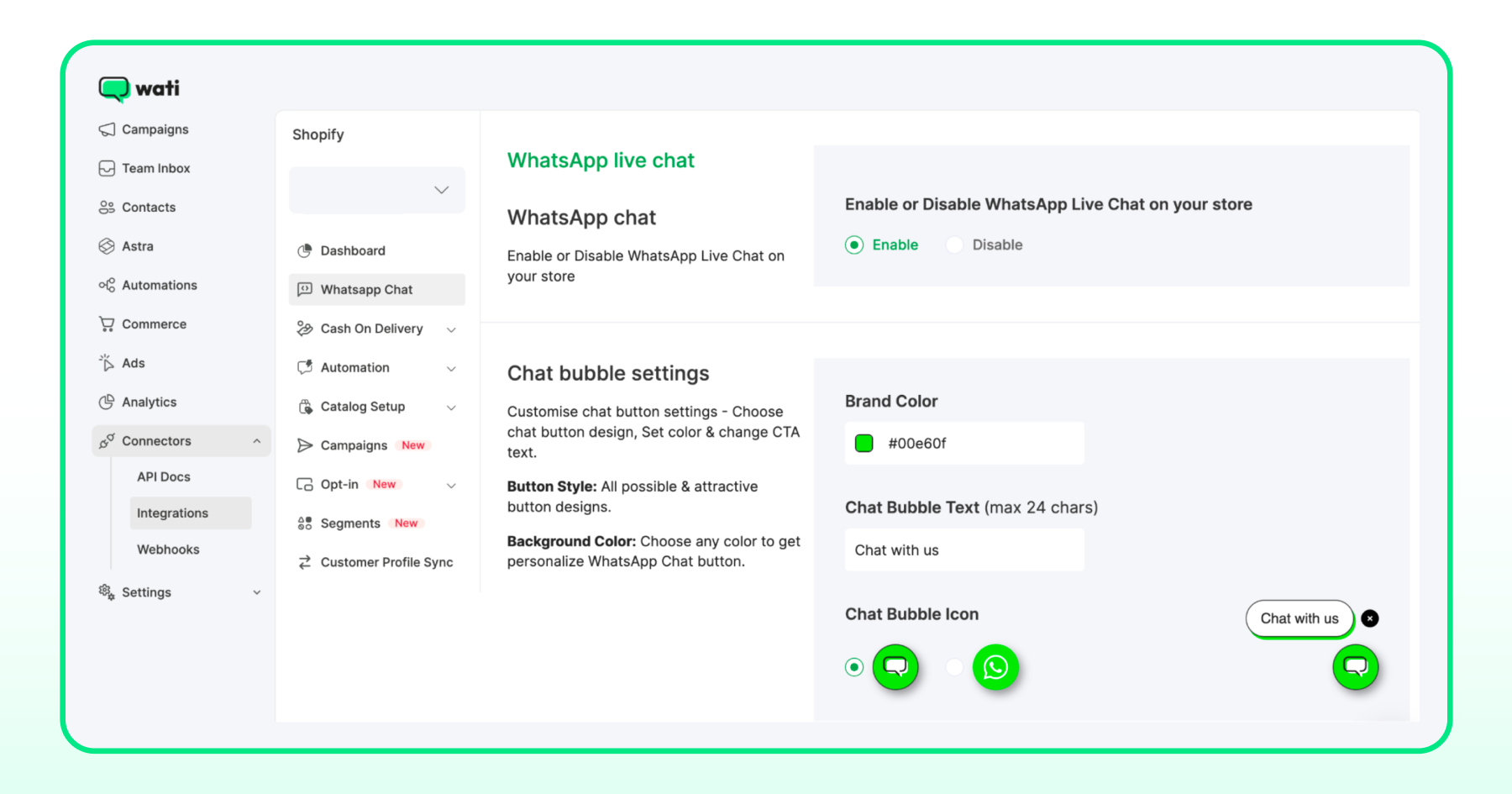
The opt-in pop-up starts building your WhatsApp subscriber list from day one.
Your Shopify WhatsApp integration is now live. Here is what to set up next.
What to Set Up First After Your WhatsApp Shopify Integration Goes Live
Most stores make the mistake of connecting WhatsApp to Shopify and then not knowing where to start.
Here is the answer: turn these four things on, in this order, and your integration will start paying for itself within the first week.
Abandoned Cart Recovery
This is the single highest-impact automation available to your Shopify store and the first thing you should turn on. 70.22% of online shopping carts are abandoned, per Baymard Institute's meta-analysis of 50 studies, and abandoned-cart emails recover only about 3.3% of them.
Most of your store's potential revenue leaves without buying, and email barely brings it back.
The problem is worse exactly where WhatsApp is strongest: mobile shoppers abandon about 80% of carts, compared with roughly 66% on desktop. A WhatsApp recovery message is delivered to the same device where the cart was abandoned.
The moment a customer leaves your store without completing their purchase, a personalized WhatsApp message goes out with exactly what they left behind and a direct link back to checkout.
Start with a 30-minute trigger window. That is when cart abandonment intent is clearest and recovery rates are highest.
Order Confirmations and Shipping Updates
Every order your store receives generates at least two customer questions: "Did my order go through?" and "Where is my package?"
WhatsApp order notifications automatically respond the moment each event happens in your Shopify store.
This one automation alone reduces a significant portion of your inbound support volume from day one. Read more on how to automate order confirmations and shipping updates on WhatsApp.
WhatsApp Chat Widget on Your Storefront
Adding a WhatsApp chat button to your storefront gives customers a direct line to your team before they buy. It captures inbound conversations from shoppers with questions, reduces pre-purchase drop-off, and builds trust at the exact moment your customers need it most.
The widget is available directly inside the Wati Shopify app and works across all Shopify themes.
Opt-In Popup at Checkout
Your WhatsApp subscriber list is the foundation of every broadcast campaign, winback sequence, and promotional message you will ever send. The checkout opt-in pop-up is the most effective place to build it.
Customers who opt in at checkout are already buyers. They are your highest-value audience. Turn this on early and let the list grow while everything else runs in the background.
Why Some Shopify WhatsApp Integrations Fail (And How to Make Sure Yours Does Not)
A few avoidable mistakes can quietly undermine your entire Shopify WhatsApp integration before it has a chance to work. Keep reading to see what you should watch out for.
1. Using a Personal Phone Number for Your WhatsApp Business Account
This is the most common mistake and the one with the most painful consequences. If you link a personal WhatsApp number to your WhatsApp Business API account, you lose access to that personal number entirely, because a number cannot run on the personal WhatsApp app and the API at the same time.
(If your number is already on the WhatsApp Business App, Meta's Coexistence feature now lets it run on both the app and the API, but for a store starting fresh, a dedicated number is still the cleanest setup.)
Use a dedicated business number from the start. A new SIM or a virtual number works perfectly and takes minutes to set up.
2. Skipping Opt-In Collection at Checkout
The WhatsApp Business API has strict rules around Shopify marketing messages. You cannot send promotional WhatsApp messages to customers who have not explicitly opted in to receive them.
Importing your existing customer list and blasting them with campaigns is not just ineffective. It violates Meta's policies and risks getting your WhatsApp Business account suspended.
Build your opt-in list the right way from day one. Every customer who checks out and opts in is a high-value, fully compliant subscriber you can market to for as long as they stay opted in.
Related Read: Is WhatsApp Marketing Legal for Businesses? Let's Clear It Up
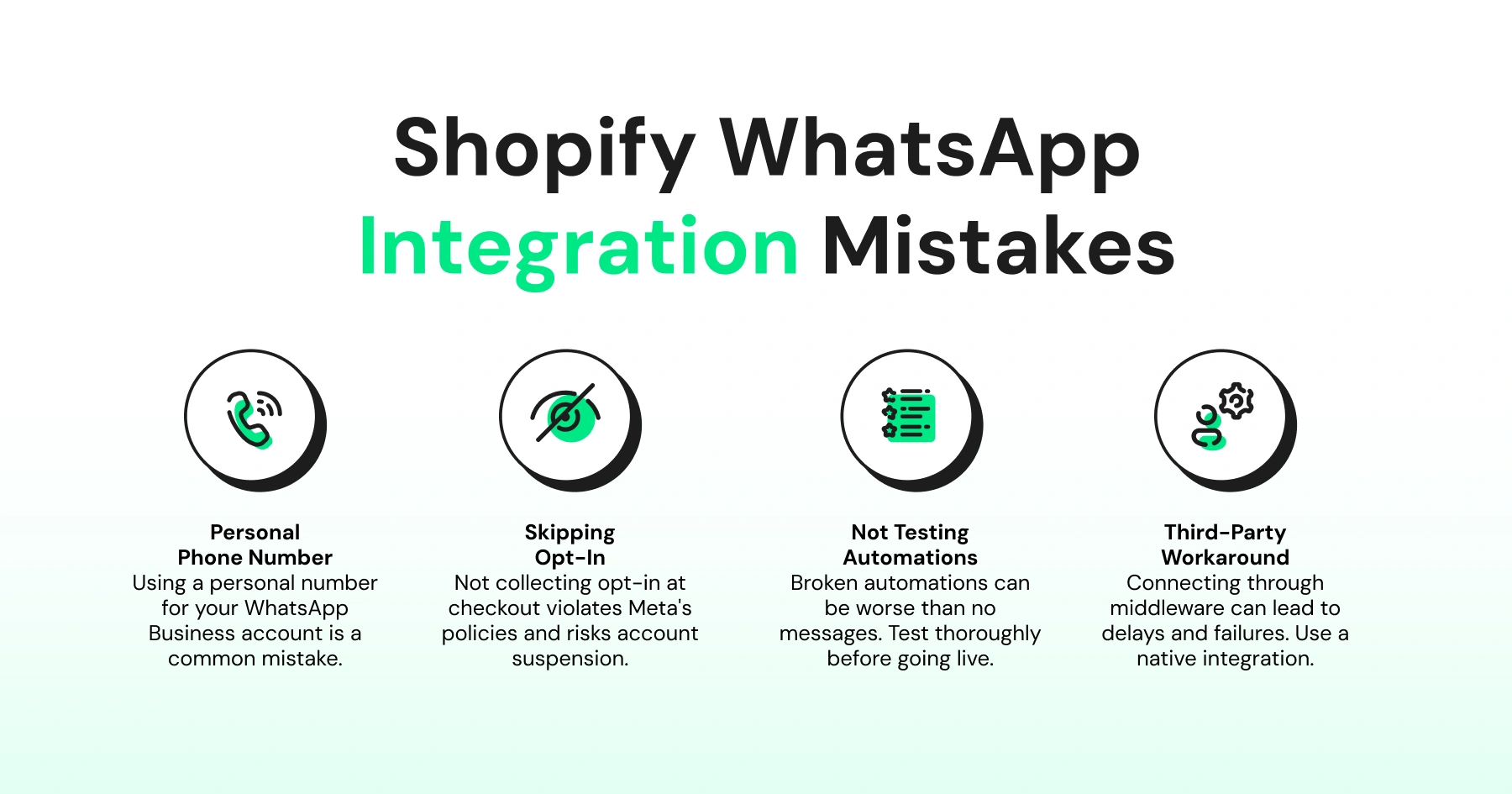
3. Not Testing Your Automations Before Going Live
A broken abandoned cart message is worse than no message at all. Before you flip the switch on any automation, place a test order, abandon a test cart, and walk through every trigger yourself.
Check that the message content is correct, the variables are pulling the right data from your Shopify store, and the links work.
Five minutes of testing before launch saves a lot of explaining to customers afterward.
4. Connecting WhatsApp to Shopify Through a Third-Party Workaround
Some tools connect WhatsApp to Shopify through middleware like Zapier rather than a native integration. This works until it does not. Delays in message delivery, sync failures, and broken automations are common when the connection is not direct.
A native WhatsApp Shopify integration like Wati connects directly to your Shopify store data without any third-party bridges, which means your automations are reliable, real-time, and built to scale with your store.
Why is Wati the Recommended WhatsApp Integration for Shopify Stores?
There are dozens of tools that claim to connect WhatsApp to Shopify. Most of them do one thing reasonably well. A chat widget here, a cart recovery sequence there.
Wati is built to do all of it, natively, without the patchwork of third-party connections that break down at the worst possible moment.
It is a native Shopify integration, not a workaround
Wati connects directly to your Shopify store data. Orders, customers, product catalog, checkout activity, and Shopify segments all sync in real time.
When a customer abandons a cart, Wati knows immediately. When an order ships, the notification goes out before the customer thinks to ask.
It is an official WhatsApp Business Solution Provider
Not every tool on the market has direct access to the WhatsApp Business API. Wati does. That means your messages are sent through an officially approved channel, your business number gets a WhatsApp verification, and your campaigns are fully compliant with Meta's policies.
It goes well beyond the integration itself
Most integration tools stop at connecting the two platforms. Wati is where the real work happens after the connection is live.
Abandoned cart recovery, order confirmation and notifications, broadcast campaigns with Shopify segment targeting, an AI-powered chatbot that handles routine support questions around the clock, and an attribution dashboard that connects every WhatsApp message to the revenue it generated.
Many Shopify merchants are already running their WhatsApp automations through Wati. The setup takes under an hour. The results start showing up the same day.
Book a demo if you haven't already.
Your Shopify Store and WhatsApp: Better Together
Most Shopify stores are one integration away from recovering carts they are currently losing, answering support questions they are currently paying someone to handle, and reaching customers on a channel they actually check.
The Shopify WhatsApp integration is not a complex project. It is an hour of setup that runs on autopilot from there. The stores that get the most out of it are not the ones with the biggest teams or the largest budgets.
They are the ones who got started early, turned on the right automations first, and let the results compound over time.
Your customers are already on WhatsApp. Your store should be too. Sign up for a free trial to get started today.
Frequently asked questions
1. How do I integrate WhatsApp with my Shopify store?
Log in to your Wati account, go to the Integration page, click the Shopify icon, enter your store domain, and click Install. Your store will be connected within minutes and your first automations can go live the same day.
2. Do I need a developer to set up Shopify WhatsApp integration?
No. The entire setup is no-code and takes under an hour. Wati's onboarding flow guides you through every step without any technical knowledge required.
3. Is WhatsApp integration free for Shopify stores?
Wati offers a free trial that includes Shopify integration. Beyond the trial, Wati has paid plans, and WhatsApp template messages have a per-message cost set by Meta that varies by template category and the recipient's country. Replies inside the 24-hour customer service window are free.
4. Which is the best WhatsApp integration app for Shopify?
Wati is the best option for stores that want the full stack in one tool: it is an official WhatsApp Business Solution Provider with a native Shopify sync, so abandoned cart recovery, order notifications, chat widget, opt-in collection, and broadcast campaigns all run from one dashboard with no code and no middleware.
5. What automations can I set up after connecting WhatsApp to Shopify?
Abandoned cart recovery, order confirmations, shipping updates, COD confirmations, winback campaigns, and broadcast campaigns to Shopify customer segments. All of them run automatically once configured.
Related posts
- How Often to Send WhatsApp Campaigns in 2026
How often to send marketing emails is a settled debate. WhatsApp frequency is not. Learn the right cadence by audience segment and the best send windows for 2026
- WhatsApp Business Calling vs Cloud Telephony vs Traditional VoIP: Which One Does Your Business Need?
Comparing WhatsApp Business Calling, cloud telephony, and traditional VoIP in 2026? Here’s the honest breakdown of which stack fits your business.
- Why Every Business Needs CRM WhatsApp Integration Today?
Discover why CRM WhatsApp integration is essential for businesses to manage leads, close deals faster, and deliver better customer support.
- 20+ Halloween Templates for WhatsApp to Boost Your Sales This October
Don’t let Halloween pass without a WhatsApp message strategy. Get 20+ free Halloween templates for WhatsApp covering every use case, from flash sales to event invites.