

Too Long? Read This First
- WhatsApp Business Web is the browser and desktop version of the WhatsApp Business app; it mirrors your phone's chats on a bigger screen so you can type faster, share files, and multitask.
- Setup takes about 30 seconds: open web.whatsapp.com, go to Linked Devices on your phone, and scan the QR code.
- You can link up to 4 devices to one account (10 with a Meta Verified subscription), and your primary phone only needs to reconnect once every 14 days.
- New in 2026: WhatsApp Web now supports 1-on-1 voice and video calls (rolled out February 2026), with group calls of up to 32 participants rolling out to browsers.
- The free app has real ceilings- a 256-contact broadcast cap, limited automation, and no CRM integration- that the WhatsApp Business API removes with chatbots, scheduling, and unlimited broadcasting.
WhatsApp Business Web is the desktop counterpart to the WhatsApp Business mobile app. It lets you manage every customer chat from your computer, with messages, contacts, and media syncing in real time across devices.
Brands serious about generating quality leads use it to centralize team productivity, handle files, and multitask in ways a small phone screen can't match. Companies that have connected the WhatsApp Business API go further still by automating conversations, tracking revenue, and managing customer sentiment at scale.
This guide covers what WhatsApp Business Web is, how to set it up on any device, its core features, its 2026 limits, and when to move to the API.
What is WhatsApp Business Web?
WhatsApp Business Web is a linked-device extension of the WhatsApp Business app that lets you send and receive business messages from a browser or desktop app without transferring your account off your phone.
It syncs all chats, contacts, and media in real time, so a message answered on the web appears instantly on the phone.
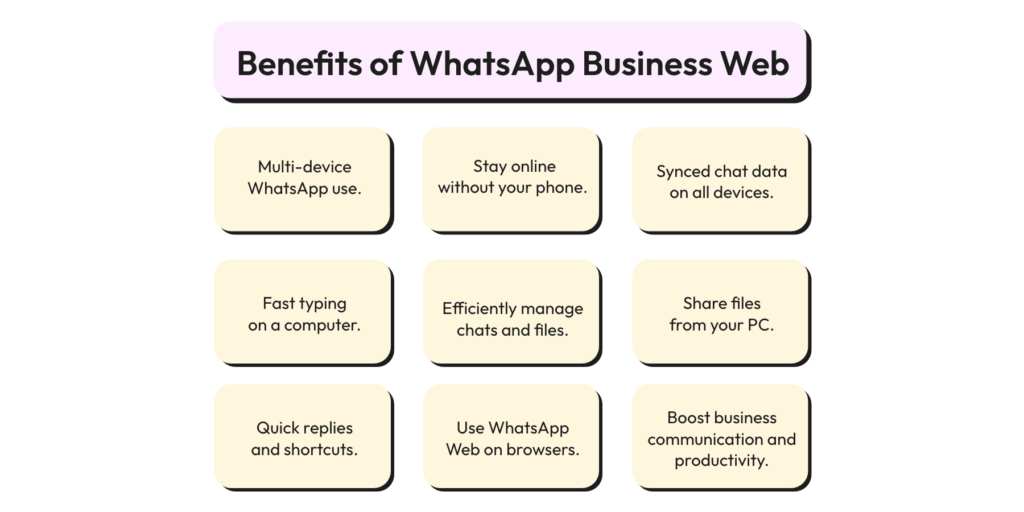
The larger screen and keyboard make it faster for typing replies, sharing documents, and handling several conversations at once. Your phone stays the primary device, whereas the web session simply links to it.
How to Set Up WhatsApp Business Web?
Setting up WhatsApp Business Web takes three steps and no separate account:
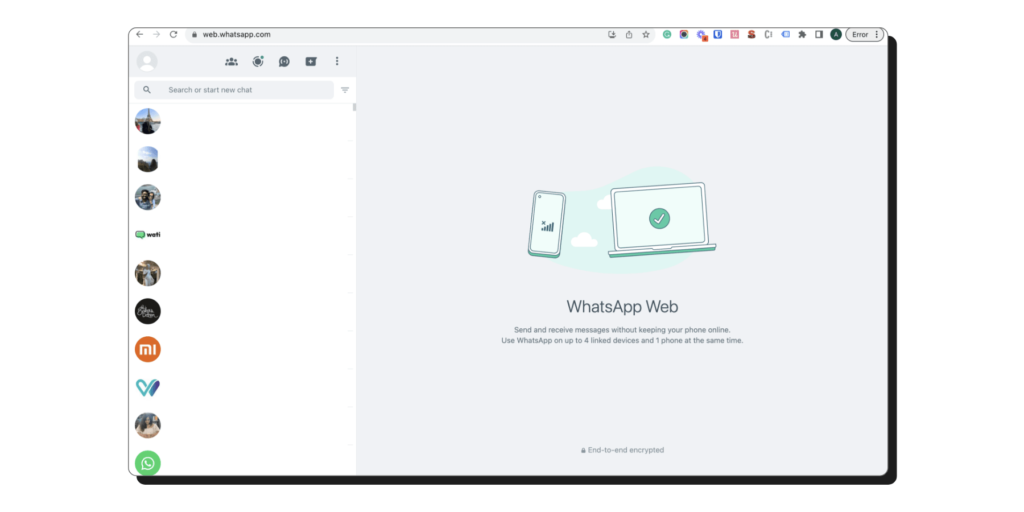
1. Go to the WhatsApp Web website in your browser.
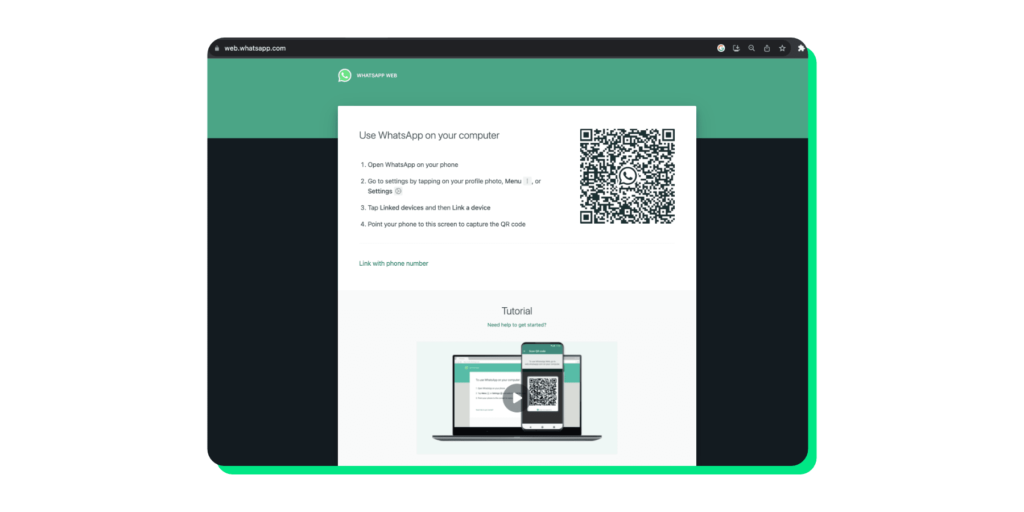
2. Open the WhatsApp Messenger/WhatsApp Business app on your phone. Go to ‘Linked Devices’ and click ‘Link a Device’.
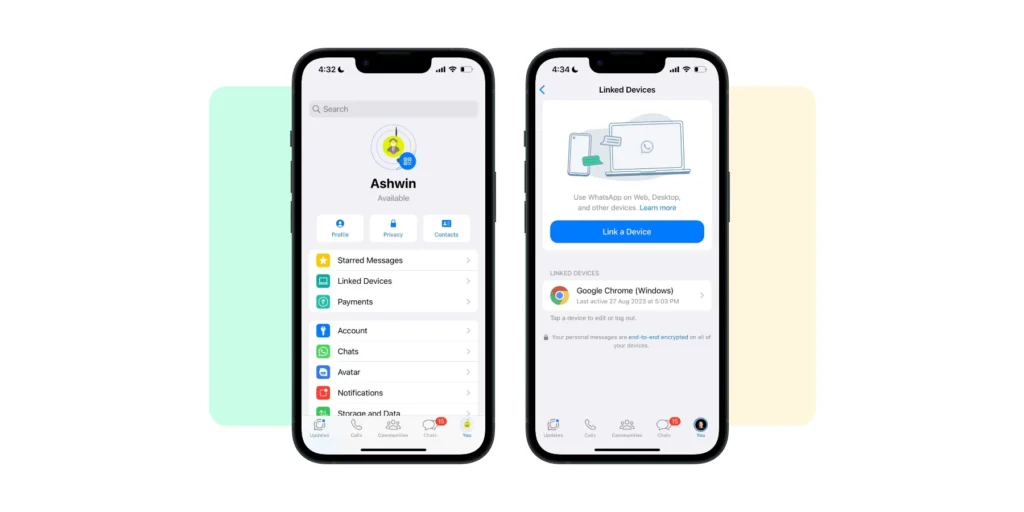
3. Scan the on-screen QR code with your phone, and then you will be logged in.
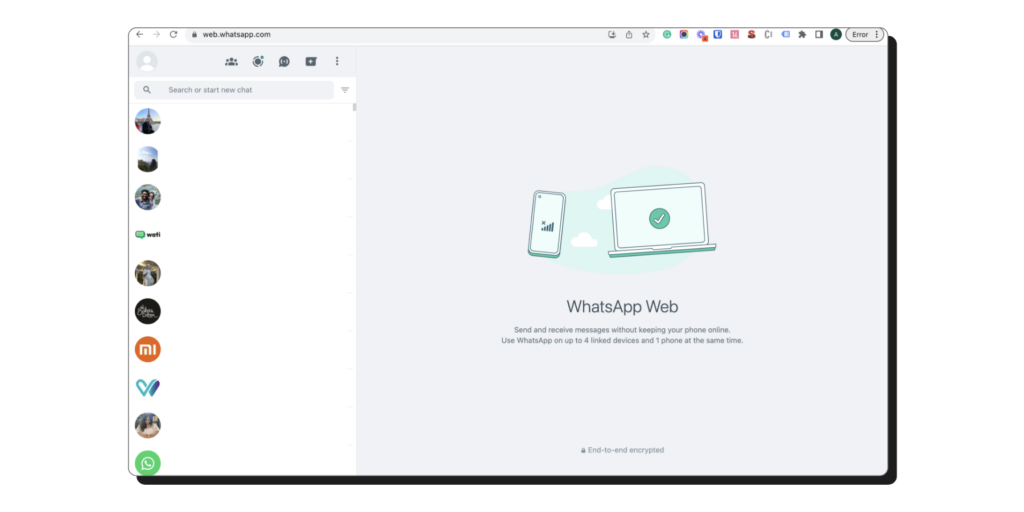
Once linked, open WhatsApp Web in your desktop browser whenever you need it, with no re-scanning required until the session expires.
How to Use WhatsApp Web App on Windows?
On Windows, download the dedicated desktop app rather than relying on a browser tab:
1. Download WhatsApp Desktop from the Microsoft Store and launch the app. A QR code resembling a WhatsApp Business Web login will appear.
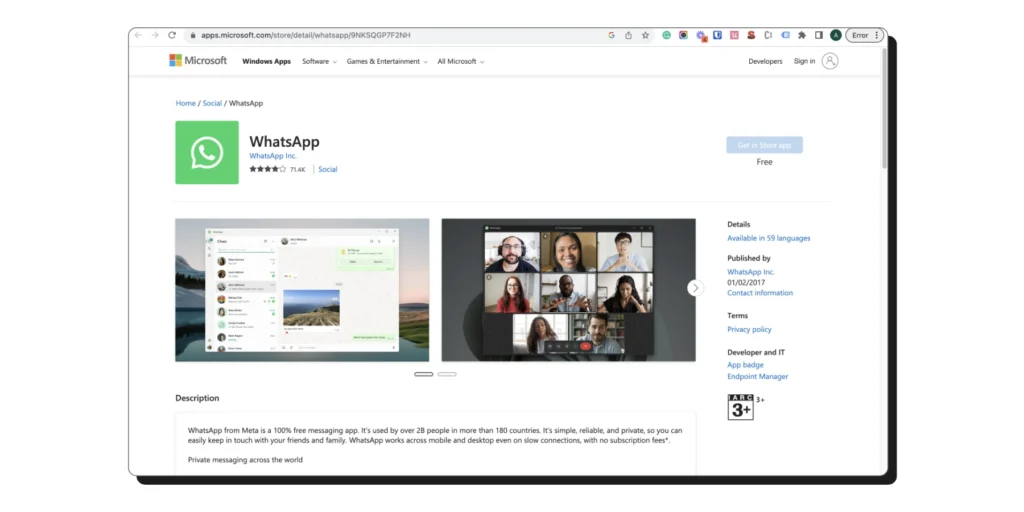
2. In the WhatsApp Business mobile app, navigate to Linked Devices and click ‘Link a Device’.
3. Scan the desktop QR code with your phone. Once connected, the WhatsApp chat interface will load on the desktop app.
How to Use WhatsApp Web App on Mac?
The Mac process mirrors Windows:
1. Download WhatsApp Desktop from the App Store and open it to reveal a QR code.
2. Open WhatsApp on your phone, navigate to Linked Devices, and select ‘Link a Device’.
3. Use your phone to scan the QR code displayed on your screen. Once connected, you can begin using the WhatsApp Web app.
How to Log Out from WhatsApp Desktop/Mac App?
You can log out from either the phone or the computer:
- From your phone: open Linked Devices, select the device, and tap Log Out.
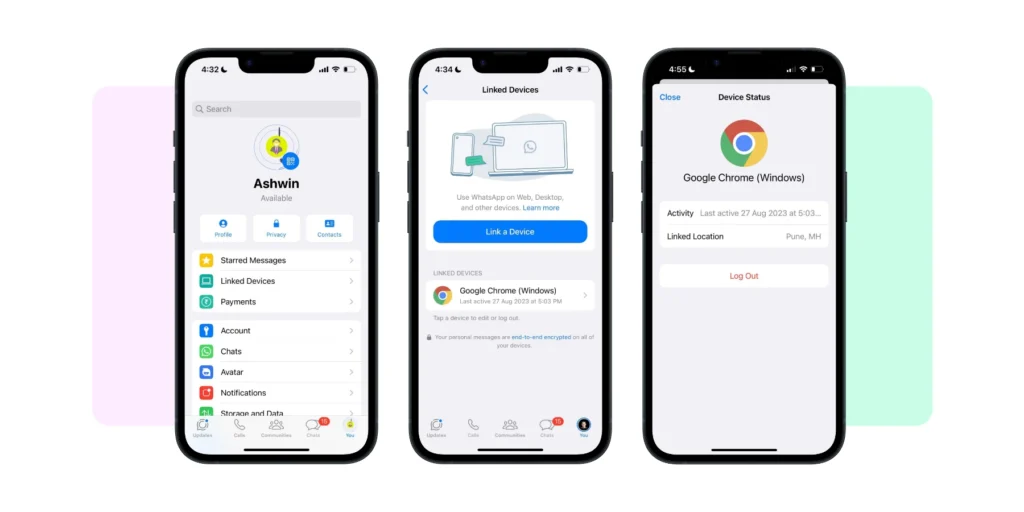
- From the computer: open the menu inside WhatsApp Web or the desktop app and click Log Out to end the session.
Logging out of the phone is the fastest way to disconnect a device you no longer control. It's useful if you leave a shared or public computer.
Is WhatsApp Business Web Secure?
WhatsApp Web Chat also offers all the security features available to WhatsApp Business accounts. It protects all your messages with end-to-end encryption.
This means your conversations stay private, and only you and the person you are chatting with can read them.
For an extra layer of assurance, WhatsApp offers Code Verify, an optional open-source browser extension available for Chrome, Firefox, and Edge. Code Verify checks that the WhatsApp Web code your browser loads matches WhatsApp's published source and has not been tampered with. It is a separate install from the browser store, not a built-in feature. You have to add it once, and it runs automatically in the background.
What Features Make the WhatsApp Business App Useful?
The WhatsApp Business app bundles free tools that small teams can run entirely from the web or desktop. The core features are away messages, chat labels, a business profile, quick replies, broadcast lists, and multi-device access.
Away Messages
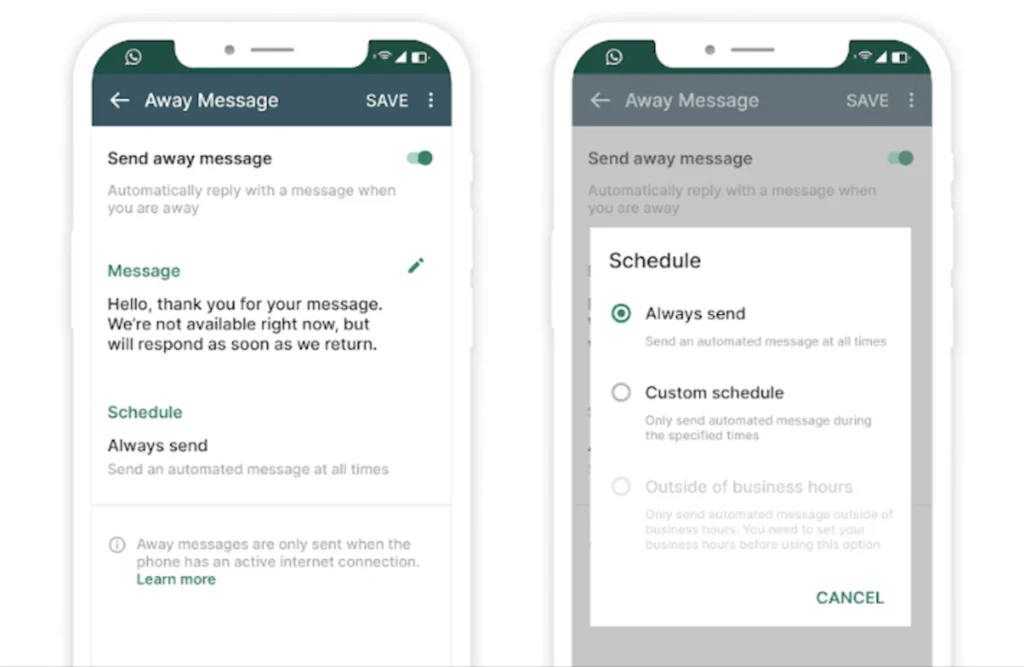
You can use the WhatsApp Business app to set up automated messages for your customers.
Away messages send an automatic reply when you are offline, so no customer message goes unacknowledged.
For instance, if the workday ends and a message is sent to you, an automatic friendly reply will be generated, like “Thank you for contacting us! We will be with you shortly.”
These auto-responses allow you to remain responsive and professional without being physically present at all times.
Chat Labels
Chat labels are color-coded tags that organize conversations so important messages stay easy to find.
Labelling chats allows you to quickly find and prioritise important messages.
The colour-coded system keeps your inbox organised and ensures that no customer goes unnoticed.
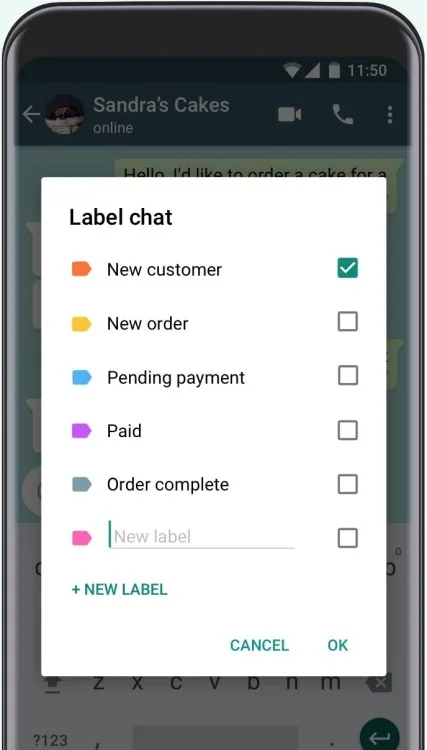
You can also pair labels with a WhatsApp chat button on your website to route new enquiries cleanly.
Business Profile
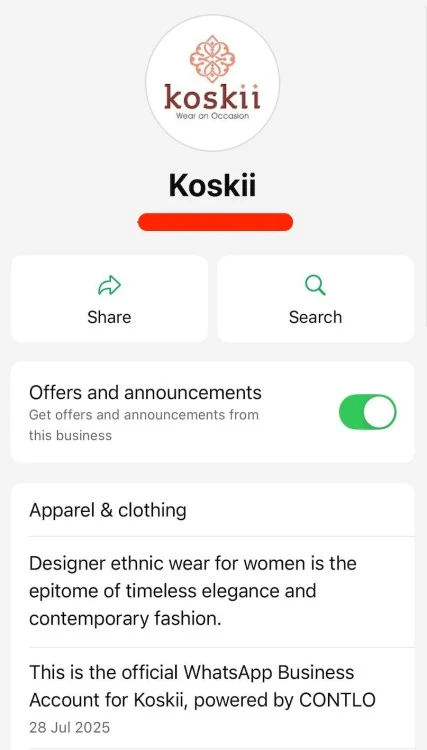
Your WhatsApp Business profile acts as a mini storefront inside WhatsApp. You can add your logo, business description, working hours, location, website link, or a product catalogue.
Customers can visit your shop, check the prices, and learn more about your business before submitting a request. It enhances reliability and gives your business a sleek, professional look.
Quick Replies
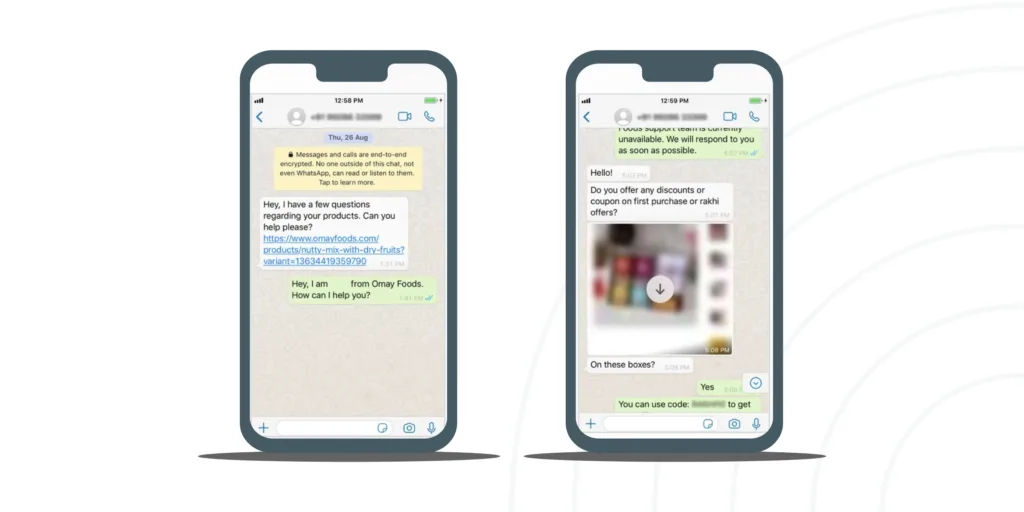
Quick replies are reusable templates that are triggered by a shortcut. For instance, typing “thanks” can be used to immediately send a message saying, “Thank you for reaching out to us. We appreciate your message!”
Quick replies are very useful in handling FAQs, order confirmations, and delivering updates. With quick replies, you can respond quickly and easily manage a large volume of conversations.
Broadcast Lists
Broadcast lists send one message to many contacts at once without creating a group chat. Recipients must already have your number saved, and the list is capped at 256 contacts.
Broadcast lists work well for promotions, holiday greetings, and renewal reminders. Check out the campaign frequency guide for how often to send campaigns.
Multi-Device Access
You can link up to four non-phone devices, such as desktops or web browsers, to a single WhatsApp Business account in addition to your primary phone. For businesses with a Meta Verified subscription, the limit extends to ten linked devices. Read: How to set up multi-device access for WhatsApp to speed up and improve efficiency.
WhatsApp Web vs. WhatsApp Desktop? How do They Differ?
WhatsApp Web and WhatsApp Desktop look nearly identical but behave differently under the hood, and the gap narrowed in 2026 as calling reached the browser.
The table below compares them across the features that affect a business workflow.
Feature | WhatsApp Web | WhatsApp Desktop (App) |
Voice & Video Calls | 1-on-1 calls live (rolled out Feb 2026); group calls up to 32 rolling out | Fully Supported (1-on-1 and Groups up to 32) |
Screen Sharing | Supported during video calls (rolling out) | Full Support (during video calls) |
System Integration | Runs inside a browser tab | Separate icon in Taskbar/Dock; starts on boot |
Keyboard Shortcuts | Standard (Ctrl + Alt + [Key]) | Extensive (Native OS shortcuts like Ctrl + N) |
Notifications | Browser-based (can be delayed) | Native OS notifications (more reliable) |
Offline Access | Restricted (needs browser cache) | Can view cached messages without internet |
Business Tools | Supports browser extensions | No external extension support |
WhatsApp Business Web vs. Desktop: Which Should You Choose?
Choose the desktop app for reliability and calling; choose the browser for quick, no-install access on any machine. The decision usually comes down to four factors.
1. Calling and Collaboration
The desktop app is the stronger tool for sales and client calls: it has always supported native 1-on-1 and group video calls with screen sharing.
As of February 2026, WhatsApp Web also supports 1-on-1 calls, with group calls up to 32 participants rolling out to browsers, so the old gap is closing, though the desktop app remains the most stable option today.
For teams that run calls at scale, see how to handle WhatsApp Business Calling inside your inbox.
2. Workflow Integration and Notifications
Desktop apps offer native OS notifications that browser tabs can't guarantee.
Browsers may silence or suspend a tab to save memory so that an incoming enquiry can sit unseen.
This immediate response time is critical for lead nurturing, where the first person to reply often wins the business.
3. Security, Privacy, and Data Protection
The Desktop version includes a native screen lock (password protection), which is valuable when you handle sensitive client data in a shared environment.
The browser version lacks this second layer, making the desktop app the safer default for confidential work.
4. File Management and Media Handling
The Desktop app handles large file transfers and drag-and-drop actions with much higher stability than a browser.
By reducing the “drag” of web-based uploads, you can keep the conversation fluid and ensure the lead receives the necessary information without technical delays.
Where does WhatsApp Business Web Fall Short?
WhatsApp Business Web is built for small-scale, personal-style messaging, so it hits five clear ceilings when a business tries to scale. Each has a direct fix through the WhatsApp Business API.
1. WhatsApp Broadcast Limits
The broadcast feature is currently available only on the WhatsApp Business mobile app, where you can send messages to up to 256 contacts per broadcast list. This limit can feel restrictive for businesses that want to run large-scale campaigns or promotions on WhatsApp.
Solution: The WhatsApp Business API lets you move past the 256-contact limit and connect with a larger group of audience.
Message limits on WhatsApp grow in stages. Businesses start at just 250 messages a day, and as your account maintains a good quality rating, you can scale up through the tiers to over 100,000 users every 24 hours.
It’s a practical way to handle larger campaigns and customer updates without running into the usual restrictions.
2. Restricted Multi-Login Functionality
The free app allows only 4 linked devices (10 with Meta Verified), which limits how many agents can work a shared number.
Migrating to the API removes the cap and adds a true shared inbox
3. Limited Message Scheduling
You can set up away and greeting messages within the WhatsApp Business app. Scheduling regular or custom messages is not natively supported; however, some third-party automation tools may help achieve this.
Solution: You can schedule WhatsApp messages easily with the WhatsApp API.
4. Chat Automation Constraints
The free app limits canned replies and does not allow a chatbot for FAQs, sales, or support. The API supports full automation
The API supports full automation. You can build one with our WhatsApp chatbot guide or set up a simple auto-reply for WhatsApp Business.
If you are weighing Meta's own built-in assistant, compare it in Meta Business Agent: what it can and can't do.
5. CRM & Third-Party App Integration Barriers
You cannot run business communication from a CRM or automation tool on the free WhatsApp Business app. The API integrates with HubSpot, Shopify, Zoho, and many others, so conversations flow into the systems your team already uses.
Bonus Resource: Why Isn’t Instagram Engagement Converting Into Leads? (And How To Fix It)
When Should You Move From WhatsApp Business Web to the API?
Move to the WhatsApp Business API once you outgrow any one of these limits: broadcasts beyond 256 contacts, more than 4–10 agents on one number, scheduled or automated messaging, chatbots, or CRM integration. Below those thresholds, the free web and desktop apps are usually enough.
WhatsApp Business Web and the mobile app are a great fit for small teams: quick replies, easy collaboration, and a personal touch, all without extra tools.
But once your conversations start piling up faster than a few linked devices can keep up with, it's time to level up.
Book a demo and turn everyday chats into relationships that actually stick.
Frequently asked questions
1. Can I make group video calls on WhatsApp Web?
As of 2026, group voice and video calls (up to 32 participants) are rolling out to WhatsApp Web after launching on mobile and desktop. The WhatsApp Desktop app has full, stable support today, while browser support for group calls is still expanding. One-on-one calls on WhatsApp Web went live in February 2026.
2. Do I need my phone to stay online to use WhatsApp Desktop?
No. Once your device is linked via the QR code, WhatsApp Desktop and Web work independently. Your phone only needs to be online once every 14 days to keep the session active.
3. Which version is better for sending large business files?
The WhatsApp Desktop app is recommended for file management. It offers better stability for large transfers and smoother drag-and-drop functionality compared to the browser-based Web version.
4. Is my data secure when using WhatsApp Business on a browser?
Yes. All messages use end-to-end encryption. For extra assurance, you can install Code Verify, an optional open-source browser extension (Chrome, Firefox, Edge) that confirms the WhatsApp Web code hasn't been tampered with. It is a separate install, not a built-in tool.
5. How many devices can I link to my WhatsApp Business account?
You can link up to four devices (Desktop or Web) to one account. However, if your business is Meta Verified, you can extend this limit to ten linked devices to better manage customer inquiries.
6. Is WhatsApp Business Web free to use?
Yes. WhatsApp Business Web and the WhatsApp Business app are free. Costs only begin with the WhatsApp Business API, which is priced per conversation and unlocks automation, unlimited broadcasting, chatbots, and CRM integrations for businesses at scale.
Related posts
- How to Send OTP on WhatsApp: Setup, Pricing & Zero-Tap Guide
See how WhatsApp OTP makes user verification quick and secure. It’s an easy way to speed up logins, keep accounts safe, and give customers a smoother experience.
- How to Create Personalized AI Videos with Wati’s AI Video Generator
Transform your marketing with Wati’s AI video generator. Create personalized, professional videos at scale without technical expertise or expensive equipment.
- How to Set Up Auto Reply in WhatsApp Business?
Master WhatsApp auto-reply for your business: improve response times, customer service, and communication.
- How to Add a WhatsApp Chat Button On Website: 2026 Guide
Discover how to add a WhatsApp chat button on your website effortlessly. Create real-time connections, improve support, and convert visitors with Wati.