
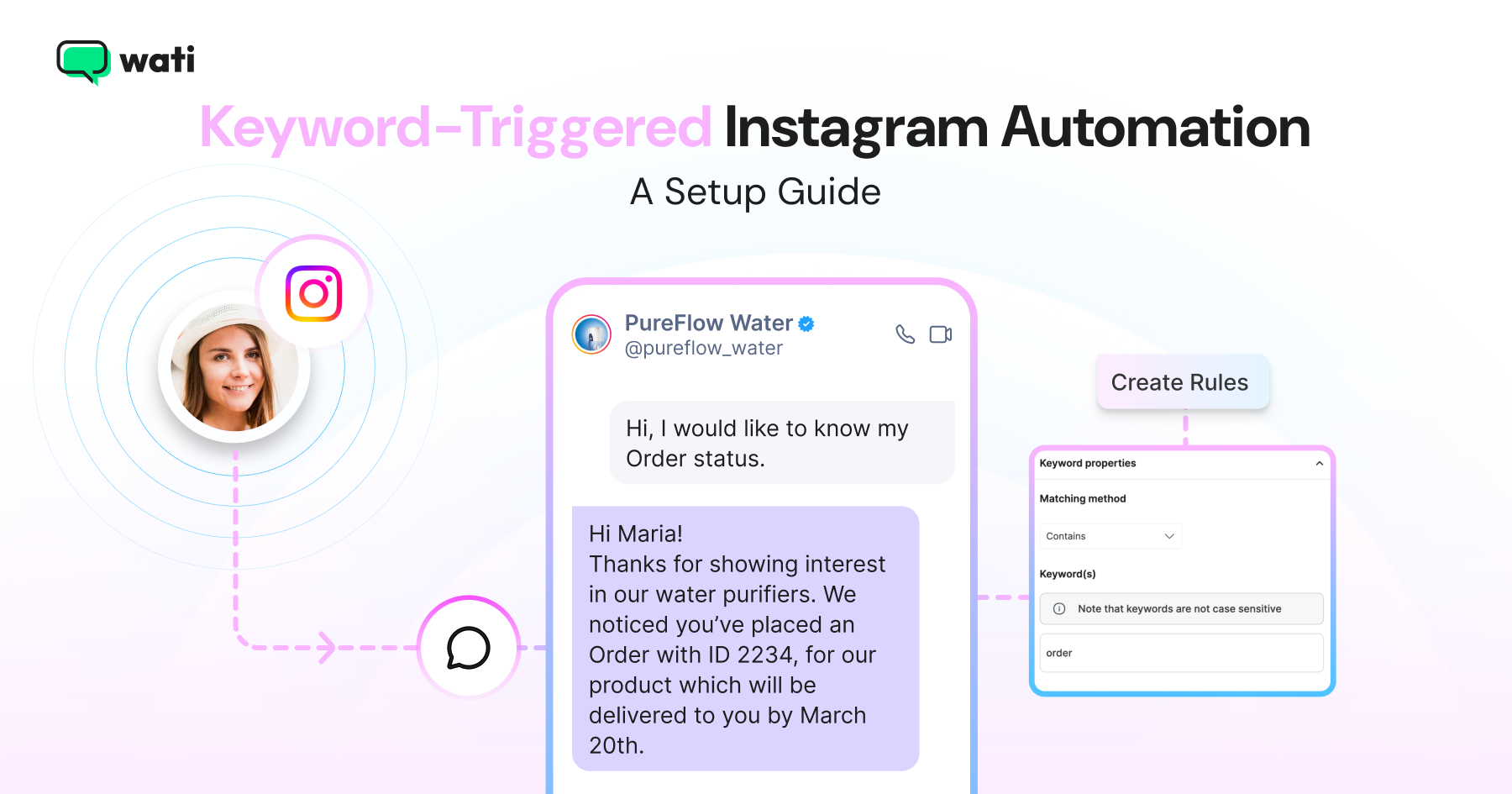
Too Long? Read This First
- Keyword-triggered Instagram automation fires a DM only when a comment contains a specific word you define, making every response intentional and campaign-ready.
- The full setup in Wati takes under 5 to 10 minutes: go to Automation → Rules → Create Rules and follow the steps in this guide.
- Pick a short, campaign-specific keyword and set the matching method to Contains. It captures the keyword as it appears in a comment.
- Test with a secondary Instagram account before the campaign goes live and check the edge cases, not just the obvious trigger.
- Every keyword-triggered conversation lands in your Wati Team Inbox alongside all your Instagram and WhatsApp conversations, giving your team full visibility in one place.
A clothing brand posts “Comment DROP for early access to our new collection.”
More than four hundred people comment in an hour, and every single one of them receives a personalised DM with the link automatically.
Keyword-triggered Instagram automation is a rule that sends an automatic DM only when a comment contains a specific keyword you define in advance, turning a public comment into a private, one-to-one conversation instantly.
Wati is an AI-powered customer engagement platform that runs this kind of automation across WhatsApp, Instagram, and Messenger from the same dashboard. The setup below takes place in Wati's Automation > Rules screen.
Instead of sending a DM to everyone who comments, it triggers only when a comment contains a specific word you defined.
In this guide, you’ll find everything you need to get your keyword trigger live on your Instagram account with Wati’s Instagram keyword-triggered automation, from choosing the right keyword and writing your auto-DM to setting the correct scope and testing before your campaign traffic hits.
Why it’s worth getting right: 73% of social users say that if a brand doesn’t respond on social, they’ll buy from a competitor. On a campaign post where hundreds comment at once, manual replies can’t keep that promise; an automated keyword DM can.
Why Keyword-Triggered Instagram DMs Work for Campaigns?
Keyword-triggered DMs are exactly what they sound like: an automated DM that triggers only when a comment contains a specific word or phrase you’ve defined in advance.
What makes them particularly effective for campaigns is the intent signal.
When someone types your exact keyword, whether it’s DROP, PRICE, or BOOK, they’re not just engaging with the post but telling you what they want.
That’s a warmer lead than a generic comment, and it deserves an immediate, relevant response.
The clothing brand from the intro is a good example, but this works equally well for service businesses running appointment campaigns, SaaS brands offering free trials, or creators dropping exclusive content. Any campaign where you’ve told your audience to comment with a specific word to get something back is a candidate for keyword-triggered automation. |
How to Set Up Keyword-Triggered Instagram DM Automation?
To get started, you need an Instagram automation platform like Wati that offers API access, a unified dashboard, and built-in automation. After connecting your Instagram account to Wati’s dashboard, you can start setting up keyword-triggered automation. The full setup takes under 10 minutes.
Step 1: Open Keyword Trigger Settings in Wati
1. From your Wati dashboard, head to Automation in the left-hand menu
2. Then click on Rules.
3. In the top right corner, hit Create Rule. This is where all keyword-triggered Instagram automation lives.
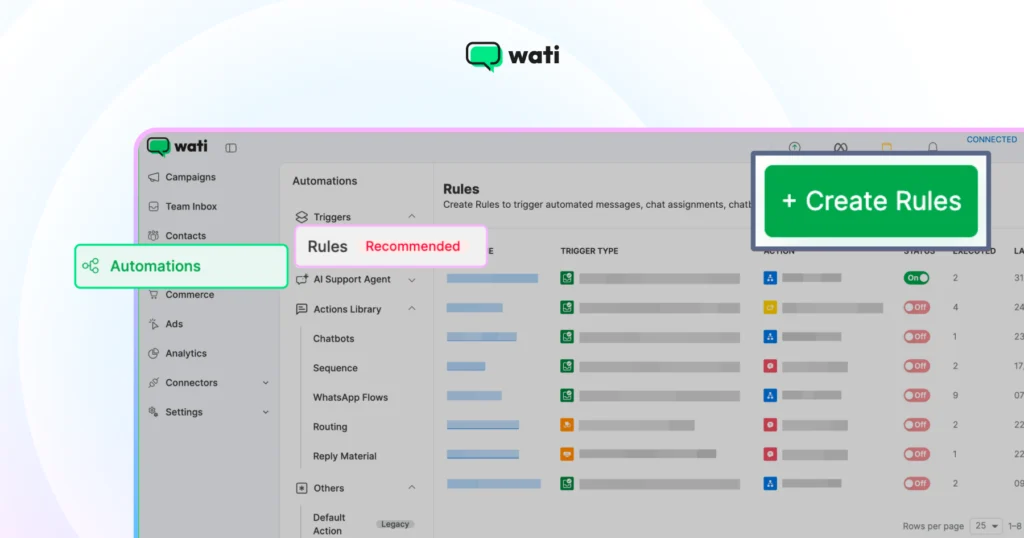
One important distinction before you proceed: this is not the same screen as the Chatbot builder, which also lives under Automation. Keyword rules and chatbot flows are configured separately. If you landed in the Chatbot section, step back and select Rules instead.
Step 2: Define Your Trigger Keyword and Matching Logic
With the rule editor open, your first task is to set the trigger.
1. Select New Instagram Message is Received as the trigger. This is the correct trigger for comment-to-DM keyword automation. When someone comments on your keyword in a post, Wati receives the interaction via Instagram's Messaging API and can trigger a DM based on the matching comment. Please note: Use New Instagram Comment is Received when your automation should start from comments. Use New Instagram Message is Received when you also want keywords typed directly in DMs.
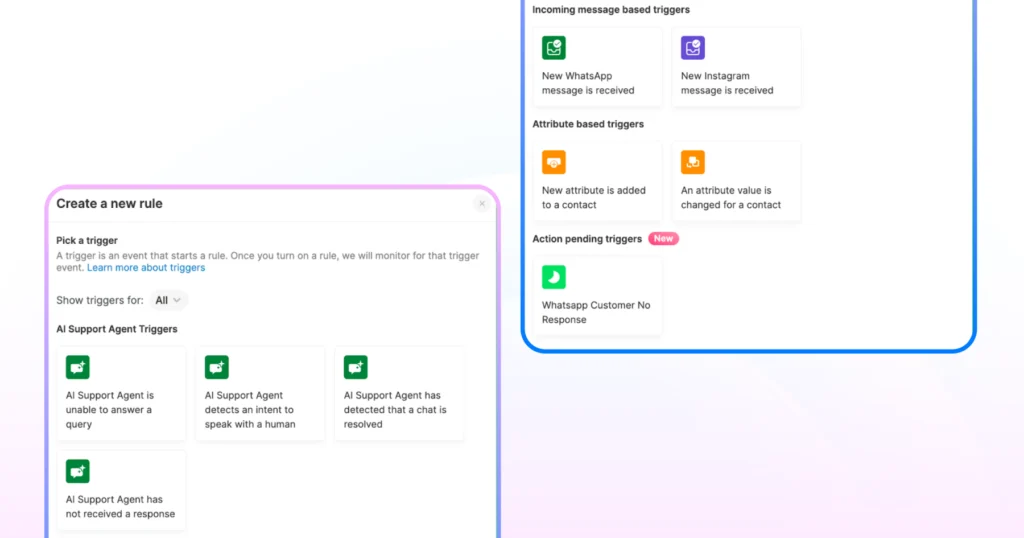
2. Under the filter condition, choose Incoming Message Matches Keyword(s).
Note: This is where you enter the word your audience will type in the comments: DROP, PRICE, BOOK, or whichever keyword you settled on in the previous section.
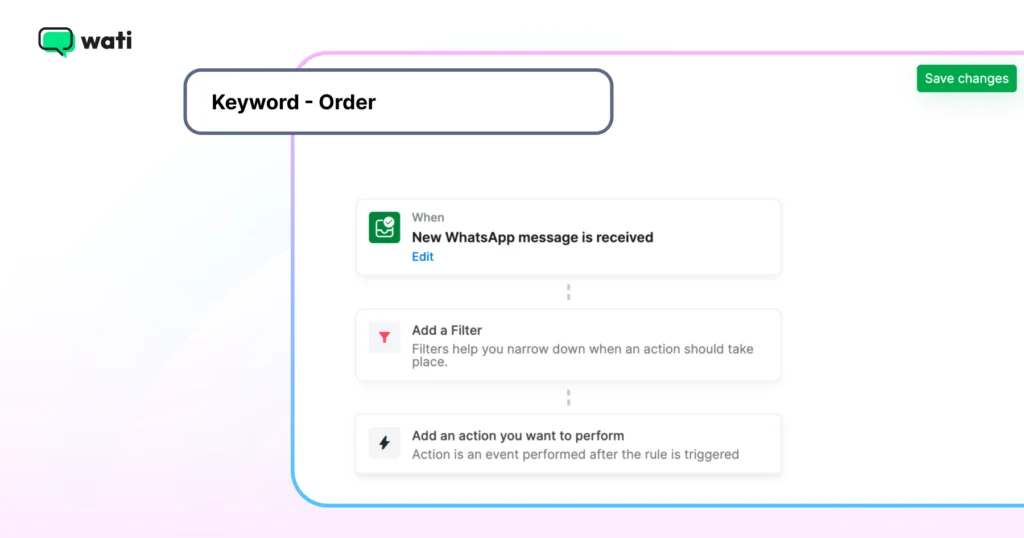
Wati also supports native Instagram comment automation through its own dedicated trigger, New Instagram Comment is Received. When a comment matches your keyword, this rule triggers two responses at once: a public reply on the post, and a DM to the commenter.
Use this trigger for a pure comment-to-DM campaign. Stick with New Instagram Message when you also want to catch keywords typed directly in DMs, not just comments. Either way, every conversation lands in the same Team Inbox, so your team never has to check two places.
Step 3: Add Your Keyword Filter
Next, choose how Wati matches it against incoming comments:
- Contains: Triggers if the keyword appears anywhere in the message. “What’s the PRICE of the blue one?” still triggers. Best for most campaigns.
- Exact Match: Triggers only if the comment is the keyword and nothing else. Use this for strict qualification only.
- Fuzzy Match: Triggers even with minor spelling variations. Useful, but it can trigger on unintended comments if your keyword is too short.

Helpful Note: For the vast majority of Instagram keyword reply campaigns, Contains is the right setting. It captures the keyword in the comment without being so loose that it fires on irrelevant messages.
Step 4: Add Your Action: the Auto-DM
Under Actions, define what happens when the keyword is detected. You have three options:
- Send a message: Triggers a text DM instantly. Right for most campaigns.
- Start a chatbot: hands the conversation to a chatbot flow. Useful for multi-step sequences.
- Route the chat to an agent: assigns the conversation to a team member. Best for high-value leads that need a human response.
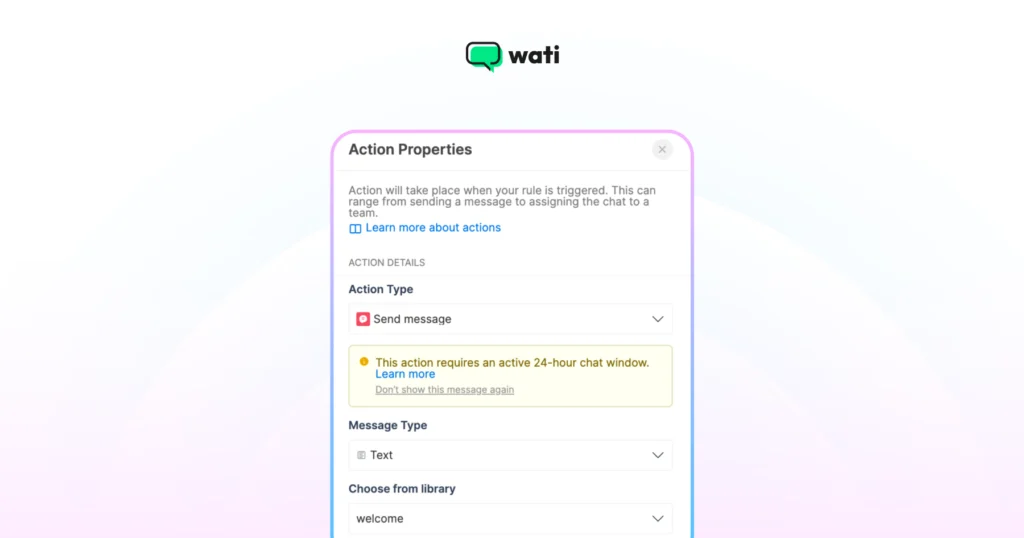
For keyword campaigns, Send a message is what you need. Select a reply from your Reply Material library. If nothing is there yet, create one under the Reply Material section before completing this step.
Get started with these ready-to-use templates for common keyword-triggered campaigns. You can customise the keywords, links, and auto replies to suit your business.
Campaign Type | Keyword Trigger(s) | Auto Reply Template |
Product drop campaign | DROP | "Hey! Here's your early access link to our new collection: [link]. Tap to shop before it goes live.[Brand Name]" |
Pricing or service enquiry | PRICE, INFO | "Thanks for reaching out! Here's our full pricing breakdown: [link]. Let us know if you have any questions. We're happy to help." |
Giveaway or contest | WIN, ENTER | "You're in! Here's everything you need to know about the giveaway: [link]. Good luck; we'll announce the winner on [date]." |
Free resource or lead magnet | FREE, GUIDE | "Here's your free [resource name]: [link]. Let us know if you have any questions. We'd love to help you get the most out of it." |
Appointment or booking campaign | BOOK, CALL | "Thanks for reaching out! You can book your [appointment/call] directly here: [link]. We look forward to speaking with you." |
Early access or waitlist | ACCESS, WAITLIST, EARLY | "You're on the list! We'll notify you as soon as [product/service] is live. In the meantime, here's a sneak peek: [link]." |
Step 5: Save and Activate Your Rule
Once your trigger, keyword filter, and response are all configured, you’re ready to go live.
Turn the rule ‘On’ and click Save changes.
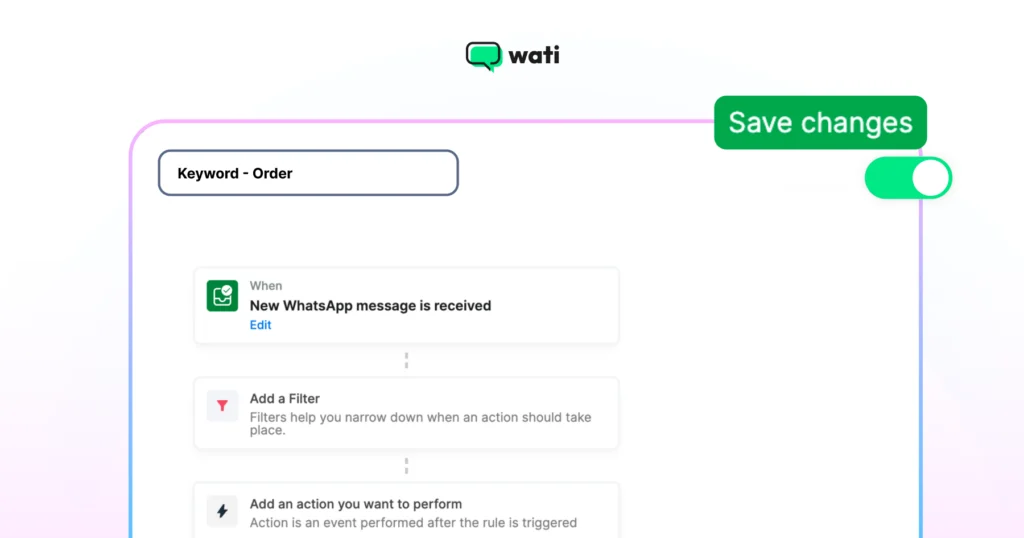
Your automation rule is now active. Whenever a customer sends a message containing your specified keyword, Wati will automatically trigger the action you configured.
Good to know: Instagram only triggers the comment trigger on a user's first comment. If the same person comments the same keyword again, it won't re-send the DM, a limitation on Instagram's side that applies to every tool using their API, so repeat commenters aren't spammed.
How Do You Choose the Right Keyword?
Your keyword is the foundation of the entire automation. A poorly chosen one will either fail to trigger when it should, or fire on comments you never intended to catch.
Before you open the Wati dashboard, spend two minutes on this.
Four rules for picking the right keyword:
1. Use a word your audience will actually type, not one you wish they’d type: “PRICE” works. “I’d love to know more about pricing,” does not. Keep it to the word they’ll naturally reach for in the moment.
2. Shorter is always better: One word beats two, two beats three. The longer the keyword, the more variation you’ll get in how people type it and the more triggers you’ll miss.
3. Make it specific to the campaign: A keyword like “INFO” might seem versatile, but it’ll fire on every post it’s scoped to. Use campaign-specific words to keep your automations clean and your DMs relevant.
4. Check for accidental overlap: If you’re running multiple campaigns simultaneously, make sure your keywords don’t appear naturally in each other’s comment sections. “DROP” and “DROPS” are different enough; “SALE” and “SALES” may not be.
Ready-to-use keywords by campaign type:
Campaign Type | Keyword to Use |
Product launch/drop | DROP, LAUNCH, NEW |
Pricing enquiry | PRICE, COST, QUOTE |
Service or appointment booking | BOOK, CALL, MEET |
Giveaway or contest | WIN, ENTER, GIVEAWAY |
Free resource or lead magnet | FREE, GUIDE, LINK |
Early access or waitlist | ACCESS, WAITLIST, EARLY |
Pick one, keep it capitalised in your campaign post so it stands out, and have it ready before the key steps.
How Can You Run Multiple Keyword Triggers Simultaneously?
Running more than one campaign at the same time?
Here is how to manage multiple keyword triggers in Wati.
Each rule in Wati is based on a single trigger. However, you can create multiple rules with different conditions to handle various scenarios. This means each campaign keyword gets its own rule configuration and DM response.
Here’s what a multi-campaign setup looks like in practice.
Rule Name | Keyword | Action |
Keyword – DROP | DROP | Sends early access link DM |
Keyword – PRICE | PRICE | Sends pricing breakdown DM |
Keyword – BOOK | BOOK | Sends appointment booking link DM |
All three can be active simultaneously. To keep things clean:
- Name each rule clearly from the start so they’re easy to identify and manage from your Rules dashboard.
- Use common keyword variations to capture different phrasings. Customers might phrase their queries differently. If DROP and DROPS are both likely, add both as comma-separated keywords within the same rule.
- Avoid overly generic words. Broad keywords might trigger unwanted responses across multiple active rules.
1. To view, edit, or pause any active rule: navigate to Automation, then to Rules to see all existing automation rules.
2. Select any rule to edit, enable, or disable it.
3. After making changes, click Save and toggle the rule On or Off as needed.
Is Keyword-Triggered Instagram Automation Compliant with Meta's Rules?
It is, as long as you follow one rule. Instagram's Messaging API lets you reply automatically after a user interacts with you: a comment or DM is the opt-in that lets your keyword rule send the first DM.
What you can't do is cold-DM people who never interacted. Once a user messages you, Meta's standard 24-hour window applies for free-form replies; outside it, you're limited to approved message types. Keyword-triggered DMs are compliant because the user's comment starts the conversation, so always offer a path to a human for anything the auto-DM can't resolve.
How is Wati Different from Standalone Keyword Trigger Tools?
Most standalone keyword trigger tools do one thing: fire a DM when a comment matches a word.
What happens after that (the reply, the follow-up, the conversion) is left to you to figure out across a separate platform.
With Wati, that entire loop stays in one place.
Every keyword-triggered DM conversation flows directly into your Wati Team Inbox, the same inbox where your team manages manual DMs, comment automation conversations, and WhatsApp.
There is no separate platform to monitor, no tab-switching, no missed follow-ups. When a keyword trigger fires and the customer replies, your team sees it immediately alongside every other active conversation.
The second difference is what happens at the end of that DM conversation. If your keyword-triggered DM includes a step to capture a phone number, Wati can move that lead from Instagram DM into a WhatsApp follow-up sequence automatically.
And once the conversation is on WhatsApp, Wati Astra AI Agent can take over by answering follow-up questions from your catalogue or FAQs before handing a hot lead to a human.
The full funnel looks like this:
A user discovers your post and comments with a keyword. This triggers an automated DM, where their phone number is collected. Once captured, they are moved into a WhatsApp nurture sequence for further engagement.
That’s the entire campaign pipeline, from a comment on a post to a qualified lead in WhatsApp, running without a single manual touchpoint.
Feature | Other Tools | Wati |
Keyword-triggered DM automation | Yes | Yes |
Multiple keyword triggers | Yes | Yes |
Fuzzy, Contains & Exact keyword matching | Varies by tool | Yes |
Unified Instagram and WhatsApp inbox | No | Yes |
No third-party integrations needed | No | Yes |
Lead capture from Instagram DMs | Varies by tool | Yes |
Automatic WhatsApp follow-up after DM | No | Yes |
Chatbot activation via keyword trigger | Yes | Yes |
Your Keyword Trigger is Ready. Now Scale Your Campaigns
Setting up keyword-triggered Instagram automation in Wati is one of the highest-leverage moves you can make for a live campaign.
Every comment with your keyword is a person who has told you exactly what they want, and with the right rule in place, they hear back instantly, every time, without your team lifting a finger.
The setup itself takes under 10 minutes. But the compounding effect, which includes faster response times, more leads captured, and fewer conversations that go cold, is what makes keyword-triggered Instagram DM automation worth getting right the first time.
Once your keyword trigger is live, the next step is building an Instagram FAQ chatbot, so your account handles common questions the same way it now handles campaign keywords: automatically, instantly, and without manual input.
That’s exactly what Wati is built for. Book a demo and start setting up keyword-triggered DMs with Wati now.
Frequently asked questions
1. How do I set up keyword-triggered Instagram DM automation in Wati?
In your Wati dashboard, go to Automation → Rules → Create Rules. Set the trigger to the Instagram message trigger, add a keyword filter under Incoming message matches keyword(s), write your auto-DM response under Actions, then turn the rule on and save. The whole setup takes under 10 minutes.
2. What’s the difference between Contains, Exact Match, and Fuzzy Match?
Contains triggers when the keyword appears anywhere. Exact Match only works if the comment is identical. Fuzzy Match allows minor spelling variations. When in doubt, use Contains.
3. Can I run multiple keyword triggers at the same time?
Yes. Each keyword runs as its own rule with its own DM and setup. You can run multiple campaigns in parallel.
4. What if I don’t want a keyword to trigger DMs anymore?
Simply deactivate the rule in your dashboard. For prevention, use specific keywords to avoid accidental triggers
5. What is the difference between keyword-triggered vs general comment automation?
General automation replies to every comment. Keyword-triggered automation only responds when a specific word is used, making it intent-based and more qualified.
6. Is keyword-triggered Instagram automation against Instagram’s rules?
No. Meta’s Messaging API permits automated replies after a user interacts with you; a comment or DM is the opt-in. Unsolicited, first-contact DMs are what’s not allowed. Keep replies inside Meta’s 24-hour window and offer a human handoff.
7. Is Instagram keyword automation free?
Instagram doesn’t charge for the API, but the automation tool does. Wati is a paid platform that bundles Instagram, Facebook Messenger, and WhatsApp into a single team inbox.
Related posts
- How to Create Personalized AI Videos with Wati’s AI Video Generator
Transform your marketing with Wati’s AI video generator. Create personalized, professional videos at scale without technical expertise or expensive equipment.
- How to Set Up Auto Reply in WhatsApp Business?
Master WhatsApp auto-reply for your business: improve response times, customer service, and communication.
- How to Add a WhatsApp Chat Button On Website: 2026 Guide
Discover how to add a WhatsApp chat button on your website effortlessly. Create real-time connections, improve support, and convert visitors with Wati.
- How to Set Up an Instagram Chatbot to Answer FAQs Automatically (2026 Guide)
Learn how an Instagram FAQ chatbot works, which questions to automate, and how to set one up in Wati without code, from your first button template to a live keyword rule.