
Too Long? Read This First
- What it is: Native WhatsApp Group creation and management inside Wati's Team Inbox, plus a Groups API for automating it at scale.
- The cap: Up to 7 external contacts per group, but unlimited internal team members (operators); the limit is on customers per group, not on who can manage it.
- The requirements: A Wati Business plan and Official Business Account (OBA / Blue Tick) verification, both needed before Groups will activate.
- Who it's for: Businesses running several smaller, high-touch groups, communities, cohorts, VIP circles, event pods, not one giant broadcast-style group.
- What it's not: A stand-in for broadcast campaigns or mass messaging. Groups don't support Authentication templates or Campaign broadcasts.
- Cost: Priced per recipient who receives the message, using Meta's per-message pricing for that recipient's country.
You've probably been part of several WhatsApp groups, personal and professional. Yet you're managing all of them on your phone, not through your WhatsApp Business API. What if your WhatsApp Business API could allow you to create a group in your shared Team Inbox?
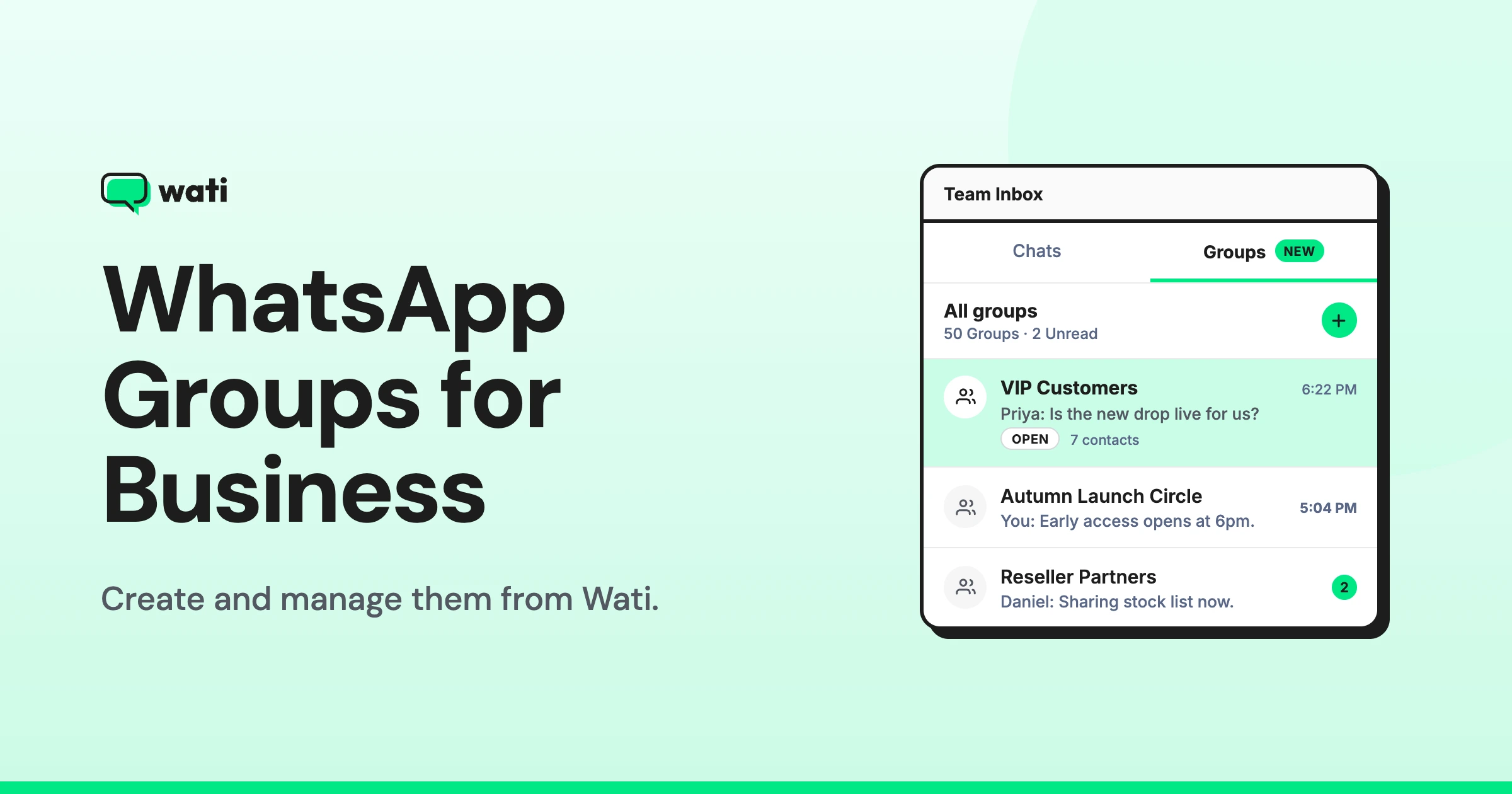
Wati’s new WhatsApp Group Update lets you create, manage, and reply to customer WhatsApp groups, up to 7 external contacts each, from a shared Team Inbox instead of a personal phone.
In Wati, this runs through your WhatsApp Business API number, and it's available both in the dashboard and through the Groups API. It replaces the common workaround of running customer communities, VIP circles, and event groups from a founder's or employee's personal WhatsApp, where the rest of the business can't see, search, or hand off the conversation.
Note: A WhatsApp Group for business is a small, ongoing group conversation -capped at 7 outside contacts - that a company runs from its verified WhatsApp Business number rather than a staff member's own phone.
Why is Managing WhatsApp Groups From a Personal Phone a Problem?
Managing a customer WhatsApp group from a personal phone breaks down because the business has no visibility, no clean handoff, and no audit trail for conversations that customers treat as official.
WhatsApp groups are already where a lot of customers spend time. Coaches run cohorts in them. E-commerce brands drop VIP deals in them. Event organizers coordinate entire audiences through them. The problem is that almost none of this activity happens through the business itself; it happens through whichever employee's phone the group was created on. That setup creates four specific gaps:
- No visibility: If the person managing the group is out sick or leaves the company, the team has no record of what was promised, asked, or answered.
- No handoff: A new team member can't log in and pick up the conversation; they need the actual device the group lives on.
- No accountability: There's no audit trail for what was sent, when, or by whom.
- No scale: One phone can realistically run one or two groups well. Ten communities on one person's personal WhatsApp starts breaking down fast.
What does It Cost a Business to Manage Groups Manually?
Managing a WhatsApp group for business manually results in slower response times, customer retention loss, and, in regulated industries, real compliance exposure.
- Slower responses: When one person owns a group from their phone, response time depends entirely on that person's availability.
- Lost retention: A customer inside a VIP group or community is already a high-intent, engaged customer. Managing that relationship poorly, or losing continuity when an employee leaves, quietly erodes the recurring revenue the community was supposed to protect.
- Compliance risk: Customer conversations happening on a personal device, outside any company system, are difficult to monitor and difficult to hand over cleanly if that employee leaves.
WhatsApp groups are a revenue and retention channel that most businesses currently run on the least reliable infrastructure available to them: one person's phone.
What is Wati's WhatsApp Group for Business Feature?
Wati is a WhatsApp Business API platform built for SMBs and growing companies that need to manage conversations, run campaigns, and automate replies on WhatsApp without a developer team. Groups is the newest piece of that, living right next to the one-on-one conversations a support or sales team already handles in Team Inbox.
As mentioned earlier, Wati's WhatsApp Groups for business feature lets you run customer group chats from the business's own WhatsApp Business API number, either through the Team Inbox dashboard or the Groups API.
Concretely, that gives a team a few things:
- A group belongs to the business's WhatsApp number, never to one person's device.
- Any number of teammates (operators) can jump into a group without needing the phone it was created.
- The full conversation history stays searchable and transfers cleanly when someone changes roles or leaves.
- Businesses that need groups regularly, events, e-commerce drops, or onboarding cohorts can spin them up via the API instead of navigating the dashboard each time.
What do You Need Before You Start?
Three requirements apply to any business using WhatsApp Groups for business, and it's worth checking all three before you plan a rollout for this feature.
- A Wati Business plan and a number that isn't on a Coexistence (CoEx) connection. Groups are gated to Business-tier accounts, and it won't work if the WhatsApp number is currently running in Coexistence mode alongside the WhatsApp Business app.
- Official Business Account (OBA) verification- the Blue Tick. Without it, the Groups feature remains inactive, regardless of which plan or setup steps have been completed. Step 1 below walks through how to get it.
- A ceiling of 7 external contacts per group. This one comes from WhatsApp's platform itself, not from Wati, and it only counts customer contacts; the operators staffing a group don't touch that limit at all. A team can add as many people as it wants on the inbox side; the customer side is capped at 7.
Taken together, these rule out one specific shape of community: a single 500-person mega-group in a single thread. What it's built for instead is several smaller, higher-touch groups running in parallel: VIP circles, small cohorts, event pods. If a business's whole model depends on one giant group, this feature isn't there yet.
How do WhatsApp Groups for Business Compare to Broadcasts and 1:1 Chats?
WhatsApp Groups, Broadcast Campaigns, and 1:1 Team Inbox chats each solve a different job, and most businesses end up needing all three rather than picking one.
WhatsApp Groups | Broadcast Campaigns | 1:1 Team Inbox | |
|---|---|---|---|
Conversation shape | Many-to-many, everyone in the group sees every reply | One-to-many, no reply-all visibility between recipients | One-to-one |
Audience size | Up to 7 external contacts per group | As large as the target segment | One contact per conversation |
Best for | Small communities, cohorts, VIP circles, event groups | Announcements, promotions, mass updates | Individual sales or support conversations |
Not supported | Authentication templates, Campaign broadcasts | Reply-all group visibility | N/A |
A promotional message going out to thousands of contacts at once belongs in a Broadcast Campaign. A single customer's issue belongs in a 1:1 Team Inbox chat.
WhatsApp Groups sit in the space between those two: a small, ongoing, two-way conversation among people who know they're talking to each other, not just to the business.
Who Should Use WhatsApp Groups for Business?
WhatsApp Groups for business fit companies running several small, high-touch groups rather than one large community, customer communities, event cohorts, coaching groups, VIP commerce circles, and small support pods.
- Customer communities: small, engaged pods where members know each other, not one mega-group.
- Event-based businesses: a dedicated group per cohort, batch, or event, coordinated from a shared inbox instead of an organizer's phone.
- Coaches and course creators: cohort groups that survive staff changes, with full conversation history intact.
- E-commerce and D2C brands: VIP or loyalty circles for early access and repeat buyers, run from the business number instead of a founder's personal one.
- Support teams: small troubleshooting or onboarding groups that need a proper record instead of a disappearing thread, similar to how teams already run WhatsApp customer service one-on-one.
A business already running several of these smaller groups gets an immediate fix: getting them off personal phones and into a system the whole team can see.
For more ways teams put WhatsApp to work beyond groups, see 30+ WhatsApp API Use Cases for Marketing, Sales & Support.
How do You Set Up WhatsApp Groups in Wati?
Setting up WhatsApp Groups in Wati takes five steps: verify OBA (official business account), create the group, manage membership, run conversations from the Team Inbox, and optionally automate it via the API.
Step 1: Get OBA (Blue Tick) Verification
Getting the Blue Tick starts with clearing a handful of Meta eligibility checks before Wati ever files the request. In broad strokes, Meta wants to see:
- Your WhatsApp Business Platform account has at least 30 days of history behind it
- Two-step verification is already turned on for the number
- Your business has cleared Meta's own Business Verification process
- Meta has approved your WhatsApp display name
- Your number sits at Messaging Tier 1 or above (Tier 2+ improves your odds)
- The account belongs to a registered business, not an individual
- Your business is publicly recognizable; plan on lining up roughly five credible links, such as press coverage, directory listings, or a Wikipedia entry, as evidence.
Once you can check off that list, loop Wati in, either through the help widget inside Team Inbox or the Help Center, and the team files the OBA request with Meta on your behalf.
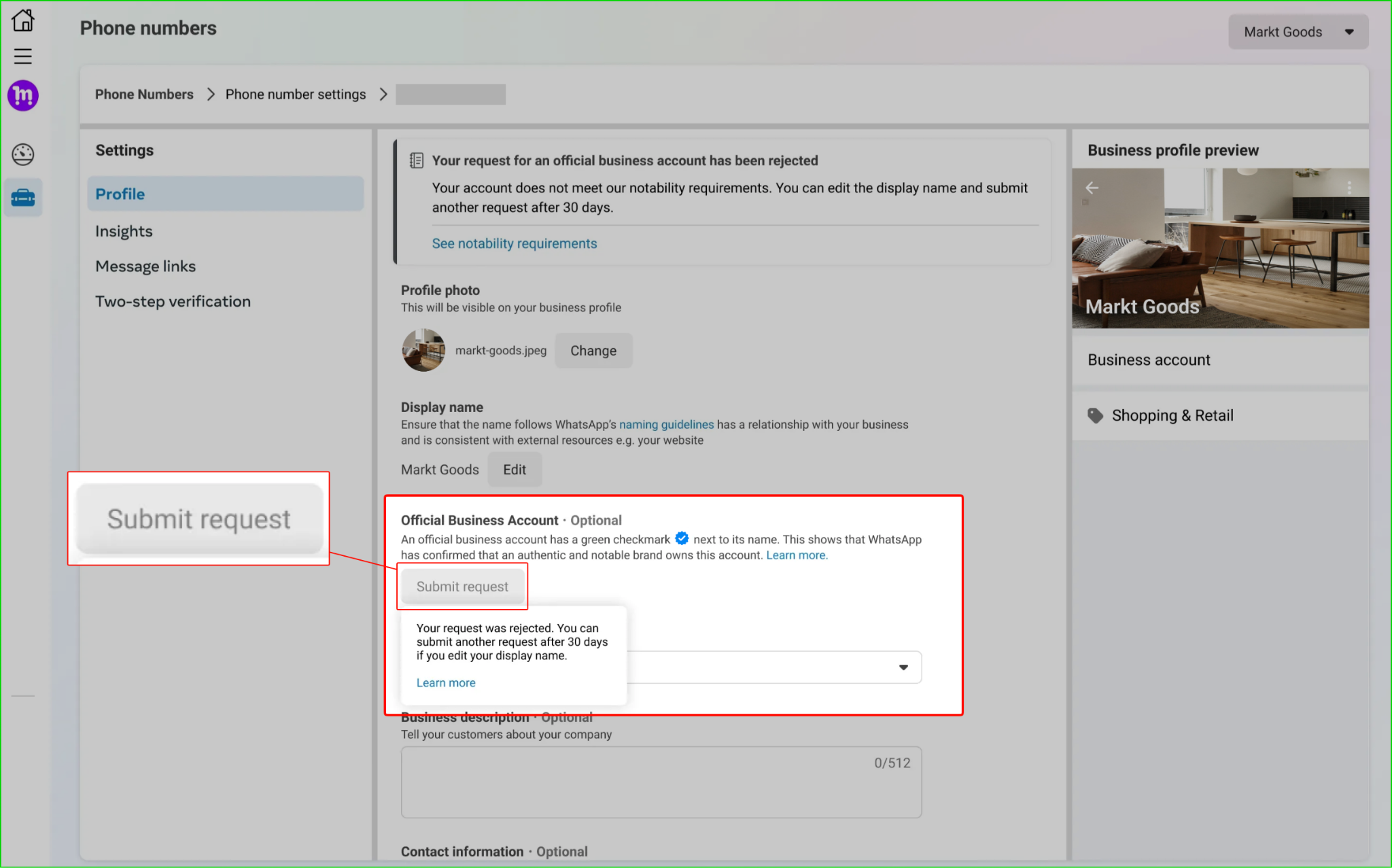
From there, it's out of Wati's hands: Meta makes the final call, approval is never automatic, and a decline just means a 30-day wait before you can try again.
Step 2: Create the First Group in Team Inbox
Once the number is verified, building a group is a short dashboard flow rather than a technical setup:
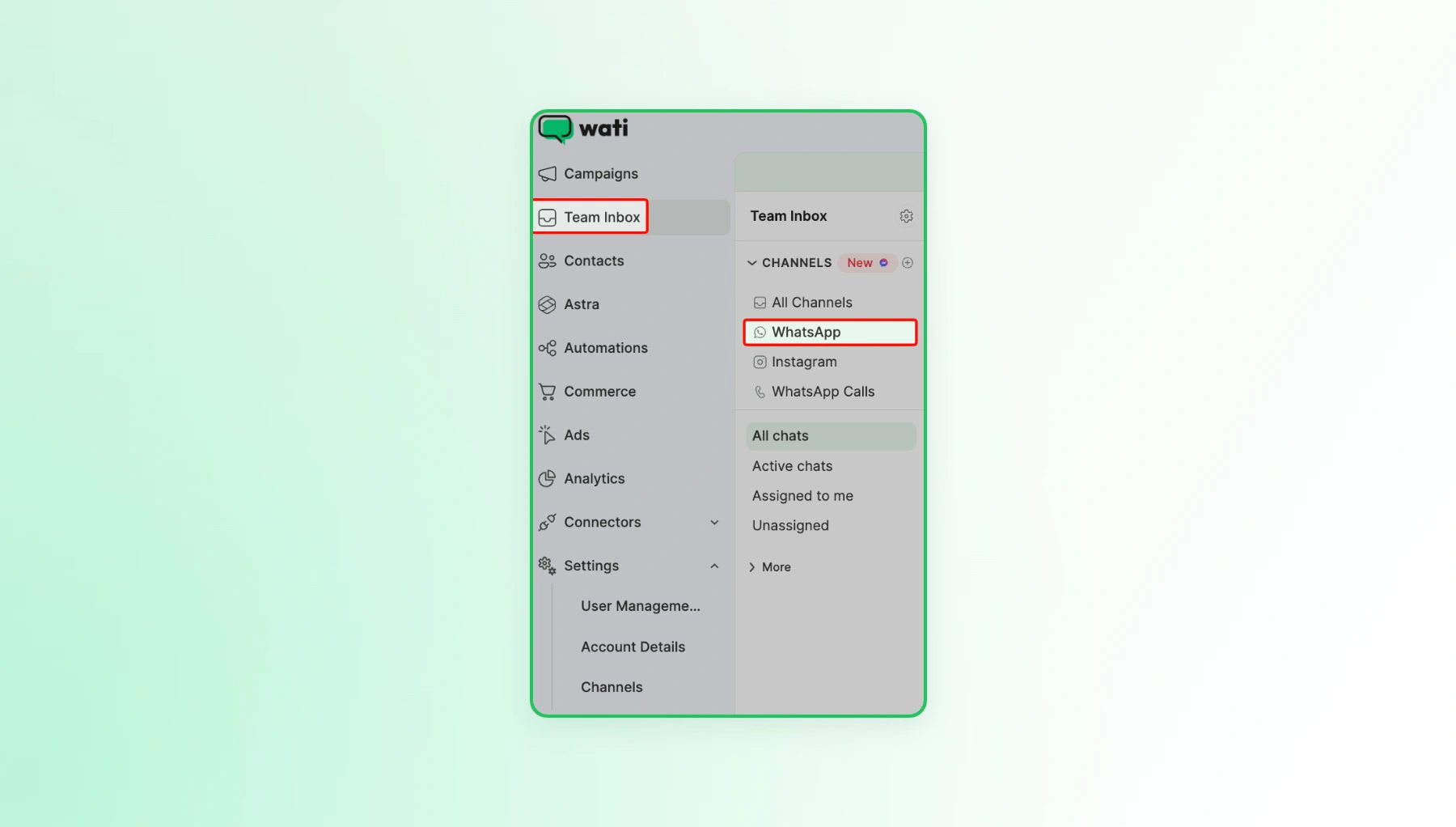
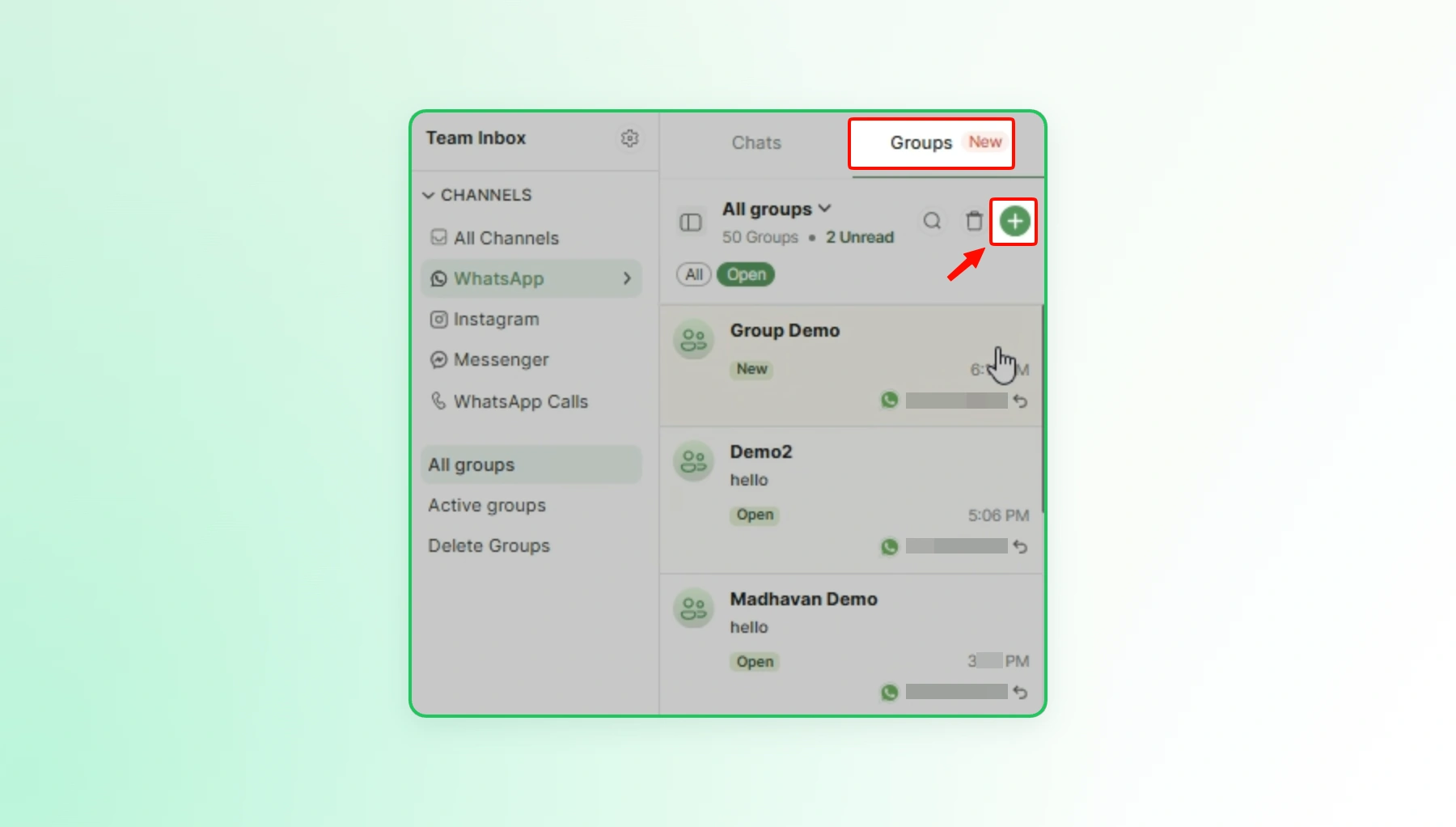
- Log in and open Team Inbox → Channels → WhatsApp.
- Select Groups
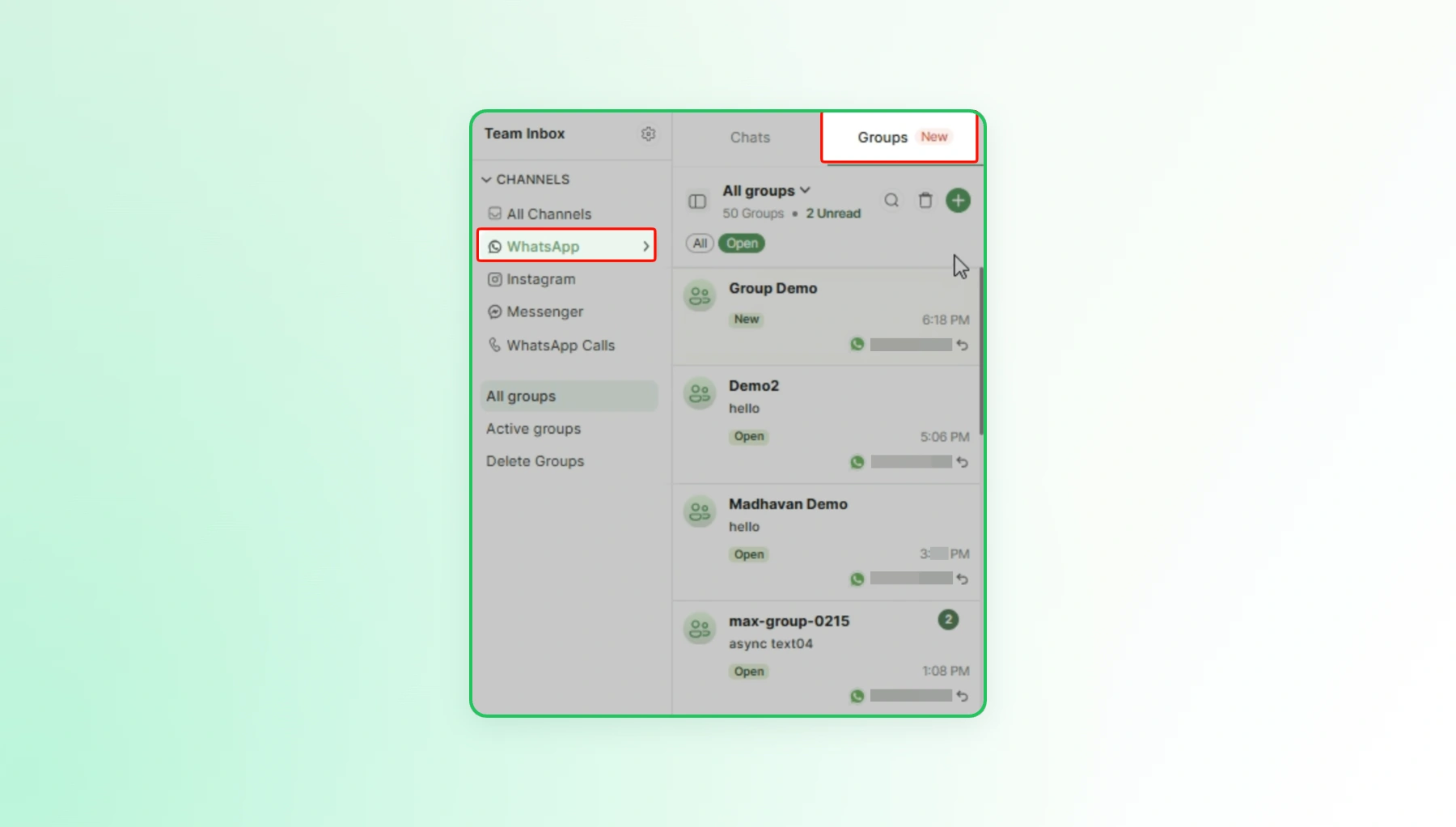
- Tap the + icon to create a new group.
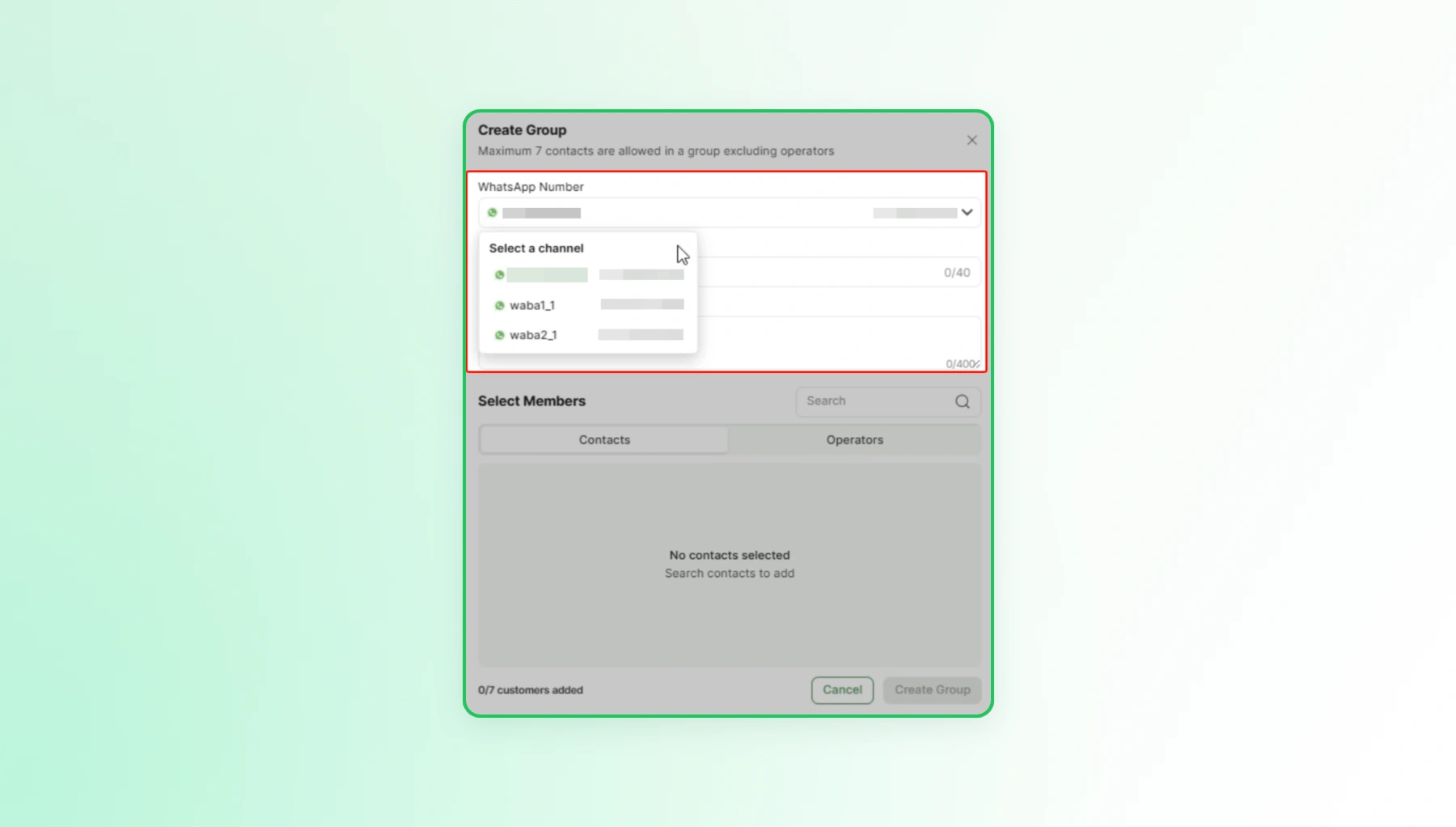
- Pick which verified WhatsApp number the group should run on.
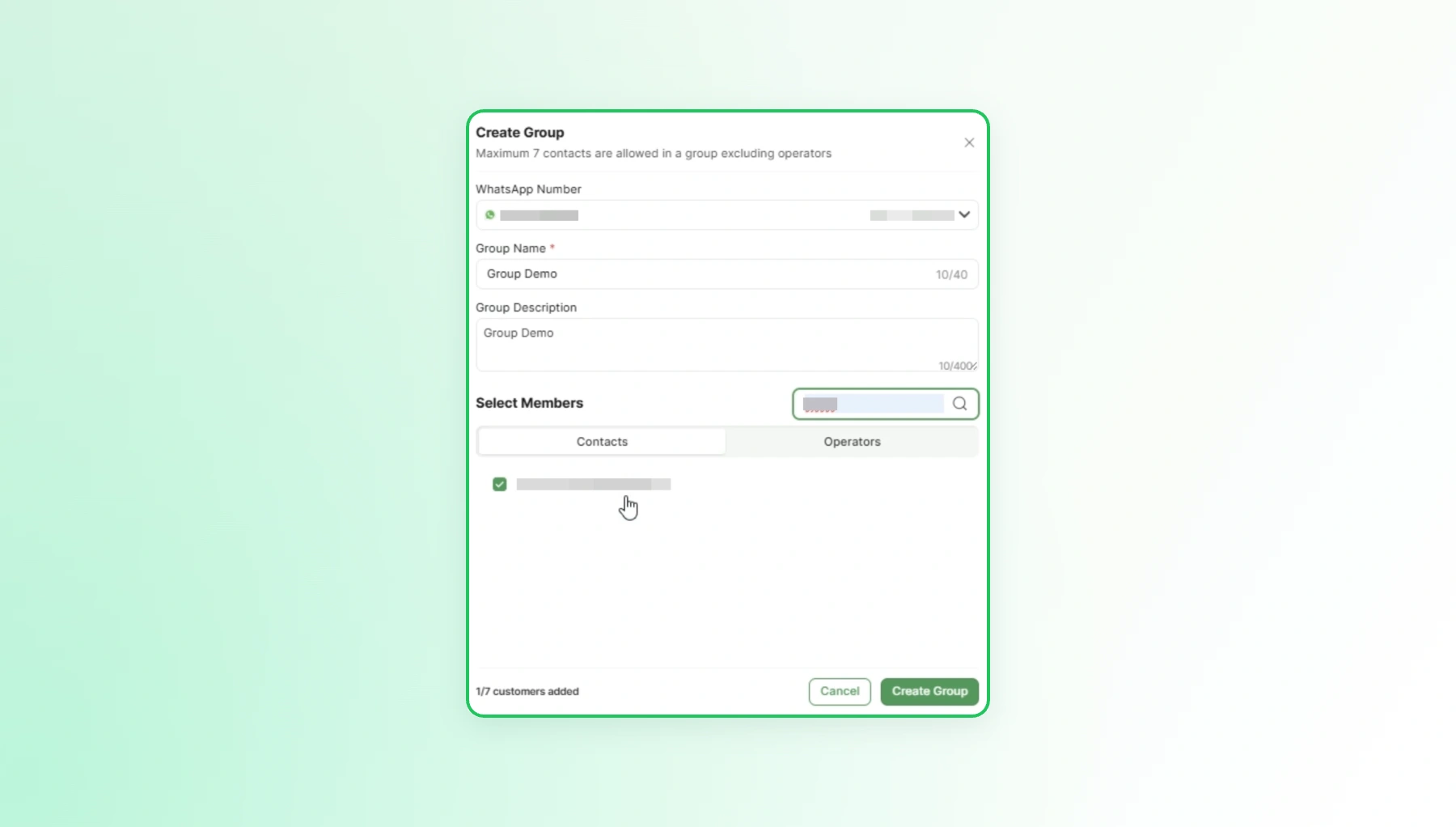
- Enter a group name and group description.
Bring in up to 7 external contacts, plus as many team operators as needed.
Click Create Group; Wati takes it from there.
6. The new group appears in the Groups list.
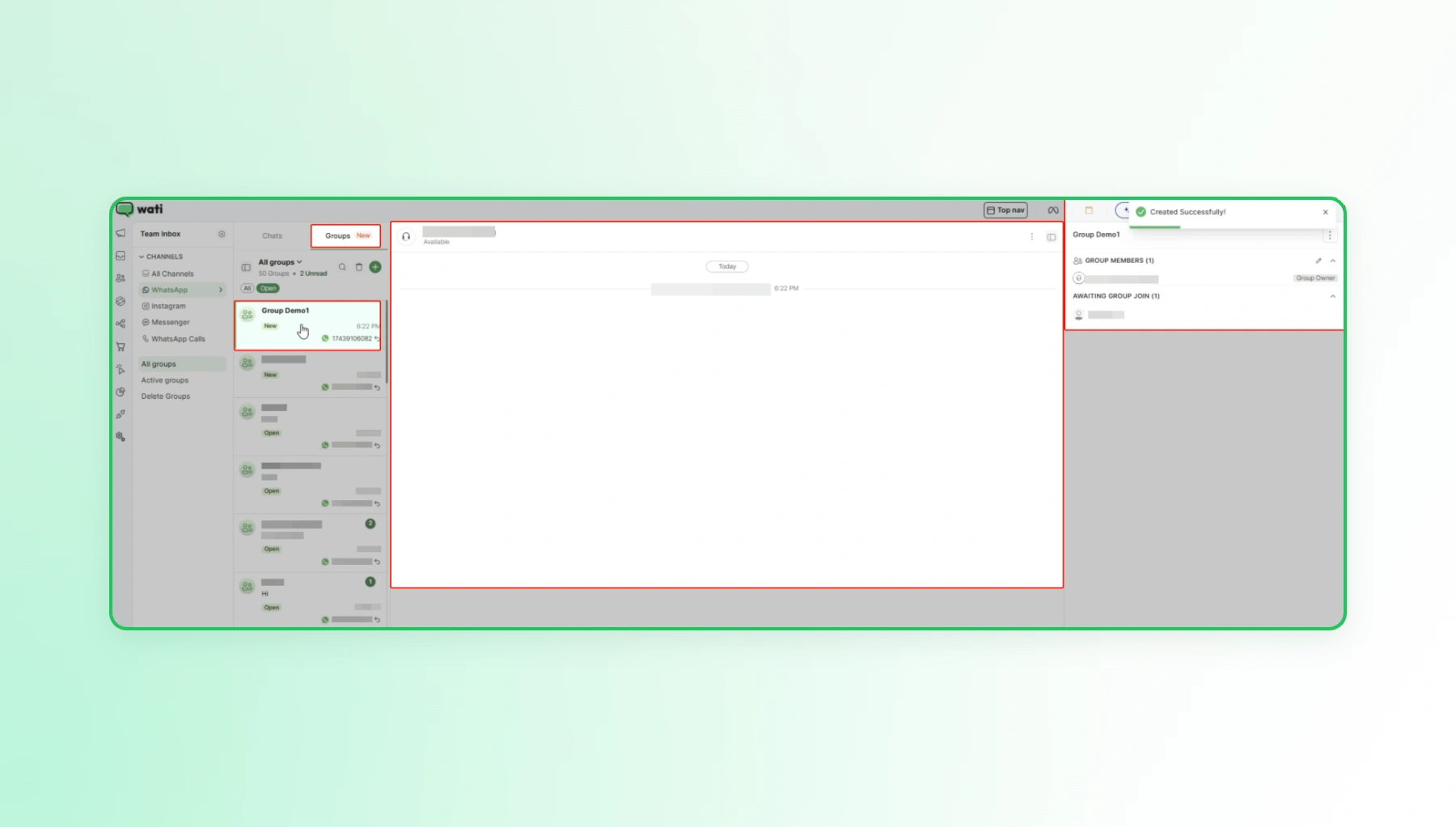
From that last click, Wati generates a unique invite link on its own and sends it out to the contacts added, so there's no manual link-sharing step. Every group is invite-only, and a single business number can host up to 1,000 of them.
Step 3: Add or Remove Members Later
A group doesn't need to be rebuilt just because its roster changes.
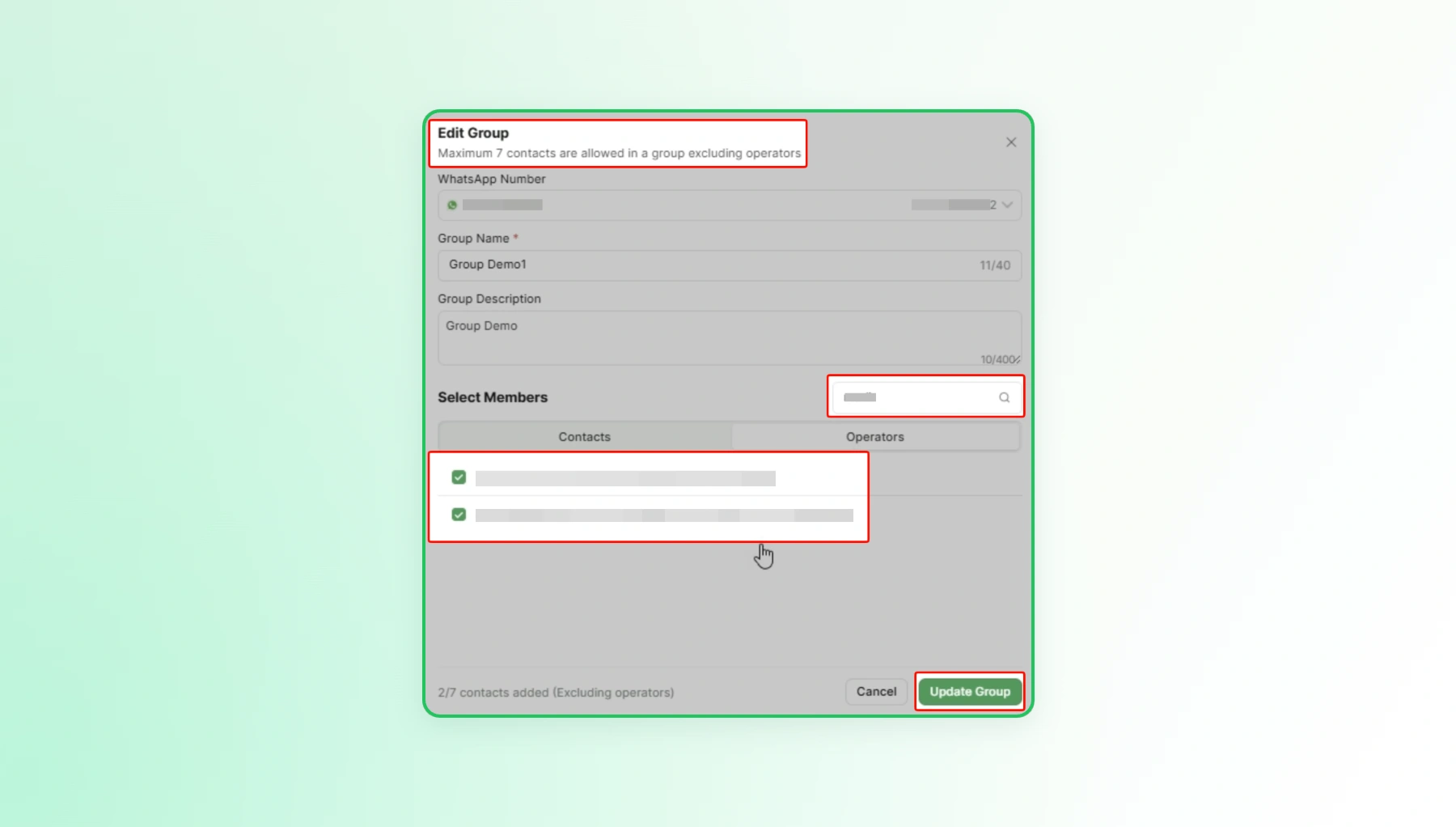
- Adding someone new: open the group, tap Edit Group, find the contact or operator, and save with Update Group. A new external contact gets an invite link to accept; a new operator is simply in, no invite step needed.
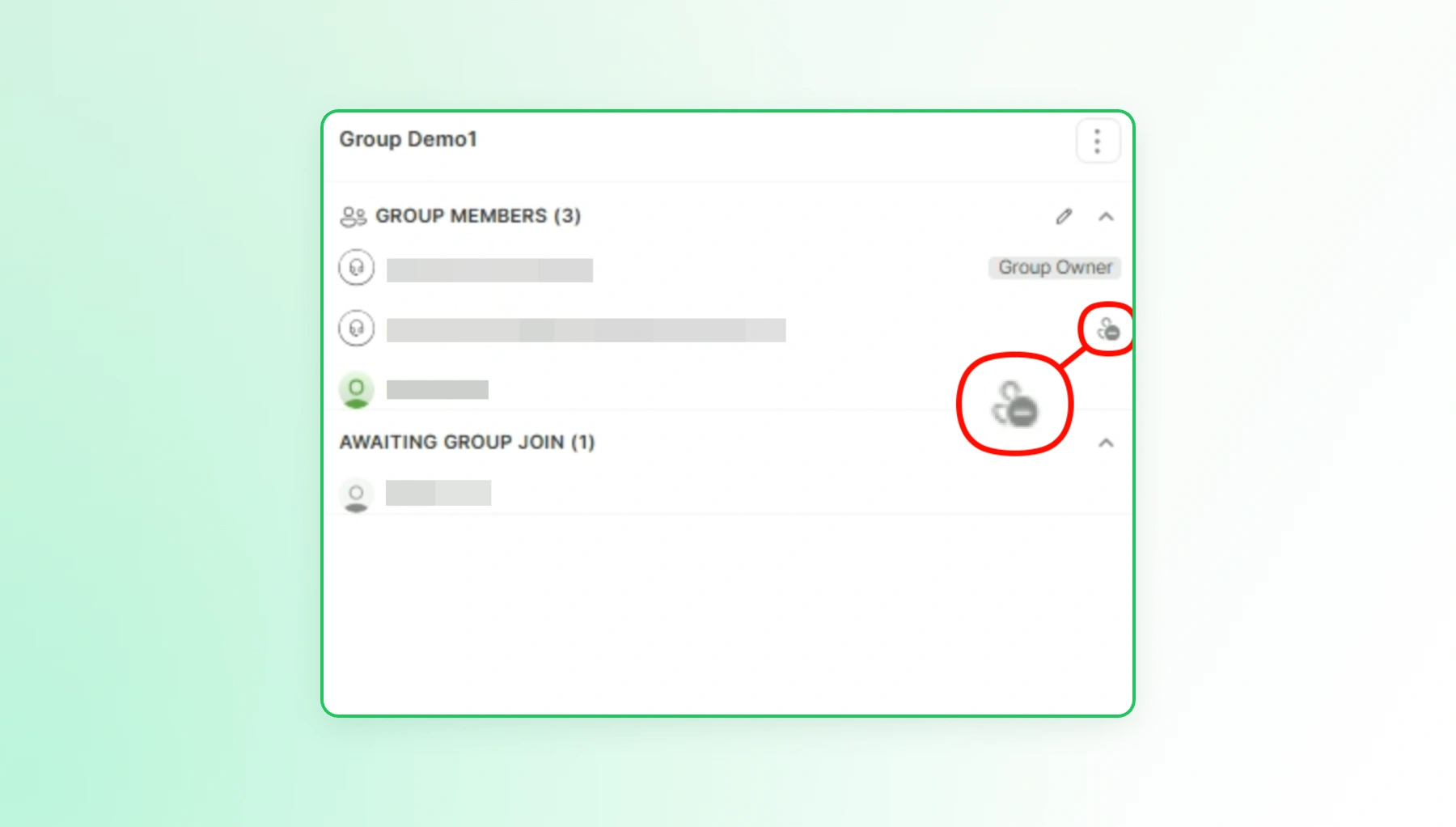
- Removing an operator: open the group, then click the remove operator icon next to their name.
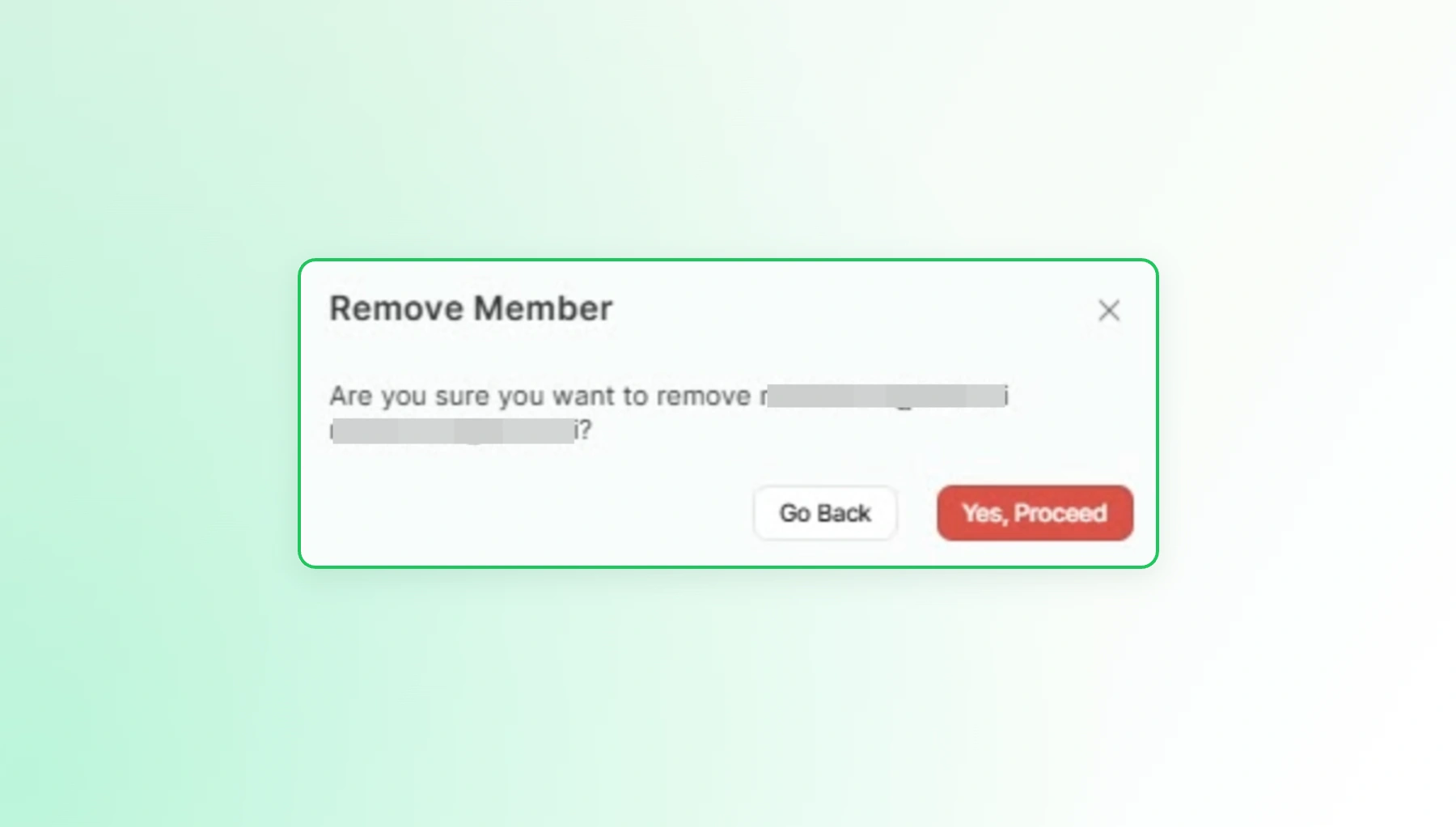
- Click Yes, Proceed to remove the operator.
Step 4: Manage Conversations From Team Inbox
Visibility in Team Inbox is intentionally scoped: an operator only sees the groups they've been added to, while an admin can see across all groups.
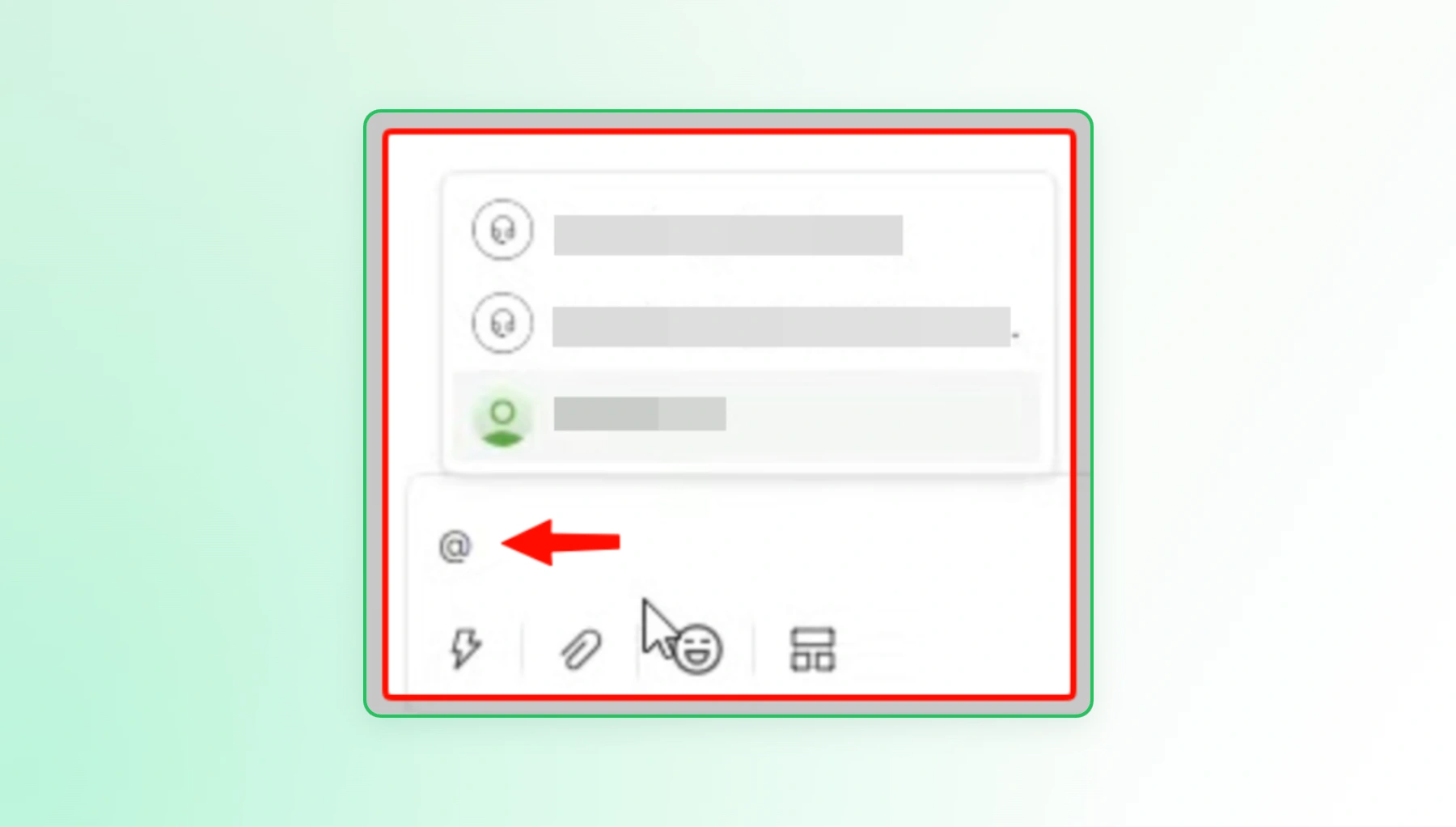
Tagging someone specific works the same way it does in any chat app. Type @ and pick the person, and closing out a conversation once it's handled just means hitting Resolved, exactly like a one-on-one chat.
On the messaging side, a group can include free-form replies within the usual 24-hour window and Marketing or Utility templates outside it, along with quick replies, emojis, and attachments.
Two message types don't fall into any groups at all: Authentication templates and Campaign broadcasts.
Cost, meanwhile, scales with who actually receives the message rather than how many messages get sent; each billable message is priced per recipient, at that recipient's country rate, under WhatsApp's per-message pricing model, the same model used across WhatsApp Business API messaging generally.
Step 5: Automate It With the Groups API (Optional)
For any business that finds itself creating groups on repeat- a new one per event, per cohort, per VIP batch- the Groups API does the same job as the dashboard flow above, minus the clicking.
Action | Endpoint |
|---|---|
Create a group | POST /api/ext/v3/conversations/groups |
Send invitations | POST /api/ext/v3/conversations/groups/{groupId}/invites |
Remove members | DELETE /api/ext/v3/conversations/groups/{groupId}/participants |
List active groups | POST /api/ext/v3/conversations/groups/list |
Delete a group | DELETE /api/ext/v3/conversations/groups/{groupId} |
A create-group call needs the group's name and description, an owner email, the operator emails, and a contact_targets array, and that array still tops out at 7. Every request authenticates with a Bearer token, so treat it the way you'd treat any other credential: keep it out of client-side code, version control, or anywhere it could leak.
This is the setup an event business wants if it's spinning up a fresh group every week, or an e-commerce brand wants if it's triggering a new VIP group straight from a purchase event in its existing stack.
Should a Business Actually Set This Up?
Yes, for any business already running communities, cohorts, VIP circles, or event groups from a personal phone.
The Business plan requirement, OBA verification, and 7-contact cap are real upfront costs, but they trade for a version of WhatsApp Groups the whole team can see, hand off, and run like an actual business channel.
For everyone else running smaller, high-touch groups, this trades a setup tied to one person's phone for one that the business actually owns.
Ready to get your customer communities inside Wati? Start your free trial on Wati to get OBA verification started, then create your first group straight from Team Inbox, or use the Groups API if you're planning to automate this at scale from day one.
Frequently asked questions
How many people can be in a WhatsApp Business group managed through Wati?
A WhatsApp Business group managed through Wati can hold up to 7 external contacts, plus an unlimited number of internal team operators, who don't count toward that limit. A single WhatsApp number can run up to 1,000 groups at once, so the cap applies per group, not across a business's total group count.
Do you need Blue Tick (OBA) verification to use WhatsApp Groups?
Yes, a number needs OBA (Blue Tick) verification, a Wati Business plan, and a connection that isn't running in Coexistence (CoEx) mode before WhatsApp Groups will activate. Eligibility for the Blue Tick itself hinges on things like account age, Meta Business Verification, and messaging tier, so it's worth checking against that list before applying.
Can WhatsApp Groups be created and managed through an API instead of manually?
Yes, Wati's Groups API supports creating, listing, updating, and deleting groups programmatically. This is the practical option for any business that needs to spin up groups repeatedly, such as one per event, cohort, or customer segment, rather than creating each one by hand in the dashboard.
Can a business send broadcast campaigns inside a WhatsApp Group?
No, WhatsApp Groups don't support Campaign broadcasts or Authentication templates. Groups support free-form messages within the 24-hour window, along with Marketing and Utility templates, quick replies, emojis, and attachments; broadcast-style mass messaging still runs through a separate Broadcast Campaign, not inside a group.
How much does it cost to message a WhatsApp Group?
WhatsApp Group messaging costs are billed per recipient who actually receives the message, using WhatsApp's per-message pricing model and each recipient's country rate. This is the same pricing model used across WhatsApp Business API messaging generally. A 7-person group with recipients spread across higher-cost countries will cost more per message than a smaller group concentrated in a lower-cost market.
What's the difference between a WhatsApp Group and a WhatsApp Broadcast Campaign?
A WhatsApp Group is a many-to-many conversation where every member sees every reply, capped at 7 external contacts; a Broadcast Campaign is a one-to-many message sent to a much larger segment with no reply-all visibility between recipients. Groups suit ongoing small communities; Broadcast Campaigns suit one-time announcements to a wide audience.
Related posts
- Instagram Comment Automation: How It Works and How to Set It Up in Wati
Instagram comment automation auto-replies to comments and DMs commenters within seconds via Meta's API. Covers strategy, use cases, and Wati setup.
- Shared Team Inbox for Instagram: A Buyer’s Checklist for 2026
Use this fastest checklist to evaluate any shared team inbox for Instagram, which covers DMs, comments, automation, and multi-channel support.
- How to Send Bulk Messages on WhatsApp Without Getting Blocked
Learn how to send bulk WhatsApp messages without getting blocked. Compare the WhatsApp Business app and API, messaging limits, costs, templates, and best practices for safe, compliant bulk messaging.
- How to Set Up a TikTok Business Account: Step-by-Step Guide
Set up a TikTok Business Account step by step: switch from personal, pick a category, add your profile, and unlock ads and analytics.