

-

-
-
Solutions
-
Soluções
-
Soluciones
-
解决方案
-
解決方案
-
الحلول
-
Product
-
Produto
-
Producto
-
产品
-
產品
-
المنتج
-

-
-


 Wati for Marketing
 Wati for Support
 Wati for Sales
 eLearning
 E-commerce
 Marketing Agencies
 Healthcare
 No Code Chatbots
 WhatsApp Business API
 Instagram and Facebook messenger
 Click to WhatsApp ads
 Campaigns
 Team Inbox
 WhatsApp Business Calling
 Wati AI
 Overview
 Library
 Agente de suporte de IA
WhatsApp List Messages: Create Interactive Menus That Drive Action
Written by:
 Ashwin Suthanthiraraj
|
Last updated on:
February 24, 2026
|
Fact Checked by :
Ashwin Suthanthiraraj
|
Last updated on:
February 24, 2026
|
Fact Checked by :
 Namitha Sudhakar
|
According to: Editorial Policies
Namitha Sudhakar
|
According to: Editorial Policies
 Table of Contents
Too Long? Read This First
- WhatsApp list messages allow users to choose from predefined options in chat, helping businesses simplify navigation and automate responses.
- Each list message can include up to 10 sections and 10 rows in total, with titles limited to 24 characters.
- The feature is available only through the WhatsApp Business Platform (API) or authorized Business Solution Providers (BSPs) such as Wati.
- List items cannot contain media, phone numbers, or links. Only plain text titles and descriptions are supported.
- Design best practices: keep titles concise, organize options clearly, and test flows before deployment.
Repetitive customer queries can quickly slow down your WhatsApp conversations. When every question needs a manual reply, managing chats becomes inefficient and frustrating.
Customers wait longer. Teams spend time answering the same things again and again. And important conversations get lost in the noise.
What’s missing is a simple way to guide customers to the right information.
WhatsApp list messages solve this problem. They let businesses share predefined options directly within a chat. Instead of typing responses or asking follow-up questions, customers can tap an option to browse products, explore services, or reach the right support flow instantly.
This keeps conversations structured and reduces response time. Customers find what they need faster, make decisions sooner, and have a better overall experience. For you, it means fewer repetitive queries and more efficient use of team time.
In this article, we’ll explain what list messages on WhatsApp are, how they work, and how to create them.
What are WhatsApp List Messages?
A WhatsApp List Message is an interactive message format that shows users a set of predefined options inside a chat.
Instead of typing responses or asking follow-up questions, users simply tap an option to move forward in the conversation.
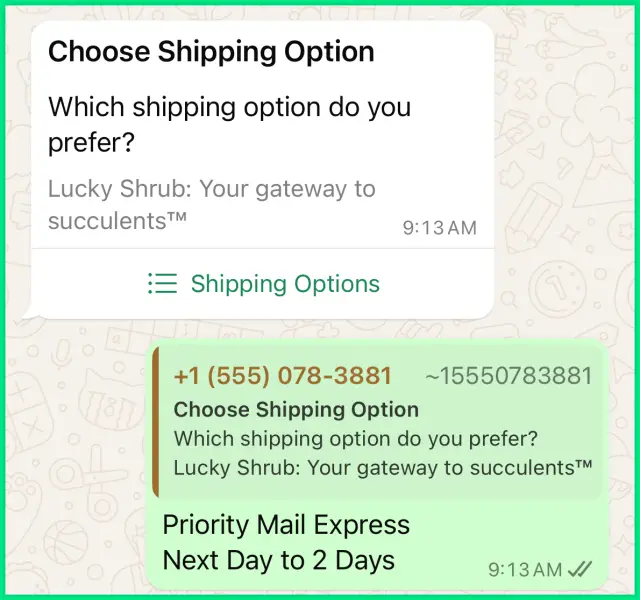
List Messages are part of WhatsApp’s interactive message types, which also include reply buttons. They are available through the WhatsApp Business API and are commonly used to create menu-based navigation, service selection, or self-guided support flows that require no manual input from agents.
Why Businesses Use WhatsApp List Messages?
Businesses across sectors like retail, services, and direct-to-consumer brands use list messages on WhatsApp to keep conversations organized and to help customers reach what they need more quickly.
Some of the practical advantages include:
- Fewer repetitive replies: Routine questions can be handled automatically, reducing the need for manual responses. For instance, questions related to the prices of your product, shipping, and payment methods
- Quicker resolutions: Predefined options allow customers to make a selection instead of typing a full message, saving time for both sides. Imagine someone asks you about the quantity or type of products available to you.
- Clearer navigation: The list layout creates a structured experience that works like a simple menu inside WhatsApp. Customers can choose from the options and do the rest of the process based on that, rather than waiting for each message to come back; to some extent, it automates the checkout or buying process.
- Higher customer engagement: When tasks such as order tracking or appointment booking are one tap away, customers are more likely to complete them.
Technical Specifications of WhatsApp List Messages
List messages come with some specifications. We have curated them in simple terms.
The following specifications are based on the official documentation provided by WhatsApp (Meta for Developers).
They outline the structure that applies when creating and sending list messages using the WhatsApp Business API.
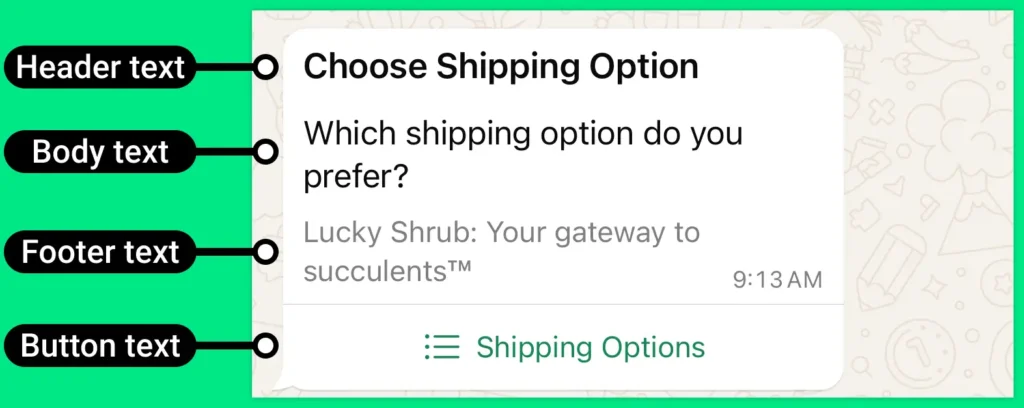
Header (Optional):
A short text header is used to provide context or a title above the message body.
Body (Required):
The main message text that explains the purpose of the list or provides instructions.
Footer (Optional):
Additional text is displayed below the list for notes or disclaimers.
Button Label (Required):
The clickable button that opens the list options (for example, “View Options” or “Choose”).
Sections:
Logical groupings are used to organize list items. You can include up to 10 sections in a single list message.
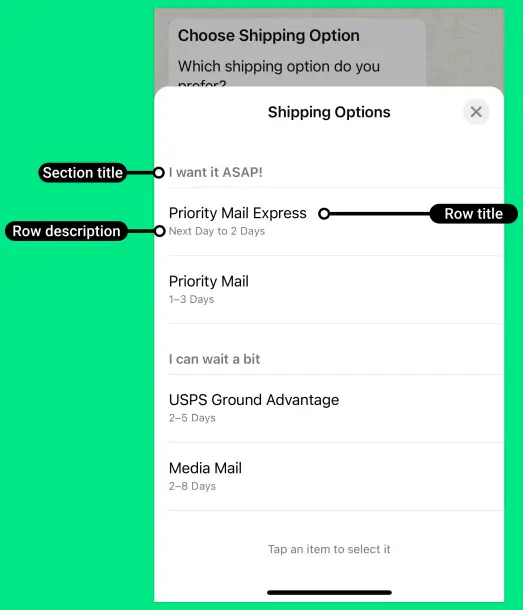
Rows (Options):
The selectable items are shown to the user. You can have a maximum of 10 rows in total across all sections.
Row Title:
The visible name of each option. Each title can contain up to 24 characters.
These details ensure that list messages are formatted correctly, function as intended, and comply with WhatsApp’s message design standards.
If you are creating the list messages with a clear title that boosts the customer experience through easy navigation from one message to another.
How WhatsApp List Messages Work with the WhatsApp Business API
If you’re using the WhatsApp Business app, you might be wondering why you haven’t come across list messages yet. That is because WhatsApp list messages are not available in the Business app. They are part of the more advanced features offered through the WhatsApp Business API.
The WhatsApp Business API is designed for businesses that need to manage conversations at scale. It supports automation, allows multiple agents to handle chats at the same time, and connects with backend systems like CRMs to keep conversations organized.
Because of this, list messages are only available through the WhatsApp Business Platform. To use them, you need to set up the API via an official Business Solution Provider.
Also Read: Complete Guide to Creating a WhatsApp Chatbot for Your Business
How WhatsApp List Messages Work for Businesses
If you have WhatsApp business API subscriptions, you can set list messages as per your business requirements.
Once the setting process is done, it works like any other message that you sent to the customers.
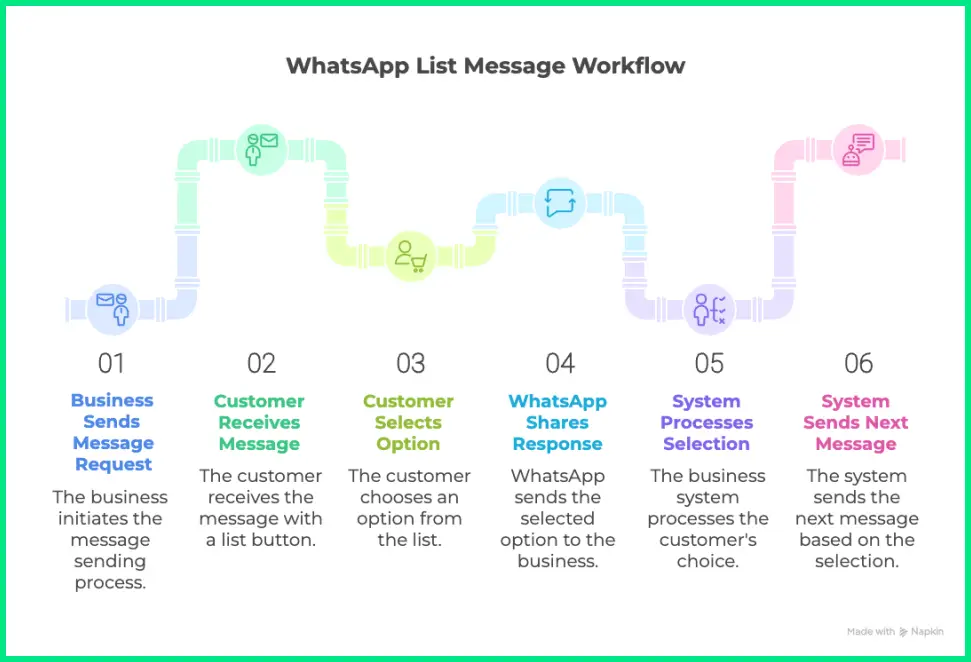
Here’s a simplified view of how they work:
- The business sends a message request that includes the list message format.
- The customer receives a message in WhatsApp with a button that opens a list of available options.
- When an option is selected, WhatsApp shares that response with the business system through a webhook event.
- The system or BSP processes the selection and can automatically send the next message, display information, or update customer details.
With WhatsApp API, these steps can be managed through a no-code interface, allowing teams to create and automate list messages.
How to Create WhatsApp List Messages with Wati?
To set up a List Message in Wati’s Chatbot Builder, follow the steps below.
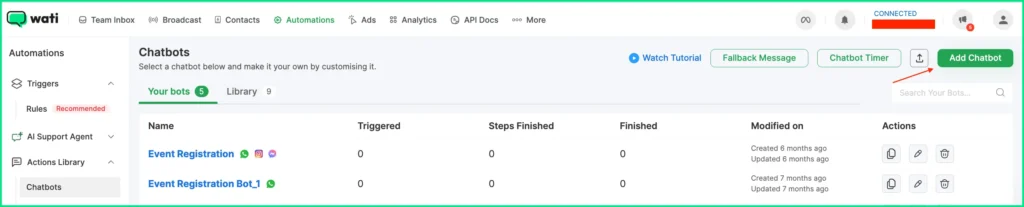
1. Open Wati and go to Automations > Actions Library> Chatbot > Create Chatbot
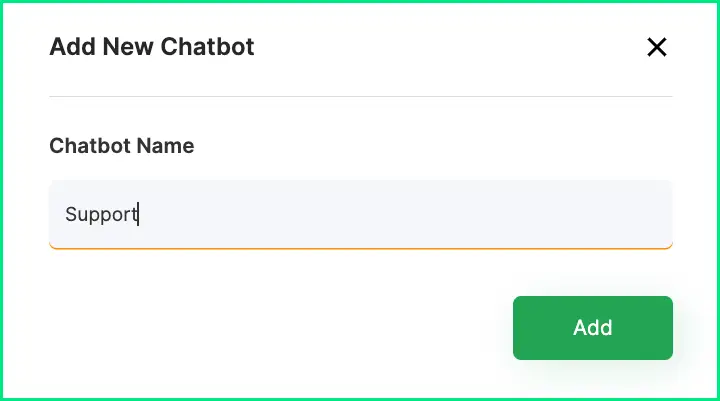
2. Give a name to the Chatbot
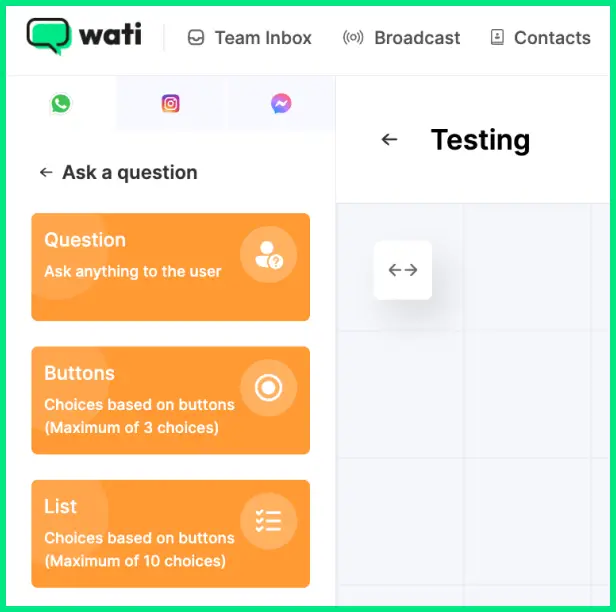
3. Add an Ask a Question card to your workflow.
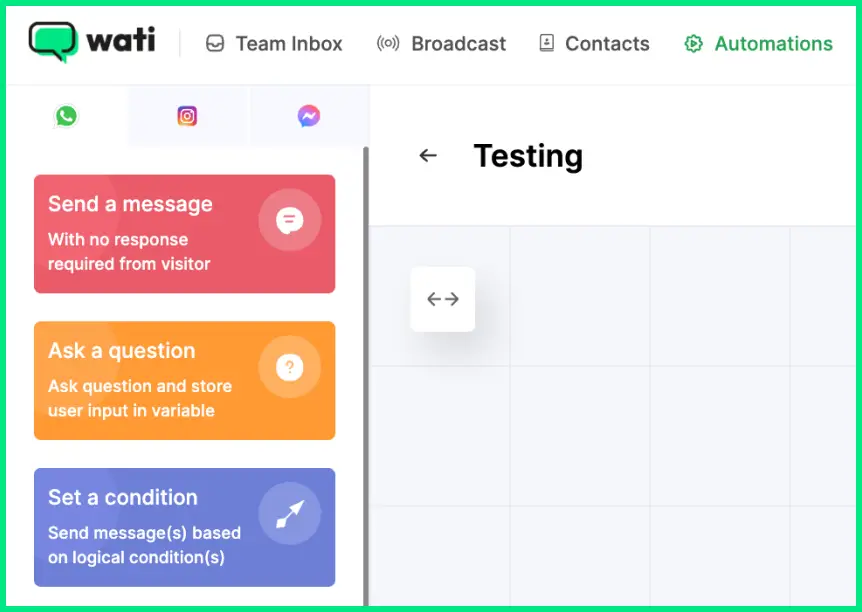
4. Select List as the question type to include a list node in the chatbot.
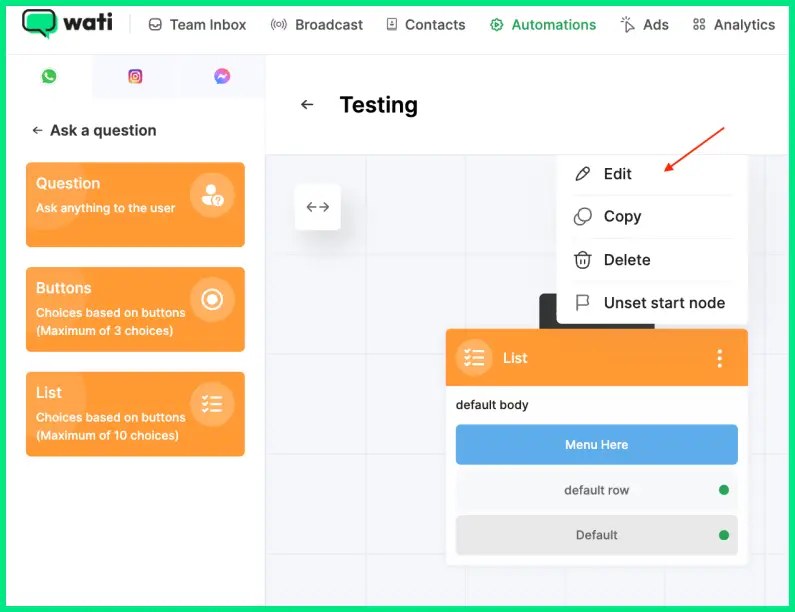
5. Click the ⋮ (More Options) icon and choose Edit to configure the list details.
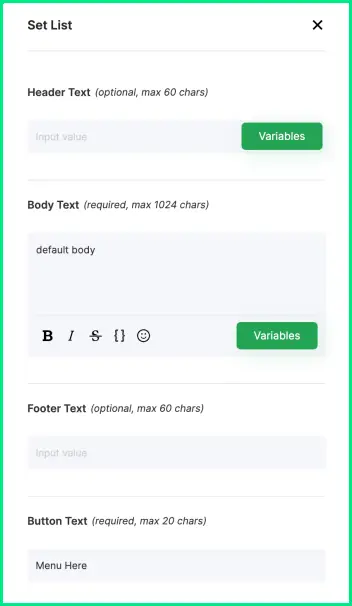
6. Enter the required information:
Header Text: Title of the list message (Markdown is not supported).
Body Text: Main message content shown to users.
Footer Text: Optional text displayed below the message body.
Button Text: Label for the button that opens the list.
Section Title: Category name for grouping options (you can add multiple sections).
Rows: The list options under each section (add more as needed).
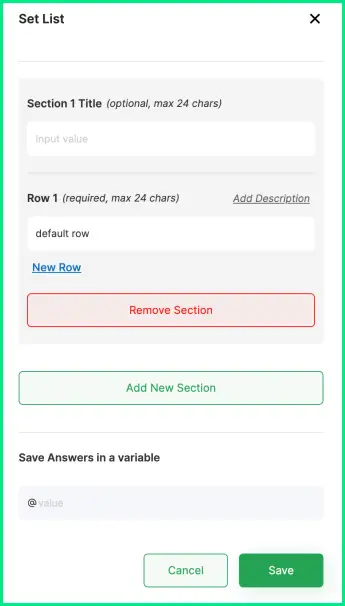
7. If required, enable the option to store user selections in a variable.
8. Click Save to apply your changes.
Pro Tip: Add dynamic variables like {{name}} to personalize every message.
Examples of WhatsApp API List Message Templates
Here are ready-to-use WhatsApp message templates for different business types.
E-Commerce
This format helps customers explore products, track their orders, or initiate a return without waiting for support. It works well for post-purchase communication and other quick, self-service interactions.
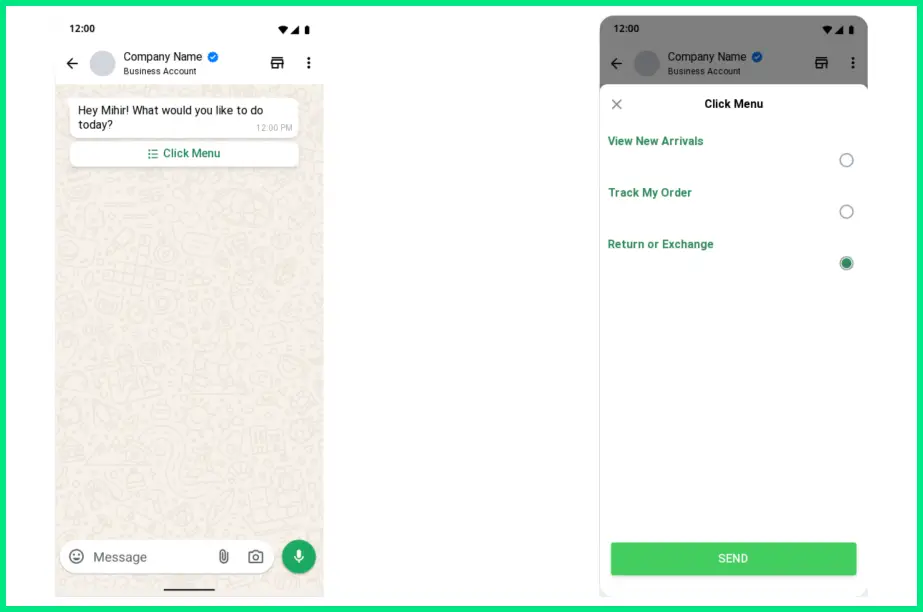
Having all key actions in a single message makes navigation easier, shortens response time, and keeps the shopping experience smooth even during busy sales periods.
Healthcare
This template optimizes appointment booking, doctor discovery, and test result inquiries.
It also helps clinics and diagnostic centers manage patient requests more efficiently through a single interaction.
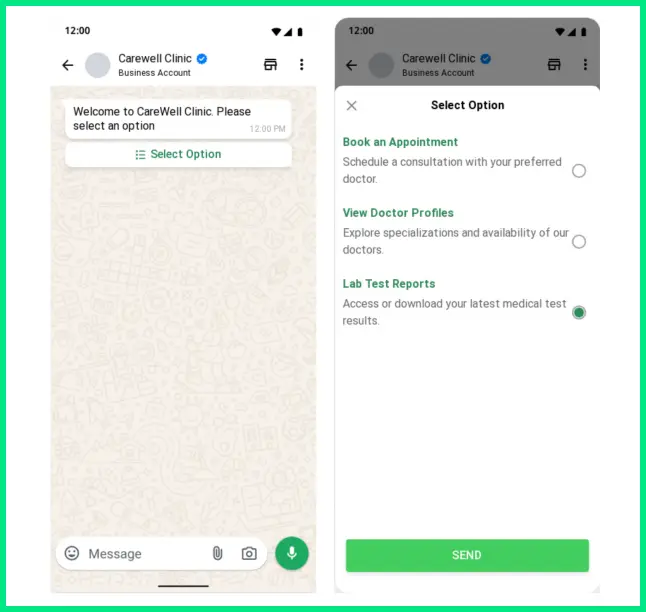
Patients can quickly access relevant services, while the backend system records responses and routes them to the right department automatically.
Service Business
Use this structure to guide potential clients through common actions like booking a demo, exploring plans, or reaching support. It works well for SaaS platforms, consulting firms, and B2B service providers.
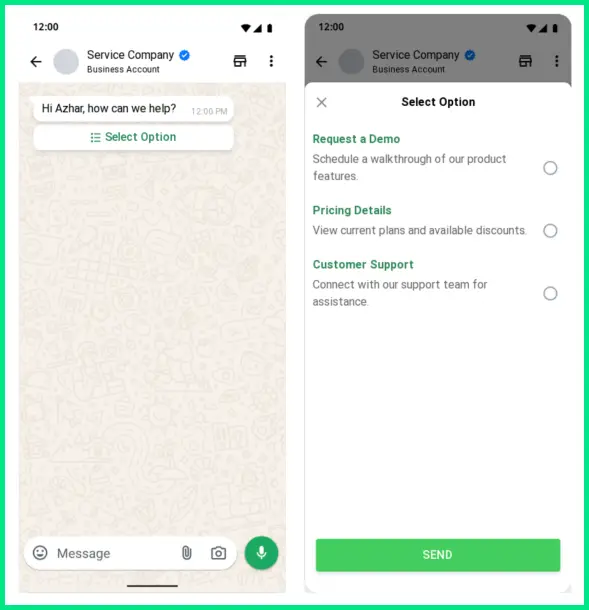
By offering predefined paths, it simplifies lead qualification and ensures queries reach the correct team instantly.
Template Review and Approval Workflow
Every list message must be submitted to Meta for approval. Here’s what that looks like:
| Status | Description |
| Draft | You’ve created a new message template |
| Submitted | Sent to Meta for review |
| Approved | Ready for use |
| Rejected | Needs revision based on Meta’s policy |
Once you have created your template, you can submit it for approval. It can take up to 24 hours for an approval decision to be made.
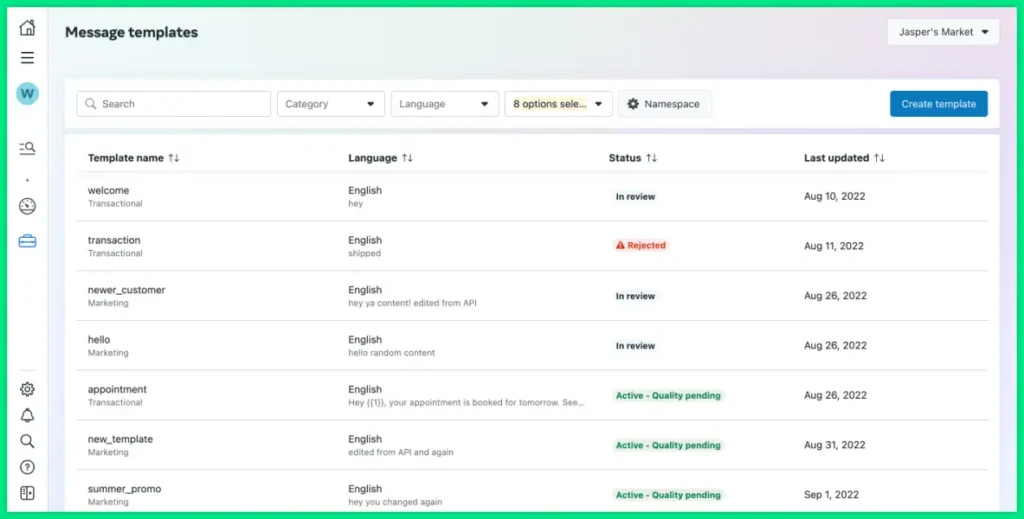
Once approved, your template can be used in marketing, utility, or authentication conversations.
WhatsApp Policies to Keep in Mind
Businesses using WhatsApp API list messages must follow Meta’s policies for the WhatsApp Business Platform.
The key requirements are outlined below.
1. User Consent
Send messages only to people who have clearly agreed to receive WhatsApp updates from your business. The opt-in should be collected through a permitted channel, such as a website form, WhatsApp chat, or mobile app.
2. Content Restrictions
Each list item supports text only. Links, phone numbers, media files, or any other clickable content are not supported in list options.
3. Message Structure
List messages work on a single level and cannot include nested or multi-step lists. A message can contain up to ten sections and a total of ten rows across all sections.
4. Relevance and Quality
Messages should be concise and directly related to the customer’s request or consented purpose. Avoid repetitive, promotional, or unrelated content that may affect the user experience.Creating Clear and User-Friendly List Messages
Creating Clear and User-Friendly List Messages
While there are no strict design rules beyond structural limits, the following practices are commonly recommended
- Although Meta allows up to 24 characters for each row title, shorter titles improve readability, especially on mobile screens.
- Using sections to organize options helps users navigate quickly and prevents confusion when multiple actions are available.
- Emojis are allowed in list content, but excessive use may impact message professionalism or readability.
- Adding a line like “Didn’t find what you’re looking for? Type HELP.” improves accessibility for users who don’t see a relevant option.
- Test the flow before sending it to a large audience.
Using WhatsApp List Messages for Better Conversations
WhatsApp List Messages help businesses create structured, interactive conversations directly within WhatsApp.
By offering predefined options, they reduce manual effort, keep conversations organized, and guide users toward the right action faster.
If you’re ready to create your first list message, you can do so using the WhatsApp Business API through Wati.
Start your free Wati trial and begin sending interactive list messages today.
FAQs
List messages are available only through the WhatsApp Business Platform (API) or an official Business Solution Provider (BSP) such as Wati. They cannot be sent from the regular WhatsApp Business App.
A list message can include up to 10 rows in total, grouped within a maximum of 10 sections. Each row title can contain up to 24 characters.
No. WhatsApp API list messages support text-only options. Media attachments, phone numbers, and external links are not supported within list items. Businesses can, however, send follow-up messages with media or URLs after the user makes a selection.
Keep row titles short and clear, group related options logically, and test the flow before sending it to a large audience. Adding a simple fallback, such as “Type HELP for other options,” ensures users can still continue the conversation if they don’t find what they need.