

-

-
-
Solutions
-
Soluções
-
Soluciones
-
解决方案
-
解決方案
-
الحلول
-
Product
-
Produto
-
Producto
-
产品
-
產品
-
المنتج
-

-
-


 Wati for Marketing
 Wati for Support
 Wati for Sales
 eLearning
 E-commerce
 Marketing Agencies
 Healthcare
 No Code Chatbots
 AI Support Agent
 Instagram and Facebook messenger
 Click to WhatsApp ads
 Campaigns
 Team Inbox
 WhatsApp Business Calling
 Wati AI
 Overview
 Library
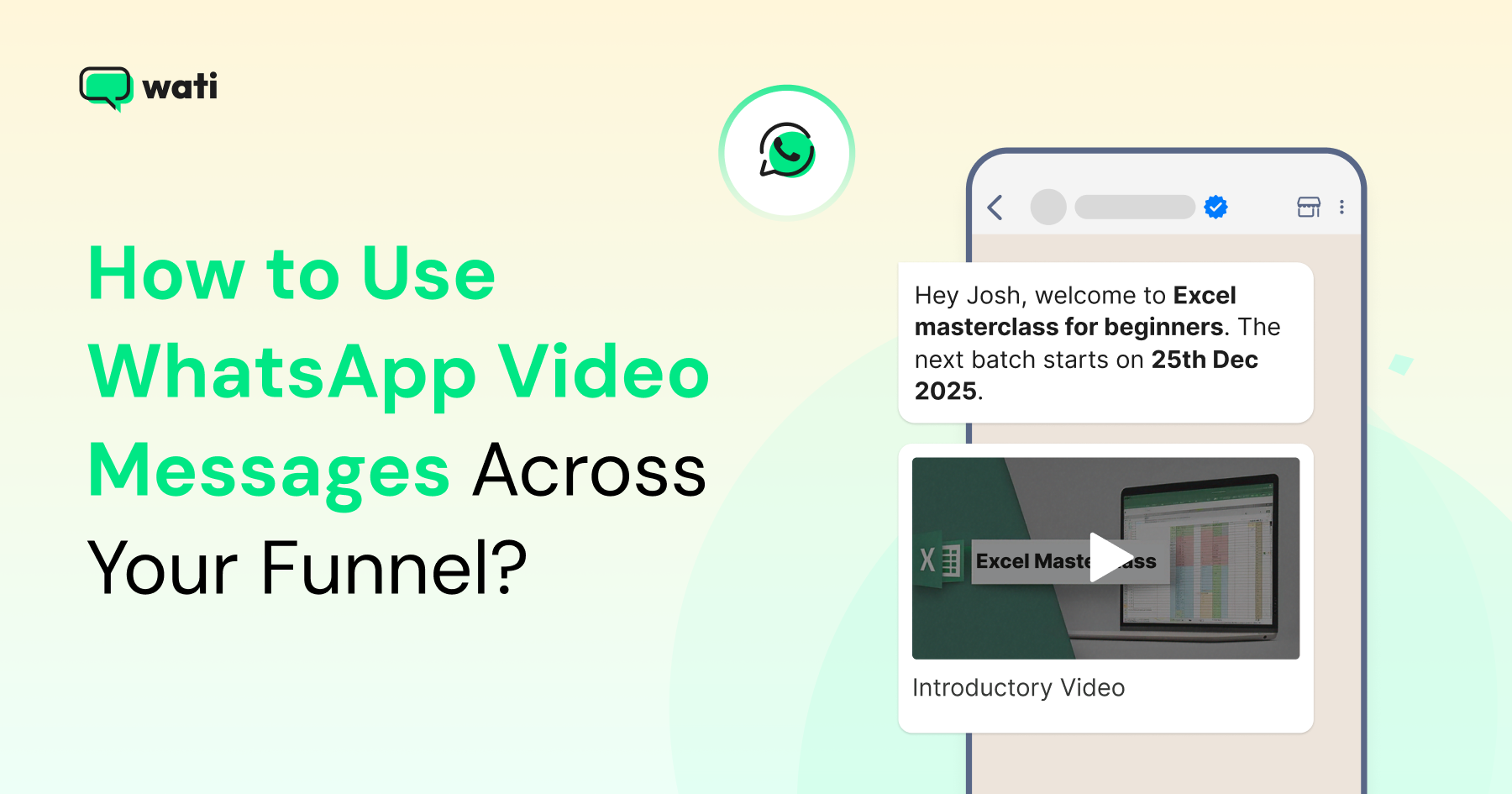
WhatsApp Video Message Guide: How to Send, Broadcast, and Automate Video on WhatsApp?
Written by:
 Ashwin
|
on:
December 1, 2025
|
Fact Checked by :
Ashwin
|
on:
December 1, 2025
|
Fact Checked by :
 Namitha
|
According to: Editorial Policies
Namitha
|
According to: Editorial Policies
 Table of Contents
Too Long? Read This First
- Short Video Improves Clarity: Users understand products faster when they see a quick demo, explainer, or setup clip instead of long text.
- CTWA Gains From Video: Leads from Click to WhatsApp ads might respond better when the first flow includes a clear video after the user message.
- Broadcasts Have Limits: The WhatsApp Business App supports video files in broadcasts, but only contacts who saved your number receive them.
- API Unlocks Scale: The WhatsApp Business API lets you send and automate video files with templates, tracking, and workflow triggers.
- Keep Videos Lightweight: Smaller files deliver faster, reduce failures, and load smoothly across regions and devices.
What if the most powerful tool in your WhatsApp strategy isn’t a chatbot, template, or broadcast…
But a 10-second video you haven’t created yet?
Most users leave chats when messages feel long or unclear. Text alone does not explain your product clearly. Teams then spend extra time sending screenshots, typing long replies, and repeating the same steps. Most businesses still aren’t using them to their full potential.
This blog explains how video messages work, how to send them, and how to plug them into CTWA, sales, and support journeys for effortless customer conversions, and how to automate them with the WhatsApp Business API.
What is a WhatsApp Video Message?
A WhatsApp video message (also called a video note) is a short clip recorded inside the chat app. It appears in a circular format and lasts up to 60 seconds. You record it using your front or rear camera directly in chat. This differs from uploading a regular video file (from the gallery).
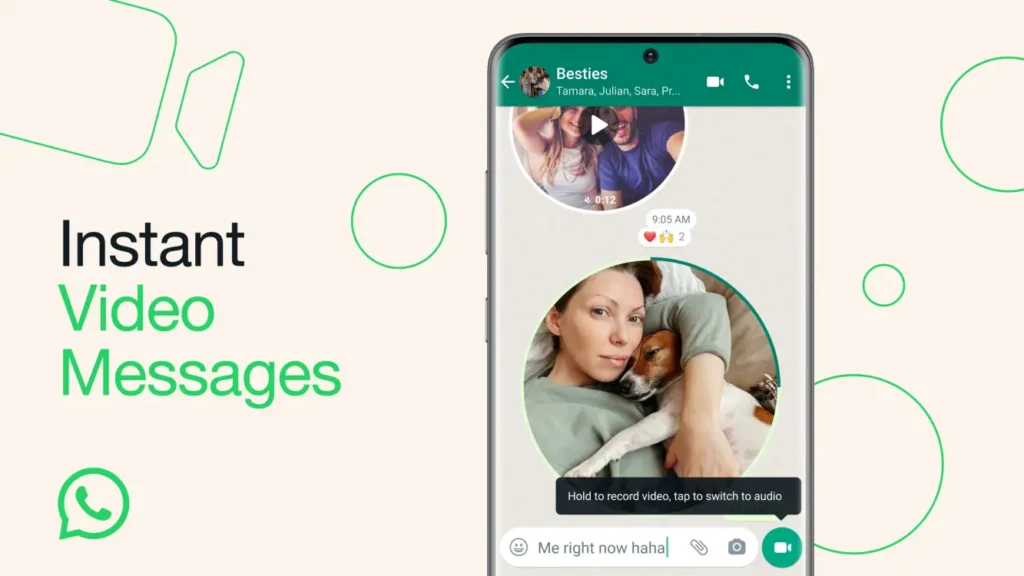
Most WhatsApp Business API setups allow media uploads up to 100 MB, but the reliable delivery limit for video messages is closer to 16 MB. Larger files often fail during delivery or get compressed heavily. To ensure smooth sending, keep videos under this range.
How WhatsApp Video Messages Drive Clarity, Trust, and Conversions?
Videos give quick clarity. It shows what a product does and how to use it. This cuts down on long chats and reduces confusion for both new and existing customers.
If a customer can’t find a feature inside your product, instead of sending five screenshots and a long explainer text, show a short video showing the exact button to tap. The problem is solved.
Think about a new lead who asks, “How does your product work?” Your sales rep sends a short demo clip, the same one they use with every new enquiry. The prospect understands the value immediately, responds more quickly, and moves to the next step without back-and-forth questions.
Even after someone buys, videos remove friction. A simple post-purchase clip like “Here’s how to set this up in under a minute” dramatically reduces support tickets. People prefer watching a quick guide over reading long instructions.
You can use videos for
- Product explainers
- Onboarding steps
- Demos for new leads
- Post-purchase guidance
- Common support issues
- Training updates for customers or teams
What does it improve?
- Users understand instructions faster
- Teams send fewer repeated explanations
- Sales teams close gaps in the first reply
- Support teams solve issues with fewer messages
- Customers trust a face or a real walkthrough more than text
How WhatsApp Video Messages Fit Inside the Customer Journey?
Video fits into every stage of the customer journey. It helps users understand faster, reply sooner, and move to the next step with less effort.
You can use video from the moment a user enters a CTWA campaign through post-purchase support. Each team benefits differently.
| Marketing | Sales | Customer Support |
| Click-to-WhatsApp ads open a WhatsApp chat when the user taps the ad | A 30-second demo clip works well with new leads | Step-by-step video helps solve issues faster |
| The first user message starts the conversation, and your welcome reply follows | SDRs send video follow-ups from CTWA campaigns, website forms, or inbound chats | Support teams reuse standard clips for repeat queries |
| A short video helps explain the product | Videos can improve reply rates during qualification | Setup, unboxing, or installation videos reduce confusion |
| You use video to show value, features, or simple steps | Routing and CRM scoring tools use video replies to guide next steps | Resolution times drop because users see clear instructions |
When video becomes part of your workflow, your teams answer fewer repetitive questions, and your users receive precise guidance. It improves the experience in every stage of the funnel.
Leads understand their options, customers complete tasks with fewer errors, and support teams close more queries with less manual work.
How to Send a Video Message on WhatsApp?
iPhone & Android
- Open a chat.
- Tap and hold the camera (video-note) icon next to the text field.
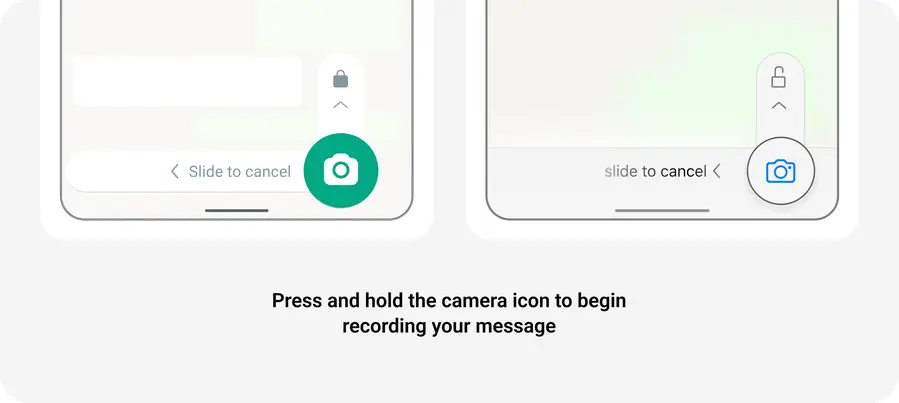
- Record your clip (up to 60 seconds). Slide up to lock if you don’t want to keep holding.
- Release (or tap stop) to send.
How to Record Clear, Professional WhatsApp Videos?
1. Keep it Short, but Structured
People watch WhatsApp videos instantly, so aim for 20-45 seconds.
Use a quick 3-part flow:
- Open with context: “Here’s how to enable your shipping settings…”
- Show the action: Navigate, tap, scroll
- Close with next steps: “Once done, reply ‘done’ here.”
2. Start With the Important Element in the Frame
The first 2 seconds decide whether users watch your video. If you are showing:
- Product: Keep and hold it centered
- Screen: zoom in slightly
- Process: avoid moving the camera too fast
3. Record in Good Lighting
Natural light or a desk lamp pointed toward you (not behind you). Avoid backlit scenes; they make your face look dark and unclear.
4. Stabilize Your Phone
Shaky videos = confused users.
Use:
- Both hands
- A table
- A phone stand
- Or lean your elbows on a surface
5. Speak Clearly and Slowly
WhatsApp compresses audio slightly.
So:
- Pause briefly between steps
- Avoid talking too fast
- Use simple instructions (“Tap the green button on top right”)
6. Add a Follow-Up Message After the Video
Always send a short text after the video, like:
- “Follow these steps and tell me once done.”
- “Here’s the setup video: reply 1 if you need help.”
- “Next steps are in the button below.”
7. Avoid Background Noise
Air conditioners, traffic, fans, and crowds all reduce clarity.
Move to a quieter spot or bring the phone closer to your mouth.
8. Use the Rear Camera for Product or Screen Demos
The rear camera is almost always:
- Sharper
- More stable
- Better in low light
Perfect for product demos and screen walkthroughs.
9. Retake if Needed
If you stumble or get interrupted, swipe away and record again.
For customer-facing video, clarity matters more than speed.
How to Send a Video Inside a WhatsApp Broadcast?
Before sending a video in a broadcast, you must understand how WhatsApp handles media across both products.
The Business App is built for simple outreach to saved contacts. The Business API supports large-scale broadcasts with template rules, tracking, and automation.
Broadcasting Video With the WhatsApp Business App
- You can send video files through broadcast lists (regular video uploads).
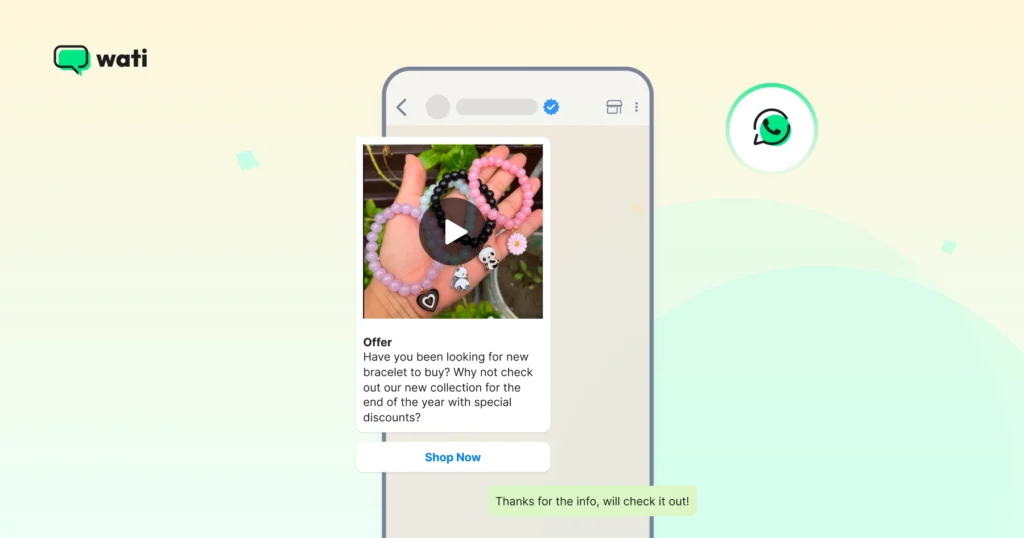
- Broadcast messages reach only users who have saved your number in their contacts. (Source)
- The “video note” circular format is not used in broadcasts; you must upload a standard video file.
Broadcasting Video With the WhatsApp Business API
- You can send video files via the API to many users, subject to template rules and opt-in consent.
- Business-initiated messages must use pre-approved templates.
- When file size is an issue, you can use a link to a hosted video, though this is a best practice rather than a strict requirement.
- You can track message status (sent, delivered, read) via the API dashboard.
If you want a breakdown of how broadcasts work, you can read Wati’s guide on WhatsApp Broadcast.
For personalised videos, you can try Wati’s AI video generator at commi.ai.
How CTWA Ads Work With Video?
CTWA sends users from Google, Facebook, or Instagram straight into a WhatsApp chat. The chat starts only after the user sends the first message. Once that happens, your welcome flow triggers, and you can reply with text, buttons, or a video.
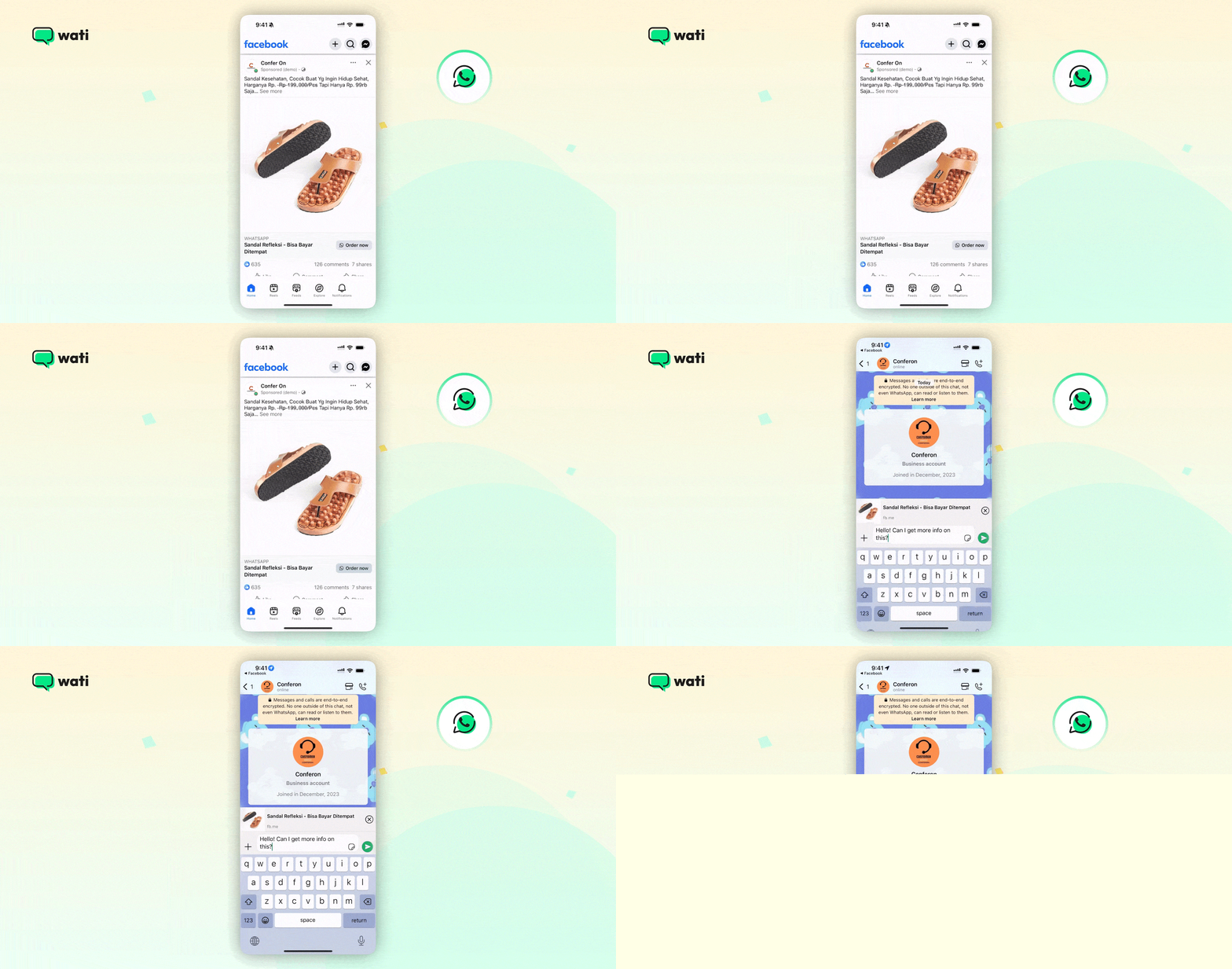
Video helps users understand your offer quickly and reduces early drop-offs. If you want to set up CTWA in WhatsApp, follow this guide on Click to WhatsApp Ads.
Common Issues and Fixes
Sometimes video does not send the way you expect on WhatsApp. Most issues come from file size or how the message is set up. These are the common things teams run into:
- Large videos take too long to upload, so keeping the file smaller helps
- Templates get rejected when they do not match Meta’s messaging policy
- Broadcasts fail in the Business App if the user has not saved your number
- API media links break when the file URL is private or expired
These are simple checks, but they solve most sending problems. If the issue persists, the next step is to review the chat window status, the media hosting, or the way the message was triggered.
Video vs Voice vs Text
Different message formats work better for different tasks on WhatsApp. Each format has strengths based on clarity, speed, and context. Here is a quick comparison to help you choose the right one.
| Format | Best Use Cases | Notes |
| Video | Demos, product instructions, and onboarding steps | Works well when users need to see how something works. Supported in both the WhatsApp Business App and API. |
| Voice | Quick explanations, personal replies, simple clarifications | Users listen faster than they read, but not ideal for noisy environments or people who prefer text. |
| Text | Details, links, CTAs, pricing, next steps | Required for actions, links, or anything users need to refer back to. Works well with buttons and quick replies. |
Wrapping Up
Short video helps users understand your product faster and cuts the back and forth inside chats. When you use video across CTWA, sales, and support, you make each step easier for your customers and your team.
If you want to automate these video messages and run them across your workflows, try Wati. You can set up broadcasts, triggers, and complete journeys without extra effort.
Frequently Asked Questions
A WhatsApp video message is a short clip recorded inside the chat using the video note feature. It appears in a circular format and has a 60-second limit. Businesses using the WhatsApp Business API can send regular video files, not circular video notes.
Open a chat, tap and hold the video note icon next to the text bar, record your clip, then release to send. This works on both iPhone and Android. For longer videos, upload a file from your gallery.
Large file size, slow network, expired media links, or users not saving your number (for broadcasts) cause most failures. Compressing the file or using a fresh hosted link often solves it.
Yes. Many users keep their phone on silent. Subtitles improve clarity and help users understand the message faster.
In the WhatsApp Business App, you upload a regular video file and send it through a broadcast list. Broadcasts reach only contacts who have saved your number. Video notes are not supported in broadcast lists. In the WhatsApp Business API, you send video files with template messages.
No. The circular video note format works only inside the mobile app. The API supports standard video files through hosted URLs or uploaded media.