
Too Long? Read This First
- A WhatsApp broadcast list lets you send the same message to multiple contacts at once without starting a group chat.
- They’re ideal for sharing updates, offers, and announcements directly with customers.
- In the standard WhatsApp app, people will only receive your broadcasts if they’ve saved your number, so it’s important to build that trust and visibility first.
- If you’re using the WhatsApp Business API, each broadcast list can include hundreds or even thousands of contacts, making it ideal for large-scale communication.
- You can also organize contacts with labels to send more targeted and personalized messages.
High-value marketing translates into your ability to maximise customer outreach and provide a personalized experience without heavily loading your teams.
Creating a WhatsApp broadcast is an effective way to reach a wider audience in one go and organize your go-to-market (GTM) to make your launches a success.
How to create a WhatsApp broadcast list? How to create a customized consumer flow that helps convey the value proposition without seeming pushy?
WhatsApp Business API platforms are a go-to tool for emerging businesses to communicate large-scale messages.
In this guide, we will learn all about a WhatsApp message list, how to create one, and the benefits and applications.
What is a WhatsApp Broadcast List?
A WhatsApp broadcast list is like a ready-to-use contact list for your business messages.
Instead of selecting people one by one, you can create a list of customers who often receive your updates.
When you send a bulk message, it goes out to everyone on that list individually, keeping each chat private. Customers won’t know who else received it.
Why a WhatsApp Broadcast List Matters
A WhatsApp broadcast list lets you send the same message to multiple contacts at once without creating a group where everyone sees each other’s replies.
It’s perfect for businesses that want to share updates, promotions, or important announcements quickly and privately.
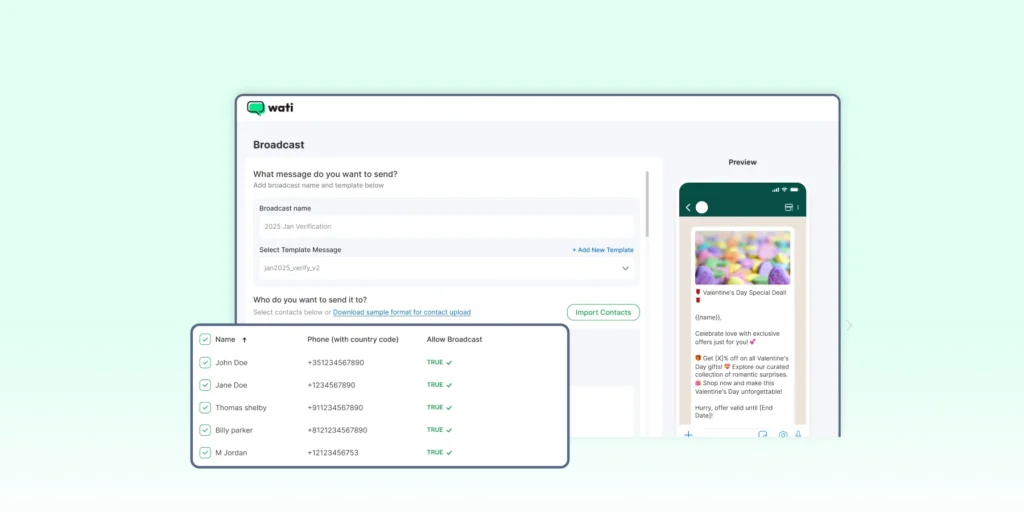
Compared to groups, broadcasts feel more personal and are less intrusive, helping you stay connected without overwhelming your audience.
Related Read: WhatsApp Broadcast vs WhatsApp Group
WhatsApp Broadcast List Limit 2026
WhatsApp lets you run broadcast campaigns for up to 256 contacts at once. While this limit hasn’t changed yet in 2026, it’s ideal for small businesses or segmented lists.
If you need to reach more people, you can use the WhatsApp Business API, which supports large-scale campaigns without these limits.
There is no fixed recipient cap per broadcast list on the API. The limit is instead driven by your account’s tier, quality rating, and compliance.
How to Create a WhatsApp Broadcast List
With lists, you can streamline messaging, ensure relevance, and maintain professional communication.
Let’s learn how to set up a broadcast list that’s ready to support your business goals and help you scale your outreach with ease.
1. Broadcast List on WhatsApp For Android
- Open WhatsApp and go to the Chats tab.
- Tap the three-dot menu (⁝) in the top-right corner.
- Select “New Broadcast.”
- Choose the contacts you want to add.
- Tap the checkmark (✔️) to create the list.
- Start sending messages, which appear as private chats to recipients.
2. Broadcast List on WhatsApp for iPhone
- Open WhatsApp and go to Settings.
- Tap Broadcast Lists.
- Select New List at the bottom of the screen.
- Add the contacts you want to include.
- Tap Create.
- Send messages that will appear individually in each recipient’s chat.
3. WhatsApp Broadcast List on WhatsApp Web
- Go to web.whatsapp.com and scan the QR code using your WhatsApp Business mobile app.
- Click the three-dot menu in the top-left corner of the interface.
- Choose “New Broadcast” from the dropdown.
- Click on the contacts you want to include in your list.
- Tap the checkmark or “Create” button to finalize your broadcast list.
Creating a WhatsApp Broadcast List Using Labels
WhatsApp Business lets you use labels to quickly send messages to specific groups of customers. This is especially useful for targeting segments like loyal customers, new leads, or priority clients.
Here’s how to do it.
- Open WhatsApp Business and tap More Options (three vertical dots) → Labels.
- Select the label you want to create a broadcast list for.
- Tap More Options (three vertical dots) → Message Customers.
Draft your message and tap the Check Mark (✔️) to send.
Don’t Miss Out: Curious how well your campaigns are performing? Try our Free WhatsApp Broadcast Score Calculator to uncover insights and fine-tune your campaigns for maximum reach and engagement!
How to Edit and Delete a WhatsApp Broadcast List
Managing your marketing automation lists keeps your communication organized and ensures messages reach the right audience. Here’s how to edit or delete your lists on Android and iPhone.
1. Editing a Broadcast List
Android:
- Open the broadcast list.
- Tap the three-dot menu (⁝) → Broadcast List Info.
- Tap Edit Recipients to remove contacts or Add Recipient to include new ones.
- Tap the checkmark (✔️) to save changes.
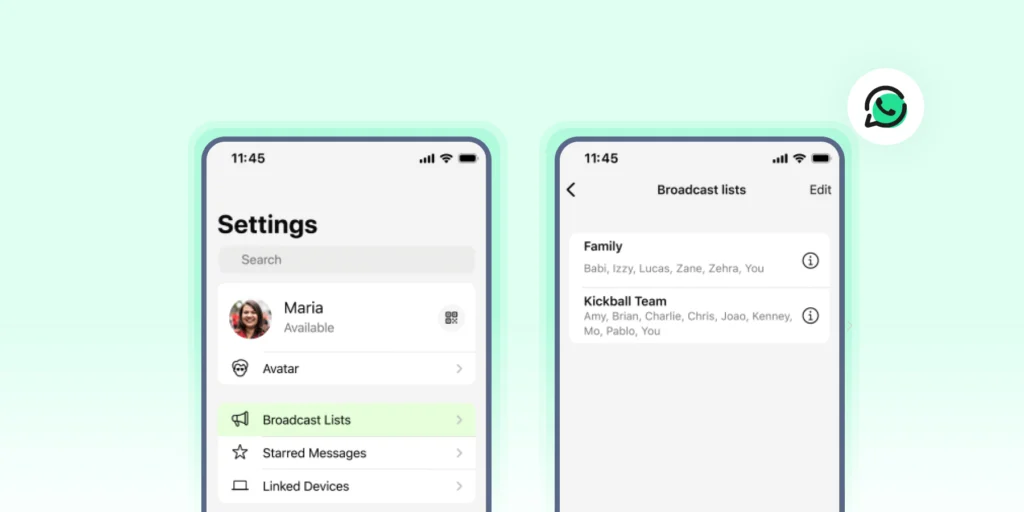
iPhone:
- Go to Settings → Broadcast Lists.
- Tap the “i” next to the list.
- Tap Edit List to add or remove contacts.
- Tap Done to save changes.
2. Deleting a Broadcast List
Android:
- Open the broadcast list → three-dot menu (⁝) → Broadcast List Info.
- Tap Delete Broadcast List and confirm.
iPhone:
- Go to Settings → Broadcast Lists → tap the “i” next to the list.
- Tap Delete Broadcast List and confirm.
Limitations of WhatsApp Broadcast Lists
While broadcast lists are a powerful way to reach multiple contacts at once, it’s essential to know their limitations.
- Recipients Must Save Your Number: Only contacts who have saved your number will receive your broadcast messages.
- Contact Limit per List: Each broadcast list can include up to 256 contacts. Larger audiences require multiple lists.
- No Group Conversation: Campaign messages are sent individually; recipients cannot see each other’s replies.
- No Automated Scheduling: WhatsApp doesn’t allow native scheduling of broadcast messages. You’ll need third-party tools or the WhatsApp Business API for automation.
- Replies Appear as Individual Chats: Any responses from recipients won’t appear in the broadcast but as separate chats.
- Label-Based Broadcast Limitations (WhatsApp Business): Messages can only be sent to contacts within a selected label; multiple labels cannot be combined in a single campaign, and labels need to be maintained manually to stay accurate.
Must Read: WhatsApp Business vs WhatsApp Business API
How WhatsApp Business API Solves Broadcast List Limitations
If you’ve hit the limits of WhatsApp or WhatsApp Business app broadcasts, the WhatsApp Business API opens up a whole new level of possibilities for businesses.
Here’s how it helps you grow and stay personal.
1. Reach More Contacts Without Limits
Unlike the app, the API allows you to send messages to large audiences without juggling multiple lists or worrying about the 256-contact cap.
2. Automate Messages and Scheduling
You can schedule notifications, marketing promotions, or updates in advance. This saves you from sending messages manually and makes sure they’re delivered right on time.
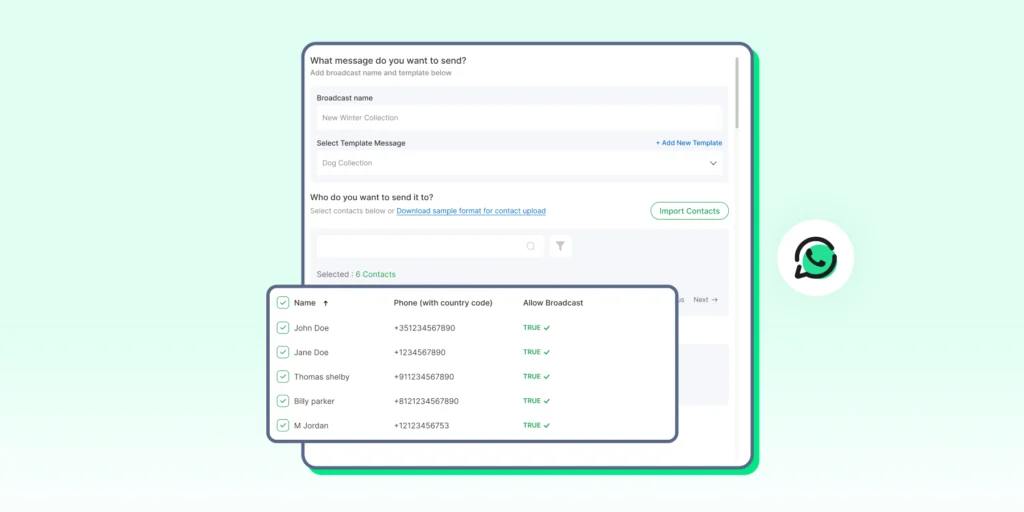
3. Segment Audiences Smarter
By integrating with your CRM, you can target messages based on customer behavior, purchase history, or preferences. This makes communication more personalized without manually updating labels.
A travel agency can share new holiday deals with customers who booked a trip last year. It keeps the offers more relevant and personal.
Read more on Wati Segments and how does it elevate your marketing automation strategy.
4. Track Engagement and Performance
Unlike the business app campaign, the API gives you actionable insights: see who received, opened, or responded to messages and optimize campaigns accordingly.
For example, a fashion brand can track which customers opened a sale announcement and follow up with a discount reminder to boost conversions.
5. Enable Multi-Agent Support
With shared inboxes, multiple team members can manage replies efficiently, while broadcast messages continue reaching your entire audience.
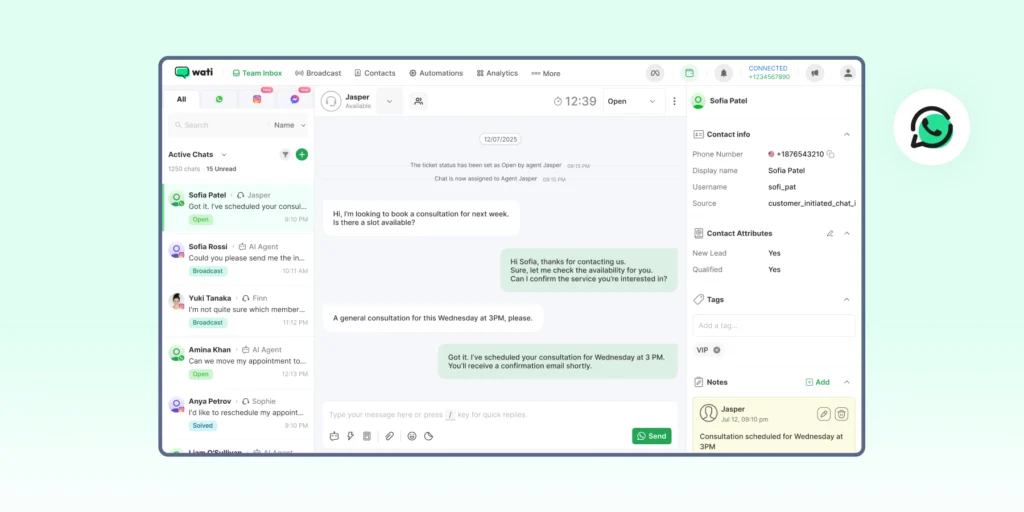
In short: The WhatsApp Business API removes the restrictions of the standard app, letting you communicate at scale, automate workflows, and provide better customer experiences while staying compliant with WhatsApp’s guidelines.
Creating a WhatsApp Marketing Broadcast List via Wati
Instead of juggling multiple lists on your phone, you can organize your contacts in one place and send messages to thousands of customers at once.
It’s perfect for businesses that want to reach the right audience efficiently without the hassle.
However, this feature works only if you’re using the WhatsApp Business API.
Ready to get started? Sign up for Wati today and start building your broadcast list to streamline your WhatsApp communication.
Let’s walk through the simple steps to get your broadcast list ready.
1. Prepare Your Contacts
Start by adding your contacts to an Excel or CSV sheet. Include all the customers you want to reach, and make sure the list is up to date.
2. Import and Segment Your Contacts
Upload your contacts to Wati and organize them into groups based on labels, interests, location, or purchase history.
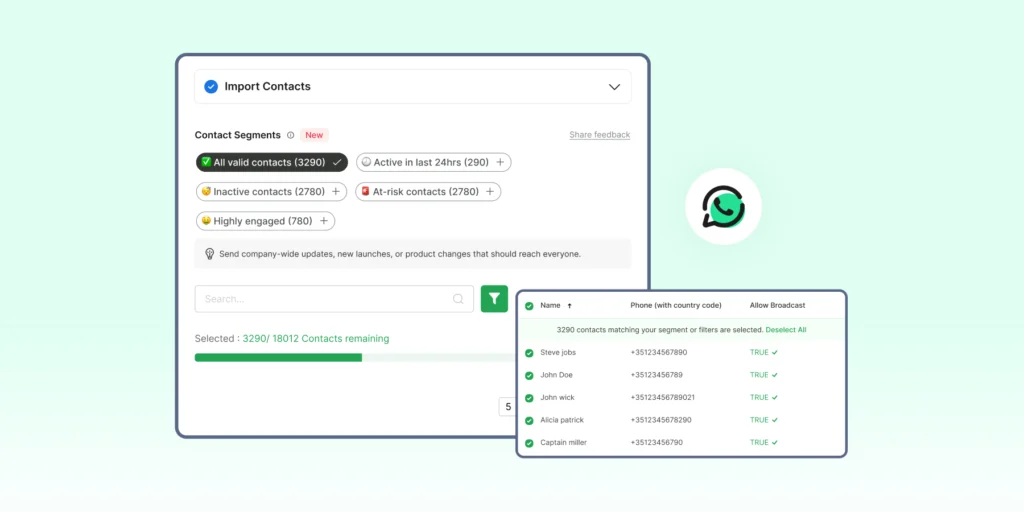
Segmenting helps you send targeted, personalized messages that get better engagement.
3. Create Your Campaign List
Head to the Campaigns section in your Wati dashboard and click Create New Campaign. Select the contacts or segments you just imported.
4. Save the Campaign List
Once your contacts are selected, save the list. It’s now ready to use whenever you want to send a broadcast. You do not need to recreate it every time.
Maximize Your Reach with WhatsApp Business API
Creating a WhatsApp broadcast list is a great way to reach customers. However, the WhatsApp Business app has its limits.
As mentioned earlier, you can only send broadcasts to up to 256 contacts at a time. Plus, the messages reach only those who’ve saved your number.
If your business needs to reach a larger audience or automate broadcasts at scale, it’s time to switch to the WhatsApp Business API. It removes these limits, lets you send personalized messages to thousands, and offers detailed analytics to track performance.
Explore how the WhatsApp Business API can help your business grow by booking a free demo with Wati today.
FAQs About the Broadcast List in WhatsApp
1. Are there restrictions on message content for broadcasts?
Yes. Messages must comply with WhatsApp’s guidelines, and any pre-approved templates should be used for notifications outside the 24-hour window.
2. How many contacts can I add to a broadcast list?
On WhatsApp and WhatsApp Business, each list can include up to 256 contacts. Using Wati with the Business API lets you reach thousands at once.
3. Do recipients need to save my number to receive messages?
Yes. Only contacts who have saved your number will get broadcast messages. This ensures messages aren’t marked as spam.
4. Can I edit or delete a WhatsApp broadcast list?
Absolutely. You can add or remove contacts, change list names, or delete the list entirely from your mobile app, WhatsApp Web, or Wati dashboard.
5. How can I effectively use WhatsApp broadcast for my business?
WhatsApp broadcasts let you reach your customers directly and personally. Use them to send updates, exclusive offers, event invites, or important notifications.
Frequently asked questions
1. Are there restrictions on message content for broadcasts?
Yes. Messages must comply with WhatsApp’s guidelines, and any pre-approved templates should be used for notifications outside the 24-hour window.
2. How many contacts can I add to a broadcast list?
On WhatsApp and WhatsApp Business, each list can include up to 256 contacts. Using Wati with the Business API lets you reach thousands at once.
3. Do recipients need to save my number to receive messages?
Yes. Only contacts who have saved your number will get broadcast messages. This ensures messages aren’t marked as spam.
4. Can I edit or delete a WhatsApp broadcast list?
Absolutely. You can add or remove contacts, change list names, or delete the list entirely from your mobile app, WhatsApp Web, or Wati dashboard.
5. How can I effectively use WhatsApp broadcast for my business?
WhatsApp broadcasts let you reach your customers directly and personally. Use them to send updates, exclusive offers, event invites, or important notifications.
Related posts
- How Often to Send WhatsApp Campaigns in 2026
How often to send marketing emails is a settled debate. WhatsApp frequency is not. Learn the right cadence by audience segment and the best send windows for 2026
- WhatsApp Business Calling vs Cloud Telephony vs Traditional VoIP: Which One Does Your Business Need?
Comparing WhatsApp Business Calling, cloud telephony, and traditional VoIP in 2026? Here’s the honest breakdown of which stack fits your business.
- Why Every Business Needs CRM WhatsApp Integration Today?
Discover why CRM WhatsApp integration is essential for businesses to manage leads, close deals faster, and deliver better customer support.
- 20+ Halloween Templates for WhatsApp to Boost Your Sales This October
Don’t let Halloween pass without a WhatsApp message strategy. Get 20+ free Halloween templates for WhatsApp covering every use case, from flash sales to event invites.