

-

-
-
Solutions
-
Soluções
-
Soluciones
-
解决方案
-
解決方案
-
الحلول
-
Product
-
Produto
-
Producto
-
产品
-
產品
-
المنتج
-

-
-


 Wati for Marketing
 Wati for Support
 Wati for Sales
 eLearning
 E-commerce
 Marketing Agencies
 Healthcare
 No Code Chatbots
 AI Support Agent
 Instagram and Facebook messenger
 Click to WhatsApp ads
 Campaigns
 Team Inbox
 WhatsApp Business Calling
 Wati AI
 Overview
 Library
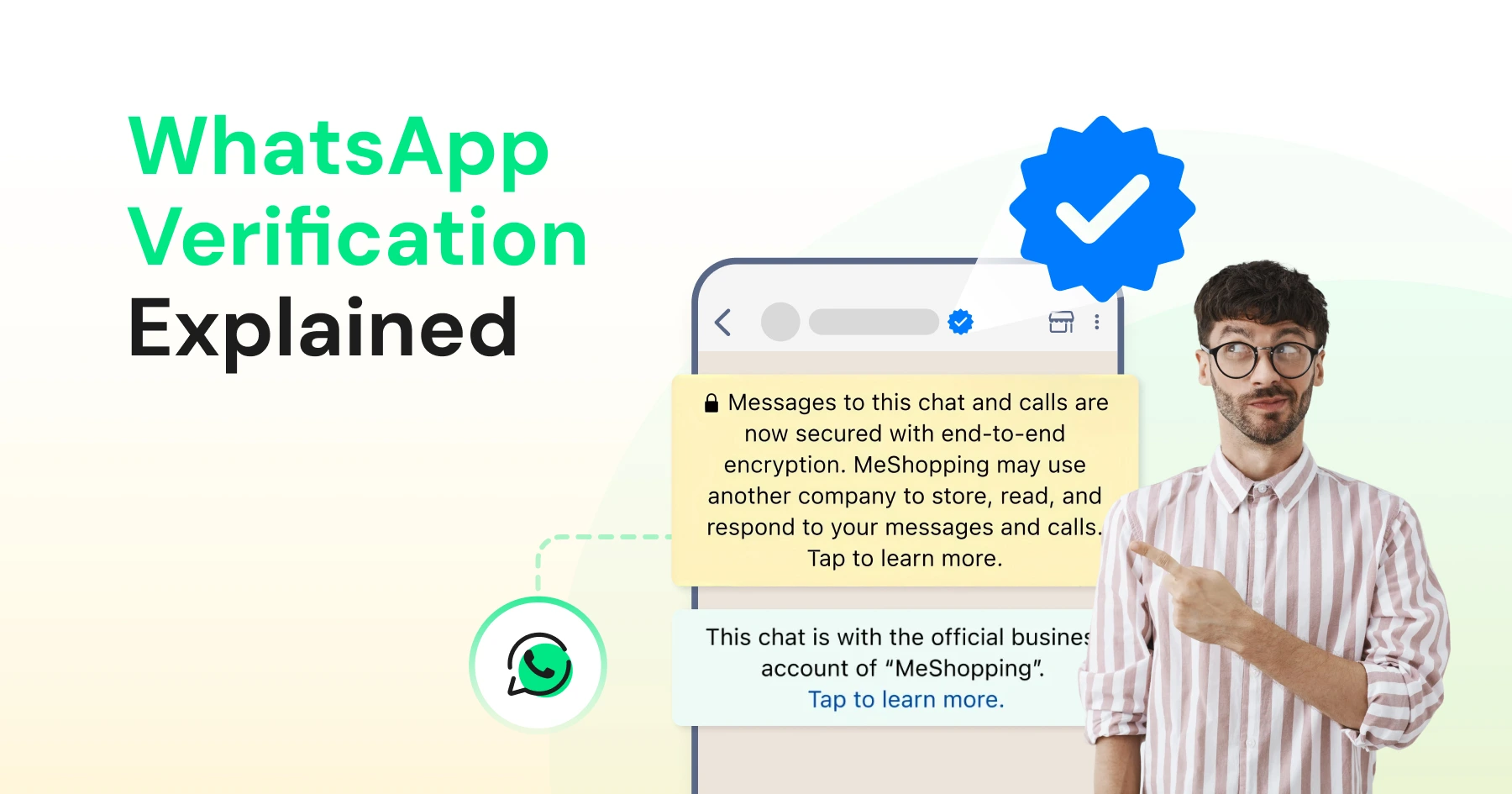
WhatsApp Verification: Step-by-Step Guide to Getting Your Blue Tick (2026)
Written by:
 Rohan
|
Last updated on:
March 11, 2026
|
Fact Checked by :
Rohan
|
Last updated on:
March 11, 2026
|
Fact Checked by :
 Namitha
|
According to: Editorial Policies
Namitha
|
According to: Editorial Policies
 Table of Contents
Too Long? Read This First
- WhatsApp verification adds the blue badge, boosting trust and credibility.
- To qualify for an Official Business Account (OBA), your business must be API-based, legitimate, and "notable" according to Meta’s standards.
- Rejections typically occur if your brand lacks organic media coverage or if documentation is inconsistent.
- If rejected, you can reapply after a 30-day "cooldown."
- Alternatively, smaller businesses can use Meta Verified subscription plans (Standard, Plus, Premium, Max) for instant verification on the WhatsApp Business App.
If you want to attract customers via WhatsApp, you need to earn their trust with WhatsApp verification.
Brands can acquire WhatsApp verification in multiple steps: getting a phone number verified, getting Meta verified, and applying for an official Meta verified blue tick badge for their WhatsApp account.
If you want to earn consumer trust, opt for a Meta Verified blue tick, which indicates your brand authority and improves your brand reputation.
To obtain WhatsApp verification, brands must obtain official business account (OBA) status to receive the blue tick. Businesses using BSP tools like Wati can submit their documents directly for WhatsApp verification via Meta Business Manager, without applying separately.
Let’s get started.
What is WhatsApp Verification?
WhatsApp verification is a process to verify your WhatsApp phone number to authenticate your brand and build a reliable presence in the market.
Before creating a WhatsApp Business account, first register with a verified phone number. Phone verification requires a 6-digit unique code that is sent to your number. After you enter the code, Merta verifies your phone number and confirms ownership of WhatsApp Business.
For small, mid, or enterprise brands switching to WhatsApp, an official verified Meta badge is the right method of WhatsApp verification. You need to submit legal documents (Tax IDs and incorporation papers) via the Meta Business Manager. While this doesn’t give you a badge on your profile, it extends messaging limits and makes you eligible for OBA.
What makes you a trusted verified brand is an official blue tick that is granted when you become an official business account. It places the blue checkmark next to your business name. Even if a customer hasn’t saved your number, your brand name will appear in their chat list instead of a phone number.
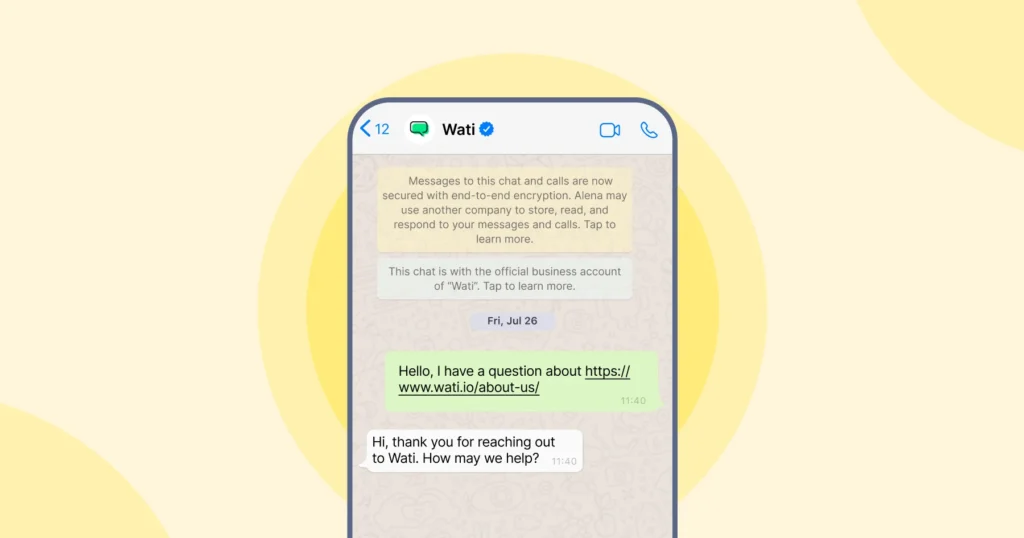
Getting a “blue tick” is reserved for brands who Meta deems “notable” based on organic media coverage and a strong public presence.
Here is a comparison between different types of WhatsApp verification; standard phone, meta business verification and official business account (blue tick):
| Feature | Standard Account | Meta Business Verified | Official Business Account (OBA) |
| Verification Badge | None | None | Blue Tick (Verified) |
| Display Name | Number (if unsaved) | Number (if unsaved) | Brand Name (always visible) |
| Prerequisites | Phone number only | Legal documents (MBM) | MBM Verified + Notability |
| Primary Value | Basic messaging | Higher messaging limits | Trust & Impersonation protection |
| Cost | Free | Free (Internal process) | Free application (via API) |
Do You Qualify For WhatsApp Verification? Eligibility Criteria
To qualify for an official business account (OBA) and receive a blue tick, you need to go through several stages after phone registration.
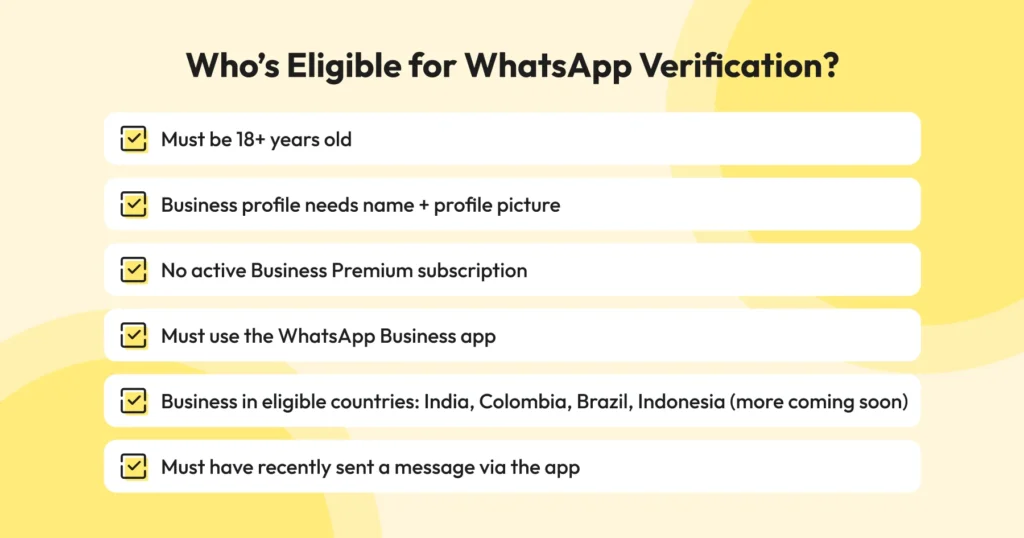
Meta now differentiates between Meta verified (A paid monthly subscription for business app) and official business accounts (merit-based blue tick for API). The following checklist focuses on high-level OBA blue tick for brands:
- WhatsApp Business API: You must be using the WhatsApp Business API platform through a provider like Wati. The standard “WhatsApp Business app” is not eligible for a blue tick.
- Verified Meta Business Manager: You need to complete the security verification process in the Meta Business Manager (MBM) security center.
- Two-step verification (2FA): 2FA must be active on the specific phone number you are applying for.
- Tier 2 Messaging Level: Your WhatsApp account should have reached the tier-2 messaging level (i.e messaging 10,000 unique users per day) to provide active, legitimate usage.
- Approved Display Name: Your display name must strictly follow Meta’s naming guidelines and be relevant to your audience.
- Brand Notability: You must provide at least 5 organic media links (news, articles, magazine features, or major industry reports to be eligible. Self-published articles, social media profiles, and “Paid/sponsored” PR articles do not count.
- Quality rating: Your account must maintain a high quality rating. Frequent blocks from WhatsApp users will disqualify you.
Which Industries Do Not Qualify For WhatsApp Blue Tick Verification?
Meta strictly prohibits the following industries from receiving a blue tick verification:
- Restricted Goods: Weapons, firearms ammunition, or explosives.
- Adult Content: Adult products, entertainment, or services.
- Gambling: Online casinos, sports betting, and lotteries.
- Regulated Substances: Tobacco, alcohol, and illicit drugs.
- Cryptocurrency: Virtual currency exchanges and trading platforms.
- Pharmaceuticals and drugs: Prescription medication and recreational drugs.
Pro tip: If you’re unsure about your category, it’s best to check Meta’s Commerce and Business Policies before applying.
Step-by-Step: How To Get WhatsApp Verified in 2026
Here is the process of getting WhatsApp number verified to authorize your brand. Know how to get meta verified, apply for OBA and choose a trusted BSP provider to relieve Meta hassles.
1. WhatsApp Business App (Meta Verified for WhatsApp)
- Open the App: Open the WhatsApp Business app and go to Settings > Meta Verified.
- Check Eligibility: Tap Meta Verified. If you don’t see it, it isn’t available for your account yet. You can join the waitlist shown in the app.
- Choose Subscription: Tap Continue. Select the subscription plan that fits your business needs (monthly fee applies).
- Link Accounts: Select the WhatsApp account and link your Facebook/Instagram profiles to bundle verification.
- Verify Identity: Set up your payment method, complete the first payment in-app and submit a government issued ID card for account owner or reprensentative.
- Submit: Select your business from the options, choose a verification method, upload the requested business information, and submit. Wait for the blue badge to appear on your profile.
Pro Tip: Pro Tip: Your business must be in an eligible country (India, Brazil, Indonesia, Colombia, etc.), have 2FA enabled, and not have an active “WhatsApp Business Premium” or “Meta Verified” subscription.
2. WhatsApp Verification Through the WhatsApp Business API
For businesses using the WhatsApp API and looking to get the OBA status, follow these steps.
Phase 1: Complete Meta Business Verification in Meta Business Manager
- Go to Security Center: Log in to Meta Business Manager, go to settings, and go to the Security Center.
- Start Verification: Click on “Start Verification” to begin the process. If the button is grey, you may need to create a WhatsApp API account to trigger it.
- Enter Business Details: Provide your legal business name, registered address, and official phone number.
- Upload Required Documents: Submit official government documents (e.g GST certificate, Tax ID or incorporation papers).
- Verify Domain: Complete domain verification via DNS record or HTML file upload to prove website ownership.
- Submit for Review: Double-check all the details and submit your application.
- Wait for Approval: Meta will review your documents and notify you once your business verification is approved. Once approved, your status in the security center will change to “verified”.
Phase 2: OBA Prerequisites and Application Workflow
- Enable 2FA: Navigate to WhatsApp Manager > Phone Numbers and ensure Two-Step Verification is active. This is mandatory for the phone number associated with your WhatsApp Business Account (WABA).
- Check Messaging Tier: Ensure your WhatsApp business account has reached tier 2 messaging (10k messages/day) or has a “high quality” rating.
- Display Name Approval: Ensure your display name strictly follows Meta’s guidelines and is close to your exact product or service.
- Submit request: In the same Phone Numbers section, look for the Official Business Account column and click Submit Request.
- Provide Notability: Enter your brand details, country of operation, parent brand and primary language. Upload 5+ organic media links (news articles, magazines) to prove your brand is notable.
3. Submit OBA Request via Wati
With a BSP like Wati, you don’t have to navigate Meta’s systems by yourself. We guide you through business verification, OBA application and high notability requirements.
- Expert Application: While you can technically submit via Meta Business Manager, applying via Wati ensures your application meets Meta’s 2026 standards for notable brands.
- Review and optimization: Wati’s team reviews your notability links and MBM verification status before submission. This human in the loop reduces risk of “low notability” rejection.
- Direct support: Wati acts like an intermediate. If Meta requests additional evidence or clarification, Wati steps in and handles it. This accelerates your status through official partner channel.
Timeline and Decision: What To Expect After Submitting
Once you submit your application, Meta’s internal team reviews your brand documents and notability. Here is what to expect next.
- Review Timeline: The Meta approval takes roughly between 2 and 7 business days. For complex cases or busy periods, it can go upto 3 weeks of time.
- Notification and updates: You will receive a direct update via an official email sent to your Meta Business Manager admin. You will also see a real-time notification within your MBM dashboard.
- Status check: You can manually track status at any time by navigating to WhatsApp manager>Phone numbers inside your MBM. The “status” column will be updated to “verified” once approval comes.
- Rejection: If Meta rejects your application, you’ll have to wait 30 days before trying again.
Get WhatsApp Verified with Wati
Ready to simplify your WhatsApp verification journey? Book a free demo with Wati and let our team walk you through the process.
What If Your WhatsApp Verification Gets Rejected?
It’s not uncommon for a verification request to get rejected the first time. The good news is, you can always improve your application and try again. Here are some steps to take if that happens.
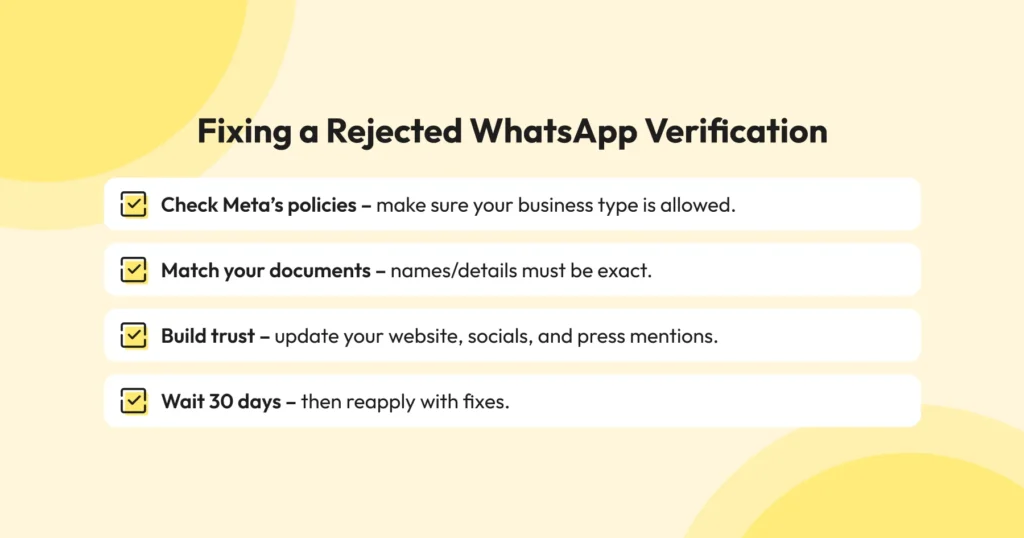
- Revisit Meta’s guidelines: Make sure your business category is allowed and that your account follows all of Meta’s Commerce and Business Policies.
- Double-check your documents: The legal documents you submit (like incorporation papers or utility bills) must match your business name and details on WhatsApp exactly. Even minor mismatches can cause rejection.
- Strengthen your brand presence: Meta looks for signs of authenticity and notability. Having a professional website, active social media profiles, and mentions in the press can help establish your credibility.
- Wait before reapplying: If your request is rejected, you must wait 30 days before submitting another application. Use this time to fix any gaps.
To reduce the chances of rejection, make sure your business information is consistent everywhere, your documents are up to date, and your online presence reflects a trustworthy brand.
WhatsApp Verification Via Meta Verified Subscription Plans
Here’s a breakdown of the subscription plans currently available for WhatsApp Business app users in 2026:
| Plan | What’s Included | Price (India) |
| Business Standard | Verified badge, impersonation protection, enhanced support, up to 4 linked devices | ₹639/month |
| Business Plus | Everything in Standard + up to 3 verified channels, up to 6 linked devices | ₹1,399/month |
| Business Premium | Verified badge, up to 10 protected business accounts, 5 verified channels, dedicated business web page | ₹3,899/month |
| Business Max | Verified badge, up to 50 protected accounts, 10 verified channels, business web page, up to 10 devices | ₹18,900/month |
What are the Benefits of WhatsApp Verification?
For businesses, WhatsApp verification is more than just a checkmark. It’s about showing customers that you’re real, reliable, and worth their trust. Here’s how it helps.
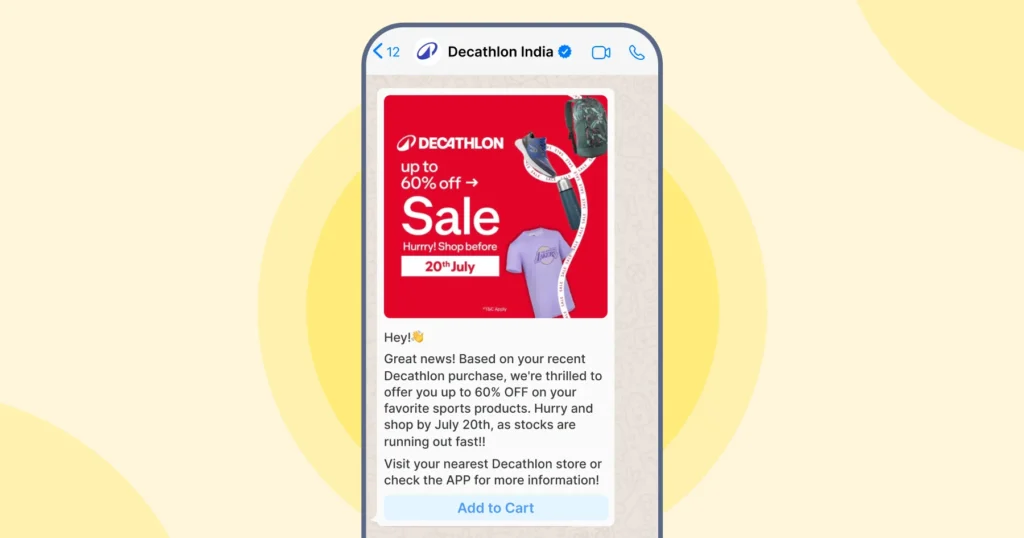
- Stronger brand reputation: Customers are more likely to trust your WhatsApp marketing messages when they know they’re coming from the official business. Instead of worrying about spam or fake accounts, they can confidently engage.
- Consistent presence across platforms: With Meta platforms like Facebook, Instagram, and WhatsApp all offering verification, your brand looks unified wherever your customers interact with you. That consistency builds recognition and credibility.
- Easier access for businesses of all sizes: Verification on WhatsApp isn’t limited to large enterprises anymore. Even small and medium businesses can now get verified, making it easier for you to stand out and connect with your audience.
Get Verified, Get Noticed
Earning the WhatsApp verification badge is about trust. When customers see that checkmark, they know they’re talking to the real you, not an impersonator. That credibility can translate into stronger engagement, higher conversions, and long-term loyalty.
If you’re ready to apply, Wati can help simplify the process. As an official WhatsApp Business Solution Provider, we make verification smoother and give you everything you need to engage, support, and grow on WhatsApp.
Wati is an authorized Meta BSP that supports your OBA application and notability scale. Book a free demo with us to know more today.
Frequently Asked Questions on WhatsApp Verification
Have more questions? Refer below!
For Meta verified subscriptions, it can take as little as 24–48 hours. For an Official Business Account (OBA), Meta’s review typically takes 2 to 7 business days, though complex cases involving brand notability can take up to 3 weeks.
You will need official government-issued documents that show your legal business name and physical address. Common examples include a GST Certificate, Certificate of Incorporation, or a recent Utility Bill in the company name.
The review process depends on Meta’s checks. Missing documents, incorrect details, or operating in a restricted industry can delay the approval.
Yes. You can still use WhatsApp API, but verification adds credibility and trust to your business account.
Yes. Small businesses can get verified immediately by subscribing to Meta Verified via the WhatsApp Business App. However, to get the “Blue Tick” without a monthly subscription fee, the business must use the WhatsApp API and meet Meta’s notability criteria.
In 2024–2025, Meta combined it’s verification processes. The Blue Tick is the current official badge for verified businesses across all Meta platforms, including WhatsApp. The Green Tick has been retired to ensure a consistent experience across Facebook, Instagram, and WhatsApp.
If rejected, your account remains a Standard Business Account. Meta will provide a high-level reason (often “low notability”). You must wait 30 days before reapplying. We recommend using this period to increase your brand’s organic presence in news and media.