
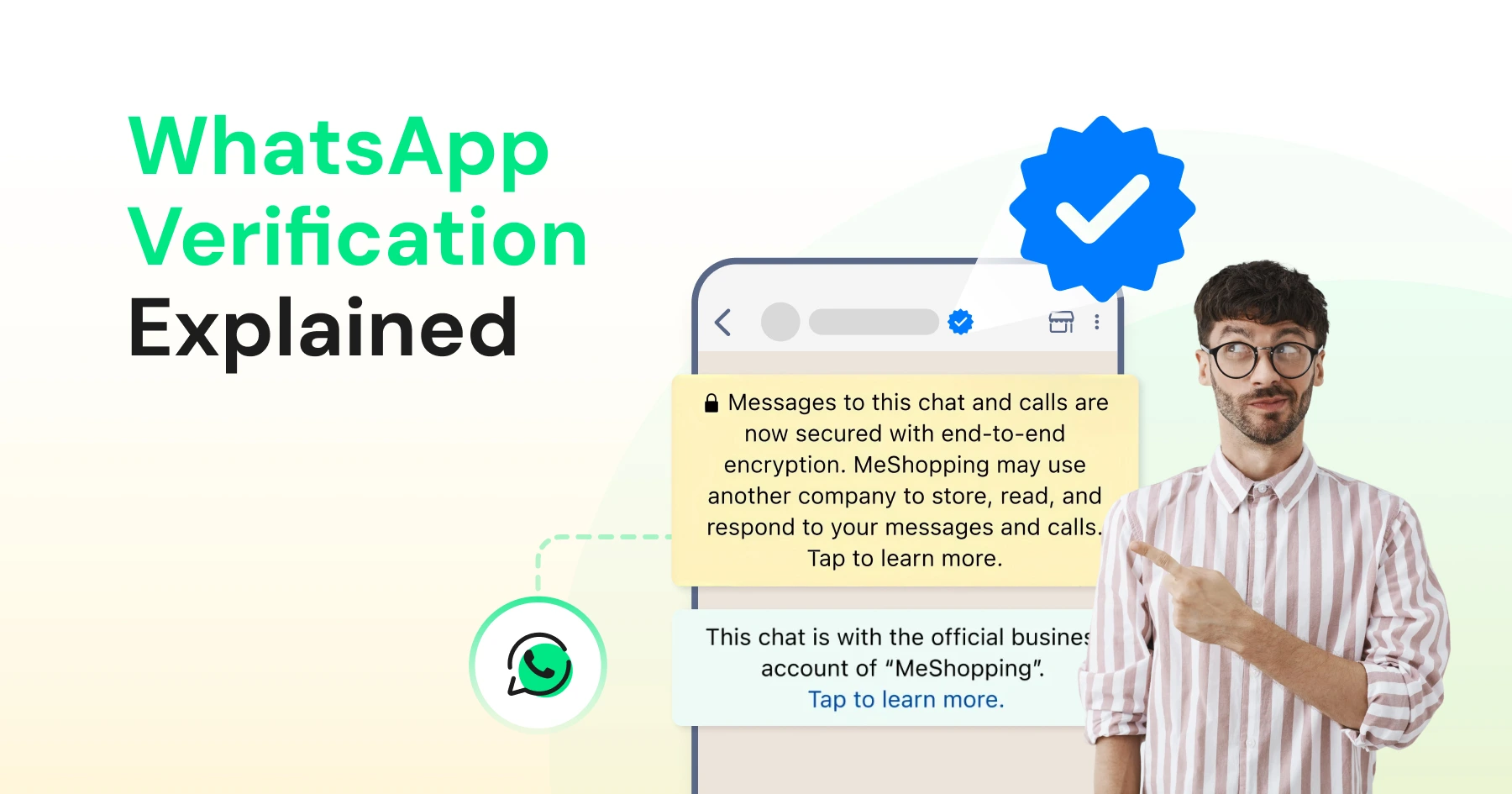
Too Long? Read This First
- WhatsApp verification confirms your business is authentic, and the highest level (an Official Business Account) adds the blue tick next to your business name.
- There are two ways to get the blue tick: a free Official Business Account (OBA) for businesses on the WhatsApp Business API, or a paid Meta Verified subscription for the WhatsApp Business app.
- To qualify for an OBA, your business must be API-based, legitimate, and "notable" according to Meta's standards.
- Meta now requires OBA requests to go through a Business Solution Provider (BSP) like Wati.
- Rejections typically occur if your brand lacks organic media coverage or if documentation is inconsistent.
- If rejected, you can reapply after a 30-day "cooldown."
- Alternatively, smaller businesses can use Meta Verified subscription plans (Standard, Plus, Premium, Max) for a faster, subscription-based route to verification on the WhatsApp Business App.
WhatsApp verification is how Meta confirms a business account is authentic, and the highest level earns a blue tick next to your business name. If you're wondering how to get a blue tick on WhatsApp, there are two routes: a free Official Business Account (OBA) for businesses on the WhatsApp Business Platform (API), or a paid Meta Verified subscription in the WhatsApp Business app.
Looking for blue ticks on your messages? Two blue ticks under a message mean the recipient has read it. You can turn read receipts on or off under Settings > Privacy > Read receipts. This guide covers the blue verification badge that appears next to a business name.
Verification matters because 79.3% of consumers across 22 markets need proof of legitimacy before engaging with a business, according to a Kantar study commissioned by Meta. Wati, a WhatsApp Business Platform provider and Meta Business Partner, helps businesses through every step, from eligibility checks to submitting the OBA request.
Here's who qualifies, how to apply, and what to do if you're rejected.
What is WhatsApp Verification?
WhatsApp verification is the process of verifying your business phone number and account details to authenticate your brand and establish credibility on WhatsApp.
Before creating a WhatsApp Business account, businesses must register and verify their phone number. Phone verification requires a 6-digit code sent to the registered number. Once entered, Meta confirms ownership of the phone number and activates the WhatsApp Business account.
If the code doesn't arrive, check that the number can receive SMS or voice calls, confirm the country code is correct, and request the code again after the timer runs out.
For small, mid-sized, and enterprise brands moving to WhatsApp, completing Meta Business verification is an important step toward building a trusted business profile. Businesses need to submit legal documents, such as tax details and incorporation documents, through Meta Business Manager. While this verification does not add a badge to the profile, it confirms the legitimacy of the business and is required before you can apply for an Official Business Account.
The blue tick is granted to businesses that receive Official Business Account (OBA) status. It appears next to the business name in chats and helps customers recognize that the account belongs to an authentic brand. OBA numbers also appear in WhatsApp search results, while non-OBA numbers only appear if the customer has saved them.
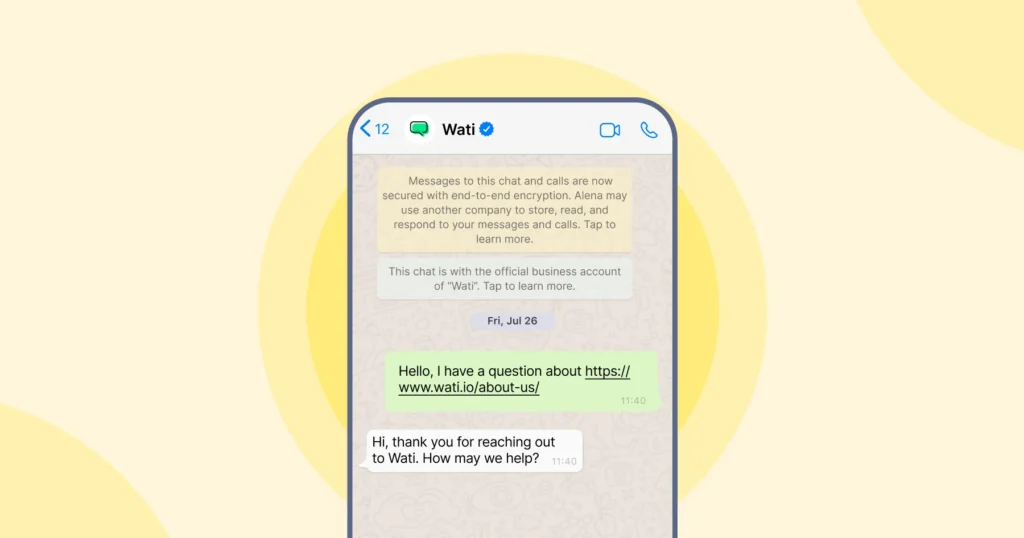
Getting a blue tick is reserved for businesses that qualify for an Official Business Account (OBA) after meeting Meta’s requirements for authenticity and notability. Factors such as a strong public presence and credible media coverage can support a business’s application.
Here is a comparison of the three main types of WhatsApp verification: standard phone number verification, Meta Business verification, and Official Business Account (OBA) verification with the blue tick.
Feature | Standard Account | Meta Business Verified | Official Business Account (OBA) |
|---|---|---|---|
Verification badge | None | None | Blue tick |
Display name | Shown in contact info; number shown in chats if unsaved | Display name shown in chats | Brand name with blue tick |
Appears in WhatsApp search | Only if the user saved the number | Only if the user saved the number | Yes |
Prerequisites | Phone number only | Legal documents (MBM) | Business Verification, 2FA, approved display name, 30+ days on platform, notability |
Primary value | Basic messaging | Required for OBA and some Meta features | Trust, discoverability, impersonation protection |
Cost | Free | Free | Free (applied for through a BSP) |
Do You Need a Blue Tick to Use WhatsApp for Business?
No. A blue tick is optional on both the WhatsApp Business app and the WhatsApp Business API.
On the WhatsApp Business app, you can chat with customers, set up quick replies and away messages, and share a catalog without any badge. On the WhatsApp Business API, businesses can send approved message templates, set up chatbots, and manage customer conversations through a shared team inbox without an Official Business Account (OBA) badge.
The blue tick acts as an additional trust signal that helps customers identify an authentic business account. However, businesses can continue using WhatsApp for sales, support, and customer engagement while their OBA application is pending or if they are not eligible for verification.
Eligibility Criteria for WhatsApp Verification
To qualify for WhatsApp blue tick verification through an Official Business Account (OBA), your business must:
- Use the WhatsApp Business Platform (API). Your business must use the WhatsApp Business Platform through an API provider such as Wati. Numbers on the WhatsApp Business app aren't eligible.
- Comply with the WhatsApp Business Messaging Policy.
- Be registered on the platform for at least 30 days.
- Have a verified business portfolio. The Meta business portfolio that owns the number must pass Meta Business Verification.
- Enable two-step verification on the phone number you are applying for. Wati turns this on by default.
- Have an approved display name. Your WhatsApp display name must follow Meta's naming guidelines.
- Reach Messaging Tier 1 or higher. Tier 2 is recommended.
- Be a registered business. Individual accounts aren't eligible.
- Show notability. Submit up to 5 links from reputable third-party sources, such as news articles, industry directories, or a Wikipedia page. Paid promotions, self-published content, and social media profiles generally do not count as independent coverage.
Meta separates Meta Verified from Official Business Accounts. Meta Verified is a paid subscription for eligible businesses on supported Meta products, while OBA is a free, merit-based status for businesses on the WhatsApp Business Platform.
Which Industries Do Not Qualify for WhatsApp Blue Tick Verification?
Meta requires every OBA applicant to comply with the WhatsApp Business Messaging Policy. Businesses that violate it, or the WhatsApp Commerce Policy, are unlikely to be approved, including those selling:
- Restricted Goods: Weapons, firearms, ammunition, or explosives.
- Adult Content: Adult products, entertainment, or services.
- Gambling: Online casinos, sports betting, and lotteries.
- Regulated Substances: Tobacco, alcohol, and illicit drugs.
- Cryptocurrency: Virtual currency exchanges and trading platforms.
- Pharmaceuticals and drugs: Prescription medication and recreational drugs.
- Other restricted categories: Businesses that violate Meta’s Commerce, Business, or WhatsApp policies.
Pro tip: If you’re unsure about your category, check Meta’s Commerce and Business Policies before applying.
How to Get Blue Tick in WhatsApp: Step-by-Step (2026)
Businesses can get the blue tick on WhatsApp in two ways: through Meta Verified for the WhatsApp Business app or by applying for an Official Business Account (OBA) if they use the WhatsApp Business Platform. The process depends on the solution your business uses.
Option 1. Meta Verified for the WhatsApp Business App
- Open the App: Open the WhatsApp Business app and go to Settings > Meta Verified.
- Check Eligibility: Tap Meta Verified. If you don’t see it, it isn’t available for your account yet. You can join the waitlist shown in the app.
- Choose Subscription: Tap Continue. Select the subscription plan that fits your business needs (monthly fee applies).
- Link Accounts: Select the WhatsApp account and link your Facebook/Instagram profiles to bundle verification.
- Verify Identity: Set up your payment method, complete the subscription purchase, and submit the required identity or business verification documents.
- Submit: Review your details, submit your application, and wait for Meta to complete the verification process.
Note: Meta Verified is available only in supported regions and for eligible businesses. Your account must also meet Meta's verification requirements before you can subscribe.
Option 2. WhatsApp Blue Tick Verification Through the WhatsApp Business API
For businesses using the WhatsApp API and looking to get the OBA status, follow these steps.
Phase 1: Complete the WhatsApp Business Verification in Meta Business Manager
- Go to Security Center: Log in to Meta Business Manager, go to Settings > Security Center.
- Start Verification: Click on “Start Verification” to begin the process. If the button is grey, you may need to create a WhatsApp API account to trigger it.
- Enter Business Details: Provide your legal business name, registered address, and official phone number.
- Upload Required Documents: Upload the business documents requested by Meta, such as incorporation certificates, tax registration documents, or other legal records.
- Verify Domain: Complete domain verification via DNS record or HTML file upload to prove website ownership.
- Submit for Review: Double-check the details and submit your application.
- Wait for Approval: Meta will review your documents and notify you once your business verification is approved. This can take anywhere from 10 minutes to 14 working days. Once approved, your verification status in Meta Business Manager will be updated to Verified.
Phase 2: Request OBA Status Through Your BSP
Meta now routes Official Business Account requests through Business Solution Providers, so you can't submit them directly.
- Check eligibility. In WhatsApp Manager, go to Phone numbers > Profile > Official business account. If a Submit request button appears, your account likely meets Meta's baseline criteria.
- Gather notability links. Collect up to 5 credible third-party sources that feature your business. Self-published content, sponsored articles, and social media profiles generally do not count as independent evidence.
- Contact Wati support. Wati reviews your eligibility, checks your documents and links, and submits the request to Meta on your behalf, whether or not the Submit request button is visible. If Meta requests additional information during the review process, Wati helps you understand the requirements and complete the next steps.
- Wait for Meta's decision. Meta makes the final call, and approval isn't guaranteed even when all criteria are met.
How Long Does WhatsApp Blue Tick Verification Take?
WhatsApp blue tick verification happens in two stages, and each has its own timeline.
- Meta Business Verification: Meta states that business verification decisions may take up to 14 working days, although processing times can vary.
- OBA review: Meta doesn't publish a timeline for the OBA review. BSPs commonly report decisions within a few business days.
- Notification and Updates: Once the review is complete, Meta will notify you of the outcome.
- Track your application: Navigate to WhatsApp Manager > Phone Numbers in Meta Business Manager to view your application status and any updates.
- If your application is rejected: Review Meta's feedback, address any issues, and submit a new request after 30 days.
What if Your WhatsApp Verification Gets Rejected?
It’s not uncommon for a verification request to get rejected the first time. The good news is, you can always improve your application and try again. Here are some steps to take if that happens.
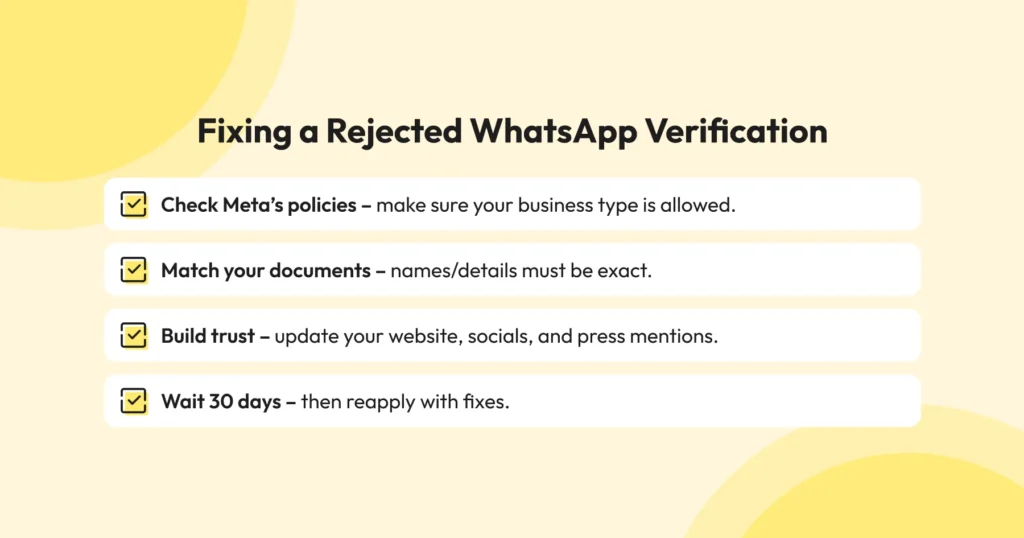
- Revisit Meta’s guidelines: Make sure your business category is allowed and that your account follows all of Meta’s Commerce and Business Policies.
- Verify your business information: Ensure your legal business name, display name, website, and other business details are accurate and consistent across all submitted documents and online properties.
- Check your supporting documents: Make sure the documents you submit, such as incorporation certificates or tax registration records, are current and match your business information exactly.
- Strengthen your notability: Build a stronger public presence through credible third-party media coverage, industry publications, or other independent sources. Self-published content and sponsored articles generally do not count toward notability.
- Address the reason for rejection: Review any feedback provided by Meta, correct the identified issues, and reapply after the 30-day waiting period.
To improve your chances of approval, keep your business information consistent across all channels, maintain accurate documentation, and establish a credible online presence before submitting another application.
WhatsApp Verification via Meta Verified Subscription Plans
Below is a breakdown of the Meta Verified subscription plans available for WhatsApp Business app users in 2026. Pricing is based on Meta's published U.S. reference rates. Subscription costs vary by country and region, so check the WhatsApp Business app for the latest local pricing.
Plan | What's Included | Price (USD/month) |
Business Standard | Verified badge, impersonation protection, in-app support, up to 4 linked devices | $14.99 |
Business Plus | Everything in Standard + up to 3 verified channels, prioritized in-app support, up to 6 linked devices | $49.99 |
Business Premium | Everything in Plus + up to 10 protected business accounts, 5 verified channels, up to 8 linked devices | $149.99 |
Business Max | Everything in Premium + up to 50 protected accounts, 10 verified channels, up to 10 linked devices | $499.99 |
Meta has offered introductory rates of $44.99 (Plus), $119.99 (Premium), and $349.99 (Max) to new subscribers for the first 12 months.
Availability is still limited to select countries, and Meta has not published a full country-by-country local-currency rate card, so treat the table above as the reference USD price point rather than a global price list.
What are the Benefits of WhatsApp Verification?
WhatsApp verification does more than add a badge to your business profile. It helps customers recognize your business as authentic and gives them greater confidence when interacting with your brand. Here are some of the key benefits:
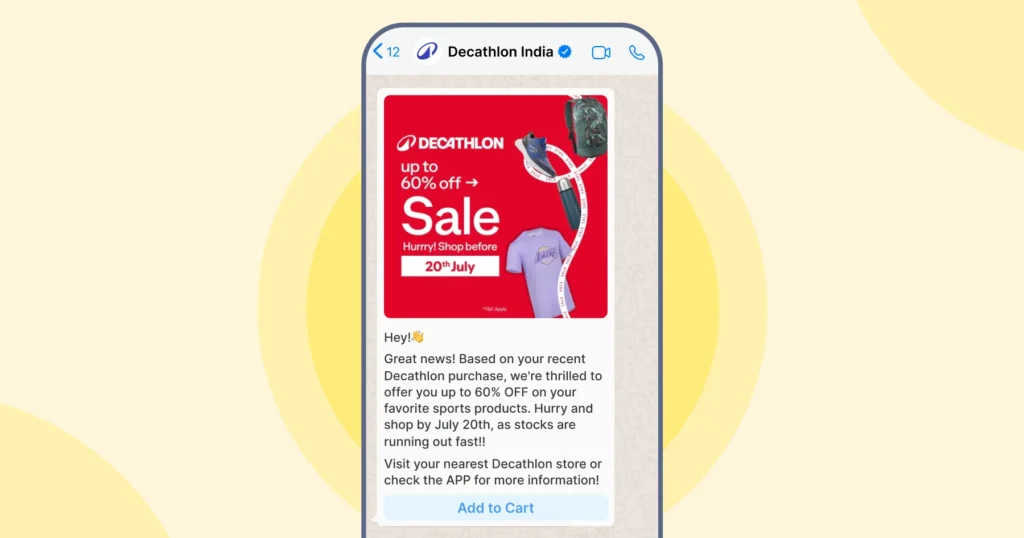
- Builds customer trust: Customers are more likely to engage with WhatsApp marketing messages from a verified business because verification helps confirm that the account belongs to the brand, and not an impersonator.
- Strengthens brand credibility: Verification reinforces your business's authenticity, helping establish a professional and trustworthy presence on WhatsApp.
- Improves discoverability: Official Business Accounts appear in WhatsApp search results, so customers can find you even if they haven't saved your number.
- Creates a consistent brand presence: If your business is verified across Meta platforms such as Facebook, Instagram, and WhatsApp, customers can recognize your brand easily wherever they interact with it.
- Reduces the risk of impersonation: A verified business account makes it easier for customers to identify your official account, helping reduce confusion caused by fake or unauthorized profiles.
- Supports business growth: A trusted business profile can encourage more customers to start conversations, respond to messages, and engage with your business on WhatsApp.
Ready to Get WhatsApp Verified?
WhatsApp verification helps customers recognize that they are interacting with an authentic business. By reinforcing your brand's credibility, it can increase customer confidence and encourage meaningful conversations on WhatsApp.
As an authorized WhatsApp Business Solution Provider, Wati helps businesses navigate the verification process, from Meta Business verification to preparing and submitting the Official Business Account (OBA) application on your behalf.
Ready to get started? Book a demo with Wati to simplify your WhatsApp verification journey.
Frequently asked questions
1. How long does WhatsApp verification take?
Business verification can take up to 14 working days. The Official Business Account (OBA) review that follows has no official Meta SLA, although many Business Solution Providers report decisions within a few business days.
2. What documents do I need for Meta Business verification?
You will need a document showing your legal business name and registered address, such as a business registration certificate, tax registration document, or utility bill. Accepted documents vary by country.
3. Why is my verification taking so long?
Common reasons include missing documents, mismatched business details, display name issues, insufficient notability evidence, or operating in a restricted business category.
4. Can I use the WhatsApp Business API without verification?
Yes. The blue tick is optional. It does not affect your ability to send approved message templates, use automation, or manage customer conversations. It primarily serves as a trust signal.
5. How soon can I apply for OBA after joining the platform?
After 30 days. Meta requires businesses to be registered and active on the WhatsApp Business Platform for at least 30 days before they become eligible to apply for an Official Business Account (OBA).
6. Can a small business get verified?
Yes. Eligible small businesses can subscribe to Meta Verified through the WhatsApp Business app. To receive the free WhatsApp blue tick, businesses must use the WhatsApp Business Platform and meet Meta's eligibility requirements, including authenticity and notability.
7. What is the difference between the blue tick and the green tick?
The blue tick is Meta's current verification badge for WhatsApp. Some older Meta and partner documentation still refers to a green tick for the same verification status.
8. What happens if my OBA application is rejected?
Your account remains a standard business account and continues to function normally. OBA rejections cannot currently be appealed. Review the reason for the rejection, strengthen your application, and reapply after 30 days.
9 .Is the WhatsApp blue tick free?
Yes. The Official Business Account blue tick is free for businesses on the WhatsApp Business Platform that meet Meta's eligibility and notability requirements. Meta Verified, the alternative for WhatsApp Business app users, is a paid monthly subscription.
10. How do I get blue tick in WhatsApp for free?
Use the WhatsApp Business API through a BSP like Wati, complete Meta Business Verification, enable two-step verification, get your display name approved, stay on the platform for 30 days, and have your BSP submit an OBA request with up to 5 third-party notability links.
Related posts
- How to Set Up Auto Reply in WhatsApp Business?
Master WhatsApp auto-reply for your business: improve response times, customer service, and communication.
- How to Create Personalized AI Videos with Wati’s AI Video Generator
Transform your marketing with Wati’s AI video generator. Create personalized, professional videos at scale without technical expertise or expensive equipment.
- How to Add a WhatsApp Chat Button On Website: 2026 Guide
Discover how to add a WhatsApp chat button on your website effortlessly. Create real-time connections, improve support, and convert visitors with Wati.
- How to Set Up an Instagram Chatbot to Answer FAQs Automatically (2026 Guide)
Learn how an Instagram FAQ chatbot works, which questions to automate, and how to set one up in Wati without code, from your first button template to a live keyword rule.