

-

-
-
Solutions
-
Soluções
-
Soluciones
-
解决方案
-
解決方案
-
الحلول
-
Product
-
Produto
-
Producto
-
产品
-
產品
-
المنتج
-

-
-


 Wati for Marketing
 Wati for Support
 Wati for Sales
 eLearning
 E-commerce
 Marketing Agencies
 Healthcare
 No Code Chatbots
 WhatsApp Business API
 Instagram Automation
 Click to WhatsApp ads
 Campaigns
 Team Inbox
 WhatsApp Business Calling
 Wati AI
 Overview
 Library
 Agente de suporte de IA
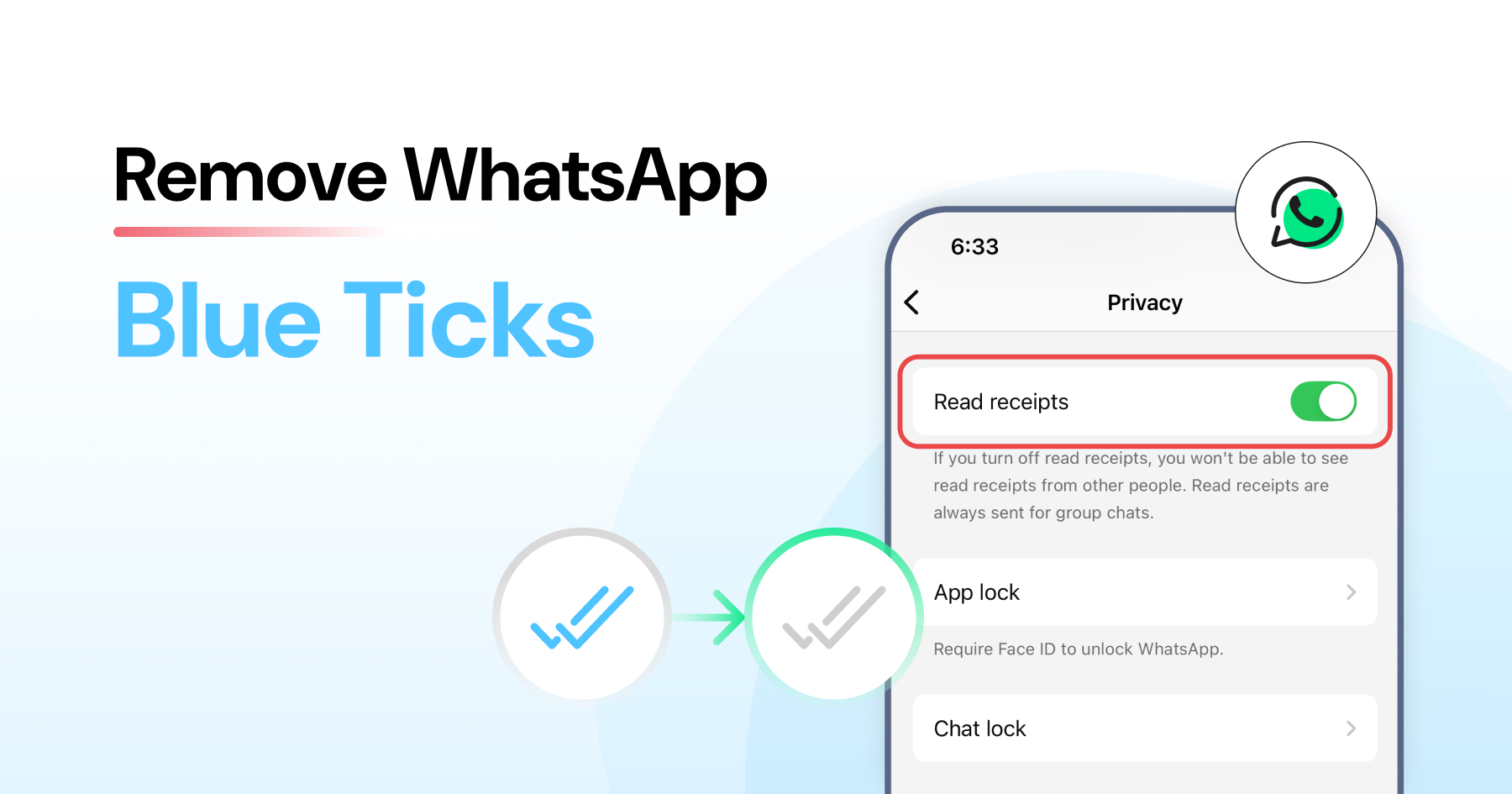
How to Remove Blue Ticks on WhatsApp (Android, iPhone & Web): 2026 Guide
Written by:
 Rohan Chaturvedi
|
Last updated on:
April 28, 2026
|
Fact Checked by :
Rohan Chaturvedi
|
Last updated on:
April 28, 2026
|
Fact Checked by :
 Namitha Sudhakar
|
According to: Editorial Policies
Namitha Sudhakar
|
According to: Editorial Policies
 Table of Contents
Too Long? Read This First
- Blue ticks on WhatsApp let you know when someone has read your message.
- A single grey tick means your message was sent, two grey ticks mean it was delivered, and two blue ticks mean it has been read.
- You can turn off blue ticks on both Android and iPhone to protect your privacy and avoid feeling pressured to reply immediately.
- Even if blue ticks are turned off, group chats will still show read receipts for all members.
- Voice messages always show as played once the recipient listens to them, regardless of your settings.
- You can turn blue ticks back on at any time, and future messages will show read receipts again.
Have you ever felt stressed because the blue tick indicates that you have read the message but not replied?
WhatsApp has different ticks that indicate sent, delivered, and read receipts.
A single grey tick means your message was sent. Two grey ticks mean it was delivered. Two blue ticks mean it’s been read.
If you value privacy, don’t want to feel rushed to reply, or take a break from constant notifications, you can turn off those blue ticks.
In this guide, we will show you, step by step, how to remove blue ticks on WhatsApp, so you can reclaim peace of mind and chat on your terms.
What are WhatsApp Blue Ticks?
WhatsApp’s blue ticks are read receipts that indicate when a recipient has opened and read your message.
They appear after the message is successfully delivered and then viewed by the recipient.
- When you send a message, it starts with a single grey tick, which means it has been delivered to WhatsApp’s servers.
- Once it reaches the recipient’s phone, it turns into two grey ticks.
- When the recipient opens the message, the ticks turn blue.

These ticks are great for quick updates, but they can feel a bit pushy if you’re not ready to reply.
That is why knowing how they work is the first step in deciding whether you want to keep them on or turn them off.
WhatsApp has more than 3 billion users worldwide, and many of them experience the same read-receipt pressure in personal and work conversations.
In the next section, we will show you how to remove blue ticks on WhatsApp step by step for Android, iPhone, and WhatsApp Web.
Also Read: WhatsApp Login Guide: Fast and Easy Ways to Access Your Account
How to Remove Blue Ticks on WhatsApp (Android& iPhone)
The process to turn off blue ticks on WhatsApp is easy on both Android and iPhone. Follow along, and you’ll be able to read messages without sending that “read” signal.
How to Remove Blue Ticks on WhatsApp for Android
1. Open WhatsApp and tap the three dots in the top-right corner.
2. Select Settings.
3. Tap Account → Privacy.
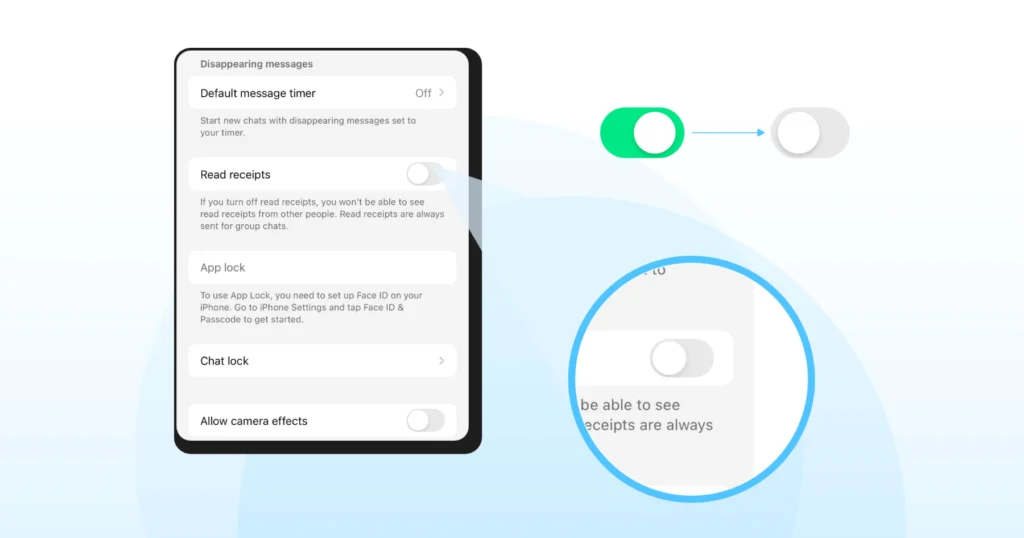
4. Scroll down to Read receipts and toggle it off.
How to Remove Blue Ticks on WhatsApp for iPhone
1. Open WhatsApp and tap Settings in the bottom-right corner.

2. Go to Privacy → Read Receipts.
3. Toggle Read Receipts off.
Take Control of Your WhatsApp Messaging 👇
Turning off blue ticks can give you more control over your messaging.
– Reduce pressure to reply: You can read messages without feeling rushed.
– Protect your privacy: See messages without immediately alerting the sender.
– Avoid misunderstandings: Prevent tension when replies aren’t instant.
– Own your messaging experience: Engage in conversations on your terms without added stress.
How to Remove Blue Ticks on WhatsApp for Web
If you use WhatsApp Web or WhatsApp Desktop, you might wonder if you can turn off blue ticks there as well.
The important thing to know is that WhatsApp Web does not have a separate setting for read receipts. The blue tick setting is controlled by your phone.
So if you disable read receipts on your phone (Android or iPhone), the same setting will automatically apply to WhatsApp Web and WhatsApp Desktop.
Steps to Remove Blue Ticks on WhatsApp Web
- Open WhatsApp on your phone
- Go to Settings
- Tap Privacy
- Turn off Read Receipts
Once this setting is turned off, people will no longer see blue ticks when you read their messages on WhatsApp Web, mobile, or desktop.
Important Things to Know
- The setting syncs across all devices linked to your WhatsApp account.
- If read receipts are turned off, you also cannot see when others read your messages.
- Group chats are an exception. Blue ticks will still appear when participants read messages in groups.
This means that managing the read receipts setting on your phone controls blue ticks everywhere you use WhatsApp.
Understanding Read Receipts in the WhatsApp Business API
If you are using WhatsApp for personal chats, blue ticks show when someone reads your message. But things work a little differently when businesses use the WhatsApp Business API.
For example, WhatsApp marketing platforms like Wati allow businesses to see detailed message status updates inside a shared inbox or analytics dashboard.
This helps teams understand whether customers have received or read important messages such as order updates, support replies, or marketing notifications.
Unlike personal WhatsApp usage, where blue ticks mainly indicate message reads, the WhatsApp Business API focuses on message tracking and engagement insights.
This gives businesses better visibility into customer communication while managing conversations at scale.
Pros and Cons of Removing Blue Ticks on WhatsApp
Turning off blue tick has benefits, like more privacy and freedom. However, there are also a few trade-offs to consider. Here’s a quick look at the pros and cons.
| Merits | Demerits |
| – Reduces pressure to reply immediately – Protect your privacy and read messages discreetly – Avoid misunderstandings from delayed replies – Take control of your messaging experience | – You also won’t see if others have read your messages – Group chats still show read receipts – Some contacts may feel ignored or confused – It can affect real-time communication in urgent conversations |
| Managing 50+ customer conversations? Blue tick pressure is real for support teams. Wati automates your first response so customers always get an instant reply. Get started with a free trial now. |
Can WhatsApp Business Users Turn Off Blue Ticks?
Absolutely. Just like regular WhatsApp, WhatsApp Business allows users to control read receipts.
You can choose whether you want the sender to see when you’ve read their messages. The steps are the same for both apps.
It’s really handy for business accounts. You can manage customer expectations without feeling pressured to reply right away.
Related Read: WhatsApp Messenger vs Business vs Business API
Understanding WhatsApp’s Message Info Screen
The Message Info screen shows what happened with the messages you sent. You can see when a message was:
- Delivered
- Read
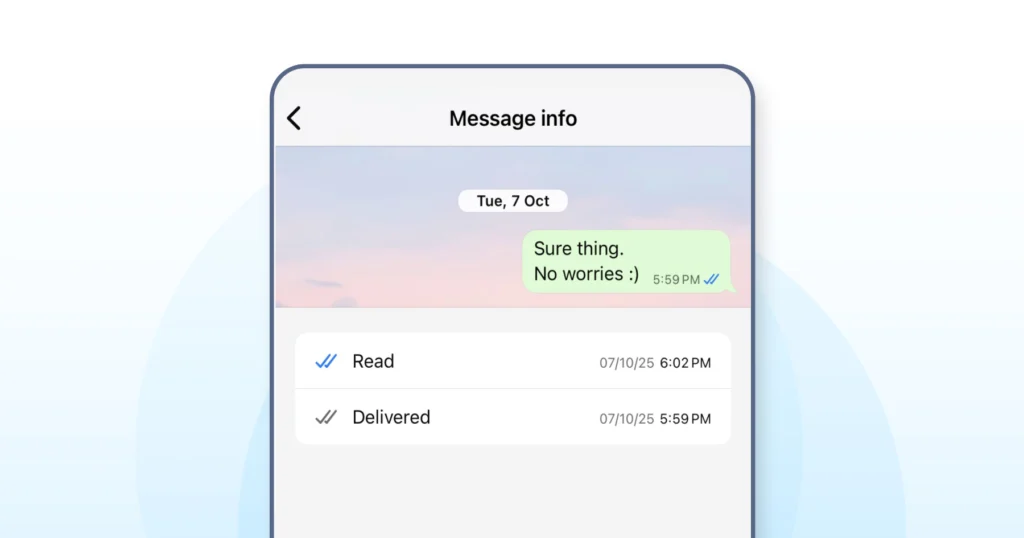
How to Access the Message Info Screen on iPhone?
1. Open the chat (individual or group).
2. Press and hold the message you sent.
3. Select Info to see the details.
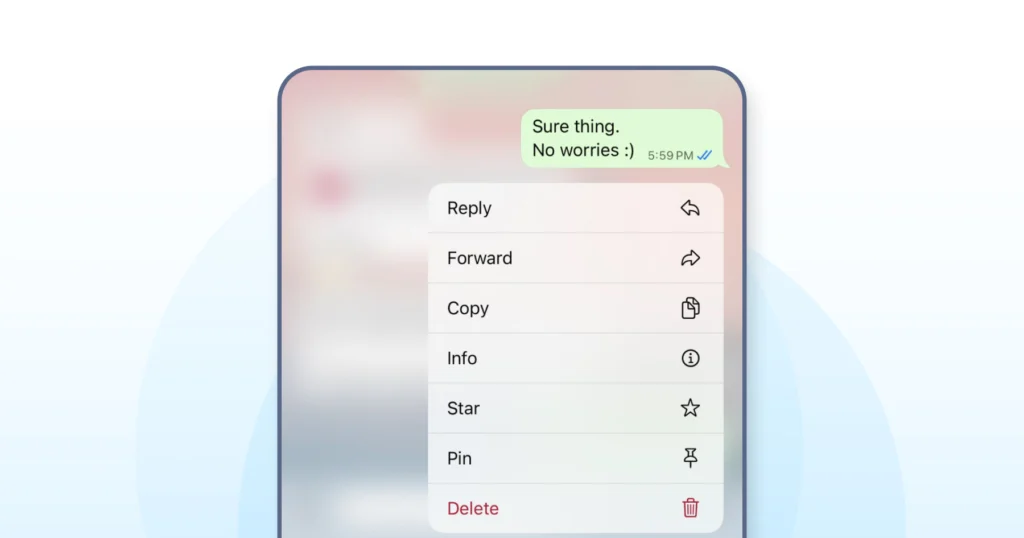
How to Access the Message Info Screen on Android?
1. Open the chat (individual or group).
2. Tap and hold your sent message.
3. Tap the Info icon (ℹ️) at the top.
Even if someone leaves a WhatsApp group, the Message Info screen will still show the original details for all members, including the person who left.
Also Read: WhatsApp Broadcast vs WhatsApp Group
5 Ways to Read WhatsApp Messages Without Blue Ticks
Sometimes you may want to read a message without letting the sender know.
While turning off read receipts is the easiest solution, there are a few other tricks that allow you to read WhatsApp messages without triggering blue ticks.
These methods can help when you want to quickly check a message but reply later.
1. Read Messages from the Notification Panel
When a new message arrives, you can read it directly from your phone’s notification panel. As long as you do not open the chat inside WhatsApp, the blue ticks will not appear.
This is one of the easiest ways to preview messages without sending a read receipt.
2. Use Airplane Mode
Turn on Airplane Mode before opening WhatsApp. Once your phone is offline, open the chat and read the message.
Since there is no internet connection, WhatsApp cannot send the read receipt. Make sure you close the app completely before turning your internet back on.
3. Use the WhatsApp Widget (Android)
Android users can add the WhatsApp widget to their home screen. This widget displays recent messages from your chats.
You can read messages directly from the widget without opening the conversation, which helps avoid triggering blue ticks.
4. Use the WhatsApp Search Bar
Another trick is to use the search bar inside WhatsApp. Type the contact name or a keyword from the message in the search field.
WhatsApp will show message previews in the search results, allowing you to read parts of the message without opening the chat.
5. Preview Messages on WhatsApp Web Notifications
If you use WhatsApp Web or WhatsApp Desktop, you may see message previews in desktop notifications. Reading messages from the notification preview usually does not trigger blue ticks unless you open the conversation in the chat window.
These methods can help you read messages privately when needed. However, once you open the chat normally, WhatsApp will mark the message as read, and the blue ticks will appear.
Also Check Out: WhatsApp Business Web: How to Use it for Your Business in 2026?
Take Control of Your WhatsApp Experience
Blue ticks might seem like a small thing, but they often shape how we interact online. For some, they are useful; for others, they can add a bit of pressure.
The best part is that you are in control. If turning them off helps you feel more relaxed and in charge of your conversations, go for it.
If you ever miss them, it only takes a few taps to bring them back.
If you use WhatsApp for work, Wati’s AI responses mean customers never wait, so you never feel pressured to reply instantly.
Bonus Resource: Why Isn’t Instagram Engagement Converting Into Leads? (And How To Fix It)
FAQs: How to Remove Blue Ticks on WhatsApp
No, it works both ways. If you turn off read receipts, you also won’t be able to see when someone else reads your messages.
Yes. Read receipts for voice messages can’t be disabled. Once the recipient listens to your voice note, you’ll see the blue ticks.
Yes, WhatsApp Business users have the same privacy settings. They can disable read receipts from their account settings, just like regular users.
When you re-enable read receipts, future messages will show blue ticks again once they’re read. However, older messages won’t retroactively update their status.