
Too Long? Read This First
- Think of syncing as your AI assistant searching, creating, and updating contacts through MCP, not some invisible pipe running in the background.
- Good segments come from real signals, tags, teams, engagement history, and other contact attributes, not just a big list.
- Opt-in, opt-out, and approved templates stay at the center of every single send, exactly as they should.
- The 24-hour customer service window is always respected before any free-form message goes out.
- Every AI-driven contact action comes with permissions, a confirmation step, and an audit log, so nothing happens quietly.
Ask ten marketing teams what "syncing contacts with WhatsApp" means and you'll get ten different answers. Some picture a live pipe from a CRM straight into a campaign tool. Others mean checking one record before a support agent replies.
With the Wati MCP server, the real answer sits closer to the second picture: an AI assistant that can search, create, and update contact records inside Wati, using the same rules a human agent would follow.
That distinction matters, because WhatsApp Business runs on strict opt-in, template, and messaging-window rules that no automation can quietly skip.
This guide covers what sync means in practice, how to segment contacts before a send, and the consent and audit controls that keep the workflow defensible.
What Does "Sync" Actually Mean with the Wati MCP Server?
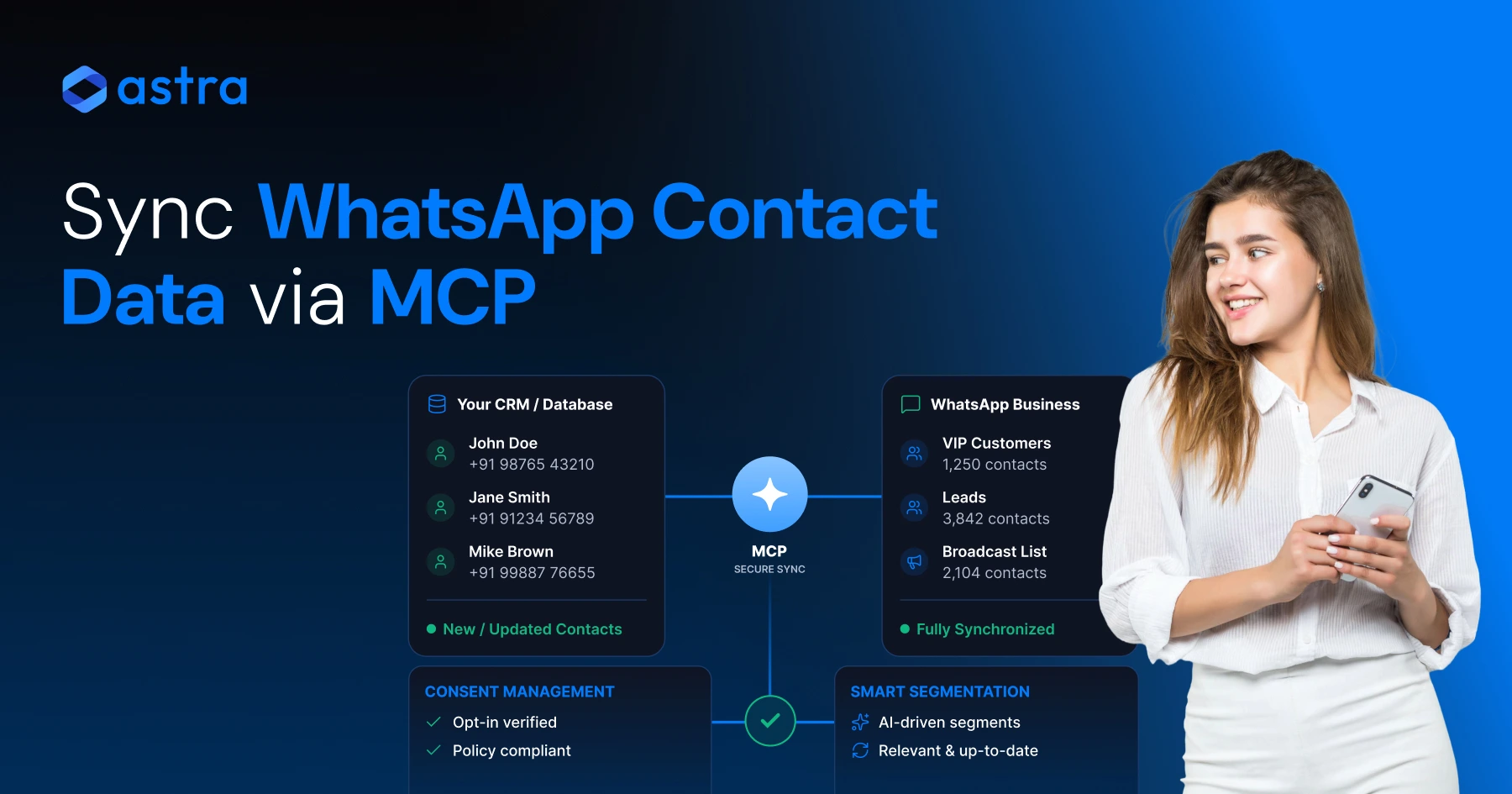
Syncing, in this context, means an AI assistant uses MCP to search, create, or update contact records inside Wati, not an automatic, always-on pipe from every CRM into WhatsApp.
Model Context Protocol is an open standard that connects an AI assistant to the systems where business data already lives, according to Anthropic. The Wati MCP server applies that standard to one specific set of data: your WhatsApp Business Platform contacts, templates, and conversations.
Wati's own documentation for the MCP server lists contact search, customer-profile and engagement-history access, contact creation and updates, contact counts, creation-date filtering, and team assignment as supported tasks.
That's the real surface area. An assistant can look up a contact, add one, update a field, or check who was created last week. It can't rewrite your CRM's schema or push data somewhere WhatsApp doesn't reach.
What MCP Connects and What It Doesn't
MCP gives an assistant permissioned access to contact tools already built into Wati; it isn't a universal bridge between every CRM and WhatsApp.
The protocol's authorization layer matters here. MCP's specification defines transport-level authorization so a client can act on a restricted server on behalf of a resource owner, per the Model Context Protocol authorization spec. In plain terms, the assistant only does what your Wati account permits, nothing more.
How Contact Attributes Power Better Segmentation
Better segments come from combining contact attributes, tags, teams, and past engagement, not from sending to your whole contact list at once.
Wati's product page describes creating and updating contacts, importing a list, searching engagement history, tagging audience groups, and sending approved templates to a person or a segment. Each of those is a lever. Pull contacts created in the last 30 days.
Filter by a tag like "cart-abandoned." Check who replied to your last broadcast before you message them again. Teams already connecting AI agents to CRM data tend to treat this contact layer as the shared source of truth for every send.
Tags, Teams, and Engagement History
Tags and team assignment turn a flat contact list into something closer to a real customer data platform your whole team can query in plain language.
Wati's public MCP server repository documents bulk custom-parameter updates and contact counts alongside team assignment, per the Wati MCP server repository.
A support lead could ask the assistant to count contacts on the "VIP" tag assigned to the sales team, then hand that list to a campaign, with a human confirming the send before it goes out.
Engagement history closes the loop. Before you draft a WhatsApp message template, knowing who opened your last three broadcasts and who never replies changes both what you write and who you send it to.
Using Customer Data Analysis Before You Send
Segmentation only works if the analysis happens before the send button, not after a complaint arrives in the inbox.
Ask the assistant to list contacts by creation date, tag, or team, review the count, then narrow it further. This is contact segmentation done conversationally: fewer spreadsheets, same underlying rules your team already follows manually.
For teams running loyalty or abandoned-cart flows, pairing engagement history with tags cuts the list down to people who actually fit the offer.
Why Do Consent and Opt-In Rules Come First?
No segmentation trick matters if the contact never agreed to receive WhatsApp messages from your business in the first place.
Meta's WhatsApp Business Messaging Policy sets the baseline: businesses need permission before messaging someone, and that permission has to be specific to WhatsApp, not inherited from another channel. Meta's opt-in guidance for the WhatsApp Cloud API spells out what counts: a clear action like a checkbox, a signed form, or a message the customer sends first.
This is consent management first, campaign strategy second. An assistant syncing contacts should be adding people who already cleared that bar, not collecting numbers from a spreadsheet and hoping.
Business Identification and Opt-Out Handling
Every contact needs to know which business is messaging them, and every business needs a working way for that contact to stop.
Clear identification isn't optional. Meta's Cloud API get-started documentation frames a compliant business profile around a verified name, a visible identity, and no impersonation.
The same care is worth putting into your business profile and description. Opt-out has to be just as easy as opt-in. When an MCP-connected assistant updates a contact record after someone replies "STOP," that update should reach segmentation immediately, so the next campaign excludes them by default.
The 24-Hour Customer Service Window
Once a customer messages you, you get a 24-hour window to reply freely; outside that window, only an approved template gets through.
This is one of the WhatsApp Business Platform's core rules, and it directly shapes how you use MCP. Session messages work inside the window.
Template messages work outside it. An assistant that checks conversation timing before choosing which message type to send, including automated replies inside the window, is following the same rule a human agent already follows.
5 Steps to Sync and Segment Contacts with MCP
These five steps describe a typical workflow: search, tag, filter, template, confirm: the same order whether a human or an assistant runs it.
- Search or create the contact. Ask the assistant to find an existing record or create one, matching the phone number and name against what's already in Wati.
- Add tags and team assignment. Group contacts by interest, region, or lifecycle stage so segments stay reusable across future campaigns.
- Filter by attribute or date. Narrow the list by creation date, engagement history, or a custom field before committing to a send.
- Pick an approved template. Match the message to an approved WhatsApp template (required outside the 24-hour window, and good practice inside it too).
- Confirm and send with a human in the loop. Review the count and the audience, then approve. The assistant proposes; a person confirms.
That order isn't arbitrary. Skip step three and you message people who don't fit the offer. Skip step five, and nobody catches a bad list before it reaches customers.
MCP vs Manual Contact Management: What Changes?
The mechanics don't change (you're still searching, tagging, and filtering contacts), but the interface and the speed do.
Task | Manual Process | With Wati MCP |
|---|---|---|
Find a contact | Open Wati, search by phone or name | Ask the assistant, get the record back in chat |
Update a custom field | Edit each contact one by one | Request a bulk custom-parameter update across a segment |
Check engagement history | Pull a report, cross-reference manually | Ask for engagement history alongside the contact profile |
Count a segment | Export and count in a spreadsheet | Ask for a live contact count by tag or team |
Assign a team | Click through each contact's settings | Assign a team to a filtered list in one request |
Nothing here replaces the underlying permissions model. The assistant works inside the same account, same roles, same limits a logged-in teammate would have.
What Controls Should You Put Around AI-Driven Contact Actions?
Every AI-driven contact update needs a human review point, a permission check, a confirmation step, and a record of what happened.
Start with permissions. WhatsApp security practices apply here the same way they apply to any teammate with account access: AI agents should never have broader reach than the role they act under.
Wati's existing role and permission settings already scope what a user, and therefore an MCP-connected assistant, can see and change.
Permissions, Confirmation, and Audit Trails
Confirmation steps catch mistakes before they reach a customer, and audit logs let you prove what happened afterward.
Require explicit confirmation before any customer-facing action (a send, a bulk tag change, a contact deletion) goes live. Keep a retained, auditable record of who asked for what and when it ran; that record matters for internal review and for showing a partner or regulator that the process was controlled.
The National Institute of Standards and Technology's AI Risk Management Framework offers a useful model here: map the risk, measure it, and manage it before deployment, not after.
For teams wiring webhook-driven records or automation rules around contact events, the same principle holds: log the trigger, log the action, and make the log reviewable by someone other than the assistant.
Ready to Sync Contacts the Right Way?
Wati MCP gives your AI assistant the same contact tools your team already trusts (search, tag, filter, and send) inside the permissions you've already set. If you're ready to see it against your own contact list, book a demo with Wati or connect your workspace to the Wati MCP server directly.
Teams already running WhatsApp marketing software at scale tend to add MCP as a layer on top, not a replacement: the campaigns, templates, and Team Inbox stay exactly where they are.
Frequently asked questions
What does "syncing" contacts with WhatsApp via MCP actually mean?
Syncing means an AI assistant connects through MCP to search, create, or update contact records already stored in Wati. It is not a universal, automatic link that pulls every CRM record into WhatsApp without review; it works within Wati's existing contact tools and permissions.
Can Wati MCP automatically pull data from any CRM into WhatsApp?
No. Wati MCP connects an AI assistant to Wati's own contact-management tools: search, creation, updates, tagging, and team assignment. Moving data from a separate CRM into Wati still needs its own integration or import step before MCP can act on those records.
How does contact segmentation work with tags and engagement history?
Segmentation combines contact attributes, tags, team assignment, and engagement history to narrow a broadcast list. You might filter by creation date, a tag like "loyal-customer," or reply history from a past campaign, then send an approved template only to that narrower group.
What consent rules apply before sending a WhatsApp campaign?
WhatsApp requires clear opt-in specific to the channel, visible business identification, and an easy opt-out. Meta's WhatsApp Business Messaging Policy and opt-in guidance describe these requirements; any contact synced through MCP should already meet them before it enters a campaign segment.
What is the 24-hour customer service window?
It's the period after a customer's last message during which a business can send free-form session messages. Outside that window, WhatsApp only allows pre-approved template messages, so checking conversation timing before a send matters as much as picking the right audience.
What controls should teams use before letting AI update contact records?
Apply Wati's existing role permissions, require human confirmation for customer-facing actions like sends or bulk edits, and keep an auditable log of what the assistant did and when. This mirrors governance practices like those in NIST's AI Risk Management Framework.
Related posts
- AI Customer Support in 2026: What It is, How It Works, and Why Smart Teams are Quietly Switching Over
Learn how AI in customer support manages ticket escalations, automates ticket tagging and routing, and improves customer satisfaction. See how Astra does it.
- How to Automate Business Conversations With a WhatsApp AI Agent in 2026
Learn how to build a WhatsApp AI agent to engage, qualify, and convert prospects round the clock without any delays in 2026.
- Voice-First Web Experiences: Navigating with Voice Commands
learn how voice first web experiences enable you to power personalized, human-like conversations to have a competitive advantage in today’s market.
- How Voice AI Agents Qualify Leads: A Sales Team’s Guide to Hands-Free Pipeline
know how does voice ai qualifies leads for an effective sales action and potential conversion and where does astra 2.0 stand when it comes to pre-configured lead qualification