

-

-
-
Solutions
-
Soluções
-
Soluciones
-
解决方案
-
解決方案
-
الحلول
-
Product
-
Produto
-
Producto
-
产品
-
產品
-
المنتج
-

-
-


 Wati for Marketing
 Wati for Support
 Wati for Sales
 eLearning
 E-commerce
 Marketing Agencies
 Healthcare
 No Code Chatbots
 WhatsApp Business API
 Instagram Automation
 Click to WhatsApp ads
 Campaigns
 Team Inbox
 WhatsApp Business Calling
 Wati AI
 Overview
 Library
 Agente de suporte de IA
How to Integrate WhatsApp Business API with Make (Step-by-Step Guide)
Written by:
 Shreya
|
Last updated on:
March 11, 2026
|
Fact Checked by :
Shreya
|
Last updated on:
March 11, 2026
|
Fact Checked by :
 Namitha Sudhakar
|
According to: Editorial Policies
Namitha Sudhakar
|
According to: Editorial Policies
 Table of Contents
Too Long? Read This First
- Use Make.com (formerly Integromat) as a cost-effective, no-code alternative to Zapier for automating WhatsApp workflows.
- Easily trigger WhatsApp messages from common apps, such as sending a text automatically when a new row is added to Google Sheets.
- Uses the Wati API to bridge Make with WhatsApp, requiring a Business API account and basic HTTP request setup.
- Beyond basic messaging, it handles CRM syncing, appointment reminders, order updates, and personalized marketing at scale.
- Success requires routine monitoring of "scenarios" and staying updated on API changes from both platforms to prevent workflow breaks.
Make.com, formerly Integromat, is a powerful automation tool that enables no-code app-to-app integrations. It is much more cost-effective than Zapier.
With Make, small businesses and solopreneurs can integrate social media with WhatsApp and scale marketing campaigns on a consolidated platform.
With native WhatsApp API integration, Users can connect WhatsApp Business to Make and optimize their marketing campaigns through direct HTTPS requests and WhatsApp API endpoint management.
In this article, we will discuss how to send WhatsApp messages from Make using the Make.com WhatsApp integration.
How to Set Up Make.com Integration with WhatsApp using Wati?
There are innumerable use cases possible with Make integrations with WhatsApp Business API providers.
This blog deals with one specific but common use case: When a new row is added to a Google Sheet, send a WhatsApp Message from Make.
For this, you will need:
- A Make Account (Free account works too: https://www.make.com/en/register)
- A Wati account.
Here is a step-by-step guide to integrating Make with WhatsApp.
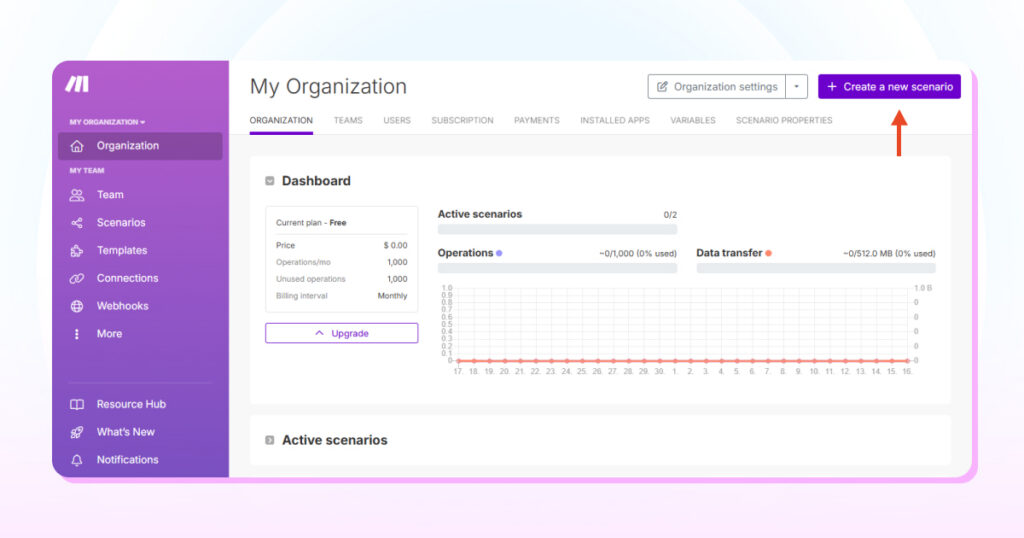
- On the Make Dashboard, click on Create a new scenario
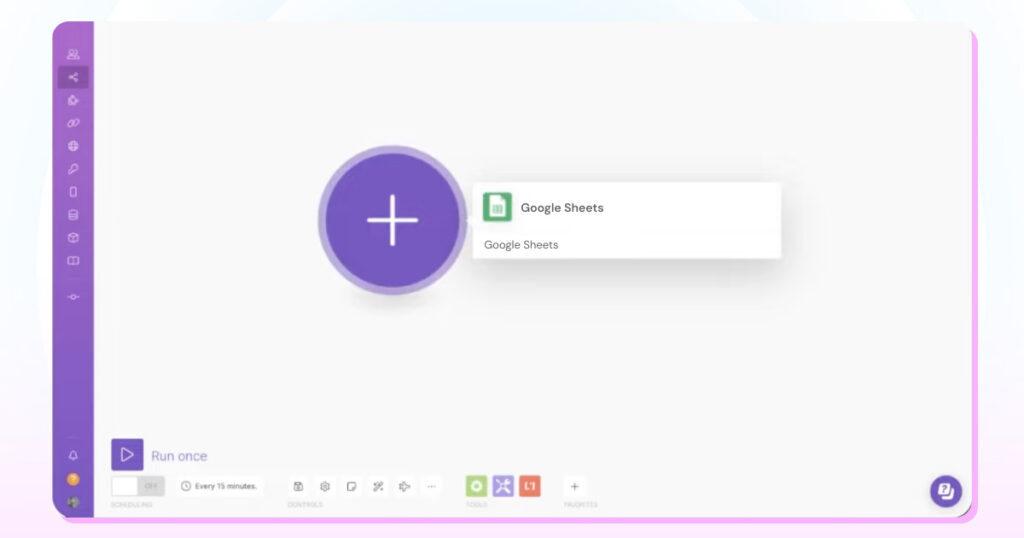
2. Click the + icon and search for Google Sheets
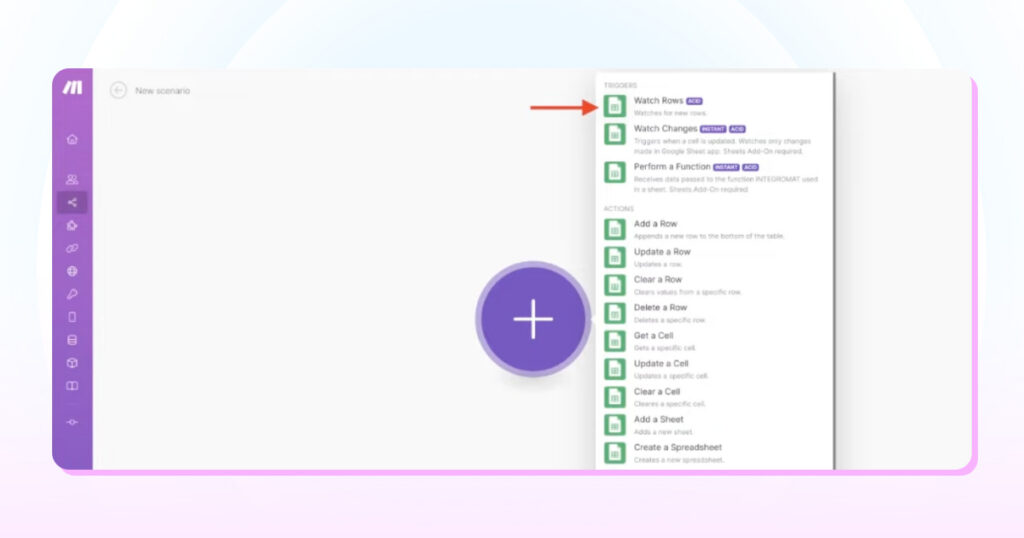
3. Select the Watch Rows option as the trigger condition.
4. Before moving on to the next step, create a new Google spreadsheet in your account and add a Header row. (A row containing column titles like Name, Phone Number, etc)
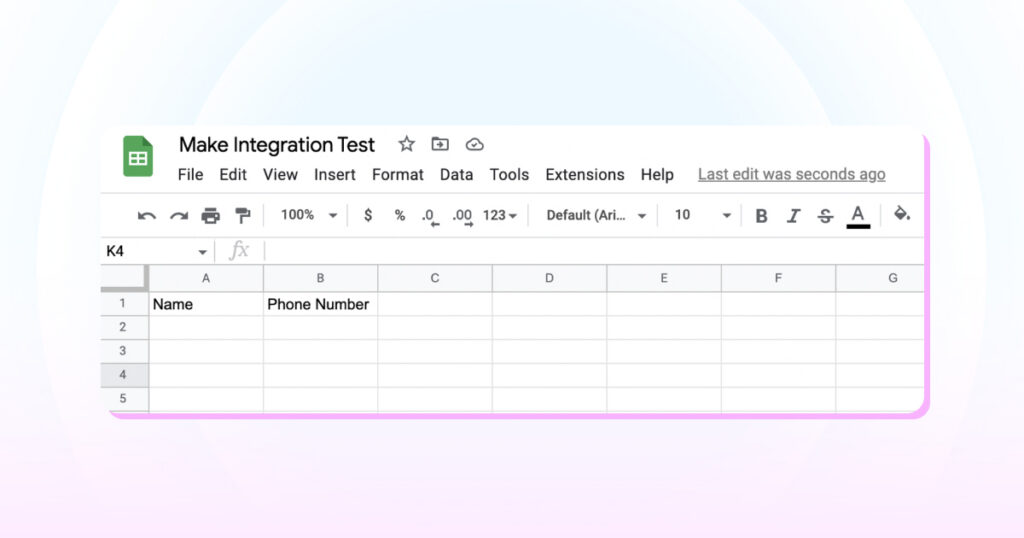
5. Create a new connection with your Google account by clicking ‘Add‘.
6. Choose the Spreadsheet ID and Sheet name created in the previous step.
7. Click OK
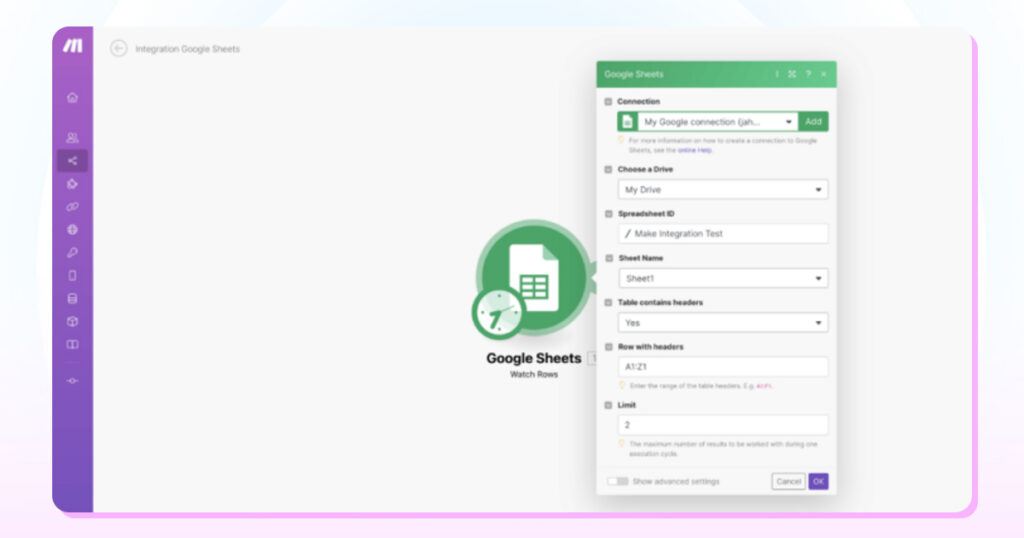
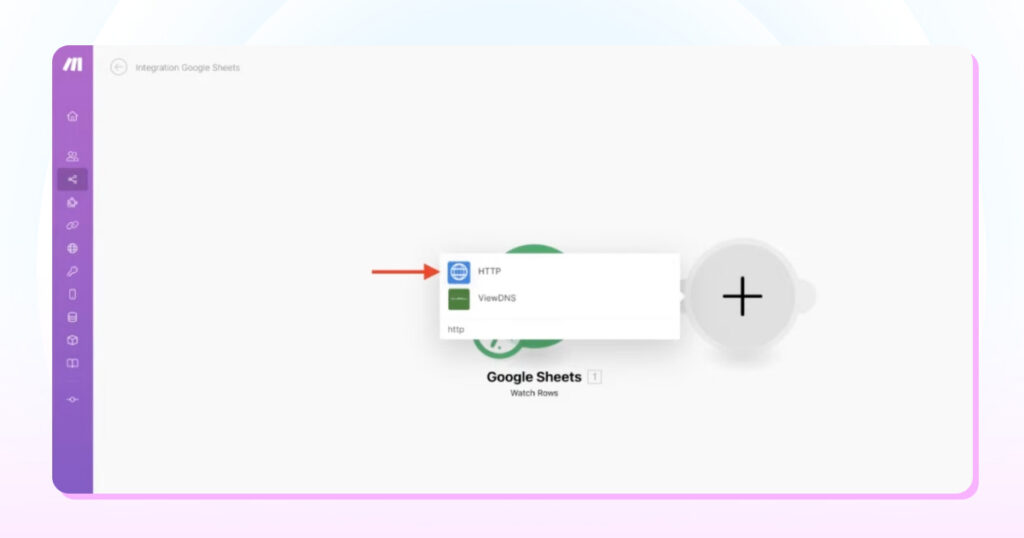
8. Click + icon to add a module and choose HTTP
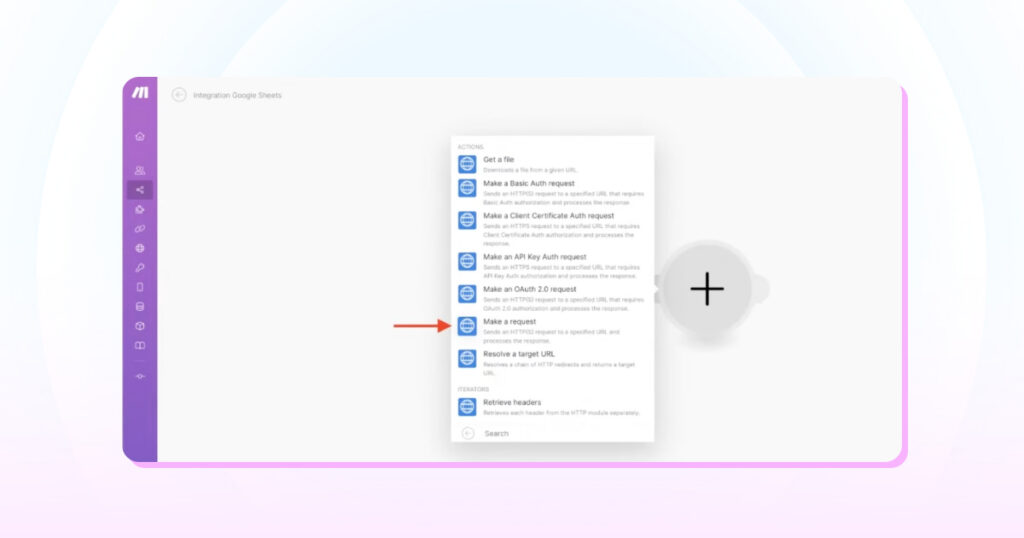
9. Select Make a request
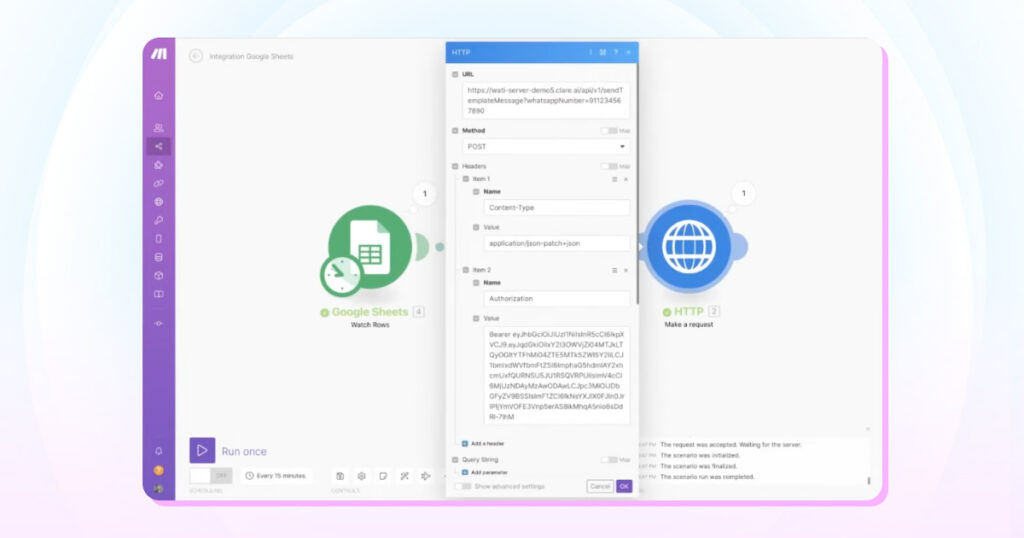
10. Add URL. The request URL for sending template messages is https://live-server-<wati_number>.wati.io/api/v1/sendTemplateMessage?whatsappNumber=<phone_number
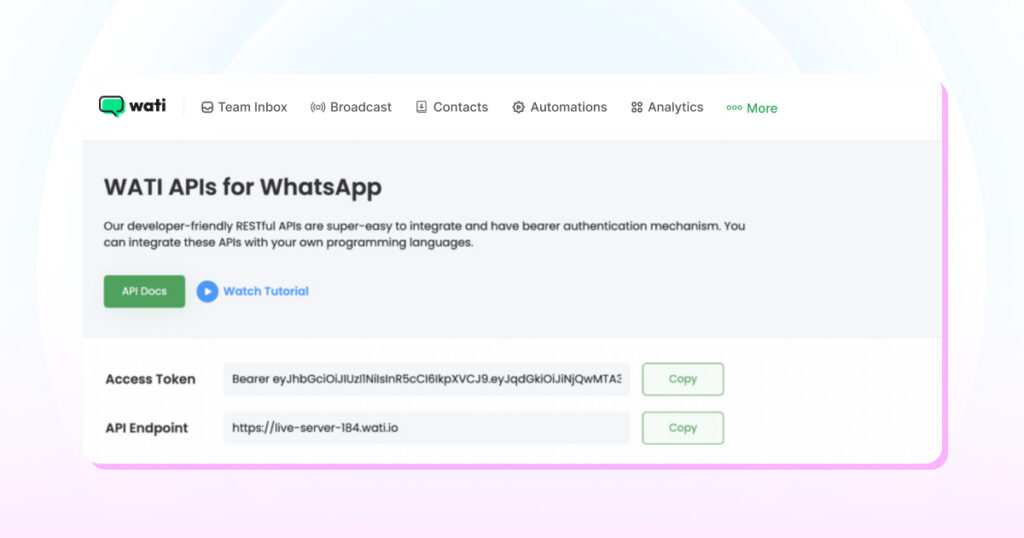
11. Set method to POST
Add Header 1: Name Content-Type , Value application/json-patch+json
Add Header 2: Name Authorization , Value Bearer Token
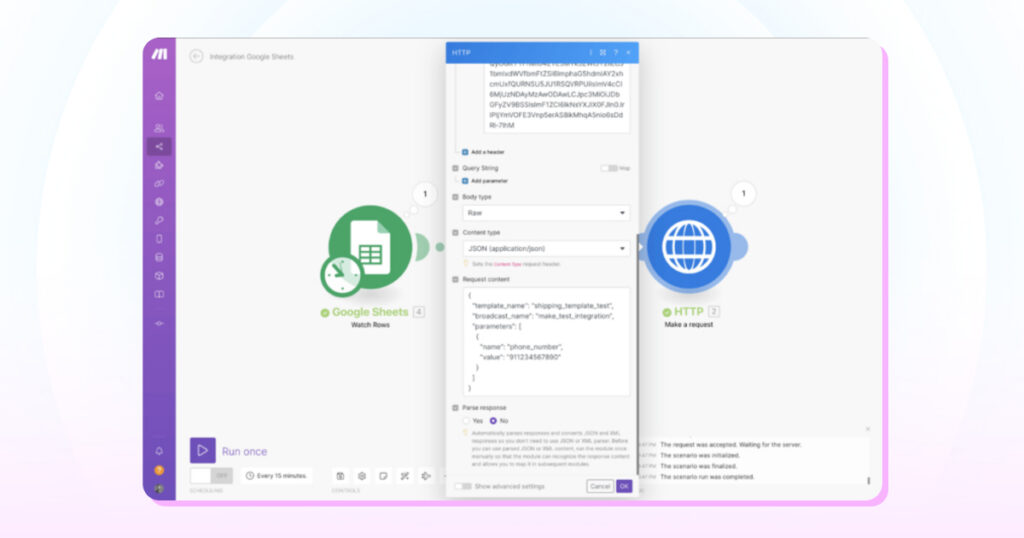
12. Select Body type as Raw
Content type: application/json
Request content:
{
"template_name": "<enter_template_name_here>",
"broadcast_name": "enter_broadcast_name_here",
"parameters": [
{
"name": "<enter_parameter1_here>",
"value": "<enter_value_of_parameter1_here>"
}
]
}
13. Add a test row to the sheet and Press the Run button (if successful, you will see a green tick beside both steps)
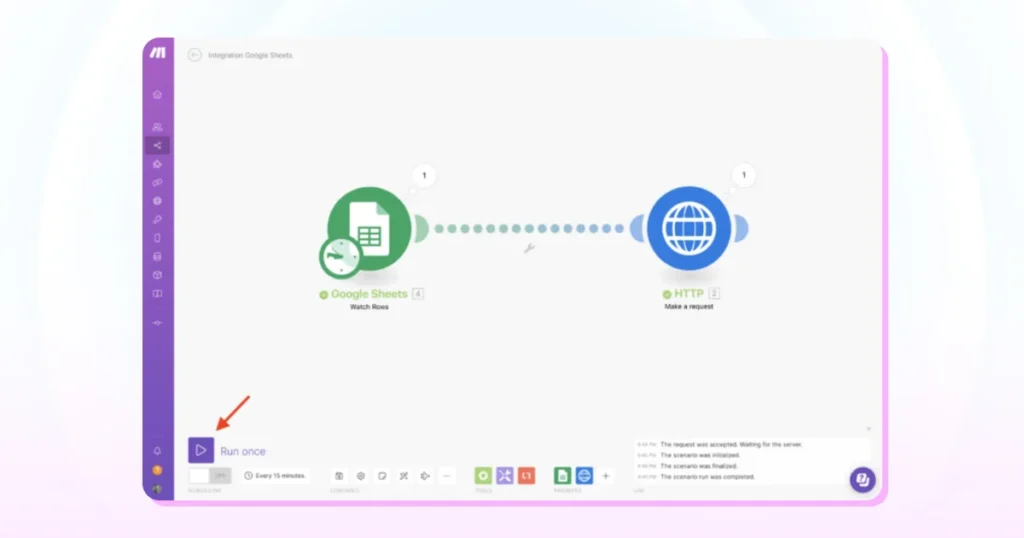
14. The template message is sent as a broadcast to the WhatsApp number mentioned in the Request URL
How to Maintain and Update the Make & WhatsApp Integration?
As a business owner, keeping your Make.com WhatsApp integration running smoothly is crucial for uninterrupted service and customer satisfaction.
Here’s how you can maintain and update this integration effectively.
1. Regularly Check the Make.com Integration
| Schedule Routine Checks | Mark your calendar for regular intervals (like bi-weekly or monthly) to review the integration. This habit ensures everything is functioning as it should. |
| Monitor Automated Flows | Regularly check the automated workflows you’ve set up. Ensure that messages are being sent and received correctly and that data syncing is happening without errors. |
| Check for Updates | Both Make.com and WhatsApp frequently update their platforms. Always look out for any update notifications within the platforms or via email. |
| Review Customer Feedback | Pay attention to what your customers are saying. If they’re encountering issues with receiving messages or interacting via WhatsApp, it might be a sign that the integration needs attention. |
2. Updating the Make.com Integration
- Stay Informed About New Features: Both Make.com and WhatsApp are constantly evolving, adding new features and capabilities. Keep an eye on their official blogs, WhatsApp newsletters, or community forums for announcements.
- Implement Updates Promptly: When new updates are available, implement them as soon as possible. This not only ensures that you’re using the latest features but also keeps the security aspects up-to-date.
- Test After Updating: Whenever you make changes or updates to the integration, test it thoroughly. Send test messages and run through all the use cases to ensure everything works as expected.
- Seek Support When Needed: If you’re unsure about an update or face challenges during the process, don’t hesitate to contact Make.com’s support team. It’s better to seek help than to let a problem disrupt your business.
3. Keeping Up with Platform Changes
- Educational Resources: Utilize the educational resources provided by Make.com and WhatsApp. They often offer webinars, tutorials, and guides to help users understand and adapt to changes.
- Participate in Community Forums: Engaging with other users in community forums can be insightful. You can learn from others’ experiences and share your own, staying informed about practical aspects of using the integration.
- Feedback Channels: If you have suggestions or feedback about the integration, both Make.com and WhatsApp often provide channels to voice them. Your input can help shape future updates.
By routinely checking and updating your Make.com WhatsApp integration and staying informed about changes in both platforms, you can ensure that this powerful tool continues to serve your business effectively and efficiently.
Remember, a well-maintained integration is key to providing seamless service to your customers.
What are the Capabilities of Make+WhatsApp Integration?
Here are the capabilities of Make’s integration with WhatsApp for brands using a lightweight marketing infrastructure.
1. Automated Messaging
Imagine sending automated, personalized messages to your customers on WhatsApp.
With Make, you can set up triggers that automatically send updates, reminders, or promotional content to your customers. This means less time typing out messages and more time focusing on growing your business.
2. Customer Service Enhancement
With Make.com integration, you can quickly respond to customer queries on WhatsApp. Here is how:
- Set up automated responses: Templatize the common questions, and route more complex inquiries to your customer service team. This helps in providing prompt and efficient customer support.
- Data Synchronization: Make allows you to sync customer data from WhatsApp with your other business tools. If a customer texts you, their details will be fed in your CRM. This seamless integration ensures quick accessibility.
- Event-Driven Actions: You can set up specific actions in Make that are triggered by certain events on WhatsApp. For instance, if a customer confirms an appointment via WhatsApp, Make.com integration can automatically update your calendar.
- Feedback Collection: With Make integration, you can automate feedback requests after a customer makes a purchase or avails of a service. This can help you gather valuable insights and improve your offerings.
- Marketing Campaigns: Run targeted marketing campaigns on WhatsApp using Make.com. Segment your customers based on their preferences, purchase history, or other criteria, and send them personalized promotional messages or updates about your products and services.
What are the Key Use Cases of Make+WhatsApp Integrations?
Below are the distinguishing benefits of Make+WhatsApp integration for improved team productivity.
- Restaurant Reservations: If you run a restaurant, you can use Make to automatically confirm reservations. When a customer books a table via WhatsApp, they receive an instant confirmation message, and their reservation details are saved in your system.
- Retail Order Updates: For retail businesses, Make can send automated order status updates. When a customer’s order is shipped, they receive a tracking link directly on WhatsApp.
- Service Appointment Reminders: If you offer services like salon appointments or car servicing, Make can send reminders to your customers a day before their scheduled appointment to reduce no-shows.
- Event Notifications: Use Make to send event reminders, updates, or schedule changes directly to your customers’ WhatsApp, ensuring they are always in the loop.
Read More: The Ultimate Guide to Leveraging WhatsApp for Event Marketing
Embrace the Future of Business Communication with Make
The Make WhatsApp Integration is more than just a tech upgrade. It’s a paradigm shift in how businesses communicate with their customers.
With Wati at your side, this integration becomes a seamless, easy-to-manage process, enabling you to leverage the power of instant, personalized communication on a platform used by billions.
See Wati’s messaging capabilities in action by registering for a free demo.
Frequently Asked Questions
Yes, you need a WhatsApp Business platform to integrate with Make. The standard WhatsApp account is not designed for this type of integration. Setting up a WhatsApp Business platform (formerly WhatsApp Business API) can be integrated with Make.
Not necessarily. Make is designed to be user-friendly, and the integration process with WhatsApp is quite intuitive. Basic knowledge of navigating online platforms should be sufficient. However, if you encounter any complex scenarios, you might need some technical understanding or assistance.
You can automate a wide range of transactional messages, including appointment reminders, order updates, and promotional messages. However, WhatsApp has guidelines and limitations on automated messaging to prevent spam, so it’s important to familiarize yourself with these rules.
Absolutely. Make allows you to segment your audience by criteria such as purchase history, customer behavior, or demographics. This enables you to send targeted, personalized messages via WhatsApp, enhancing customer engagement.
The number of messages you can send may be influenced by WhatsApp’s policy and the plan you choose with Make. While Make allows for extensive automation, WhatsApp might have limitations to prevent spamming, so it’s important to check their terms of service.
Make offers a comprehensive help center and customer support. If you encounter issues, you can refer to their online resources or contact their support team. It’s also helpful to check the WhatsApp Business API documentation for specific troubleshooting tips.