
Too Long? Read This First
- Regular backups prevent data loss when you change phones or reinstall WhatsApp.
- For Android: Go to Settings > Chats > Chat Backup and connect to Google Drive for automatic backups.
- For iPhone: Use Settings > Chats > Chat Backup and enable Auto Backup via iCloud.
- Restoring Chats: Reinstall WhatsApp, verify your number, and tap Restore when prompted.
- Pro Tip: Always back up over Wi-Fi and set backups to run daily.
Losing your chat history can be stressful, especially if you rely on WhatsApp for important conversations. Backing up WhatsApp messages ensures you never lose access to your messages and media.
This article provides answers to the most common questions about backing up WhatsApp messages and chat history, for both Android and iPhone devices.
If you want to ensure your WhatsApp messages and files are safe, backing them up is essential. Whether you use an Android device or an iPhone, the WhatsApp app offers built-in options to save your conversations and media to the cloud.
With WhatsApp marketing solutions like Wati, you can back up WhatsApp messages in an organized way to refer to and access old history as and when required for sales conversions. Let’s learn more about it!
Understanding How To BackUp WhatsApp Messages
WhatsApp message backups include messages and media, but may not include all channels.
Before we begin, it’s good to know where your data gets stored.
- On Android, WhatsApp stores backups on Google Drive or locally on your device.
- On iPhone, the backup is stored in iCloud.
Your backup can include WhatsApp files, WhatsApp messages, photos, videos, and even documents. Just keep in mind that videos take up more storage space, so it’s best to include them only if you really need to.
Note: If you often switch between devices, you can use WhatsApp Business on multiple devices without losing your chats. |
Backing up WhatsApp Messages for Android and iPhone Users
Both iPhone and Android users can run daily, monthly, or yearly backups for WhatsApp messages.
To start, open WhatsApp and look for the menu or settings icon, which is usually in the top-right corner of the app on Android devices.
Tap the icon in the corner, then tap ‘Settings’ and tap ‘Chats’ to access the chat backup options. Here is how they can do it.
How To Backup WhatsApp Messages For Android Users
Here is how iPhone users can safely back up WhatsApp messages:
- Open the WhatsApp app, tap More options, then go to Settings > Chats > Chat backup.
- Tap Back up to Google Drive and choose how often you want to back up your WhatsApp chat history.
- Select your Google account and make sure it’s connected.
- Choose Wi-Fi only to avoid using mobile data.
- Tap Back Up to start right away. This process will save your WhatsApp chat history and WhatsApp messages.
Watch the video below for step-by-step instructions
If you prefer, you can also keep a local backup saved directly on your phone’s storage. Or else, use WhatsApp Web for your business to access your messages across devices while staying synced.
How To Backup WhatsApp Messages For Android Users
Here is how iPhone users can safely back up WhatsApp messages:
1. Open WhatsApp, go to Settings > Chats > Chat Backup.
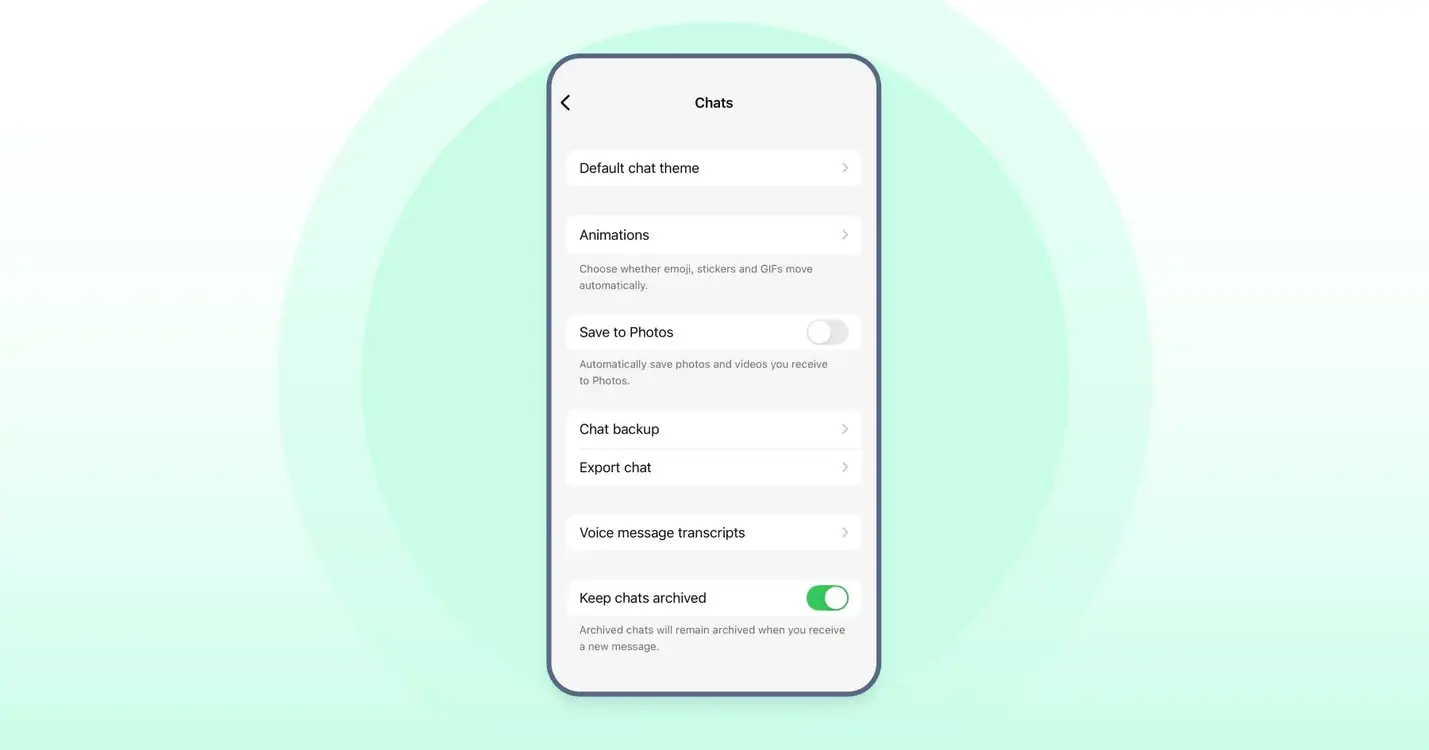
2. Tap Back Up Now to make a copy immediately.
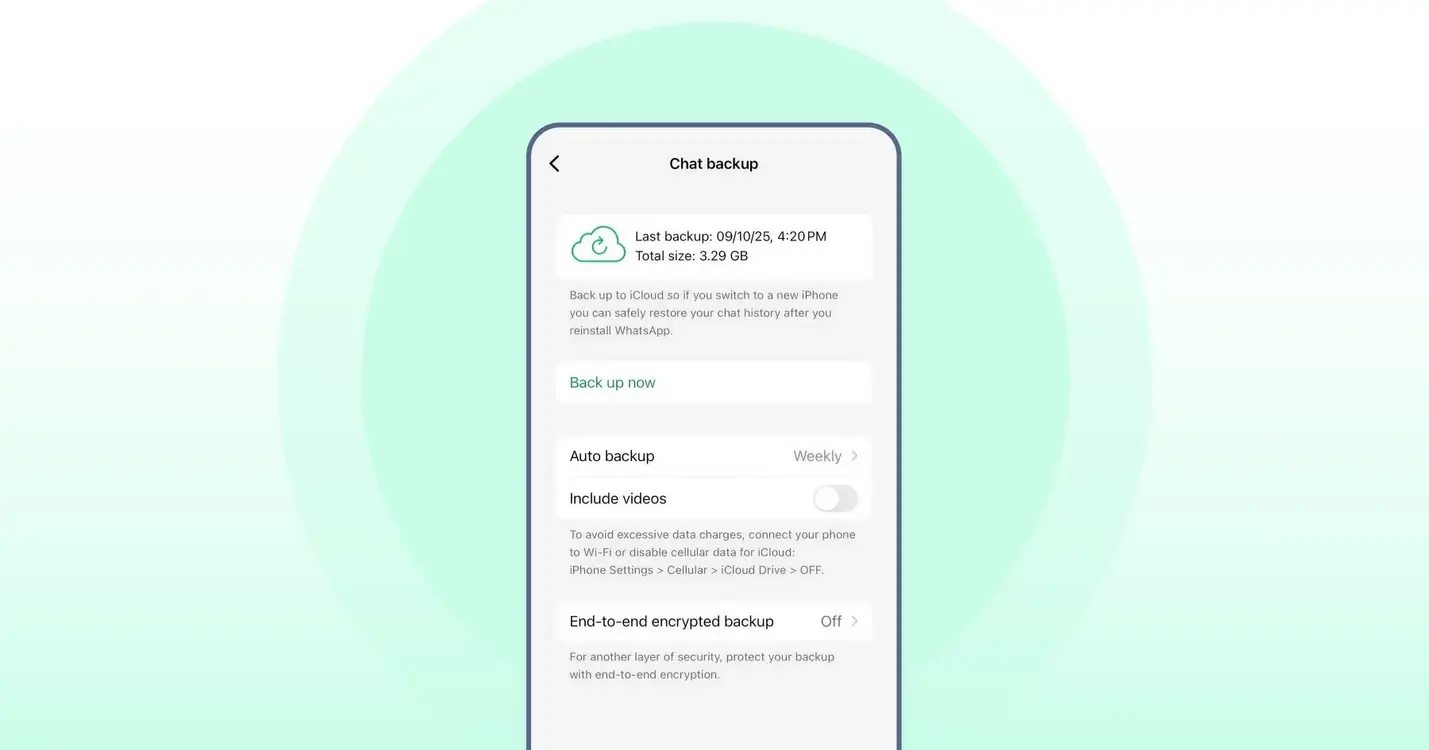
3. Turn on Auto Backup to schedule it daily or weekly.

4. Make sure you’re signed in to iCloud and have enough space available for the backup.
Backing Up WhatsApp Messages When Reinstalling WhatsApp
If you’re reinstalling WhatsApp on the same phone, follow these steps:
1. Reinstall the app from Google Play or the App Store.
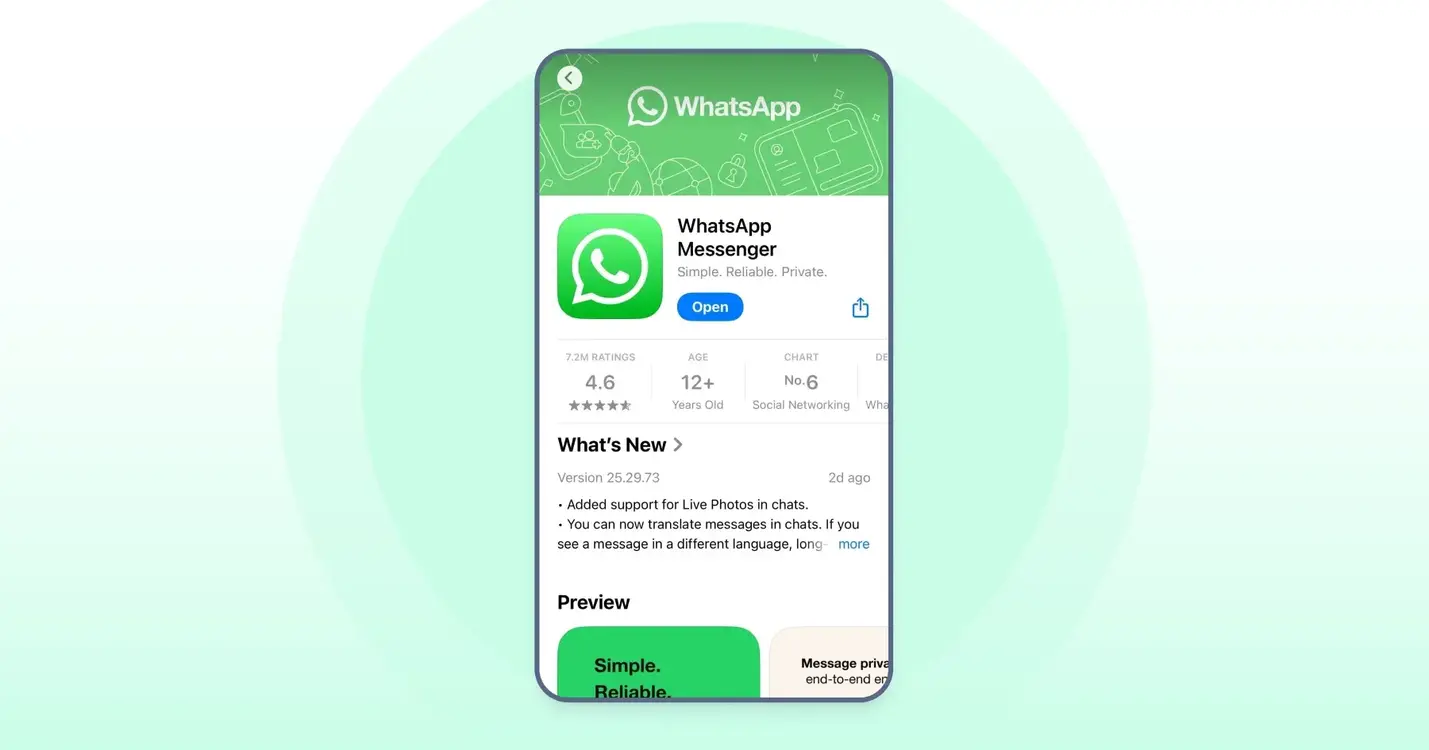
2. Open WhatsApp and verify your phone number.
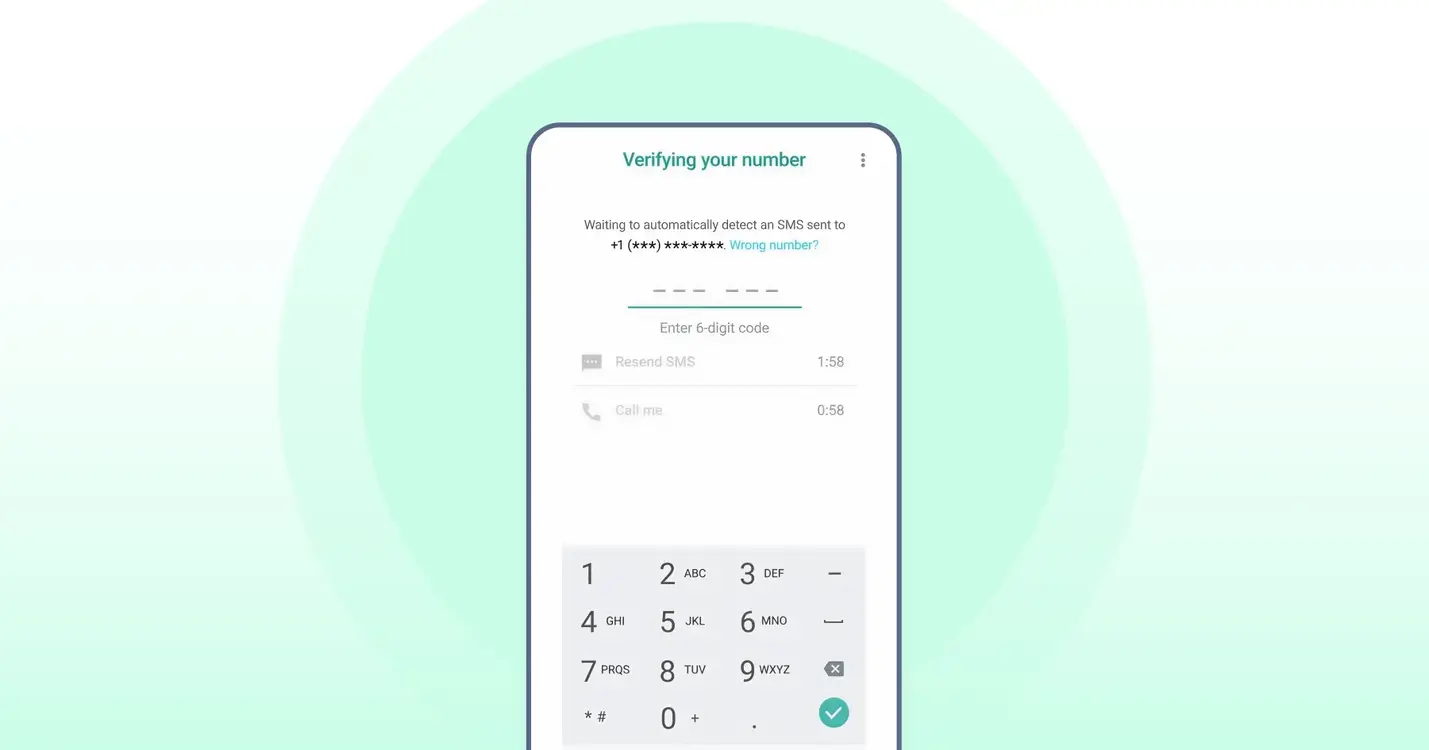
3. Once it detects your backup, choose Restore.
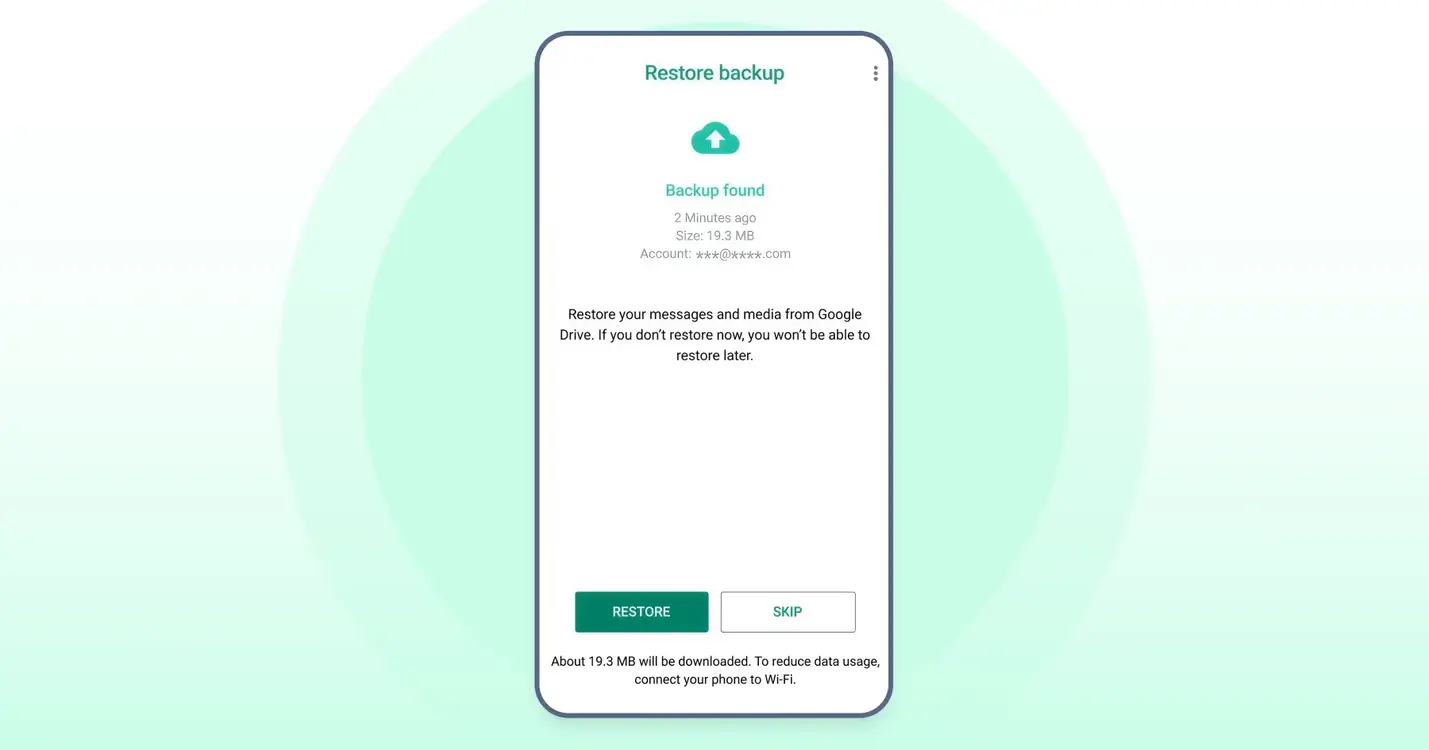
4. Wait until the process completes and your chats reappear.
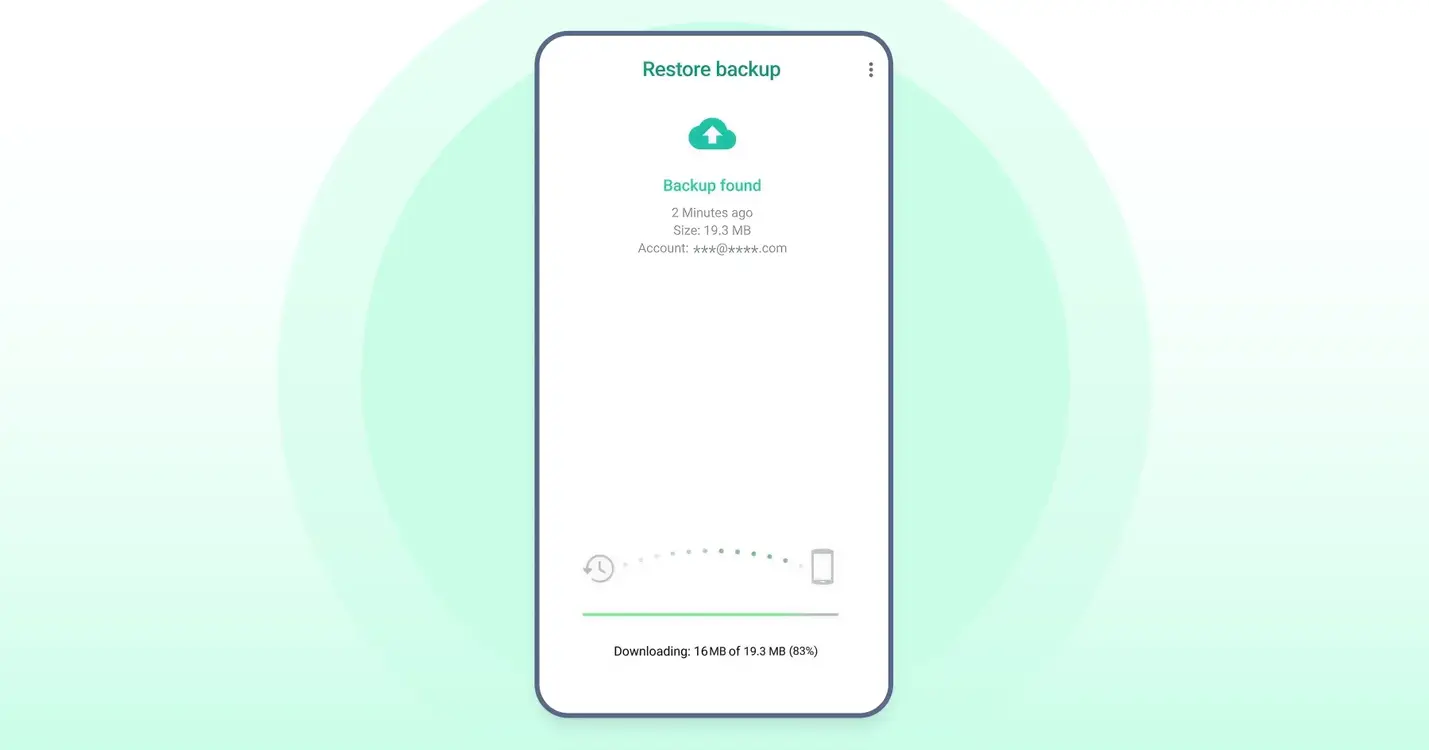
Media files might take a little longer to load, but they’ll show up soon after the messages do.
How To BackUp WhatsApp Messages When Switching From Android to Android
If you’re moving from one Android phone to another, WhatsApp lets you transfer your entire chat history directly from one device to the other.
The chat transfer feature lets you move your WhatsApp messages, photos, and videos without uploading or downloading a backup from Google Drive.
Make sure a few things are in place before beginning the transfer:
- Both phones should have Android 6 or higher.
- You’ll need to use the same phone number on your new device.
- The new phone number shouldn’t be registered on WhatsApp yet.
- Keep both phones close together and plugged into power.
- Turn on Wi-Fi on both devices. They don’t have to be on the same network, but Wi-Fi must be enabled.
- Allow any permissions WhatsApp asks for. On Android 12 and below, it may need access to a precise location to start the transfer, though WhatsApp doesn’t collect or store your location.
How to Move Your WhatsApp Chats?
On your old phone:
1. Open WhatsApp.
2. Go to More options > Settings > Chats > Transfer chats > Start.
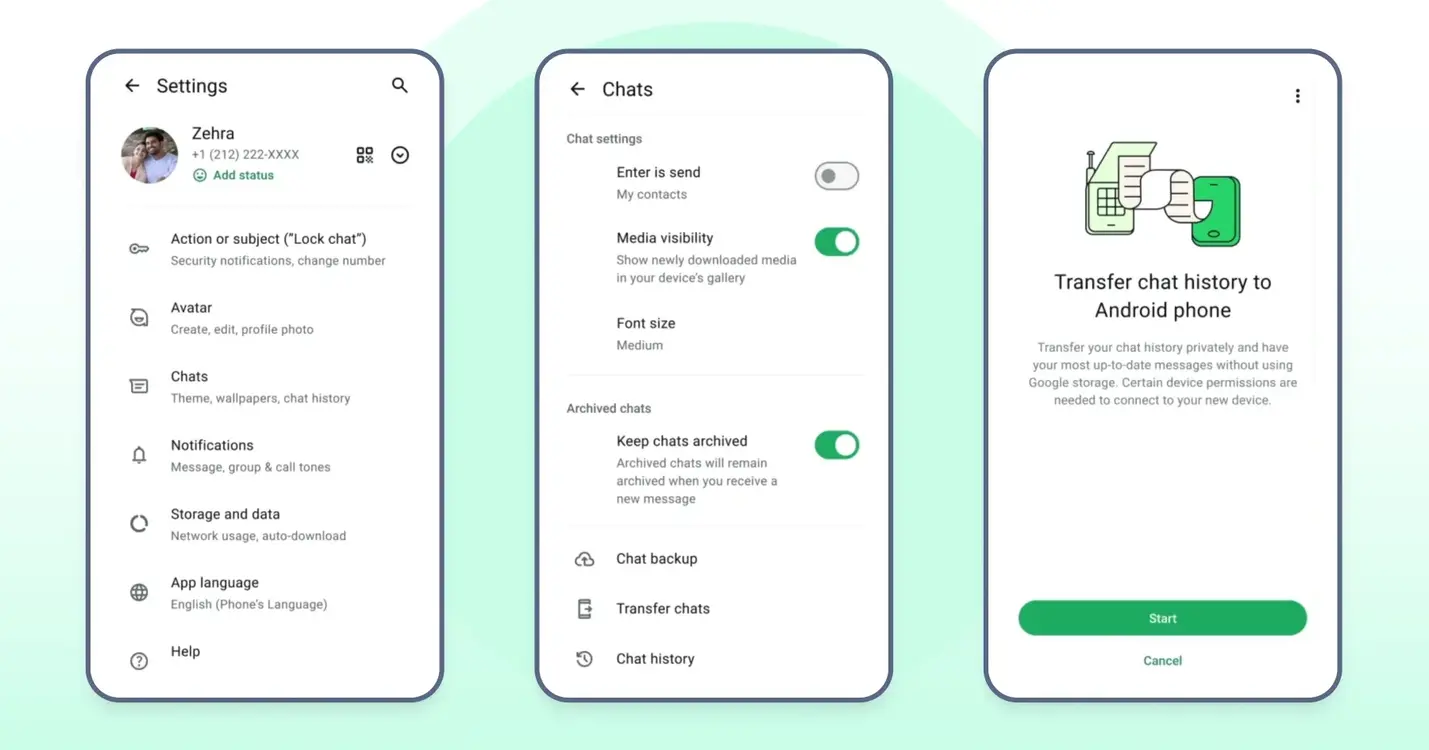
3. Tap Continue when you see “Transfer chat history from old phone.”
4. Wait for a QR code to appear.
On your new phone:
1. Tap Agree and continue, then verify your phone number.
2. Download and open WhatsApp.
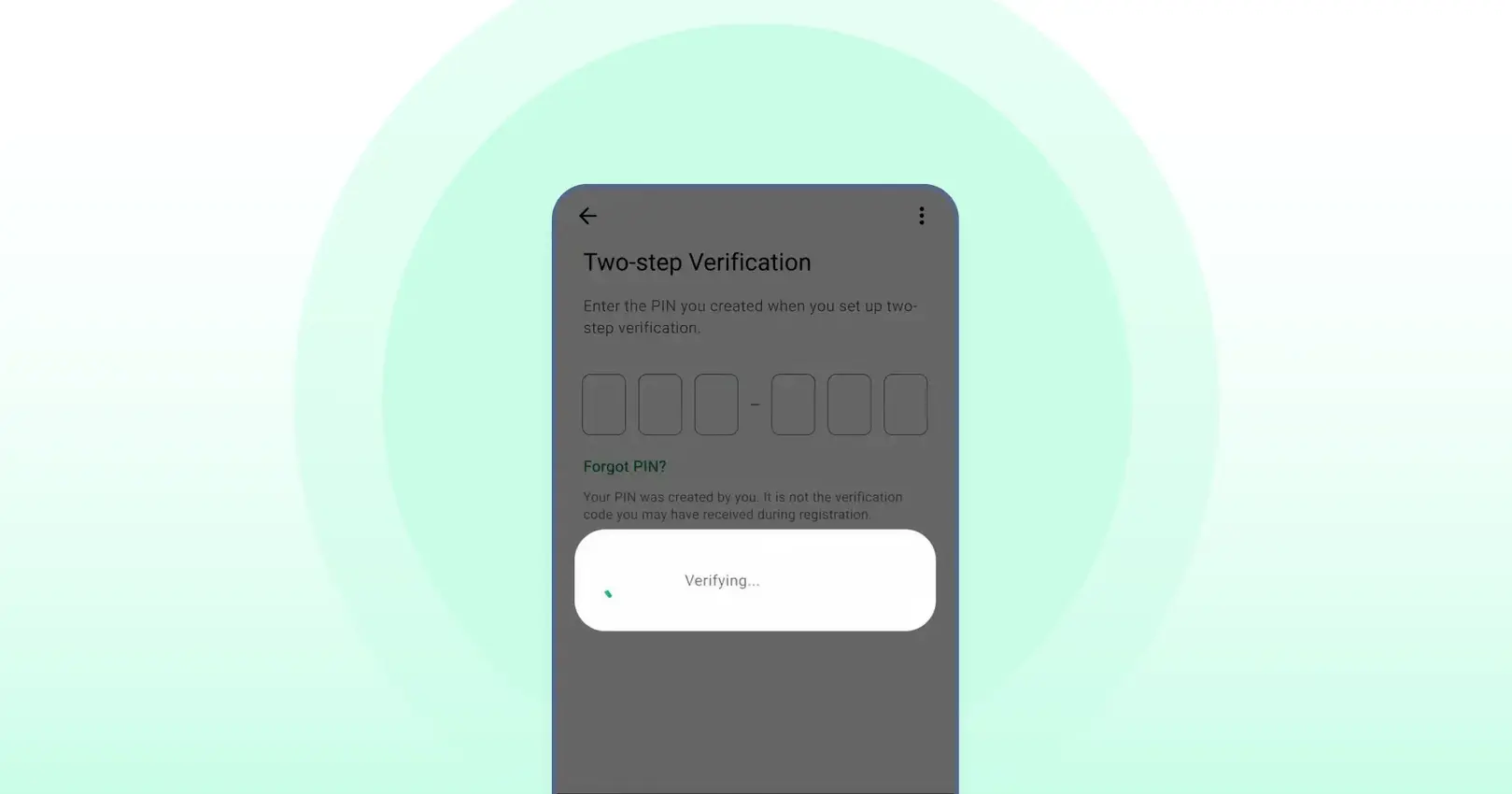
3. Tap Continue when you see “Transfer chat history from old phone.”
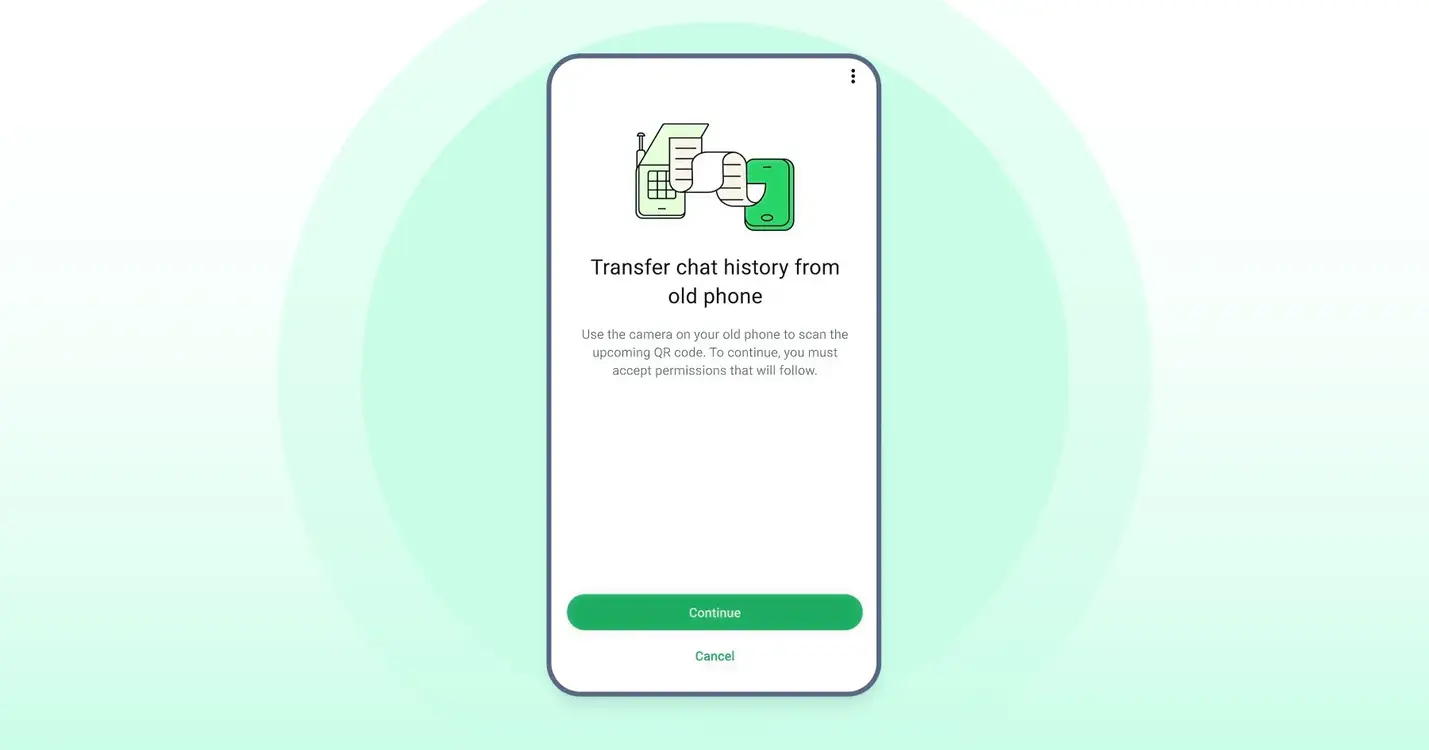
4. A QR code will appear. Use your old phone to scan it.
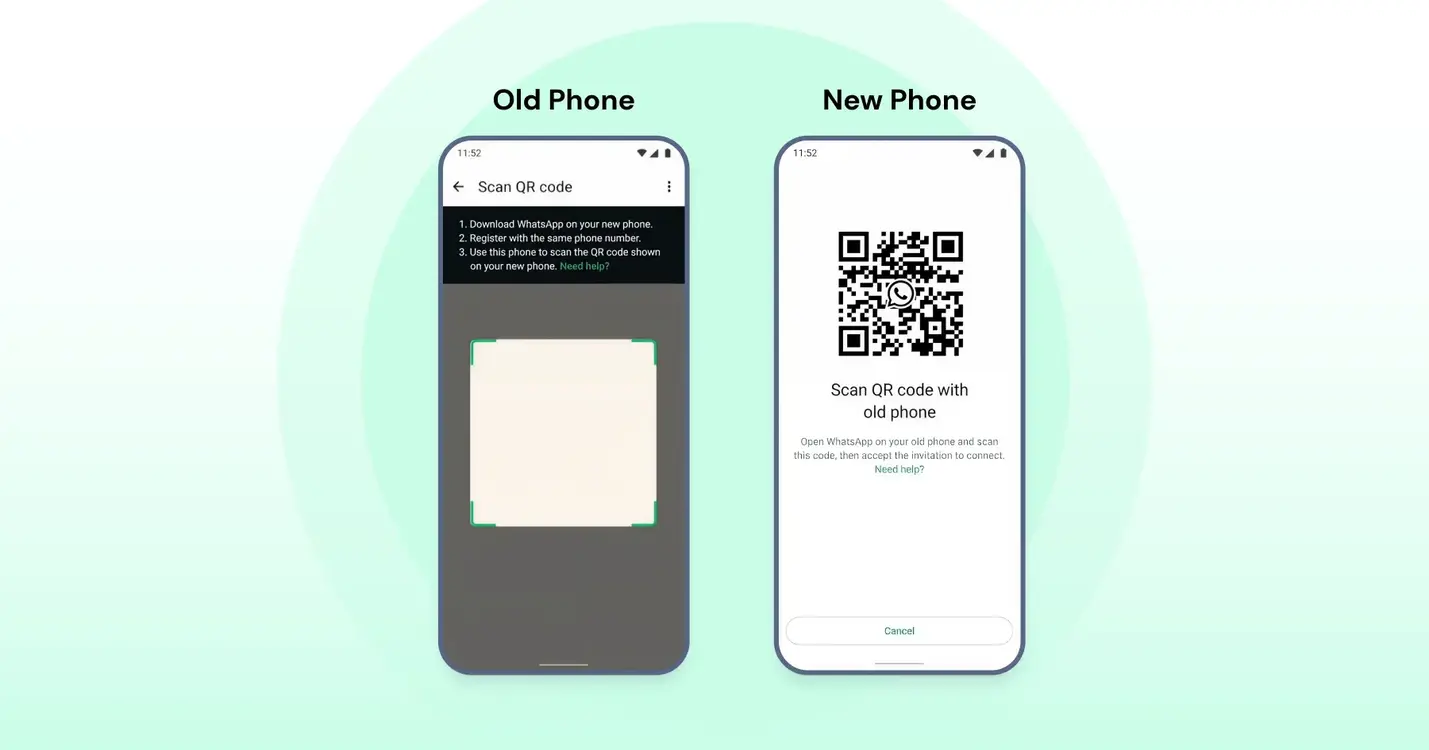
5. Accept the connection request on both phones.
The transfer will begin right away. You’ll see a percentage bar showing the progress. Keep both phones unlocked and stay inside WhatsApp until the process finishes.
Messages will pause temporarily while your data moves over. Once everything is copied, tap Done on your new phone. All your chats should now appear exactly as before.
How To Backup Your WhatsApp Messages From iPhone to iPhone
You can transfer your WhatsApp chats from your old iPhone to your new one by following similar steps. Before you start, check that:
- Both devices are running the latest version of iOS
- You’ve installed the latest version of WhatsApp from the App Store
- You’re using the same phone number on your new iPhone
- Your new phone hasn’t been registered on WhatsApp yet
- Both iPhones are placed close to each other
- Each phone is connected to a charger
- Wi-Fi is turned on, and both devices are connected to the internet
- Local network access is allowed on both phones
Moving WhatsApp Chats Between iPhone and Android
Before you start, check that both phones meet the basic requirements below. This helps avoid interruptions and makes the transfer smooth.
Transfer Type | Requirements |
iPhone to Android | A Samsung phone with the latest Smart Switch app, a Google Pixel, or any Android phone running Android 12 or newer. Your Pixel or Android 12 device should be factory reset before starting. A Lightning to USB-C cable or compatible adapter. The same phone number as your old iPhone. The latest WhatsApp version installed from the Google Play Store. |
Android to iPhone | An Android phone running Android 5 (Lollipop) or above. An iPhone with iOS 15.5 or higher. The Move to iOS app installed on your Android phone. (Other migration apps don’t work for WhatsApp transfers and may interrupt the process) The latest version of WhatsApp installed on both devices from the Play Store on Android and the App Store on iPhone. |
Check the links below for detailed step-by-step instructions on moving chats between an Android and an iPhone device.
How To Solve WhatsApp Message Backup Problems in Mobile WhatsApp
If things don’t go smoothly, here are a few common issues and quick fixes:
Problem | What You Can Try |
No backup found | Make sure you’re signed in to the correct Google or Apple account. |
Backup stuck at “Preparing” | Restart your phone and check for free storage space, and if connected to the internet. |
Not enough storage | Delete large videos or remove old backups. |
Backup not restoring | Check if your phone number and backup account are the same as before. |
5 Key Tips For Taking Effective WhatsApp Message Backups
Below are 5 key tips to back up your chats more effectively and safeguard data against potential attacks:
1. Set Backup Frequency to Daily
Automating this is your best defense against data loss. By choosing a daily schedule, you minimize the “data gap.” If your phone breaks at 3:00 PM, you’ll only lose a few hours of messages rather than a week’s worth of conversations.
2. Prioritize Wi-Fi Connections
Chat backups (especially those with video) can be massive. Using Wi-Fi prevents you from burning through your mobile data plan and ensures a more stable connection, which reduces the risk of the backup file becoming corrupted during the upload.
3. Monitor Cloud Storage Levels
Whether you use Google Drive or iCloud, backups will fail silently if your storage is full. Periodically check that you have at least a few gigabytes of breathing room so the “Backup Failed” notification doesn’t catch you by surprise later.
4. Maintain Battery Levels
A phone dying mid-upload can lead to a “half-baked” backup that might not open correctly. Plug your phone in at night or ensure you have at least 50% battery before starting a manual sync to keep the file integrity intact.
5. Perform a “Fire Drill”
A backup is only as good as its ability to restore. If you switch to a new device or have a spare, try restoring your data once. This confirms that your encryption keys/passwords are correct and that the files aren’t just sitting there, but are actually functional.
How To Backup WhatsApp Messages in WhatsApp Business
If you’re using WhatsApp Business, you can follow the above steps to take a backup and restore the chats. But it’s currently not possible to transfer chats between iPhone and Android devices for WhatsApp Business.
1. Sync Your Business Profile and Catalogs
Regular backups don’t just save your messages; they preserve your settings, automated away messages, and catalog configurations. If you have to switch phones, a fresh backup ensures you won’t have to manually re-enter your business hours or item descriptions.
2. Be Mindful of Media-Heavy Conversations
Business accounts often handle more high-res photos, PDFs, and invoices than personal accounts. Since these can quickly bloat your backup size, consider excluding “Videos” in your backup settings if they aren’t critical, ensuring the upload completes faster and fits within your cloud storage.
3. Prepare for Cross-Platform Limitations
As of 2026, the official “Move to iOS” and “Chat Transfer” tools still do not support the WhatsApp Business app for moving data between iPhone and Android. If you are switching operating systems, you will likely need to rely on third-party enterprise migration tools or export critical chats via email to keep a record of them.
4. Opt For Secondary Storage for Compliance
For many businesses, a cloud backup isn’t enough for legal or tax compliance. Consider using the “Export Chat” feature for high-value client threads. This generates a .txt file (and a folder of media) that you can store on a secure local drive or a dedicated company server.
Learn more: How to Convert WhatsApp to WhatsApp Business in 2026
Also read: How to ensure proper WhatsApp API compliance for data protection and government regulation.
Bringing It All Together To Supercharge Sales
Backing up your WhatsApp chats is a small step that can save you a lot of trouble later. If you’re using WhatsApp to connect with customers, tools like Wati make that even simpler.
Instead of worrying about manual backups, your chats, contacts, and history are automatically stored and organized in one place.
So while WhatsApp’s own backup options protect your personal messages, Wati helps ensure your business conversations stay just as safe, structured, and easy to access whenever you need them.
Book a quick demo to explore how Wati can help your business communication.
How To Backup WhatsApp Messages: Frequently Asked Questions
Still have questions? Refer below
How often should I back up my WhatsApp messages?
It’s best to set your backup to run daily. This way, even if you lose or switch your phone, your latest chats will still be available. Weekly backups are fine too, but you might lose a few recent messages if something goes wrong.
Can I back up WhatsApp without Google Drive or iCloud?
Yes. Android users automatically get a local backup saved in their phone storage every night. You can copy that file to another device or computer. iPhone users, however, need iCloud for official backups.
What happens if I skip restoring WhatsApp messages backup during setup?
If you skip it, WhatsApp will start fresh without any old chats. You can’t restore the same backup later unless you uninstall the app and reinstall it again.
Why is my WhatsApp message backup taking so long?
Large files such as videos or poor internet speed can slow it down. Try backing up over a strong Wi-Fi connection and exclude videos if you want it to finish faster.
Can I move my WhatsApp messages from Android to iPhone?
Yes. WhatsApp’s Chat Transfer option and Apple’s Move to iOS tool let you move messages between Android and iPhone safely. Keep both devices plugged in and connected to Wi-Fi during the process.
Are WhatsApp backups encrypted?
By default, WhatsApp backups are protected, but you can also turn on end-to-end encrypted backups for extra security. This means only you can access your messages using a password or encryption key.
Frequently asked questions
How often should I back up my WhatsApp messages?
It’s best to set your backup to run daily. This way, even if you lose or switch your phone, your latest chats will still be available. Weekly backups are fine too, but you might lose a few recent messages if something goes wrong.
Can I back up WhatsApp without Google Drive or iCloud?
Yes. Android users automatically get a local backup saved in their phone storage every night. You can copy that file to another device or computer. iPhone users, however, need iCloud for official backups.
What happens if I skip restoring WhatsApp messages backup during setup?
If you skip it, WhatsApp will start fresh without any old chats. You can’t restore the same backup later unless you uninstall the app and reinstall it again.
Why is my WhatsApp message backup taking so long?
Large files such as videos or poor internet speed can slow it down. Try backing up over a strong Wi-Fi connection and exclude videos if you want it to finish faster.
Can I move my WhatsApp messages from Android to iPhone?
Yes. WhatsApp’s Chat Transfer option and Apple’s Move to iOS tool let you move messages between Android and iPhone safely. Keep both devices plugged in and connected to Wi-Fi during the process.
Are WhatsApp backups encrypted?
By default, WhatsApp backups are protected, but you can also turn on end-to-end encrypted backups for extra security. This means only you can access your messages using a password or encryption key.
Related posts
- How to Create WhatsApp Display Name for WhatsApp Account
Learn how to set and optimize your WhatsApp Display Name, a crucial branding element enhancing your business’s credibility and recognition.
- WhatsApp Login Guide 2026: Access Your Account on App, Web, and Desktop
Complete your WhatsApp login in easy steps. Set up your account, personalize your profile, add contacts, and start chatting seamlessly with this guide.
- How to Remove Blue Ticks on WhatsApp (Android, iPhone & Web): 2026 Guide
Learn how to remove WhatsApp blue ticks on Android and iPhone. Take control of your chats, protect privacy, and avoid pressure to reply instantly in 2026.
- WhatsApp Business Calling Pricing in 2026: What It Actually Costs and Why Most Estimates Get It Wrong
Most WhatsApp Business Calling pricing guides skip two of the three cost layers. Here’s the full breakdown with 2026 rates, country tiers, and worked examples.