
Too Long? Read This First
- A WhatsApp Business account puts your name, logo, and contact details in front of customers, so you show up as a business, not an unlisted number.
- Setup takes a few minutes: download the WhatsApp Business App, register a dedicated number, verify it, and fill in your profile and catalog.
- Customers can browse your catalog and ask questions inside the same chat, no separate website visit required.
- The free app works for one person. For a shared inbox, CRM integrations, or high-volume messaging, move to the WhatsApp Business Platform, either as a full upgrade or by running both together through Meta's Coexistence solution.
- WhatsApp Usernames are rolling out through 2026 as an optional way for customers to reach you without your phone number. Nothing changes for numbers already in use.
WhatsApp had more than 3.3 billion monthly active users as of January 2026. Messaging becomes the preferred way for customers to interact with businesses. Customers expect to see a recognizable business profile they can trust and contact instantly.
A WhatsApp Business account lets you create a branded profile with your business name, logo, contact details, and other information, making it easier for customers to identify and engage with your business on WhatsApp.
This guide explains how to set up a WhatsApp Business account, the differences between the WhatsApp Business App and the WhatsApp Business API, and the key updates introduced in 2026, including Meta's Coexistence solution and WhatsApp Usernames, to help you choose the right setup for your business.
What is a WhatsApp Business Account?
A WhatsApp Business account is a free, commercial account that businesses use to reach out to existing customers and potential prospects. It looks and feels like regular WhatsApp, but comes with extra features to help you connect with customers.
With a business account, you can create a profile that shows your business name, logo, address, website, hours of operation, and working hours. Customers can view it as an official verified business account rather than just an unknown number.
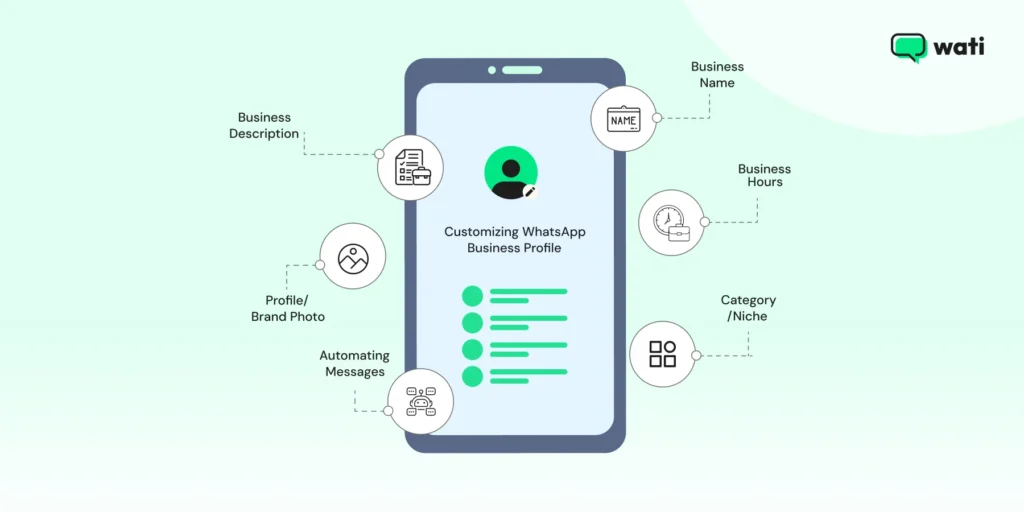
You also get access to tools like quick replies, automated greetings, and product catalogs that make it easier to answer questions, share updates, and even showcase your offerings without needing another app.
In short, when you create a WhatsApp Business account, you turn WhatsApp into a mini customer service and sales tool, right inside the app your customers already use. You can set your brand logo, showcase your product catalog, and do all this while keeping your privacy intact.
What do You Need Before Creating a WhatsApp Business Account?
Creating a WhatsApp Business account takes a few minutes, but three things need to be in place first.
- A dedicated phone number: A phone number can only be registered with one WhatsApp account at a time. If you're using the WhatsApp Business App, you will need a number that isn't already linked to a personal WhatsApp account. This can be a mobile or landline number, as long as it can receive the verification code.
- Stable Wi-Fi or Data Connection: The initial setup and verification require a secure internet connection.
- Official Business Details: Have your business name, address (if applicable), industry category, and a high-quality logo ready for your professional profile setup.
How to Create a WhatsApp Business Account: Step-by-Step Process
The process of creating your account is quick and easy. Follow these simple steps to set up your digital storefront.
1. Download the WhatsApp Business App
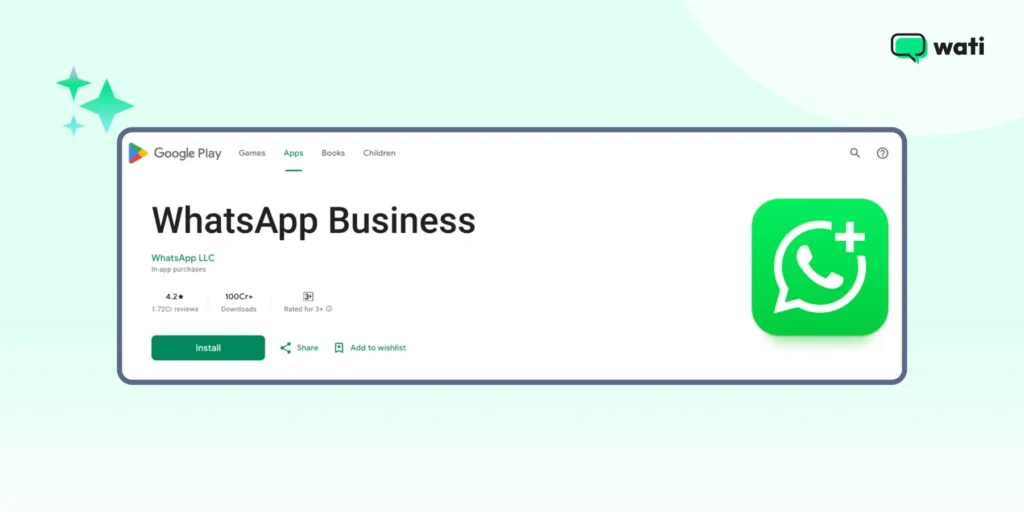
Go to the Apple App Store (iOS) or Google Play Store (Android) and search for “WhatsApp Business.”
2. Agree to the Terms & Conditions
Once the download is complete, open the app. You will be prompted to read and agree to the Terms of Service. Click ‘Agree and Continue’ to proceed.
3. Register Your Business Phone Number
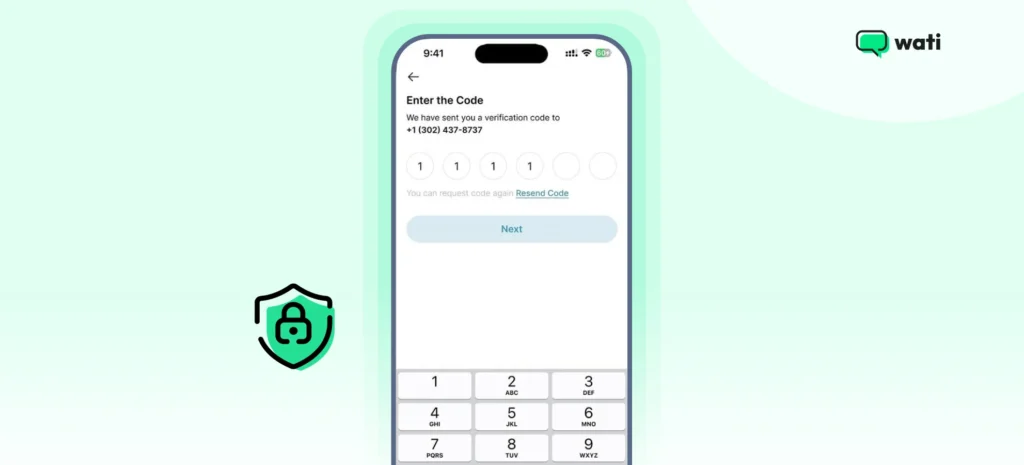
Enter the business phone number you want to use with WhatsApp Business. WhatsApp will send a one-time password (OTP) by SMS or phone call to verify the number. Enter the 6-digit verification code to complete registration.
Note: If you're migrating a number from a personal WhatsApp account, WhatsApp will ask whether you want to restore your chat history. Once the migration is complete, that number can no longer be used with your personal WhatsApp account. If you want to keep using the WhatsApp Business App on the same number, consider Meta Coexistence instead of a full migration.
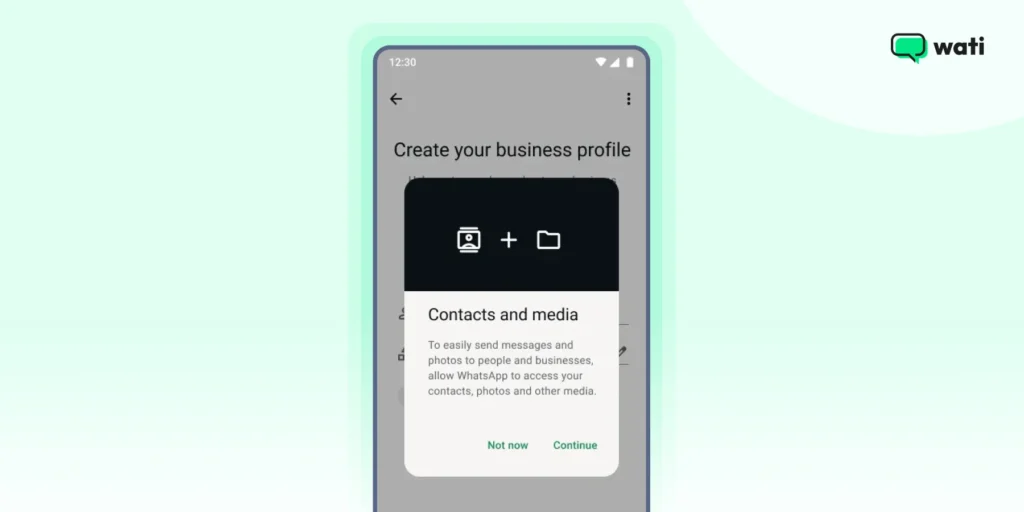
4. Allow Access to Contacts and Media
Grant the requested permissions to access your contacts and media. These permissions allow you to import contacts and share photos, videos, documents, and other files with customers directly through WhatsApp.
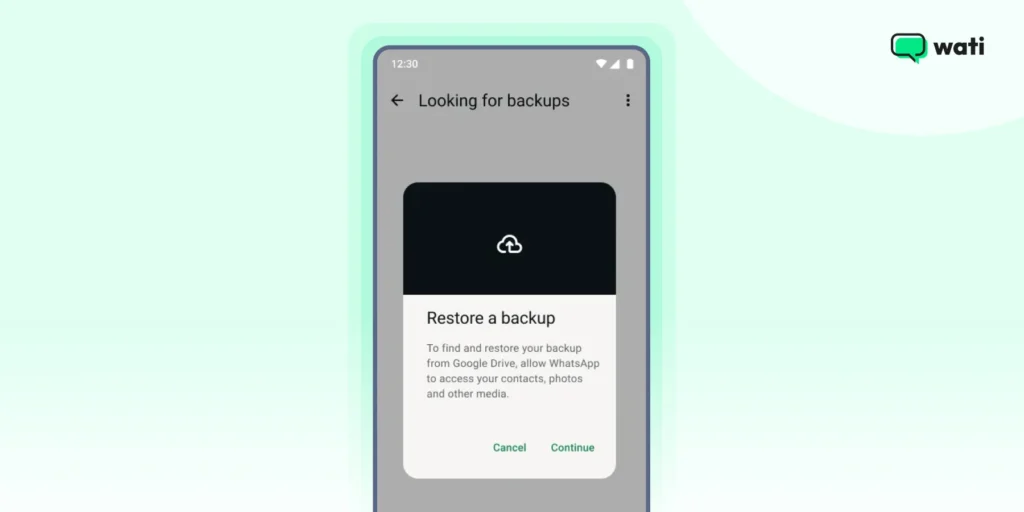
5. Restore Your Backup if Needed
If an existing backup is available, select Continue to recover your chats and media. Select Cancel to continue with a fresh setup.
Also Read: How To Back Up WhatsApp Messages And Retrieve Data
6. Set Up a WhatsApp Business Profile
Enter your business name, select the category that best describes your business, and upload your business logo or profile photo. Once the initial setup is complete, go to Settings > Business Tools > Business Profile to add the remaining business details.
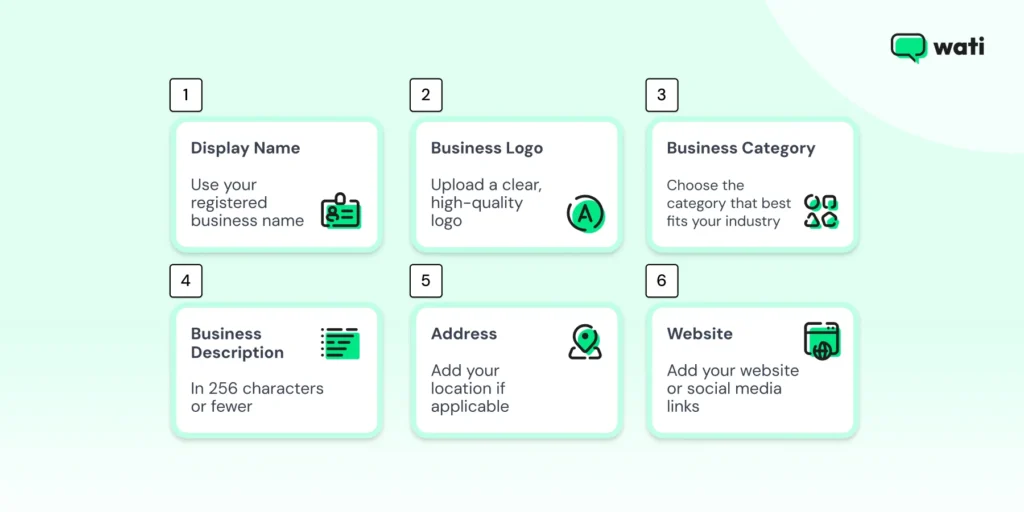
- Display Name: Use your registered business name so customers instantly recognize you. Keep it short, professional, and consistent across all platforms.
- Profile Photo: Upload a clear, high-quality logo or brand image. A square image of 640 × 640 pixels is recommended.
- Business Category: Choose the category that best represents your business.
- Business Description: Describe your business in 256 characters or fewer, focusing on what you offer.
- Email and Website: Add your website and email address so customers can learn more or contact you through other channels.
- Business Hours: Set your operating hours to let customers know when you're available.
- Address: If you have a physical store or office, add your location to make it easy for customers to visit.
WhatsApp Usernames: What's New in 2026?
WhatsApp is introducing Usernames as an optional way for businesses to be discovered and contacted. Instead of sharing or searching for a phone number, customers can start a conversation using your business username.
Phone numbers continue to work as they do today, and usernames provide an additional way for customers to connect with your business.
When a customer starts a conversation without sharing their phone number, WhatsApp assigns a Business-Scoped User ID (BSUID) to that customer. This lets your business continue the conversation while protecting the customer's phone number.
If you run your number through the WhatsApp Business App, you can set up a username by following these steps:
- Open the WhatsApp Business app.
- Go to Settings > Account > Username.
- Enter your preferred username and check its availability.
- If the username is available, tap Save to reserve it.
If your number runs on the WhatsApp Business API through a provider like Wati, you reserve a username through WhatsApp Manager under Phone Numbers instead.
Note: Usernames are being rolled out in phases. If the Username option does not appear, the feature is not yet available for your account or region.
What Can You Do with the WhatsApp Business App?
The WhatsApp Business App includes built-in tools that help businesses communicate with customers, manage conversations, and showcase products without requiring additional software.
1. Business Profile
Create a professional business profile with your business name, logo, description, address, website, email address, and business hours. A complete profile helps customers identify your business and access important information before starting a conversation.
2. Product Catalog
The product catalog lets you showcase your products or services directly within WhatsApp. Add images, descriptions, prices, and purchase links so customers can browse your offerings and enquire about them without leaving the chat.
3. Quick Replies
Quick Replies let you save and reuse responses to frequently asked questions. Instead of typing the same message repeatedly, you can insert a saved response using a shortcut, helping you respond faster while maintaining consistent communication.
4. Greeting and Away Messages
Greeting messages automatically welcome first-time customers or those who haven't contacted your business recently. Away messages inform customers when you're unavailable and let them know when they can expect a response.
5. Labels
Labels help organize conversations based on your sales or support workflow. You can categorize chats as New Lead, Pending Payment, Order Completed, or Follow-up Required, making it easier to manage customer interactions and follow up at the right time.
Note: Meta is gradually rolling out this feature as Lists, so you may see either name depending on your version of the app.
6. Broadcast Lists
Broadcast Lists let you send the same message to multiple customers individually without creating a group chat. This makes it easy to share announcements, product launches, offers, and other updates while keeping each conversation private.
These features are suitable for small businesses and individual operators. As your business grows, you may need capabilities such as multi-agent collaboration, CRM integrations, advanced automation, and large-scale messaging. These are available through the WhatsApp Business Platform using solutions such as Wati.
7. QR Code and Short Link
Every WhatsApp Business account includes a QR code and a wa.me short link that customers can use to start a conversation without saving your phone number.
You can also pre-fill the first message to make it easier for customers to enquire about a product or service. Add the QR code or short link to your website, social media profiles, product packaging, or marketing materials to encourage more conversations.
- Meta Business Agent
Meta rolled out its own native AI capability on WhatsApp Business in 2026 called Meta Business Agent, which lets businesses auto-respond to customer questions, take orders, and handle support directly within the app without any third-party setup.
It's a solid starting point for solo sellers, but it relies on Meta's defaults and doesn't integrate with your CRM, sales pipeline, or other channels the way a dedicated platform does.
9. Statistics
The Statistics section under Business Tools provides basic messaging insights, including the number of messages sent, delivered, read, and received.
While it doesn't offer advanced analytics, it gives you a quick overview of customer engagement and helps you monitor the performance of your messaging efforts.
What are the Key Limitations of the WhatsApp Business App?
The WhatsApp Business App is designed for small businesses and individual operators. As your business grows, you may need capabilities that go beyond what the free app offers.
1. Limited Team Collaboration
WhatsApp is fundamentally designed for a single primary user, with support for one phone and four linked devices.
It does not include a shared inbox, conversation assignment, internal notes, or agent performance tracking, making it difficult for multiple team members to manage customer conversations efficiently.
2. Basic Automation
WhatsApp automation supports simple automation through greeting messages, away messages, and quick replies.
However, it does not support advanced workflows, AI chatbots, keyword-based automation, lead qualification, or automatic conversation routing.
3. Limited Broadcast Messaging
Broadcast Lists are limited to 256 contacts per list and only reach customers who have saved your number.
This makes it difficult to run large-scale marketing campaigns or send personalized customer communications as your audience grows.
4. No Native CRM or Business Integrations
The WhatsApp Business App does not integrate natively with CRM, help desk, or e-commerce platforms.
Businesses often have to update customer records manually, resulting in disconnected workflows and limited visibility into customer interactions.
5. No Access to Advanced Platform Features
The free app does not provide access to capabilities available through the WhatsApp Business Platform, such as multi-agent collaboration, advanced automation, API integrations, large-scale messaging, or eligibility to apply for WhatsApp Verification (blue verification badge).
WhatsApp Coexistence: Use the App and API Together
WhatsApp Coexistence is Meta's solution that lets businesses use the WhatsApp Business App and the WhatsApp Business Platform (Cloud API) on the same phone number. Instead of choosing between the free app and advanced API capabilities, businesses can use both together and scale customer communication without disrupting existing workflows.
With Coexistence, you can:
- Continue using the WhatsApp Business App for one-to-one conversations, group chats, communities, and voice or video calls.
- Manage customer conversations through platforms like Wati using a shared team inbox, automation, CRM integrations, and large-scale messaging.
- Sync one-to-one chats between the WhatsApp Business App and Wati, while automatically syncing contacts from the app to Wati.
You enable Coexistence during onboarding with a WhatsApp Business Platform provider such as Wati.
Before enabling Coexistence, keep these changes in mind:
- New broadcast lists cannot be created in the WhatsApp Business App.
- Message editing and revoking are unavailable for one-to-one chats.
- Disappearing messages, view-once media, and live location sharing are disabled for one-to-one chats.
- Messages sent from the WhatsApp Business App remain free, while messages sent through Wati follow Meta's standard Cloud API pricing.
Coexistence is suitable for businesses that want to keep using the WhatsApp Business App while adding automation, collaboration, and other capabilities available through the WhatsApp Business Platform.
How does Wati’s WhatsApp Business API Help Brands Grow?
Below are the key applications of Wati’s WhatsApp Business API platform for managing your WhatsApp Business accounts securely.
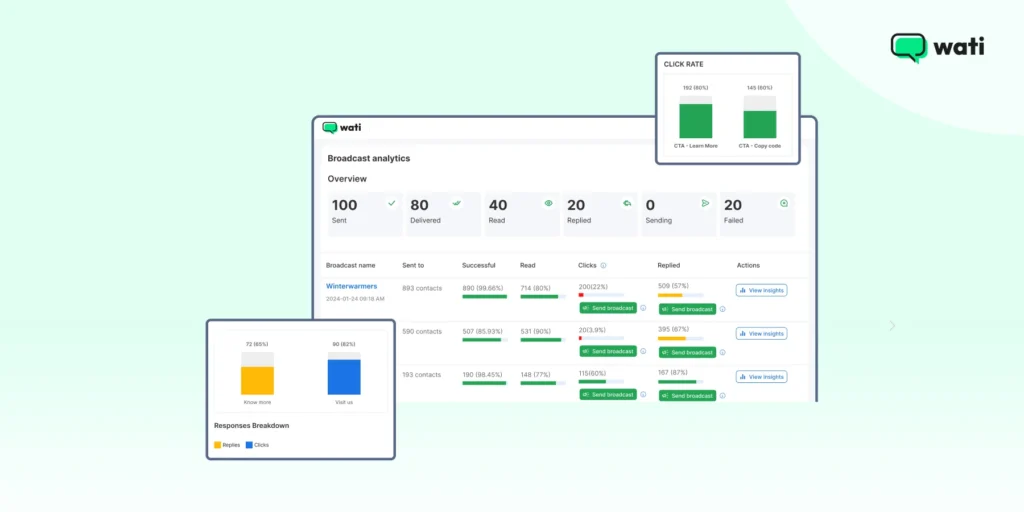
- Multi-agent collaboration: Manage customer conversations through a shared Team Inbox, assign chats to the right agents, monitor agent performance, and track leads from a single workspace.
- No-code automation: Build no-code chatbots to answer common questions, qualify leads, route conversations, and automate repetitive tasks.
- Astra AI Agent: Deploy AI-powered customer support across WhatsApp and the web. Astra can answer customer questions, qualify leads, support voice conversations with voice cloning, communicate in more than 30 languages, and seamlessly transfer conversations to human agents when needed.
- CRM and e-commerce integrations: Connect WhatsApp with platforms such as Salesforce, HubSpot, Shopify, and other business tools to automate order updates, customer support, and personalized customer engagement.
- Scalable marketing campaigns: Send personalized WhatsApp campaigns to thousands of opted-in customers, segment audiences based on customer data, and move beyond the 256-contact Broadcast List limit of the WhatsApp Business App.
- WhatsApp co-existence: For businesses not ready to give up the WhatsApp Business App entirely, Wati's Coexistence feature lets you run the app and the API on the same phone number at once, so your team can keep chatting from the familiar app while also unlocking API-only capabilities like CRM sync, automation, and multi-agent access.
Wrapping Up
Setting up a WhatsApp Business account is simple, but choosing the right setup for your business is just as important. The WhatsApp Business App is a great starting point for managing customer conversations, while the WhatsApp Business Platform adds the automation, collaboration, and integrations your business needs as it grows.
Ready to move beyond the WhatsApp Business App? Book a demo with Wati to see how automation, team collaboration, and CRM integrations work together on the WhatsApp Business Platform.
Frequently asked questions
Is it free to create a WhatsApp Business Account?
Yes, creating and using the basic WhatsApp Business App is entirely free. You only need to download the app and register with a phone number. However, if your business needs features like multi-user access, advanced automation, or CRM integration, you will need to pay for the WhatsApp Business Platform (API).
Can I use my personal number for WhatsApp Business?
A phone number can only be registered with one WhatsApp account at a time. If you move your personal WhatsApp number to the WhatsApp Business App, it can no longer be used with WhatsApp Messenger. If you want to keep using the WhatsApp Business App while adding Cloud API capabilities, Meta's WhatsApp Coexistence lets you do both on the same number.
Can I use WhatsApp Business for marketing?
Yes. You can use the WhatsApp Business App to share product updates, promotions, and announcements. Keep in mind that Broadcast Lists are limited to 256 contacts, making the app better suited for smaller campaigns.
How do I organize my contacts and conversations?
Use the Labels feature (or Lists, depending on your app version) to categorize conversations by stage, such as New Lead, Pending Payment, or Order Completed, making it easier to prioritize follow-ups and manage customer conversations.
Do I need to set up a WhatsApp Username?
WhatsApp Usernames are being rolled out gradually during 2026, and your business phone number continues to work as usual. Once the feature becomes available for your account, you can reserve a username that matches your business name to make it easier for customers to find you.
What's the difference between WhatsApp Coexistence and the WhatsApp Business Platform?
The WhatsApp Business Platform gives you access to capabilities such as automation, CRM integrations, multi-agent collaboration, and large-scale messaging. WhatsApp Coexistence is an onboarding option that lets you use those platform capabilities while continuing to use the WhatsApp Business App on the same phone number.
Related posts
- How to Send Bulk Messages on WhatsApp Without Getting Blocked
Learn how to send bulk WhatsApp messages without getting blocked. Compare the WhatsApp Business app and API, messaging limits, costs, templates, and best practices for safe, compliant bulk messaging.
- Complete Guide to Instagram Automation
Instagram comment automation auto-replies to comments and DMs commenters within seconds via Meta's API. Covers strategy, use cases, and Wati setup.
- How to Set Up a TikTok Business Account: Step-by-Step Guide
Set up a TikTok Business Account step by step: switch from personal, pick a category, add your profile, and unlock ads and analytics.
- TikTok for Business: How to Set Up, Market, Advertise & Grow (2026)
Learn how to use TikTok for Business to build your brand, create content, run ads, manage customer messages, and turn views into growth.