
Too Long? Read This First
- Only templates with APPROVED, REJECTED, or PAUSED status are editable, and category cannot be changed on an approved template.
- An approved template can be edited once in a 24-hour window and no more than 10 times in a rolling 30-day window.
- Editing replaces the whole component set and re-enters review. Approved templates auto-reapprove unless the edit fails; paused templates move to In Review and stay unsendable until re-approved.
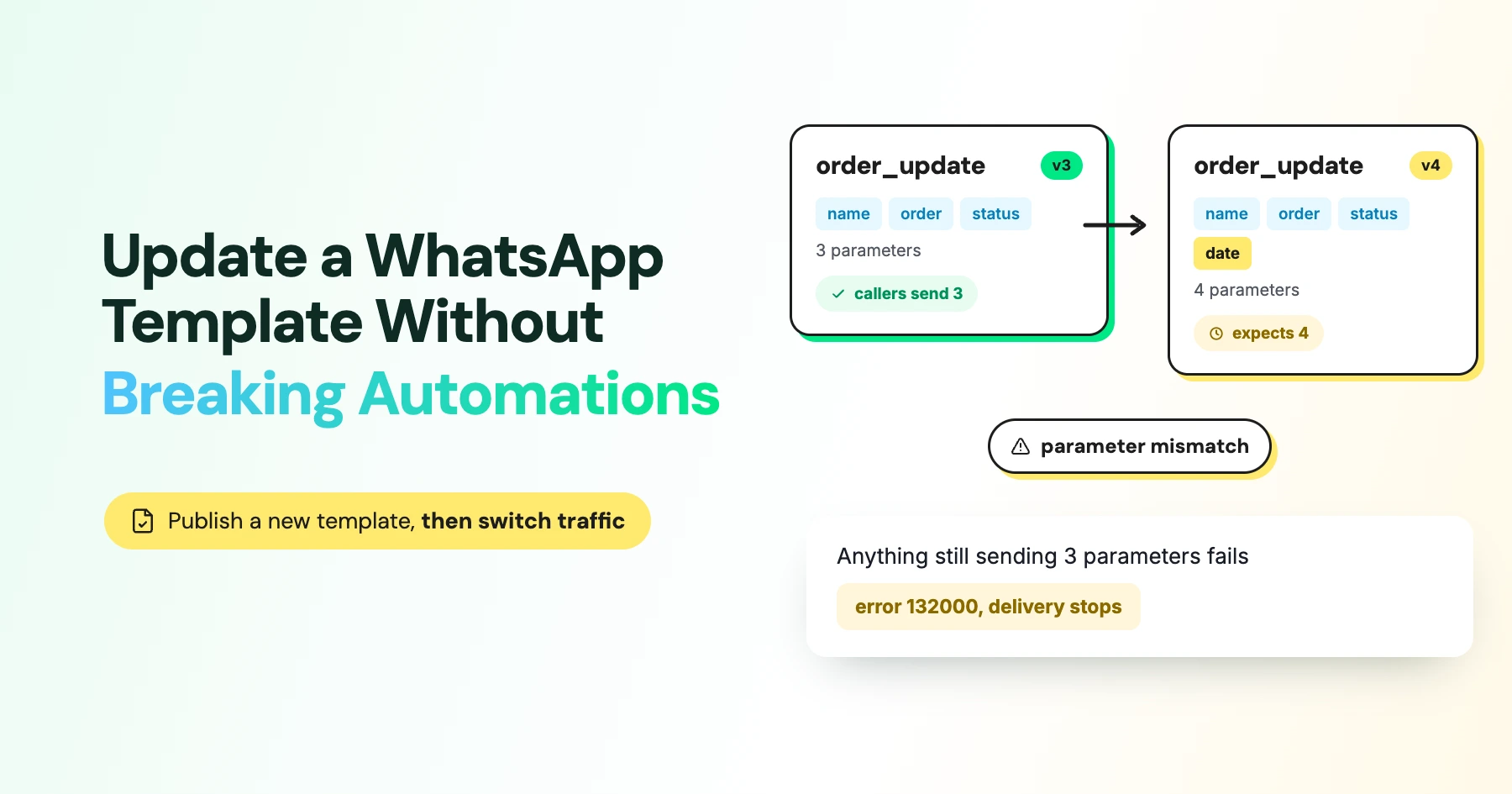
- Changing a variable's position, name, or count breaks any caller still sending the old payload shape. Meta returns error 132000 for a parameter count mismatch and 132012 for a parameter format mismatch.
- The safe pattern is a new template name for any contract change, not an in-place edit: create, get it approved, test the real payload, then cut traffic over with a feature flag.
Editing a live WhatsApp template feels like a small change: fix a typo, reword a line, add a variable.
However, Meta's Message Templates API doesn't patch one field. It replaces the entire components array, and if that new version changes the variable count or order, every automation still sending the old payload shape starts failing at once.
If your HubSpot workflow, Google Sheets automation, or MCP-connected agent has been quietly sending order confirmations with three parameters for months, and someone edits the template to add a fourth, every one of those integrations breaks simultaneously. Usually, you find out only when delivery rates drop.
Treat every contract-changing edit as a deploy, not a tweak. Later in this guide, we cover the rollout sequence for making changes without breaking what's already wired up to your templates.
What You Can Change in a WhatsApp Template
The update endpoint is POST /{VERSION}/{TEMPLATE_ID}. According to Meta's template management documentation, you can edit three parts of an approved WhatsApp template:
Field | Can you edit it on an approved template ? | What happens |
|---|---|---|
Category | No | Category changes require a new template once the template is approved. |
Components (header, body, footer, buttons, media) | Yes | You can update the header, body, footer, buttons, or media. The update replaces the entire components array, not just an individual field. |
Time-to-live (TTL) | Yes | TTL can be updated independently of the components. |
Template name, language, and parameter format are outside the editable set described in Meta's guidance. Treat changes to these as a reason to create a new template rather than edit the existing one.
What are WhatsApp Template Editing Limits?
Meta caps how often you can edit an approved template:
- Once per 24-hour window
- No more than 10 times in a rolling 30-day window
Rejected and paused templates aren't subject to the approved-template limit.
However, editing and resubmitting a paused template moves it to In Review, making it unavailable again until it clears review.
If you're dealing with an incident and need a quick fix, that review delay is exactly why creating a new template is safer than resubmitting the broken one.
WhatsApp Template Review and Approval
- Review time: A newly created or edited template enters review. Meta's guidance says an approval decision can take up to 24 hours.
- Approved status: Once approved, the template has an APPROVED status at the API level and appears as Active in WhatsApp Manager, with Quality pending initially.
- Rejected status: A rejected template can't be used for sends until it's edited and resubmitted or appealed.
- Monitor status changes: Use the
message_template_status_updatewebhook or poll the template'sstatusfield through the Template API instead of checking WhatsApp Manager manually after every edit.
WhatsApp Template Quality Ratings and the Pause Sequence
Meta scores every active template on a rolling basis:
Rating | Meaning |
|---|---|
GREEN | High quality, with little or no negative feedback |
YELLOW | Medium quality, with negative feedback or low read rates; at risk of pausing |
RED | Low quality, still sendable but at risk of pausing or disabling |
UNKNOWN | No quality data yet, typical for a newly approved template |
If a template's rating drops to the lowest tier, Meta's documented pause sequence is:
- First occurrence: Paused for 3 hours
- Second occurrence: Paused for 6 hours
- Third occurrence: Disabled
A paused template rejects send attempts, but Meta notes that these rejected attempts aren't charged and don't consume messaging limit quota.
A disabled template can be edited and resubmitted for approval, but it does not come back on its own.
Why WhatsApp Template Variable Changes Cause Breakages
Variables are part of the send-time contract your automation depends on. Meta requires example values for every variable defined in a template, and the send payload must match the placeholder structure:
- Positional variables (
{{1}},{{2}}) must arrive in the exact placeholder order. - Named variables must use the exact names defined in the template, though their order in the payload doesn't matter.
How Variable Changes Can Break Automations
Adding, removing, renaming, or reordering a variable changes the schema every caller depends on.
- A caller still sending two body parameters against a template edited to require three will fail outright.
- Reordering positional variables can pass validation but drop values into the wrong placeholder silently, since the call remains syntactically valid even when it's semantically wrong.
- Meta returns error 132000 when the parameter count doesn't match the template, and 132012 when a parameter's format doesn't match. Either is your first real signal that something upstream changed shape.
Even Wording Changes Can Affect Availability
Even a pure text edit that keeps the same variables isn't atomic from an availability standpoint: the whole component definition gets replaced. Approved templates auto-reapprove unless the edit fails review; paused templates go to In Review and stay unsendable until fully re-approved.
How to Safely Update a WhatsApp Template
Treat a WhatsApp template change like a deployment. Test the new version before switching over.
- Snapshot the current contract: Record the existing template name, language, category, full component JSON, variable names or order, button behavior, and current quality score.
- Use a new template name for any contract-changing edit: For example, ship
order_confirmation_v2rather than editingorder_confirmationin place. Names must be lowercase letters, numbers, and underscores, unique per language within the WABA. - Create the new template with the final schema: Include representative sample values for every variable and media placeholder.
- Wait for approval, verified through the API: Don't rely just on the dashboard. Check
status=APPROVEDand the currentquality_score, and subscribe to the status and quality webhooks. - Test the exact production payload: Test the new template name with the header, body, buttons, named-variable matching, positional ordering, and everything else your automation sends.
- Cut traffic over with a feature flag or config switch: Don't make a hard swap. Keep the old template and its payload mapping available in case a downstream integration hasn't migrated yet.
- Watch pacing and quality after cutover: Newly created marketing (and in some cases utility) templates can be paced, meaning Meta holds sends for a quality assessment before releasing them broadly.
- Retire the old template only after the migration window closes: Undelivered messages can remain in delivery retry for up to 30 days, and deleting an approved template blocks reuse of that exact name for 30 days.
Applying This to Automations Built on Wati
Templates used in background automations are easy to overlook. A HubSpot workflow, Google Sheets trigger, or MCP-connected agent may continue using an outdated payload after the template changes, causing sends to fail.
If your sends run through Wati's HubSpot or Google Sheets integrations, update the automation's payload mapping alongside the template change.
For promotional sends, also account for the category and opt-in rules that apply to those messages.
For MCP-connected agents, validate the send payload against the live template definition before making the call.
This keeps the agent aligned with the current variable schema instead of relying on a cached version.
See what a WhatsApp MCP server is for, and how the tooling works.
Keep WhatsApp Template Changes Safe
WhatsApp template changes can affect every automation that depends on the template's structure. Treat important changes like a deployment: create a new version when the contract changes, test the actual payload, and switch over only after approval.
Want a smoother way to manage WhatsApp templates and automations? Book a Wati demo.
Frequently asked questions
Can I edit just the wording of an approved template without breaking anything?
A wording-only edit that keeps the same variable count, order, and names shouldn't break the send-time contract, but the edit still replaces the whole component set and re-enters review. Since it's an approved template, it auto-reapproves unless the edit fails review, so treat it as available again once you've confirmed status, not automatically the moment you hit submit. Test the live payload again after approval regardless.
How many times can I edit an approved WhatsApp template?
Once in any 24-hour window, and no more than 10 times across a rolling 30-day window, per Meta's template management documentation.
What happens if I edit a paused template?
Editing and resubmitting a paused template moves it to In Review, so it stays unsendable until it's approved again and returns to Active, according to Meta's guidance.
What do errors 132000 and 132012 mean?
They're Meta's component-parameter mismatch errors. 132000 fires when the number of parameters in the send payload doesn't match the template's current schema; 132012 fires when a parameter's format is wrong. Either one is usually the first sign that someone edited the template's variable structure.
Related posts
- Instagram Comment Automation: How It Works and How to Set It Up in Wati
Instagram comment automation auto-replies to comments and DMs commenters within seconds via Meta's API. Covers strategy, use cases, and Wati setup.
- Shared Team Inbox for Instagram: A Buyer’s Checklist for 2026
Use this fastest checklist to evaluate any shared team inbox for Instagram, which covers DMs, comments, automation, and multi-channel support.
- How to Send Bulk Messages on WhatsApp Without Getting Blocked
Learn how to send bulk WhatsApp messages without getting blocked. Compare the WhatsApp Business app and API, messaging limits, costs, templates, and best practices for safe, compliant bulk messaging.
- How to Set Up a TikTok Business Account: Step-by-Step Guide
Set up a TikTok Business Account step by step: switch from personal, pick a category, add your profile, and unlock ads and analytics.