
Too Long? Read This First
- The WhatsApp Web QR code links your phone's WhatsApp account to a computer. Open web.whatsapp.com, go to Linked Devices on your phone, and scan.
- You no longer need to scan at all: WhatsApp now offers "Link with phone number," a QR-free login that uses an 8-character code instead.
- Once a device is linked, it works even when your phone is offline, as long as your phone reconnects at least once every 14 days, or all linked devices are logged out.
- WhatsApp Web is no longer just for chat. As of 2026, you can also make 1-on-1 voice and video calls in the browser, with group calls rolling out.
- For businesses, a WhatsApp QR code turns any touchpoint into a conversation starter. Pairing those conversations with Wati's automation is how brands like Blacklyf cut acquisition costs 60% and tripled conversions.
WhatsApp now gets a striking 80.27% of its web traffic from desktop, compared to just 19.73% from mobile. That's a lot of people relying on the QR scan to get into their chats every day, which makes it worth getting right the first time.
When the scan doesn't work, or the session mysteriously logs out, it can bring your entire workflow to a halt.
This guide covers what the WhatsApp Web QR code is, how to log in with it, how to log in without it, how to fix it when it won't scan, and how businesses use QR codes to start customer conversations.
What is the WhatsApp Web QR Code?
The WhatsApp Web QR code is a scannable code that links your mobile WhatsApp account to a web browser. To link your WhatsApp account to WhatsApp Web, visit web.whatsapp.com, point your phone’s camera at the QR code displayed on the screen, and your WhatsApp will open on your computer.
It exists because WhatsApp accounts are tied to your phone number and device. The QR scan is how WhatsApp confirms it's really you linking a new screen, without asking you to type a password.
For the full picture of every way to sign in, see our WhatsApp login guide.
Why Use WhatsApp Web Through a QR Code?
People use WhatsApp Web because it makes desktop messaging faster and safer than working from a phone. The main benefits:
Benefits | What it means |
Instant Login | No need to type credentials. Scanning the QR code takes only a few seconds |
Sync Chats Easily | Chats and media files appear instantly on your computer |
Better Productivity | Using WhatsApp web on a desktop and multitasking across tabs saves time |
Safe and Private | All messages remain end-to-end encrypted even on WhatsApp Web |
Easy File Sharing | Quickly drag and drop photos, PDFs, and documents from your computer. |
How to Use the WhatsApp Web QR Code to Log In?
Follow these steps to connect WhatsApp to your computer using the QR code.
1. Open WhatsApp Web on Your Browser
Open WhatsApp Web. Go to web.whatsapp.com in your browser.
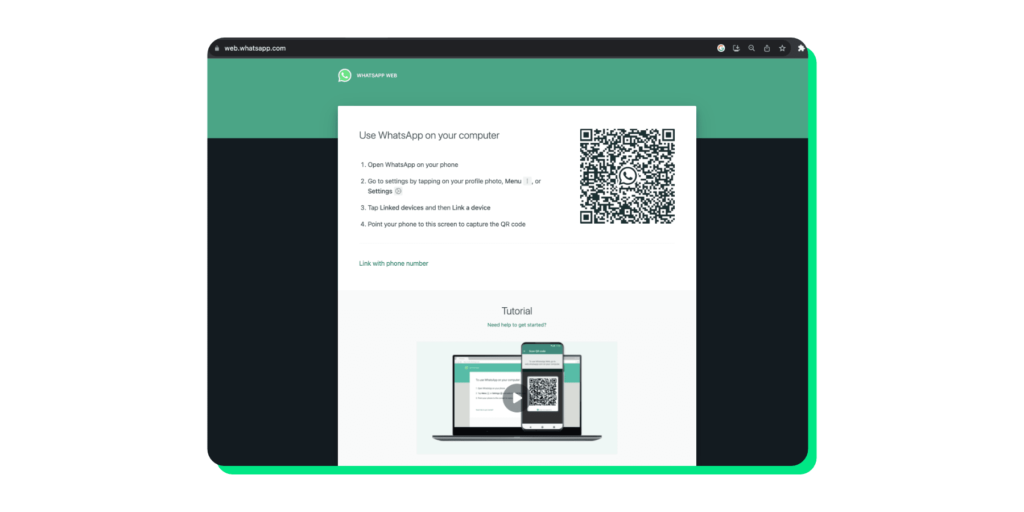
A black-and-white QR code appears.
2. Open WhatsApp on Your Phone
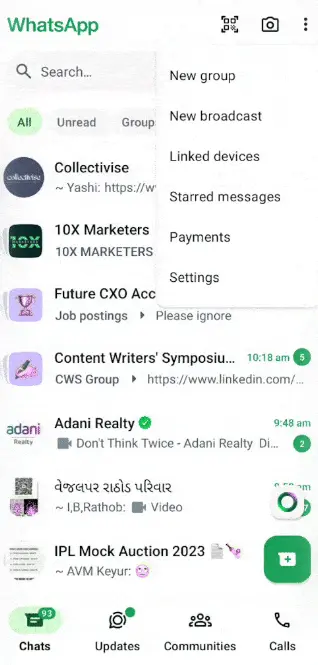
- Android: Tap the three dots in the top-right corner and select Linked Devices.
- iPhone: Tap Settings at the bottom-right corner and select Linked Devices.
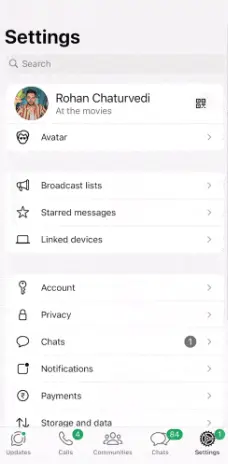
3. Tap “Link a Device”
This will open your phone’s camera within the WhatsApp app.
4. Scan the QR Code
Point your phone toward the QR code on your computer screen and hold it steady.
Once the code is recognized, your WhatsApp will open in the browser and sync automatically.
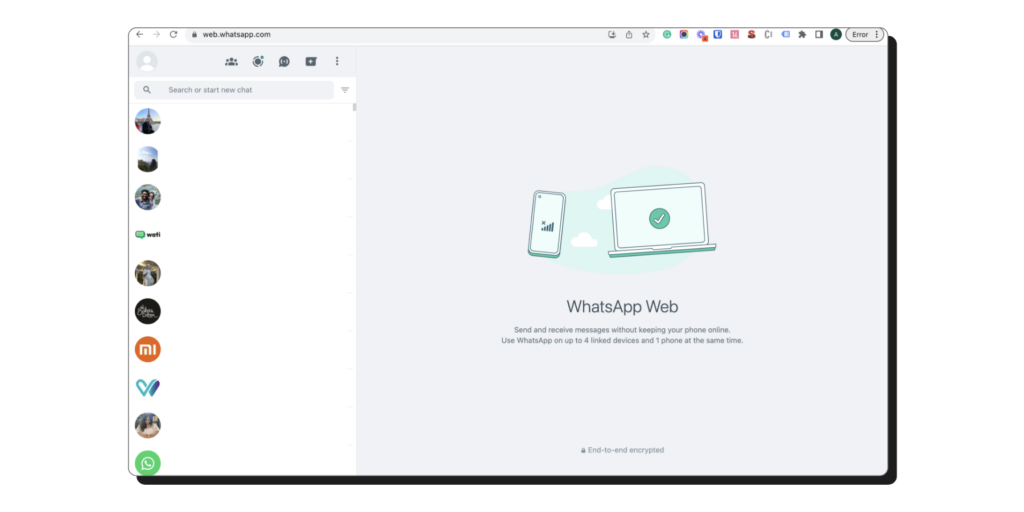
Your phone must be online for this initial link. Once the device is linked through Linked Devices (multi-device), the session keeps working even if your phone goes offline, as long as your phone reconnects at least once every 14 days. If it stays offline longer than that, all linked devices are logged out, and you'll need to re-link. |
WhatsApp also features a multi-device option that allows for limited use without keeping your phone online.
How do You Log In to WhatsApp Web Without Scanning a QR Code?
You can now link WhatsApp Web without a QR code using the "Link with phone number" option. This is useful when a camera isn't available, or scanning is difficult.
- On web.whatsapp.com, click "Link with phone number" below the QR code and enter your full number (with country code).
- WhatsApp Web displays an 8-character code.
- On your phone, go to Linked Devices and Link a Device, then tap "Link with phone number instead" and enter the code shown on your computer.
- Confirm with your fingerprint, face unlock, or PIN. The session connects without any scan.
Note: the code expires quickly, usually within 60 seconds, so have your phone ready before you generate it.
How do You Fix a WhatsApp Web QR Code That Won't Scan?
If the QR code won't scan or connect, work through these fixes in order.
1. QR Code Not Scanning
- Clean your phone’s camera lens.
- Increase your desktop or laptop’s screen brightness.
- Refresh the QR code by clicking the circular arrow icon.
- Align your phone so the entire code fits inside the frame.
2. Connection Problems
- Make sure both your phone and computer are connected to the internet.
- Clear your browser cache and restart the browser.
- Check if your WhatsApp app is updated.
3. Using Public or Office Wi-Fi
Some office or public networks may block WhatsApp Web. Try switching to your mobile hotspot or another Wi-Fi connection.
Why Won't the QR Code Load at All?
If the QR code itself never appears on the page, the problem is usually your browser rather than WhatsApp:
- Turn off browser extensions temporarily.
- Make sure cookies and JavaScript are enabled.
- Try incognito mode or a different browser such as Chrome, Firefox, or Edge.
- Restart your computer or router.
If you'd rather share a clickable link than a QR code, our free WhatsApp Link Generator creates custom links for websites, emails, and social bios.
Smart Security Practices for WhatsApp Web Users
Because a QR scan logs you in instantly, keeping your account secure comes down to five habits:
- Avoid using WhatsApp Web on public or shared computers.
- Always log out after use, either from your browser or from the Linked Devices section on your phone.
- Turn on two-step verification in WhatsApp settings.
- Check active sessions regularly and remove unknown devices.
- Keep your phone locked with biometric or PIN protection.
WhatsApp Web carries the same end-to-end encryption as the mobile app, so messages stay private in transit.
For a deeper look at how WhatsApp protects business data, see our guide to WhatsApp data security.
How do Businesses Use WhatsApp QR Codes?
For businesses, a WhatsApp QR code turns any touchpoint into a conversation starter. Instead of asking people to save your number, you let them scan and start chatting instantly. Common placements:
You can:
- On your website, product packaging, and receipts.
- In your Instagram bio and email signature.

- On in-store signage, so customers can scan to ask about a product.
Create one in seconds with our free WhatsApp QR code generator.
The scan is only the start. Once a conversation opens, the WhatsApp Business API like Wati lets you route, automate, and scale those chats with a shared team inbox, no-code chatbots, and broadcasts. You can also run Click-to-WhatsApp Ads so a tap in an Instagram or Facebook ad opens the same conversation a QR scan would.
This is where entry points turn into revenue. Blacklyf replaced traditional lead forms with WhatsApp conversations and paired them with Wati's automation and re-engagement flows, cutting customer acquisition costs 60% and tripling conversions.
Wrapping It Up
At the end of the day, that little QR code is doing a lot of heavy lifting, letting you jump between your phone and your computer without ever typing a password. Once you know how to scan it, log in without it, and troubleshoot the odd hiccup, you'll rarely think about it again.
But if you're using WhatsApp for more than just personal chats, if customers are scanning to start conversations with your business, that same simple scan can become your biggest growth channel.
Book a demo to see how automation, analytics, and team collaboration can turn those everyday scans into real conversations and real revenue.
Frequently asked questions
1. What is a WhatsApp Web QR code used for?
The WhatsApp Web QR code helps you log in to WhatsApp on your computer without a password. You simply scan the code displayed on web.whatsapp.com using your phone, and your chats appear instantly on the desktop.
2. Can I use WhatsApp Web without scanning the QR code?
Yes. WhatsApp Web now offers a "Link with phone number" option below the QR code. Enter your number, then type the 8-character code it shows into your phone under Linked Devices → Link a Device → Link with phone number. No scan needed.
3. Is it safe to scan a WhatsApp Web QR code?
Yes. WhatsApp Web uses end-to-end encryption just like the mobile app. Always scan QR codes only from the official web.whatsapp.com site and log out when using public or shared computers.
4. Why is my WhatsApp QR code not scanning?
This usually happens due to lighting issues, dirty camera lenses, or unstable internet connections. Try refreshing the QR code, cleaning your camera, and ensuring both devices are online.
5. Can I use WhatsApp Web if my phone is switched off?
Yes, once the device is linked. You still need your primary phone online for the initial link and certain account actions, and it must reconnect at least once every 14 days, if it stays offline longer, all linked devices are logged out. Day-to-day, the linked session keeps working while your phone is offline.
6. How do I log out of WhatsApp Web?
On your computer, click the three-dot menu in WhatsApp Web and choose Log Out. You can also go to Settings > Linked Devices on your phone and select Log Out from all devices.
7. What browsers work best for WhatsApp Web?
WhatsApp Web runs well on Google Chrome, Firefox, Microsoft Edge, and Safari. Keep your browser updated to the latest version for the smoothest experience, including newer features like in-browser calling.
Related posts
- What is Personalization at Scale: What are You Missing Out on in 2026?
learn how personalization and scale enables you to push relavant content, reduce cost and improve efficiency
- WhatsApp Service Message Pricing: October Pricing Update
From October 1, 2026, Meta will start charging for WhatsApp service messages sent within the 24-hour customer service window. Learn what changes, how much it could cost, which businesses are affected, and how to keep your WhatsApp messaging costs under control.
- How to Unblock a WhatsApp Account: Causes, Fixes, and Best Practices (2026)
Unblock your WhatsApp account by tapping "Request a review" on the ban screen. See why accounts get banned, how to appeal, and how to recover your chats.
- The Best WhatsApp API Platform for Mid-Market Sales Teams
Mid-market sales teams face immense pressure to convert leads efficiently and maintain personalized communication at scale. The fragmented nature of modern communication channels often leaves sales representatives struggling to keep pace, leading to dropped leads and missed opportunities. An exceptional WhatsApp API platform is not merely a convenience; it is a vital tool for enhancing …