
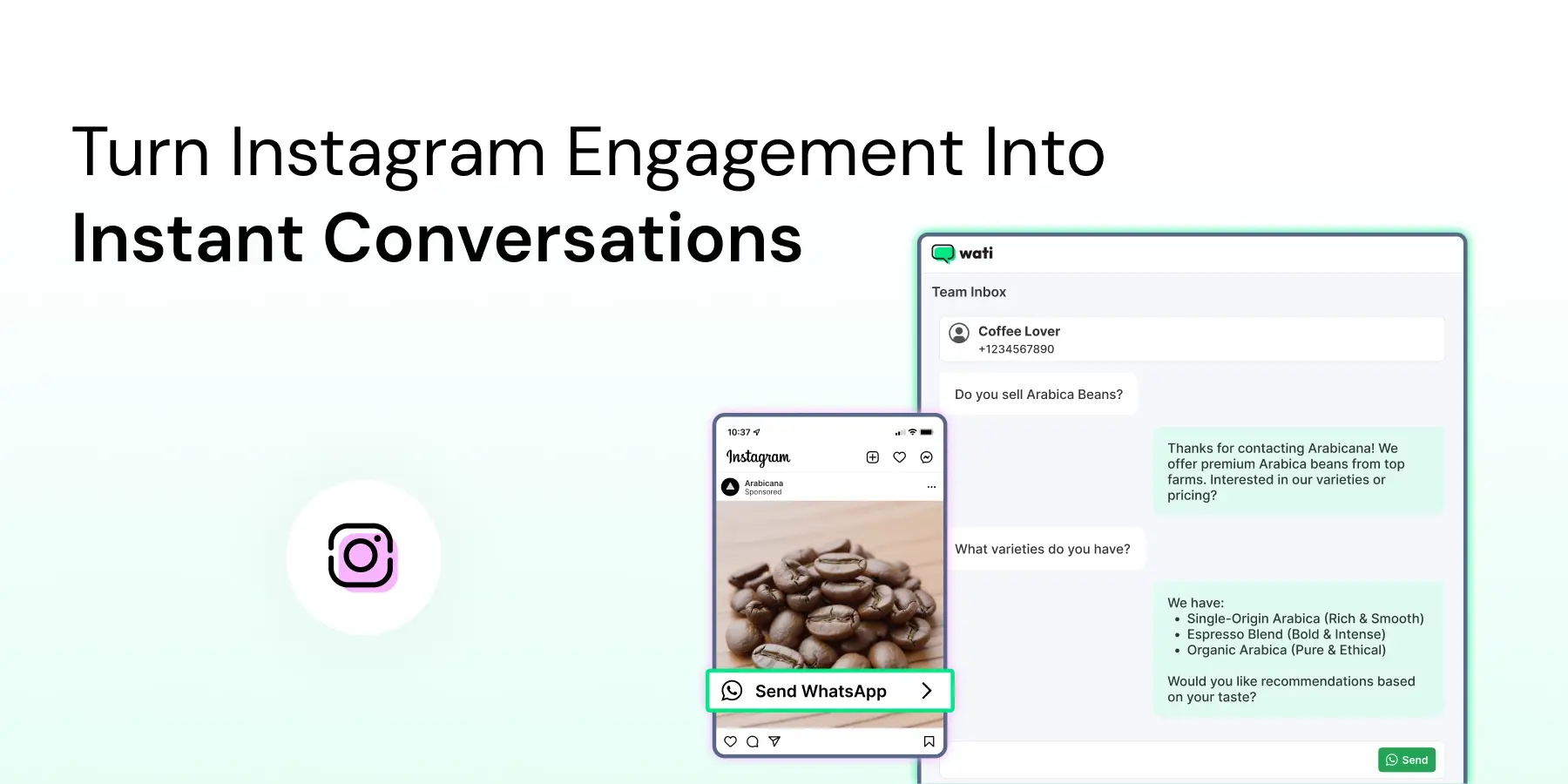
Too Long? Read This First
- Instagram automation helps businesses respond faster by automating DMs, comment replies, and repetitive customer enquiries while routing complex conversations to the right team members.
- Setting up Instagram automation requires an Instagram Professional account, a connected Facebook Page, the right permissions, and Meta-approved API access.
- Comment-to-DM automation moves conversations from public comments into private DMs, while a shared inbox helps teams manage Instagram and WhatsApp conversations from one place.
- Businesses can collect WhatsApp contacts from Instagram, use Click-to-WhatsApp ads, and continue customer conversations through automated WhatsApp workflows.
- Instagram automation must follow Meta's messaging policies by responding only after customer engagement, staying within supported messaging windows, and providing a clear path to a live agent.
- The right Instagram automation platform should offer visual workflow builders, shared inbox capabilities, analytics, integrations, and flexible pricing to support business growth.
Instagram now has over 3 billion monthly active users, making it one of the world's largest platforms for customer engagement and product discovery. As more businesses use Instagram to generate leads and support customers, Direct Messages have become a critical communication channel that demands fast, consistent responses.
People scroll through Reels, tap on ads, and drop quick questions in your DMs: “What’s the price?” “Is this available?” “Do you ship to my city?” “Any offers today?” “Where’s my order?”
Your inbox fills up fast. Replies become repetitive, response times slip, messages get missed, and some customers move on. Instagram moves fast; manual DM handling doesn’t. Replying to every message and comment works at low volume, but it breaks the moment your content starts performing.
This is where Instagram automation helps. It responds instantly, reduces missed messages, and keeps customer conversations organized, so your team can focus more on high-intent conversations while the automation handles repetitive queries in the background. It matters more than it sounds: 73% of social users say they are likely to buy from a competitor if a brand does not respond on social media.
By automating routine inquiries and routing complex or high-intent conversations to the right team members, businesses can deliver faster, more consistent customer support at scale.
This guide explains how Instagram automation works, what has changed with Meta's messaging capabilities in 2026, how to automate DMs and comment replies, and the best ways to manage Instagram conversations at scale.
What is Instagram Automation?
Instagram automation uses rules, triggers, and chatbot flows to automatically reply to customer interactions without requiring a manual response.
When configured correctly, it can automate Instagram DMs, keyword-based replies, conversation tagging, agent routing, and structured chatbot journeys for Instagram messages. Businesses can also automate supported story interactions. It also works with story mentions in approved setups.
For example:
- A user comments "price" on a post, and your tool sends them a DM using a supported trigger.
- A creator messages "collab," and your automation shares your guidelines and then assigns the chat to the appropriate team.
Automation removes repetitive steps, ensures timely replies even when your team is offline, and keeps conversations organized with tags, routing, and follow-up flows.
With Wati, you can manage Instagram DMs and comments from a shared team inbox, automate out-of-office replies, welcome messages, agent assignment, tag actions, and chatbot flows, and WhatsApp handoffs from a single platform.
Prerequisites Before You Start Instagram Automation
Instagram automation works only when your account and settings are configured correctly. You need:
- An Instagram Professional account (Business or Creator).
- A Facebook Page is required only if your platform uses the Facebook login path; Meta's newer Instagram Business Login connects directly to your Instagram Professional account without one
- Appropriate Admin permissions in Meta Business and on the connected Facebook Page.
- A Meta Developer App (if your automation platform requires direct API access) with the necessary permissions.
Missing any of these may prevent Instagram automation from working as expected. The setup takes a little time, but it ensures the rest of the flow runs without any glitches.
How does Instagram Automation Work?
Instagram automation follows a simple workflow based on three components:
- Trigger: A customer sends an Instagram DM or comments on a post or Reel.
- Condition: The message matches a predefined keyword or rule, such as price, delivery, booking, or collab.
- Action: The system sends an automated reply, assigns the conversation to an agent, applies tags, or starts a chatbot flow.
This allows businesses to automate:
- Instagram DM replies
- Comment-to-DM automation
- Keyword-based responses
- Agent routing
- Conversation tagging
- Lead capture
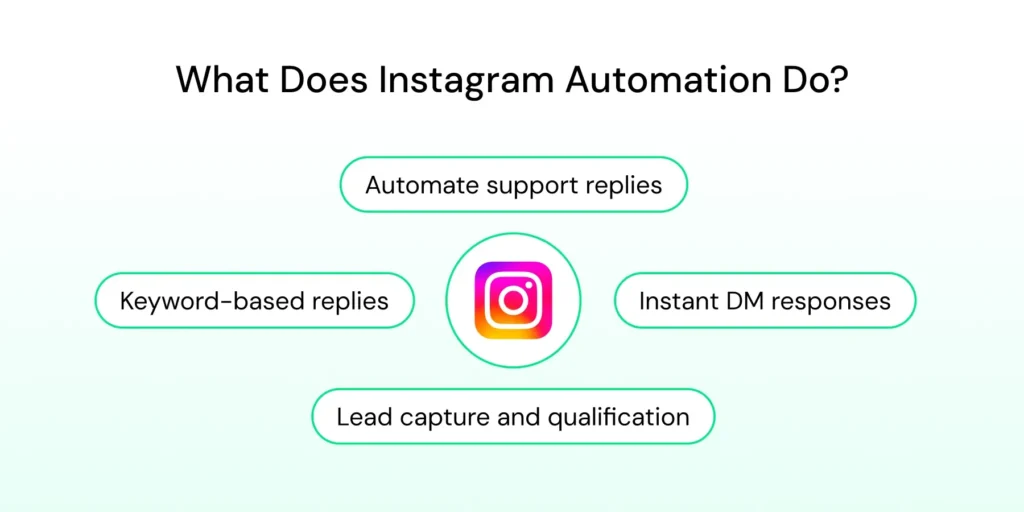
Instagram DMs often indicate high purchase intent, making them ideal for automation. People usually send a message when they're ready to ask a question, request more information, or take the next step toward a purchase.
Common automation use cases include:
- Answering product FAQs
- Sharing pricing and size information
- Confirming product availability
- Providing shipping and delivery updates
- Explaining return and exchange policies
- Sending booking links
- Capturing leads
- Scheduling appointments through integrated tools
- Sharing collaboration or partnership forms
- Registering customers for events and webinars
By automating these repetitive enquiries, businesses can deliver faster, more consistent responses while allowing agents to focus on conversations that require human assistance.
What is Instagram Comment-to-DM Automation?
Instagram comment-to-DM automation lets businesses move conversations from public comments into private Direct Messages automatically. Instead of asking customers to send a separate message, a keyword in a post or Reel comment can trigger both a public reply and a personalised DM.
This lets businesses:
- Respond instantly to product inquiries
- Share pricing, catalogs, or promotional links privately
- Capture and qualify leads without manual follow-up
- Keep comment sections clean while continuing the conversation in DMs
For example, when someone comments "price" on a product post, automation can reply with "Thanks! We've sent you a DM." At the same time, it sends product details through Direct Messages and routes the conversation to your shared inbox for follow-up if needed.
Bonus read: How to Set Up Wati Instagram DM Automation for Comments in 2026
How to Connect Instagram to Wati?
Once you meet the prerequisites, you can connect Instagram to Wati through a simple guided setup.
- Log in to your Wati account.
- Connect your Facebook account.
- Select the Facebook Page linked to your Instagram Professional account.
- Grant all required permissions.
- Enable Instagram in your Wati workspace.
Watch the video below for a step-by-step walkthrough of the setup process.
Once connected, Wati establishes a secure API connection with your Instagram account. You can manage Instagram DMs and comments from a shared inbox, build automation flows, assign conversations to the right team members, and reply faster without switching between multiple tools.
Managing Your Instagram Inbox With Wati
As your Instagram conversations grow, managing them from the native inbox becomes increasingly difficult. Teams often struggle to track conversation ownership, maintain context, and answer consistently, especially when multiple agents are handling customer inquiries.
A shared Team Inbox brings Instagram DMs, Instagram comments, and WhatsApp conversations into one workspace, giving your team complete visibility into every customer interaction without switching between platforms.
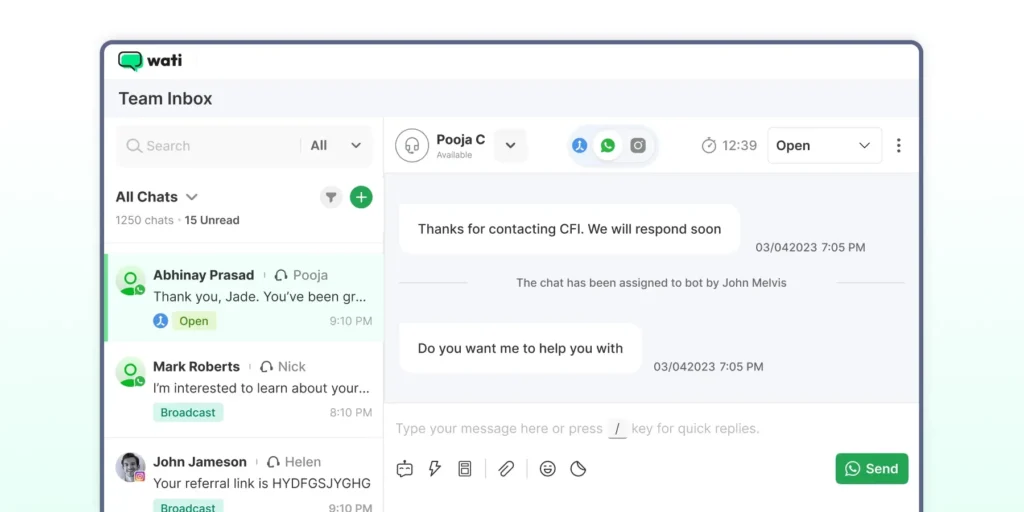
With Wati's Shared Inbox, your team can:
- Assign conversations to specific agents
- Add internal notes for collaboration
- Organise chats with tags
- Track conversations by status
- View complete conversation history
- Filter chats by tags, keywords, or team members
This helps eliminate duplicate replies, reduces missed messages, and makes team handoffs faster and more efficient.
Automated Greetings and Out-of-Office Messages
Customers often message outside business hours but still expect an immediate acknowledgement. Instagram auto-replies such as welcome greetings and out-of-office help set clear expectations while assuring customers that their message has been received.
A welcome message greets customers the first time they contact your business, while an out-of-office reply lets them know when your team will be available and what they can do in the meantime.
Sample messages
Welcome message
Welcome to [Business Name]! Thanks for reaching out. Let us know how we can help, and we'll guide you to the right solution. |
Out-of-office reply
Thanks for your message. Our team is currently offline, but we'll get back to you during business hours. In the meantime, you can explore these helpful resources: [Link]. |
These automated replies improve the customer experience by acknowledging every enquiry immediately, setting realistic response expectations, and keeping conversations active until an agent takes over.
Collecting WhatsApp Contacts With Automated Instagram Flows
Many businesses continue customer conversations on WhatsApp because it supports richer ongoing interactions.
Once a customer sends you a DM, you can use an automated flow to request their WhatsApp number and save it automatically, with the customer's consent.
Collecting WhatsApp contacts makes it easier to:
- Send product catalogs and offers
- Share order confirmations and delivery updates
- Follow up with qualified leads
- Continue sales conversations
- Provide post-purchase support
With Wati, you can add a WhatsApp number collection step directly into your Instagram DM automation flow, creating a seamless transition from Instagram to WhatsApp without requiring manual follow-up.
Bringing Instagram Traffic into WhatsApp Chats
Instagram click-to-WhatsApp ads let businesses direct customers from Instagram to a WhatsApp conversation instead of Instagram DMs.
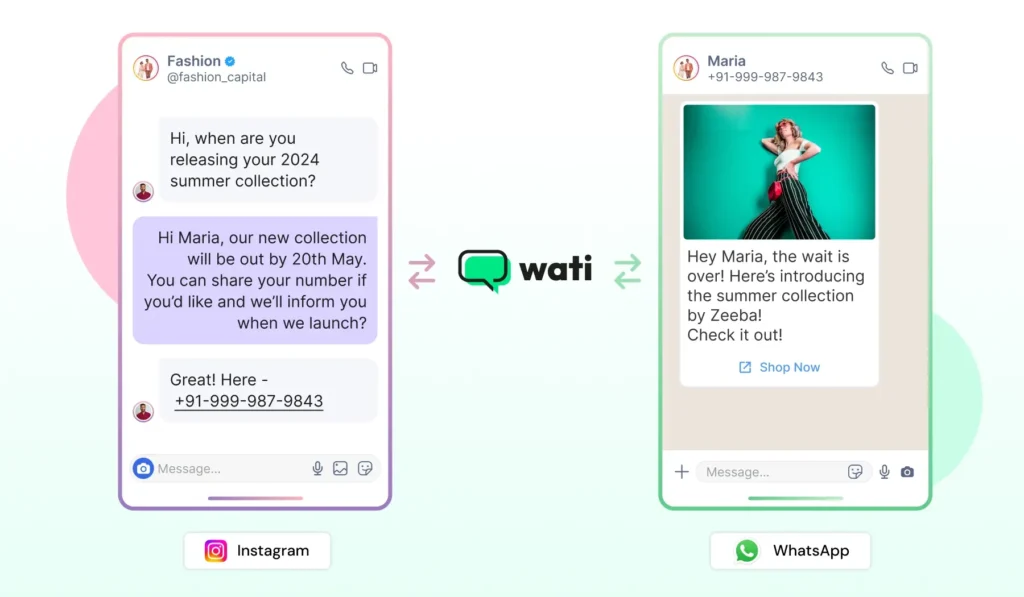
This makes it easier for businesses to connect with customers who prefer WhatsApp for product enquiries, bookings, purchases, and post-sale support. Conversations that start on WhatsApp can also be managed more efficiently through automation and shared inbox workflows.
With Wati, automated WhatsApp flows can begin as soon as a customer sends their first message. Businesses can instantly qualify leads, answer common questions, share product catalogs, route conversations to the right team, and continue the customer journey without manual intervention.
Practical Ways Businesses Use Instagram Automation
From sales enquiries to customer support, Instagram automation supports businesses in responding faster, reducing repetitive work, and managing conversations at scale. Here are a few common use cases across industries.
E-commerce
Users often message about size, fit, delivery dates, or return rules. Automation lets you handle these without waiting for an agent. You can also auto-send links to product collections, move users to WhatsApp for payment links, and share order-tracking links. Businesses that run product drops or giveaway posts can trigger Instagram comment-to-DM automation directly in Wati. A keyword in the comments fires an instant DM, then manage every resulting conversation in the same inbox.
For example, Oxwhite reduced its customer support workload by 90% and increased conversion rates by 20% after automating customer conversations with Wati. While the case study focuses on WhatsApp automation, the same automation principles apply to Instagram conversations.
D2C
D2C brands use automation to nurture repeat customers, handle common support requests, recommend relevant products, and manage reorder or subscription enquiries. Automation also helps qualify customers before routing conversations to the right team.
Professional Services
Service providers use Instagram automation to capture leads from posts, Reels, and ads, collect customer details, share pricing information, and send booking links. This allows businesses to reply quickly while reducing the manual effort required to schedule appointments.
Compliance Guidelines for Instagram Automation
Instagram automation has to follow Meta’s messaging policy to ensure customer conversations remain permission-based and compliant.
Here are the key rules businesses should follow:
- Respond only after customer engagement. Automated replies can only be triggered after a user sends a message or comments on your post. Businesses cannot initiate unsolicited conversations.
- Stay within Meta's messaging limits. Automated replies and follow-up messages must be sent within Meta's supported messaging windows and rate limits.
- Follow the same rules for comment-to-DM automation. A public reply and Direct Message can only be triggered after a customer comments on your post or Reel.
- Provide a clear path to human support. Complex, sensitive, or unresolved enquiries should always be escalated to a live agent, with an easy way for customers to request human assistance.
Following these guidelines and using an approved automation platform helps businesses automate customer conversations while maintaining compliance with Meta's platform policies.
Types of Instagram Automation
The table below summarizes common Instagram automation scenarios and whether they're supported under Meta's messaging policies.
Automation Type | Allowed by Meta | Notes |
Auto replies in DMs | Yes | Can be sent only after a user initiates the conversation. |
Comment-to-DM automation | Yes | A keyword in a post or Reel comment can trigger a public reply and continue the conversation in Direct Messages. |
Keyword-based DM replies | Yes | Supports FAQs, product enquiries, and lead qualification. |
Welcome messages | Yes | Triggered after a user sends the first message. |
Out-of-office replies | Yes | Automatically informs customers when your team is unavailable. |
Agent routing and chat assignment | Yes | Automatically routes conversations to the appropriate team or agent. |
Conversation tagging | Yes | Organizes chats based on customer intent, campaign, or support category. |
Messaging users first | No | Businesses cannot initiate unsolicited conversations. |
Broadcast or bulk messages | No | Instagram Messaging does not support promotional bulk messaging. |
Common Mistakes Businesses Make With Instagram Automation
Automation works best when it supports conversations, not replaces them. These common mistakes show where businesses often go wrong with Instagram automation.
Too Many Triggers
When a flow has multiple triggers, conditions, or branches, it becomes hard to predict how it will behave. One message can accidentally trigger two replies. Another message might fire nothing at all. A simple rule is better. Use clear keyword filters and separate flows for separate intents.
Replies That Feel Too Mechanical
People do not enjoy stiff, template-like messages. They want clarity, not a script. Small changes help a lot. Use short sentences. Use everyday words. Add helpful choices. The goal is to make automation feel like support, not a bot.
Weak Keyword Planning
Automation depends on the real user language. If your keywords do not match what people type, your flow will miss important messages. Review your inbox history. Look at how customers ask questions. Use those exact words as triggers.
No Performance Tracking
Many teams turn on automation and move on. But automation needs regular review. Data shows what is working and what is not.
Which keywords trigger the most replies? Where do conversations drop off? When should a human step in?
Tracking these signals helps you improve your flows over time, instead of letting automation run quietly in the background.
Instagram Comment Automation Best Practices
Comment activity often spikes during Reels, giveaways, and launch posts.
Wati now supports Instagram comment automation natively, so you can run comment-to-DM flows in the same place you manage DMs.
Follow a few guidelines to keep the flow clean:
- Use clear keyword triggers: Simple keywords like price, offer, link, size, guide, or join are easier to recognise and maintain.
- Avoid using too many keywords on a single post: Keeping triggers focused reduces conflicts and improves automation accuracy.
- Move conversations to Direct Messages: Use a short public reply before continuing the conversation privately through DMs.
- Keep replies relevant to the post: Automated responses should match the context of the content to avoid confusing customers.
- Write concise first replies: Let customers know exactly what to expect or what action to take next.
- Test before scaling: Validate your automation on a single post before rolling it out across multiple campaigns or Reels.
- Always provide a human handoff: If automation cannot resolve a query, customers should be able to connect with a live agent without friction.
Comment automation shines during contests and product launches. When paired with your DM workflows in a shared inbox like Wati, a public comment can flow straight into a tracked, owned conversation.
Choosing the Right Instagram Automation Platform
Weigh these factors before picking any platform. Each one affects how smoothly your team manages Instagram conversations.
Shared Team Inbox
A good inbox lets your team see every DM in one place, track who owns the chat, and avoid duplicate replies. Learn more about managing Instagram DMs with a shared inbox before choosing a platform. Look for features such as filters, tags, and clear conversation history.
DM and Comment Automation
Your tool should handle common questions without effort. Check how it manages keywords, fallback steps, multi-step replies, and variations of the same query.
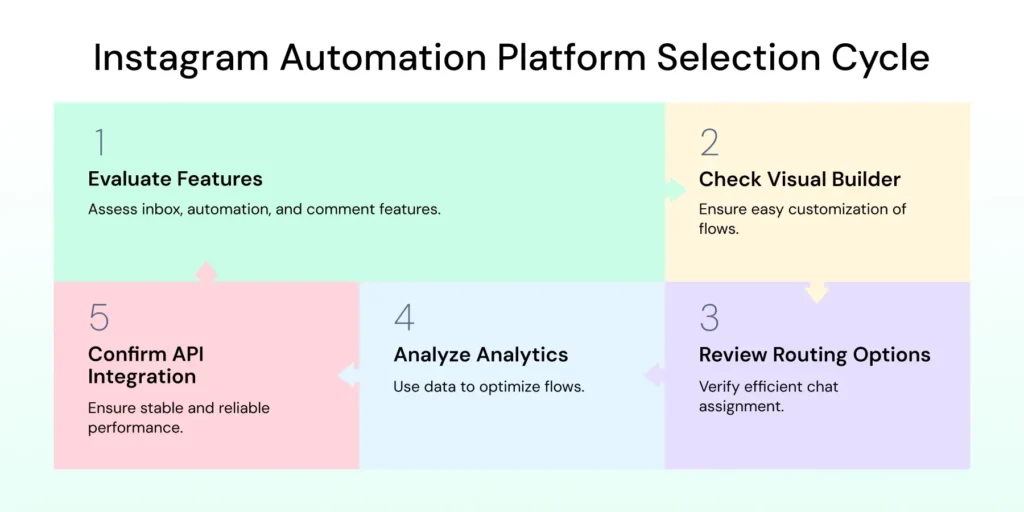
A Visual Flow Builder
A drag-and-drop builder makes changes quickly. You should be able to adjust replies, routes, or steps without rebuilding everything from scratch.
Routing and Assignment Options
Look for rules that direct chats to the right person based on keywords or message type. This keeps your team organised and prevents long wait times.
Analytics for Tracking
You need data to improve your flows. A good tool should show which messages fire often, where users drop off, and what your team needs to adjust.
API Integration
Instagram automation runs on Meta’s Messaging API. If the tool has outages or slow delivery, your replies suffer. A stable integration is non-negotiable.
Shopify or CRM Integrations
If you want automated replies for delivery updates or order questions, check whether the tool connects to your systems. This unlocks smarter answers.
Pricing and Plan Fit
Don't compare pricing alone. Team seat limits can have a significant impact on cost and scalability. Some platforms charge a flat fee per Instagram account, while others charge per user. Before choosing a platform, compare seat limits alongside pricing to ensure it fits your team's size and collaboration needs. Always verify the latest plans and seat allocations on the provider's pricing page, as these can change over time.
Bring All Your Conversations Together
If you want a setup that works across Instagram and WhatsApp without adding extra tools or extra work, Wati ties everything together in one clean workspace.
Ready to see how Instagram automation frees you from the inbox? Book a demo to see it in action.
Frequently asked questions
What does Instagram automation allow you to do?
Instagram automation handles instant replies for DMs, keyword-based responses, welcome messages, out of office replies, tagging, and agent assignment. It only works after a user sends the first message because Instagram does not allow unsolicited outreach.
Does Wati support Instagram DM automation?
Yes. Wati supports keyword replies, chatbot flows, auto responses, agent routing, tagging, and number collection inside Instagram Direct Messages.
Is comment automation part of Wati’s Instagram features?
Yes. Wati supports Instagram comment automation. You can trigger an automatic DM when someone comments on a post or reel (including keyword-based triggers), then manage the conversation in the same shared inbox as your DMs and WhatsApp chats. See our Instagram Comment Automation guide for setup.
Are promotional or broadcast messages allowed on Instagram?
No. Instagram does not support broadcast or mass promotional messaging. All replies must be sent within Meta’s allowed messaging window and only after the user reaches out.
Does Instagram automation replace human support?
No. Meta requires a clear path to a real agent. Automation handles routine queries. Sensitive or complex questions should move to a human.
Can Wati send a message to someone who has not messaged first?
No. Meta does not allow businesses to initiate new conversations on Instagram. A user must send the first message before any automation can respond.
Can Wati collect WhatsApp numbers from Instagram?
Yes. After a user sends a DM, Wati can ask for their WhatsApp number and save it inside the automation flow, as long as the user shares it willingly.
Related posts
- Complete Guide to Instagram Automation
Instagram comment automation auto-replies to comments and DMs commenters within seconds via Meta's API. Covers strategy, use cases, and Wati setup.
- How to Set Up a TikTok Business Account: Step-by-Step Guide
Set up a TikTok Business Account step by step: switch from personal, pick a category, add your profile, and unlock ads and analytics.
- TikTok for Business: How to Set Up, Market, Advertise & Grow (2026)
Learn how to use TikTok for Business to build your brand, create content, run ads, manage customer messages, and turn views into growth.
- Shared Team Inbox for Instagram: A Buyer’s Checklist for 2026
Use this fastest checklist to evaluate any shared team inbox for Instagram, which covers DMs, comments, automation, and multi-channel support.