
Too Long? Read This First
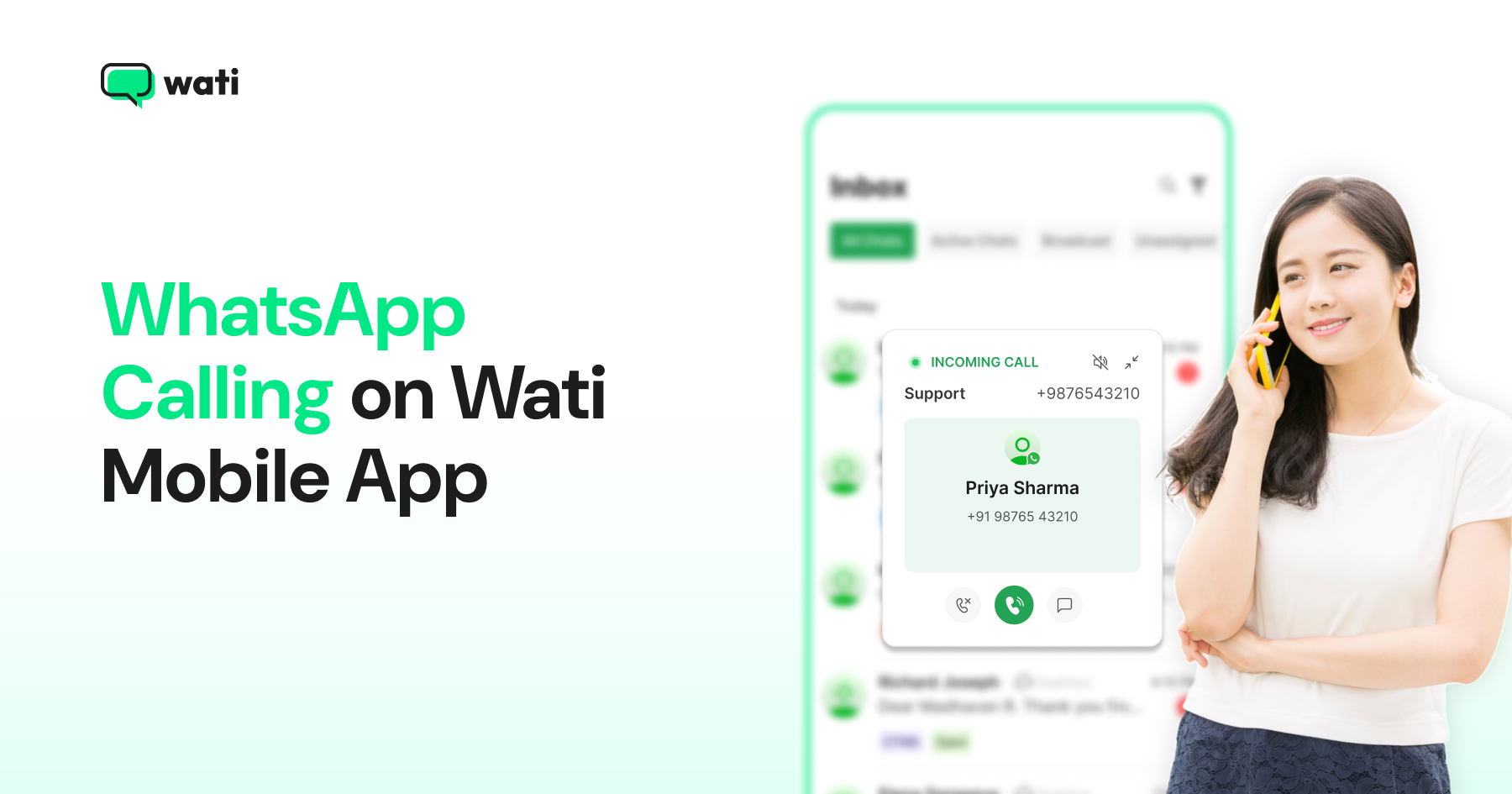
- WhatsApp Business Calling is now fully supported on the Wati mobile app on both iOS and Android, so your agents can make and receive calls from wherever they are.
- Setup takes under two minutes per device. The only critical step is enabling full-screen notification permissions, which is what determines whether calls reach your agent's screen or ring silently.
- Call logs, permissions, and chat context sync automatically between mobile and web in real time, so nothing falls through the cracks when your team is on the move.
- From the mobile call tab, agents can follow up on missed calls, view customers with active call permission, and send consent requests, all without opening the web app.
- Teams that are rarely desk-bound, field sales teams, founder-led businesses, and extended-hours support teams get the most out of WhatsApp Business Calling on mobile.
Most sales reps will tell you the same thing. Their best leads call back at the worst times.
Between meetings, during lunch, or on the way to a client site.
The WhatsApp Business call comes in, nobody picks up, and a perfectly warm conversation goes cold. Getting WhatsApp Calling on Business on the phone your sales rep already has in their pocket solves this entirely.
Wati’s mobile app now supports WhatsApp Business Calling on iOS and Android. Your sales rep can make and receive calls, see the full chat thread before picking up, manage call permissions, and follow up on missed calls from wherever they are.
Everything syncs between mobile and web in real time, so your team inbox stays clean no matter who picks up or where.
If you have already enabled WhatsApp Business Calling on Wati and want to extend it to your team’s phones, this guide has everything you need.
Why are the Best Sales Teams Moving WhatsApp Business Calling to Mobile?
For sales teams doing field visits, founders handling high-value conversations, and support leads covering extended hours, the desk is rarely where the important calls happen.
Having WhatsApp Business Calling only on the web app means coverage depends entirely on someone being in front of a screen, which, for most customer-facing teams its difficult to sit in front of the screen for a long time
WhatsApp Business Calling on mobile keeps up with that reality in three ways.
- Full chat context on every call: When a call comes in, the sales rep sees the complete chat thread on the same screen. Every prior message, every context clue, everything they need before saying a single word.
- Web and mobile stay in sync continuously: A call taken on mobile shows up in the web dashboard instantly. Permissions granted on the web are visible on mobile. Missed calls flagged on mobile get picked up by the team on the web. The two surfaces behave like one system.
- Call availability travels with the agent: Agents can toggle availability, check which customers have active call permission, and manage their call queue from the mobile app. No laptop needed, no dashboard to check later.
For teams where agents are rarely at a desk, that continuity is what makes WhatsApp Business Calling genuinely operational rather than just occasionally useful.
What Do You Need Before Setting Up WhatsApp Business Calling on Mobile?
Good news: the checklist is short.
1. Wati mobile app version 3.43.1 or later This is the minimum version that supports WhatsApp Business Calling on iOS and Android. Check your current version in the App Store or Google Play before anything else. If you are behind, a quick update is all it takes.
2. WhatsApp Business Calling is enabled on your WhatsApp Business API web account Mobile calling runs off your existing web setup. If calling is already live on your Wati account, you are ready to go. If you have not set it up yet, start with the WhatsApp Business Calling setup guide and come back here once that is done.
The whole web configuration is easy and takes minimal time.
Once both boxes are checked, setting up your team’s phones takes under two minutes per device.
How Do You Set Up WhatsApp Business Calling on iOS and Android?
Two minutes per device. Here is exactly what you need to do.
On iOS:
- Open the Wati mobile app
- Allow notification permissions when prompted
- Select Always Allow
That single permission setting is what determines whether an incoming WhatsApp Business Call appears on your agent’s screen or rings silently into nothing.
Most missed call issues on iOS trace back to this one step being skipped.
On Android:
- Open the Wati mobile app
- Tap Calls in the bottom navigation menu
- Tap Open Settings when prompted
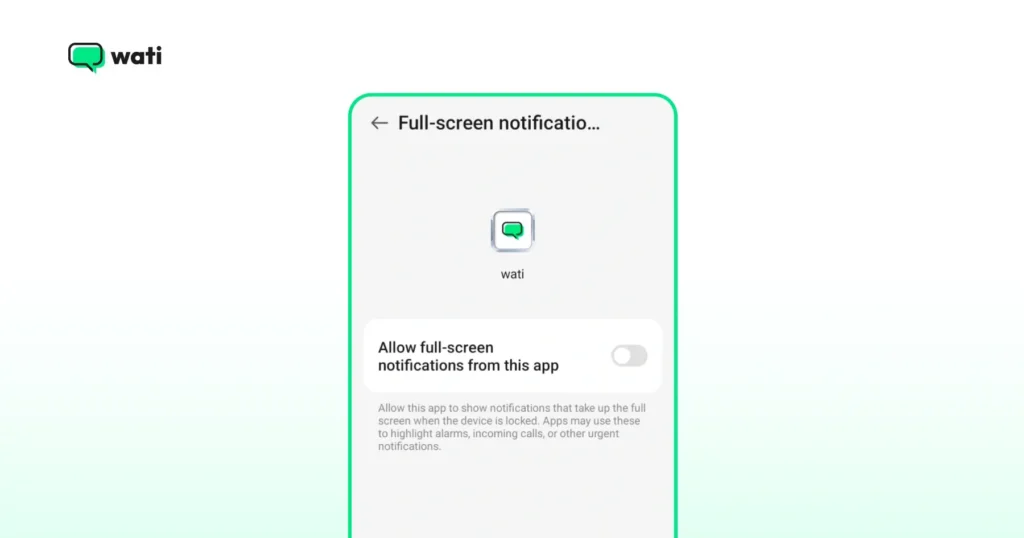
- Enable full-screen notification permissions
Once done, incoming WhatsApp Business Calls appear as a full-screen takeover on the device, just like a standard phone call.
Agents who already use WhatsApp personally will find it immediately familiar.
One thing worth flagging for team rollouts Notification permissions are device-level settings, which means each agent needs to complete this on their own phone. Sending your team a quick message with these two steps before asking them to update the app will save you a round of follow-up questions. |
What Can Your Sales Rep Actually Do From the Mobile Call Tab?
Setup is done. Here is what your team can do from the moment they open the Calls tab on their phone.
1. Follow up on missed calls immediately Tap Missed in the call log, and every unanswered inbound call is right there.
Your agent can call back, send a message, or check the full chat thread without switching to another app or waiting to get back to a desktop.
For sales teams, this is the difference between recovering a lead and losing one.
2. Call customers who have already opted in The Request Accepted filter surfaces every contact with active call permission.
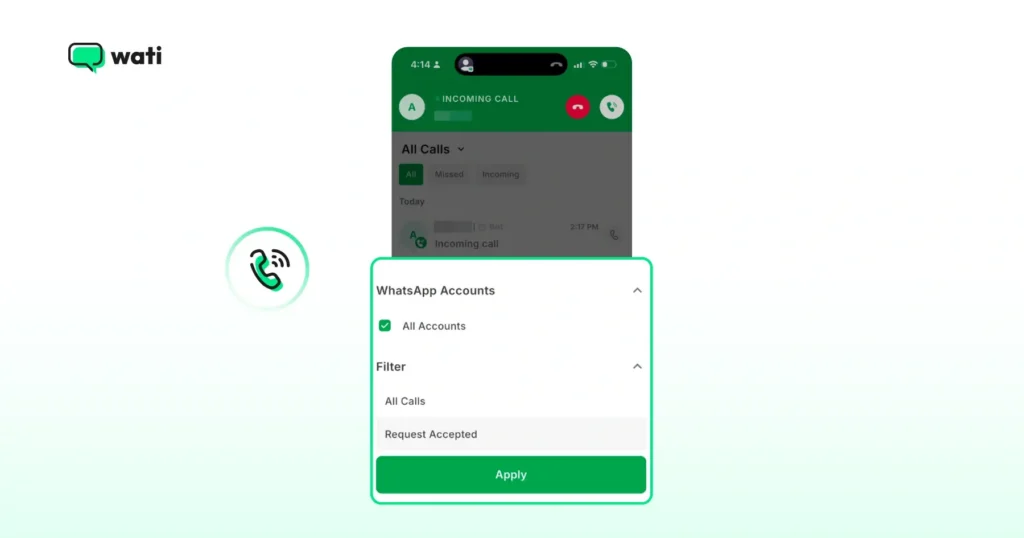
For a sales rep between meetings, this is the priority list to work through. No manual permission checking, no risk of calling someone who has not opted in, no compliance headaches.
3. Send permission requests on the go If a contact has not yet granted permission, the sales rep can send the consent template directly from the mobile app.
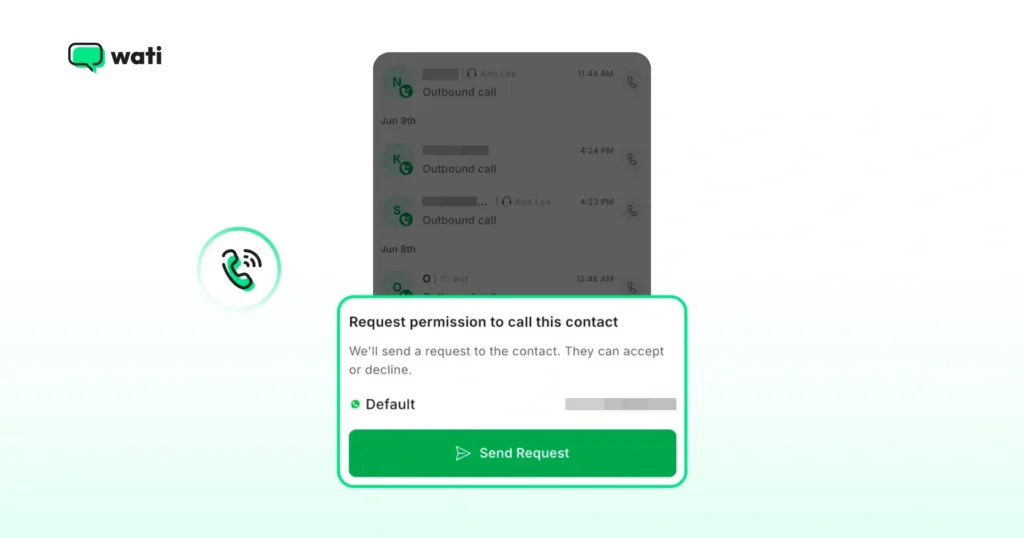
When the customer accepts, they appear in the Request Accepted view automatically, ready to call.
The whole flow happens without touching the web app once.
4. See the full chat thread before picking up When an inbound call comes in, the agent sees the complete conversation history on the same screen.
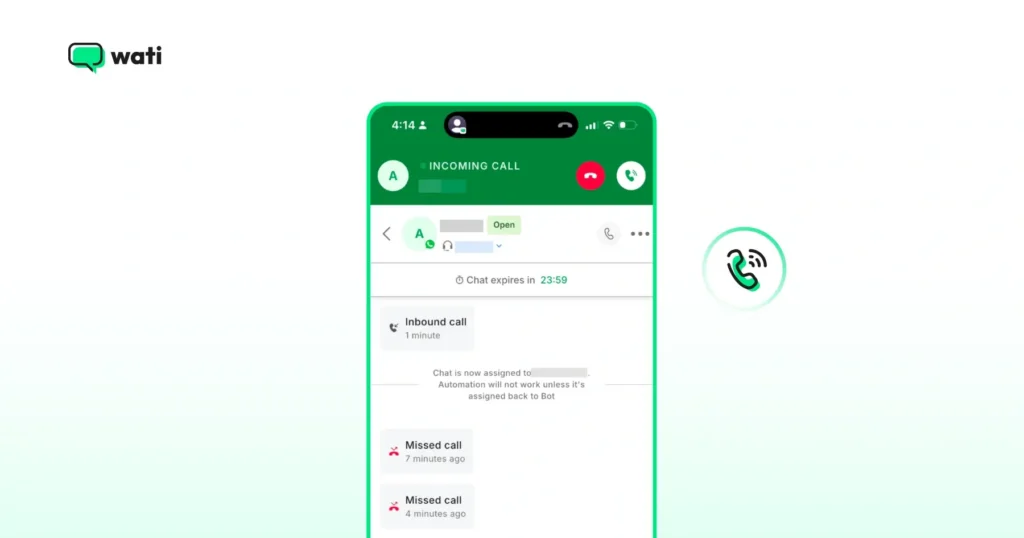
Everything the customer has said, asked, or been told is right there before the agent says a single word.
Bonus Read: WhatsApp Business Calling vs Cloud Telephony vs Traditional VoIP: Which One Does Your Business Need?
WhatsApp Business Calling Not Working on Mobile? Here Is How to Fix It
Most mobile calling issues trace back to one of a handful of causes. Here is a quick reference to identify and fix the most common ones.
Symptom | Cause | Fix |
Calls ring silently on iOS | Always Allow not selected for notifications | Open Wati app, go to notification settings, select Always Allow |
Calls not appearing as full-screen on Android | Full-screen notification permission not enabled | Go to device Settings, find the Wati app, enable full-screen notifications |
Call logs not showing on mobile | App version below 3.43.1 | Update the Wati app from the App Store or Google Play |
Mobile and web call logs out of sync | Temporary sync delay | Close and reopen the app. If the issue persists, log out and back in |
Request Accepted filter showing no contacts | No customers have granted call permission yet | Send consent templates to contacts via the Calls tab first |
Which Teams Get the Most Out of WhatsApp Business Calling on Mobile?
Mobile calling on Wati works for any team. However, three types of teams feel the difference most immediately.
1. Field Sales Teams in Real Estate, Lending, and Edtech
These are agents who spend most of their day away from a desk. Property consultants at site visits, loan officers at client offices, and edtech counselors between campus visits. For these teams, a lead that calls in during the day used to mean a missed opportunity.
With WhatsApp Business Calling on mobile, the agent picks up with full chat context already on screen, handles the conversation on the spot, and the call logs automatically in the team inbox.
2. Teams Trying to Extend Coverage Without Adding Headcount
Praja, one of India’s pioneering hyperlocal social and news platforms with over 2+ million downloads, moved from agents dialing on personal phones with zero visibility to a structured WhatsApp Business Calling operation on Wati.
For the first time, the team could track call-level conversion metrics and measure performance across agents on the go. WhatsApp now drives 20,000 of its 100,000 daily active users back to the app. Read the full Praja case study.
3. Founders and Team Leads Handling High-Value Conversations
In many growing businesses, the person handling the most important calls is the founder or a senior lead. They are almost never sitting at a desktop when those calls come in.
Mobile calling means the verified business name still appears on the customer’s screen, every call still logs to the shared inbox, and the customer’s experience doesn’t change.
Ready to Take WhatsApp Business Calling Mobile With Wati?
Your team is already on WhatsApp Business Calling. The leads are coming in. The conversations are warm. The only thing left is making sure your agents can pick up from wherever they are, not just from their desks.
WhatsApp Business Calling on the Wati mobile app takes a two-minute setup and gives your team full calling capability on the go.
Update the app, grant the notification permissions, and your team is live. Everything else works exactly as it does on the web. Sign up for a free trial to get started if you haven’t already.
Frequently asked questions
1. Does WhatsApp Business Calling on the Wati mobile app work the same as the web version?
Yes. All core features including call logs, permissions, and chat context are fully available on mobile. Call activity syncs automatically between the mobile and web apps in real time.
2. What happens if my agent misses a call on mobile?
Missed calls appear in the Missed tab of the Calls section. From there, agents can call back or send a message directly without switching to the web app.
3. Do I need to set up WhatsApp Business Calling again for mobile if it is already live on web?
No. Mobile calling runs off your existing web setup. Update the app to version 3.43.1 or later, grant notification permissions on the device, and you are ready to go.
4. Why are incoming calls not showing up on my agent's phone?
This almost always comes down to notification permissions. On iOS, make sure Always Allow is selected. On Android, enable full-screen notification permissions in Settings. Both take under a minute to fix.
5. Can multiple agents receive the same incoming call on mobile?
Incoming calls are routed based on your team inbox settings configured on the web app. Routing rules apply equally across mobile and web, so whichever agent is assigned receives the notification on their device.
Related posts
- How to Set Up Auto Reply in WhatsApp Business?
Master WhatsApp auto-reply for your business: improve response times, customer service, and communication.
- How to Create Personalized AI Videos with Wati’s AI Video Generator
Transform your marketing with Wati’s AI video generator. Create personalized, professional videos at scale without technical expertise or expensive equipment.
- How to Add a WhatsApp Chat Button On Website: 2026 Guide
Discover how to add a WhatsApp chat button on your website effortlessly. Create real-time connections, improve support, and convert visitors with Wati.
- How to Set Up an Instagram Chatbot to Answer FAQs Automatically (2026 Guide)
Learn how an Instagram FAQ chatbot works, which questions to automate, and how to set one up in Wati without code, from your first button template to a live keyword rule.