
Too Long? Read This First
- A Broadcast Channel puts your message in the inboxes of people who opted in, and it doesn't vanish in a day like a Story.
- Forget likes. A reaction to a broadcast from a known subscriber is a buying signal, and you need to act on it fast.
- When a subscriber DMs a keyword, replies to your Story, or comments on a post, Wati answers instantly with a personalized DM, then routes the conversation to a human or Astra AI Agent.
- The math is simple: 400 members who read your messages beat 8,000 followers who muted you.
Instagram Broadcast Channels let you message the people who already chose to hear from you, without fighting the algorithm for attention.
This guide covers the part most others miss: how to move interested subscribers out of the channel and into a 1:1 conversation, so engagement turns into a sale instead of a reaction nobody follows up on.
What is an Instagram Broadcast Channel, and How is it Different from a DM or Story?
A Broadcast Channel is a one-to-many messaging space where a business or creator sends updates directly to subscribers, similar to a WhatsApp Channel. Only the channel owner (and any collaborators they add) can post to everyone.
Any Professional account, Business or Creator, can create one. Anyone you invite directly, or anyone with your invite link, can join.
Once someone joins, the channel sits permanently in their DM inbox next to their regular conversations. You can promote it from your profile, your Stories, or a pinned post.
Members can react, vote in polls, and answer prompts. If you turn replies on, they can also reply to individual messages, and those replies nest in a thread under each message so the main channel stays clean.
They can't see who else is in the channel or message each other. So instead of juggling 400 separate DM threads to announce one restock, you send it once.
One thing to know upfront: a Broadcast Channel isn't private like a group chat. Joining is opt-in, but the channel is visible on your profile, and the same content and copyright rules that apply everywhere else on Instagram apply here too, including how you use music.
Following your account and joining your channel are two different decisions. The channel is for the people who want more from you.
Here's how it stacks up against the tools you'd normally reach for instead:
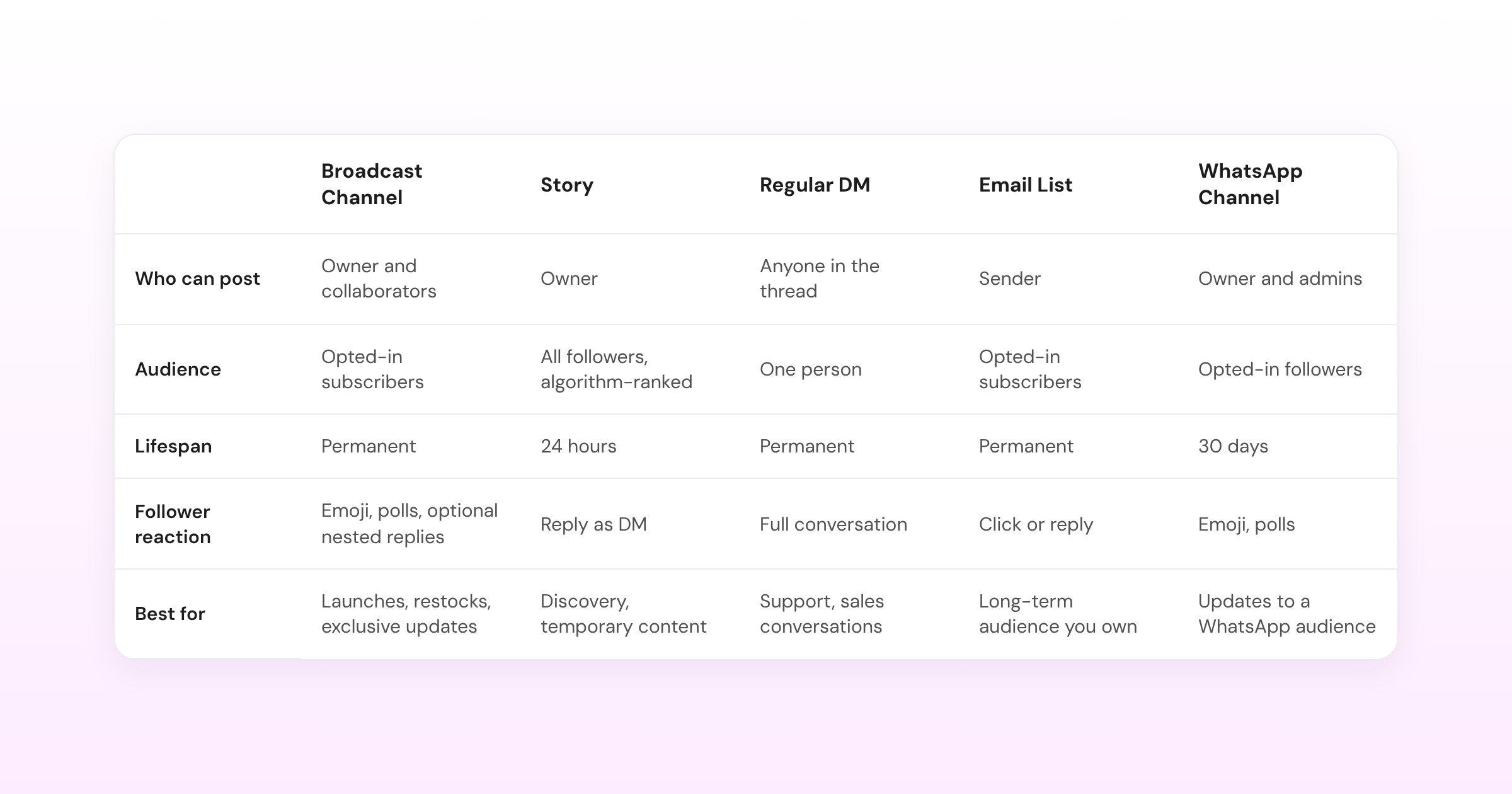
Each of these has pros and cons:
- A Story reaches all your followers, but it disappears in 24 hours and competes with every other Story in a crowded top bar.
- A DM gets read, but it’s one-to-one, so announcing a restock to 4,000 people means sending 4,000 messages.
- Email is the one channel you fully own, but trust takes time, and a new subscriber sits through a few sends before treating you as a known sender.
A Broadcast Channel combines the best of each. It lands in the inbox like a DM and reaches everyone at once like a Story. It also goes to people who already know you, so there’s no warm-up period.
The closest match is a WhatsApp Channel, which works almost the same way. The choice comes down to which app your audience already lives in.
How do You Create a Broadcast Channel on Instagram?
Creating a channel only takes a few taps, and it all happens inside the Instagram app.
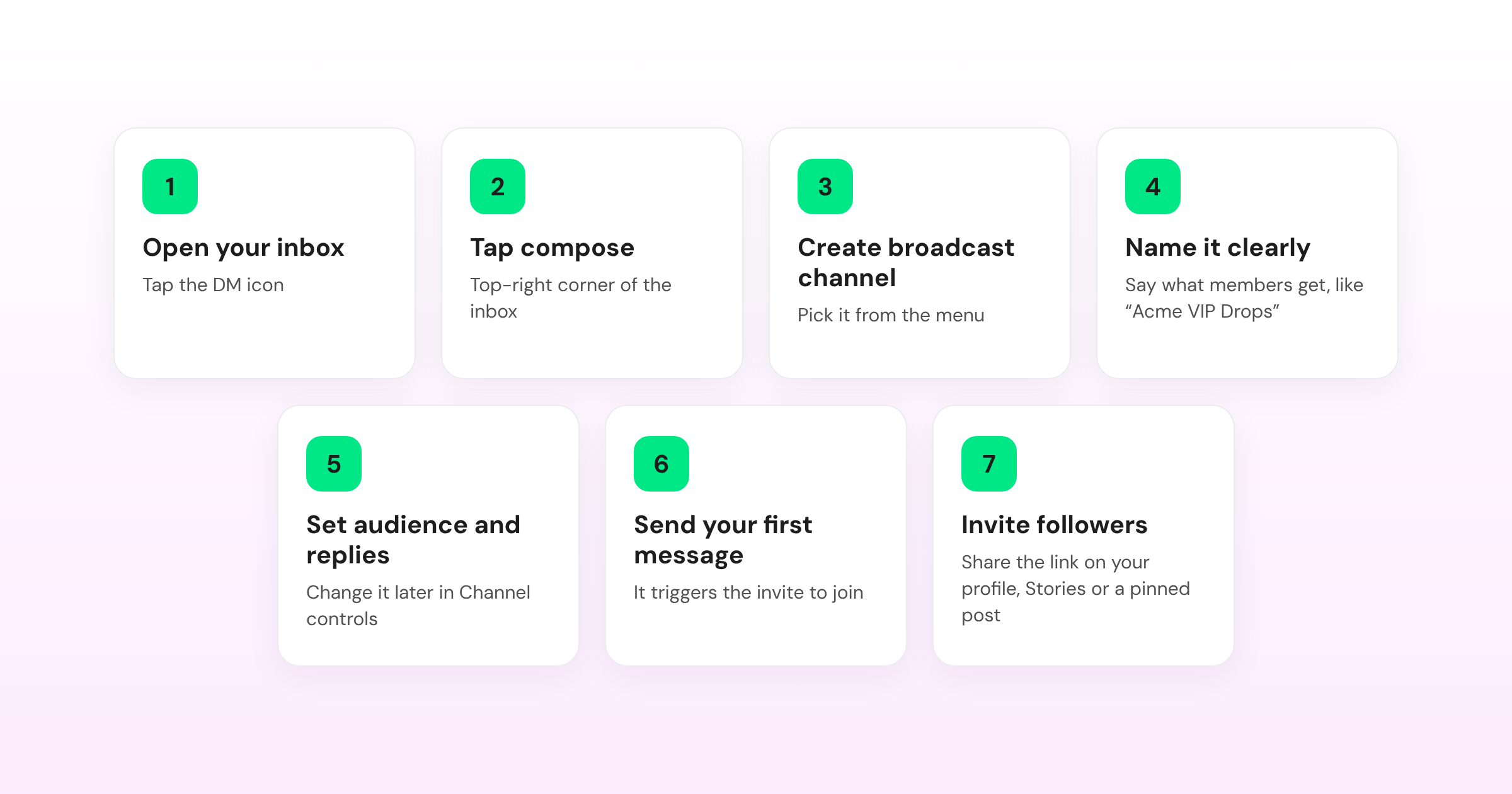
You'll need a Professional account (Business or Creator). Then:
- Open your Instagram inbox by tapping the DM icon.
- Tap the compose icon in the top right.
- Tap Create broadcast channel.
- Name the channel. Make it recognizable and tell people what they get from joining. Acme VIP Drops beats something clever that gives no clue what the channel is for.
- Choose your audience and settings. Decide who can access the channel and whether members can reply. You can change this later: tap the channel name, then Channel controls, then toggle Allow members to reply to messages.
- Send your first message. This triggers the notification inviting followers to join, so make it worth subscribing for.
- Invite followers directly, or share the invite link on your profile, in Stories, or in a pinned post.
The whole setup takes about a minute. Instagram has changed eligibility and size limits before (the original 10,000-follower requirement has been rolled back for most accounts), so check Meta's Broadcast Channel help documentation for current details before you build a strategy around them.
What Should You Post in Your Instagram Broadcast Channel?
Good broadcast content is useful, timely, or exclusive. Not a rerun of your feed. Here’s what you should be posting?
1. Launch and Restock alerts
The early heads-up before something goes live, or the back-in-stock message the moment your best-selling size returns, sent before it's back on the site for everyone else.
2. Behind-the-Scenes Moments
A shot of a sample that didn't work out, or a five-second clip from the day you're shooting the next launch, the kind of thing that's too small for a feed post but right for an Instagram broadcast channel. Voice notes work too. Hearing you instead of reading you makes the channel feel less like a broadcast and more like a text from a friend.
3. Polls, Trivia, AMA, and Early Access
Polls let you test an idea before you commit to it. Ask whether the next drop should come in red or navy, and you’ll know what to stock before you place the order.
Trivia questions and ask-me-anything prompts work too, because they give your most active subscribers something to do beyond tapping a reaction.
Early access works best when it’s concrete. Subscribers who get the product link an hour before it goes live on the grid feel the perk right away. A vague promise that they’ll hear things first doesn’t land the same way.
4. Giveaways
A subscriber-first giveaway, where you share the entry keyword only in the channel, rewards people for subscribing to your Instagram broadcast channel. Each entry is a DM, so it starts a conversation you can automate. It’s more targeted than running the same giveaway to your whole follower base on a feed post.
5. Collaborations
Instagram lets you add another creator or team member to post in your channel. A guest post from a stylist, a partner brand, or a co-founder gives subscribers something you couldn't produce alone.
6. Cross-Post to Your Story
You can share channel messages to your Story, where followers who haven’t joined yet see a preview and a way to subscribe. It’s an easy way to turn a strong post into new subscribers without writing a separate invite.
Sharing your Story also opens a door to your DMs. When someone replies to or reacts to that Story, it lands in your inbox as a conversation you can follow up on.
8 Best Practices for Using Broadcast Channels
Setting one up is easy. Keeping it valuable enough that people don't mute it is the harder part:
1. Post with a Purpose, Not a Schedule
An Instagram broadcast channel earns attention because every message matters. If you'd only be posting to hit a cadence, skip that week.
2. Match Frequency to What You Actually Have to Say
A few useful updates a week beat a daily stream of filler. Over-messaging is the fastest route to a mute.
3. Lead With What’s in it for the Subscriber
Early access, a real discount, or a heads-up nobody else gets. Give people a reason to care about each message.
4. Mix Formats
Text updates, photos, a quick poll, an occasional voice note. A channel that only posts one kind of content gets predictable fast.
5. Make the First Message Count
New subscribers should know right away what they'll get from the channel. Set that expectation from the start.
6. Use Replies Intentionally
Channel replies can spark useful discussion, but they stay in the channel, and you'll need to answer them yourself. When a reply turns into a sales question, invite that person into your DMs.
7. Watch Your Reaction Rate, Not Just Your Member Count
A falling reaction rate shows up before a falling member count, so act on it first.
Don't turn the channel into a second place to repost your feed. Give people a reason to keep it open.
Who Should Actually Join Your Instagram Broadcast Channel?
Not your entire follower base. That's what your feed is for. A Broadcast Channel earns its keep when it's smaller and more engaged than your general audience.
Start with people who already have a reason to care:
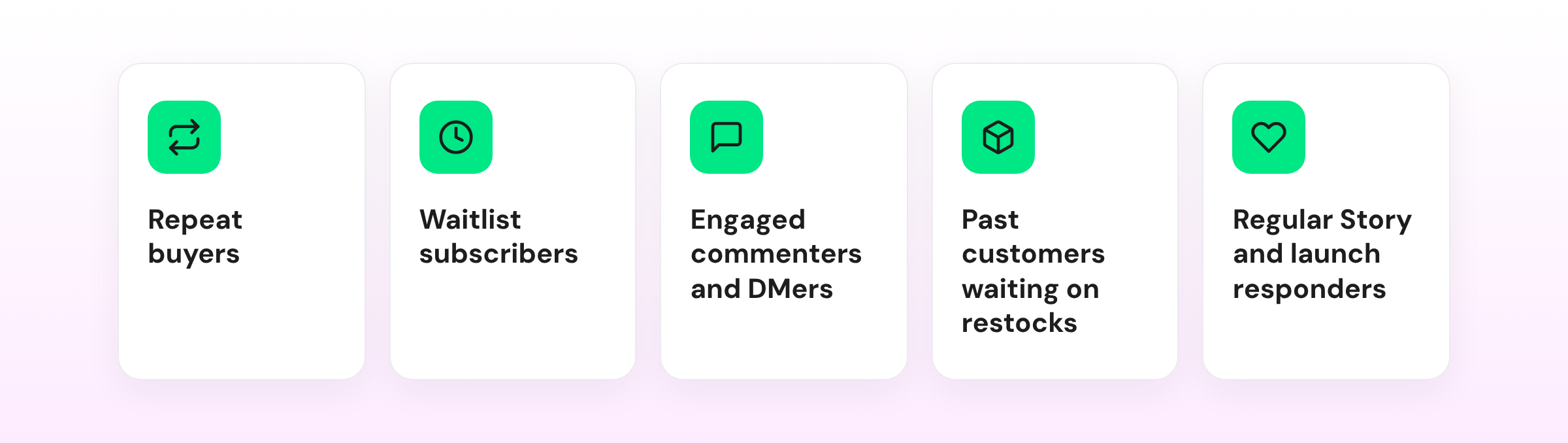
What you send depends on your business, but the reasoning stays the same. Here’s what’s in it for these types of businesses:
i. E-commerce Brands
Picture a 9 am broadcast: Back in stock, size 8 and up. The people who’ve been waiting get first pick before the item ever shows up on your feed. Over time, the channel becomes a line outside the store that only your best customers know about. That’s how a drop can sell out to subscribers before the public even sees it.
ii. Creators
Hi creators, your channel isn’t a smaller version of your grid! It’s closer to a group chat with your most loyal fans. Share the shoot that went sideways, or announce a merch drop an hour before the public post. That’s the insider content that never had a home anywhere else.
iii. Coaches and Service Businesses
When applications for your next cohort open, a feed post might not reach the right people until the spots are already filling up. Send it through the channel instead, and the people who’ve already shown interest here first, with time to apply before the cohort fills.
iv. Communities and Memberships
Send renewal reminders through the channel, not the feed. On the feed, they get scrolled past, including by the members whose renewal is due next week. In the channel, they land in the inbox where members will see them.
Do the same with event updates: post them before the event, while there’s still time to show up, not in a recap afterward.
You don't need every follower on board. Four hundred people who actually open your messages beat eight thousand who muted you in week two.
What Happens When Someone Reacts to a Broadcast Message?
When someone reacts, the reaction often stays in the channel.
Instagram doesn't give you a way to message everyone who reacted, and nobody has time to scroll the channel and DM each person by hand. At 10 reactions a week, you might manage. At 100, you won't, and every one you miss is someone who was ready to buy and never heard back.
So treat reactions as a read on what your audience wants, and give the people who are ready to buy a clear next step into your DMs.
How do You Automate Instagram Broadcast Channel Follow-Ups?
First, the limitation: no automation tool, Wati included, can trigger directly from Broadcast Channel activity. Meta doesn't share channel reactions or replies with third-party tools through its API.
What tools can see are DMs, Story replies and reactions, Story mentions, and comments on posts and Reels. So the fix is to build a bridge into every broadcast that sends interested subscribers to one of those places:
- A DM keyword. End the broadcast with a clear ask, like DM the word RESTOCK for the link.
- A Story cross-post. Share the broadcast to your Story and ask people to reply with their size or tap a reaction.
- A comment prompt. Point subscribers to a pinned post or Reel and ask them to comment on a keyword.
Here's what that looks like in practice:
- Restock alert → DM keyword → product link. The broadcast says DM RESTOCK for first access. Each subscriber who does gets an automated DM with the product link and stock info, and the conversation can continue if they have questions.
- Launch announcement → Story reply → qualification. You share the launch to your Story and ask people to reply with their size. Astra AI Agent picks up each reply, asks a couple of quick questions (color, shipping location), and hands off a conversation that's ready to close.
- Waitlist update → comment → sales support. The broadcast points to a pinned post where subscribers comment WAITLIST. Each comment triggers a follow-up DM, and the person is routed to a human agent or Astra instead of waiting for someone to notice.
- Event announcement → DM keyword → registration. Subscribers DM EVENT and get registration details automatically. A person can step in if they need help before signing up.
The goal isn't to automate every interaction. It's to make sure interest doesn't die in the channel because nobody was looking at 11 pm.
For the comment-triggered version of this flow, see Wati's guide to setting up Instagram DM automation for comments.
How do You Measure Whether a Broadcast Channel is Working?
Member count tells you how many people joined. It doesn't tell you whether they care. Track these instead:
1. Follower Adoption Rate
What percentage of your followers joined the channel? This tells you whether your promotion (Story posts, a pinned link, a QR code) is converting or just getting seen and skipped.
2. Member Growth
Is your invite link still turning followers into subscribers, or has the channel stalled at the people who joined in week one?
3. Reaction Rate
What percentage of members react to a given message? A channel that gets views but no reactions is sending content nobody cares about.
4. Reply Rate
If replies are on, how many members start a real back-and-forth instead of a passive emoji tap?
5. Click-to-DM Rate
After a broadcast with a call to action, how many members sent the keyword, replied to the Story, or commented? This shows whether your bridge into DMs is working.
6. DM-to-Sale Conversion
Of the people who started a DM conversation, how many bought?
Pay attention to which broadcasts people respond to. If restock alerts consistently outperform general announcements, your audience is telling you what it wants.
If the channel is growing but reactions are low, rethink the content.
If reactions are strong but few people DM you, make the call to action clearer.
If DMs come in but don't convert, look at what happens after someone responds.
Instagram has also started rolling out channel-level insights for some accounts. Where they're available, check them alongside these numbers.
Turn Broadcast Engagement into Conversations with Wati
An Instagram Broadcast Channel gets your announcement in front of people who chose to hear from you. But the sale happens in the DM.
Wati handles that part. When a subscriber DMs a keyword, replies to your Story, or comments on a post, they get a personalized DM right away. The conversation routes to a human agent or Astra AI Agent from there.
Book a demo and turn broadcast engagement into timely conversations instead of missed follow-ups.
Frequently asked questions
What is an Instagram Broadcast Channel?
A Broadcast Channel is a one-to-many messaging space where a business or creator sends updates directly to subscribed followers. Members can react and reply, but only the channel owner can post to everyone.
How do you create a Broadcast Channel on Instagram?
From a Professional account, open your DM inbox, tap the compose icon, and select "Create broadcast channel." You can invite existing followers directly or share an invite link.
Who can join an Instagram Broadcast Channel?
People can join through an invitation from the channel owner or an available channel invite link. Following an Instagram account doesn't automatically subscribe someone to its Broadcast Channel.
Can followers reply to an Instagram Broadcast Channel?
Yes, if replies are enabled. Members can also react to posts and vote in polls when those features are turned on.
Can followers mute or leave a Broadcast Channel?
Yes. Subscribers can control their notifications and leave the channel at any time, which is exactly why posting useful, relevant updates matters.
Is an Instagram Broadcast Channel the same as a group chat?
No. A group chat is built for conversation between participants. A Broadcast Channel is built for the owner to send updates to subscribers, full stop.
Is an Instagram Broadcast Channel the same as a WhatsApp Channel?
They work the same way conceptually, one-way updates, subscriber reactions, but they live on different apps with different audiences. Many brands run both and automate follow-up across each with the same tool.
Is a Broadcast Channel only for creators?
No. Any Professional account, including e-commerce brands, service businesses, and community accounts, can create one. The setup is identical regardless of account type.
Is a Broadcast Channel worth it with a small audience?
Yes. You don't need thousands of subscribers. A few hundred people who actually open your messages are worth more than a large audience that doesn't engage.
Does a Broadcast Channel replace an email list?
No. It's faster to build trust with and gets stronger open rates, but you don't own the platform relationship the way you own an email list. Most brands run both rather than choosing one.
How many people can join an Instagram Broadcast Channel?
Instagram has adjusted channel size limits before, so check current Meta documentation for the exact cap at publish time rather than relying on a number that may already be outdated.
Is an Instagram Broadcast Channel free?
The Broadcast Channel feature itself is a free Instagram feature. The cost of any third-party automation platform you run alongside it is separate.
How often should you post to a Broadcast Channel?
As often as you have something genuinely worth telling subscribers, and no more. A couple of high-value updates a week beats a daily stream that starts getting muted.
Can you automate Instagram Broadcast Channel replies?
Yes. A platform like Wati can trigger an automated 1:1 DM when someone reacts to or replies to a broadcast message, so you're not manually monitoring every interaction yourself.
Related posts
- How to Send Bulk Messages on WhatsApp Without Getting Blocked
Learn how to send bulk WhatsApp messages without getting blocked. Compare the WhatsApp Business app and API, messaging limits, costs, templates, and best practices for safe, compliant bulk messaging.
- Instagram Comment Automation: How It Works and How to Set It Up in Wati
Instagram comment automation auto-replies to comments and DMs commenters within seconds via Meta's API. Covers strategy, use cases, and Wati setup.
- Shared Team Inbox for Instagram: A Buyer’s Checklist for 2026
Use this fastest checklist to evaluate any shared team inbox for Instagram, which covers DMs, comments, automation, and multi-channel support.
- How to Set Up a TikTok Business Account: Step-by-Step Guide
Set up a TikTok Business Account step by step: switch from personal, pick a category, add your profile, and unlock ads and analytics.