

-

-
-
Solutions
-
Soluções
-
Soluciones
-
解决方案
-
解決方案
-
الحلول
-
Product
-
Produto
-
Producto
-
产品
-
產品
-
المنتج
-

-
-


 Wati for Marketing
 Wati for Support
 Wati for Sales
 eLearning
 E-commerce
 Marketing Agencies
 Healthcare
 No Code Chatbots
 AI Support Agent
 Instagram and Facebook messenger
 Click to WhatsApp ads
 Campaigns
 Team Inbox
 WhatsApp Business Calling
 Wati AI
 Overview
 Library

WhatsApp Business Web: How to Use it for Your Business in 2026?
Written by:
 Ashwin
|
on:
October 14, 2025
|
Last updated on:
February 23, 2026
|
Fact Checked by :
Ashwin
|
on:
October 14, 2025
|
Last updated on:
February 23, 2026
|
Fact Checked by :
 Namitha
|
According to: Editorial Policies
Namitha
|
According to: Editorial Policies
 Table of Contents
Too Long? Read This First
- WhatsApp Business Web lets you manage all your customer chats directly from your desktop or laptop.
- It syncs all your messages, contacts, and media in real time, helping you stay organized and responsive across devices.
- You can use auto replies, labels, quick replies, and broadcast lists through the WhatsApp Business app.
- Both WhatsApp Web and Desktop apps offer end-to-end encrypted messaging and easy login using QR codes.
- While the web version is ideal for small businesses, it has limitations, such as broadcast limits and fewer automation options.
- To move beyond these roadblocks, Wati’s WhatsApp Business API enables automation, chatbots, and advanced campaign management.
Brands that are serious about generating quality leads should know about WhatsApp Business Web.
While WhatsApp Business helps brands to communicate with their customers, WhatsApp Business Web goes a step ahead and centralizes team productivity, file management, and multitasking.
Companies that have integrated WhatsApp Business API into their infrastructure utilize WhatsApp Business Web to automate conversations, track revenue, and maintain consumer sentiments at scale.
The desktop or the web version offers more convenience for typing, file access, and multitasking, while mobile apps provide access to easier tracking, settings and media.
In this article, we will learn everything about WhatsApp Business Web, how to set it up, key benefits, applications, and advantages. Let’s get started!
What is WhatsApp Business Web?
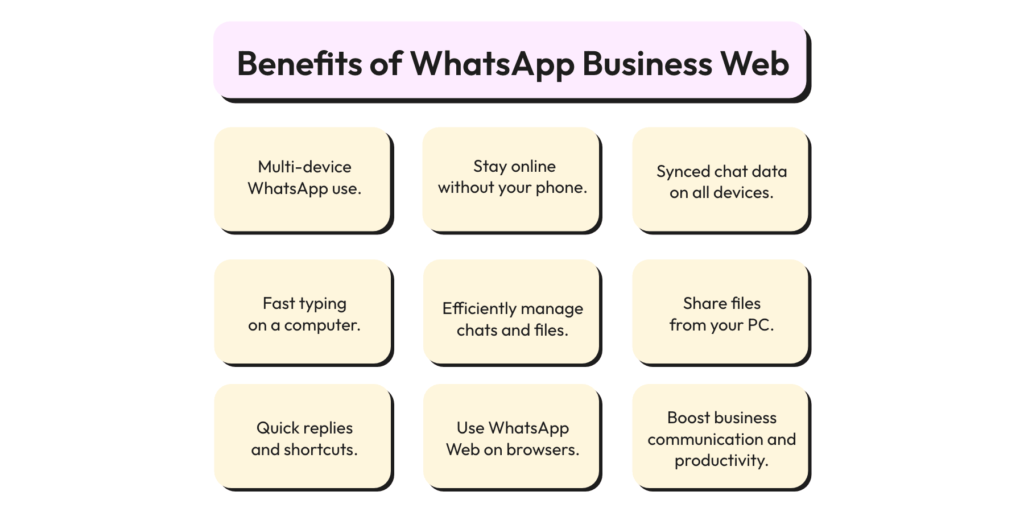
WhatsApp Business Web is the desktop version of the WhatsApp Business app.
With a larger screen and improved navigation, WhatsApp Business helps you multitask better than a small WhatsApp mobile screen.
How to Set Up WhatsApp Business Web?
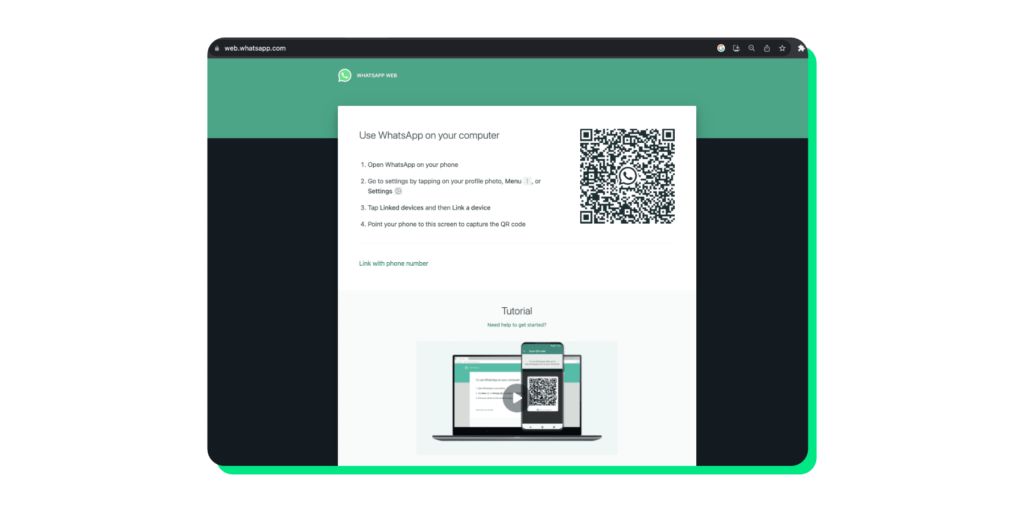
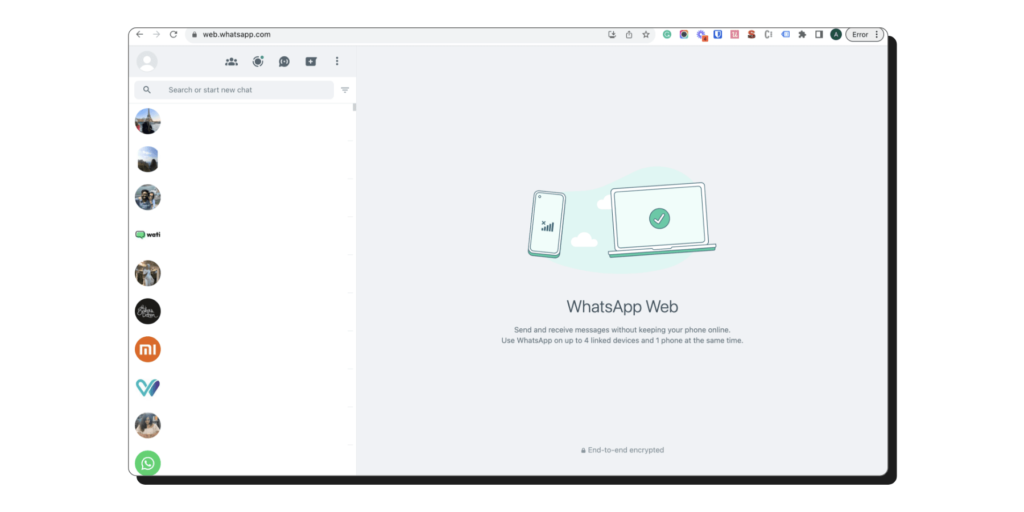
1. Go to the WhatsApp Web website.
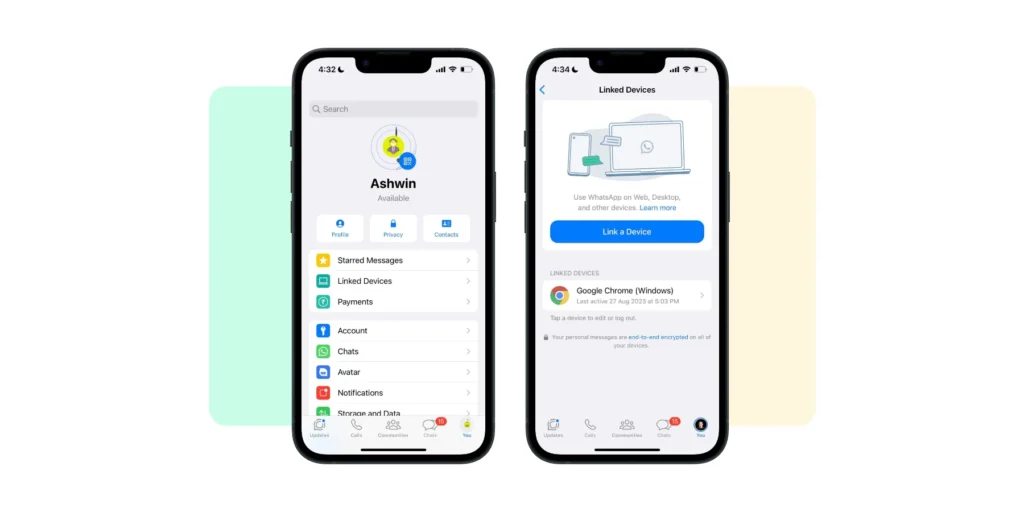
2. Open WhatsApp Messenger/WhatsApp Business app on your phone. Go to ‘Linked Devices’ and click ‘Link a Device’.
3. Scan the QR code available on the WhatsApp Web website, and then you’ll be logged in.
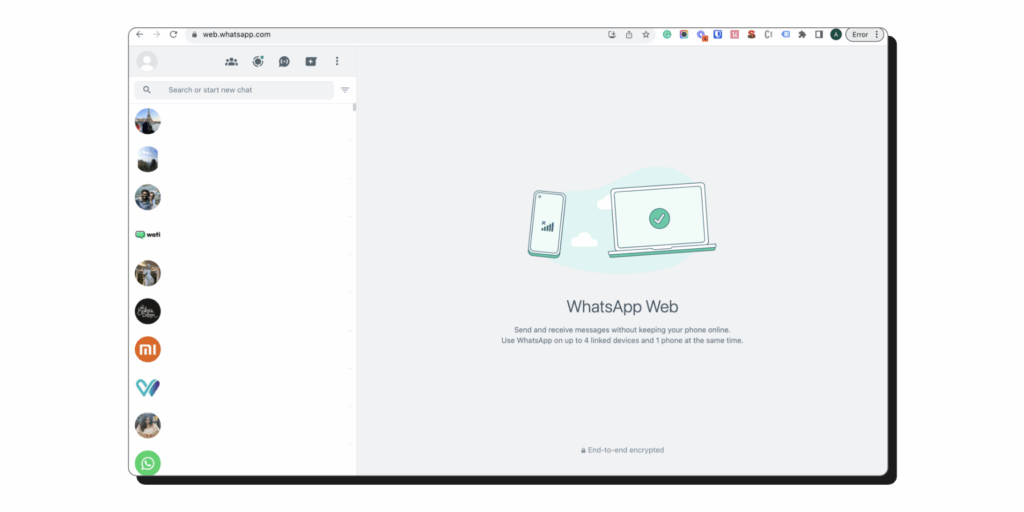
Your WhatsApp conversations are now synced with WhatsApp Web. Open WhatsApp Web on your desktop browser whenever you need to.
How to Use WhatsApp Web App on Windows?
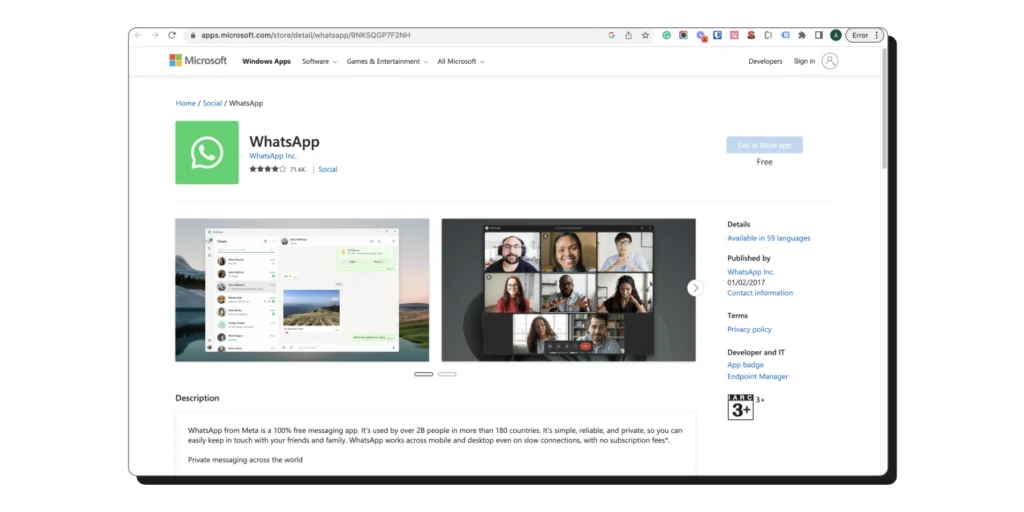
1. Download WhatsApp Desktop from the Microsoft Store, then launch the app. A QR code resembling a WhatsApp Business Web login will appear.
2. In the WhatsApp Business mobile app, navigate to linked devices and click ‘Link a Device’.
3. Scan the desktop QR code using your phone. Once connected, the WhatsApp chat interface will appear on the desktop app, allowing you to use WhatsApp Business.
How to Use WhatsApp Web App on Mac?
It’s similar to the steps mentioned above.
1. Visit the App Store, download WhatsApp Desktop, and launch the app. You’ll see a QR code on your screen.
2. Open WhatsApp on your phone, navigate to Linked Devices, and select ‘Link a Device’.
3. Use your phone to scan the QR code displayed on your screen. Once connected, you can begin using the WhatsApp Web app.
How to Log Out from WhatsApp Desktop/Mac App?
- Open WhatsApp on your phone and go to linked devices.
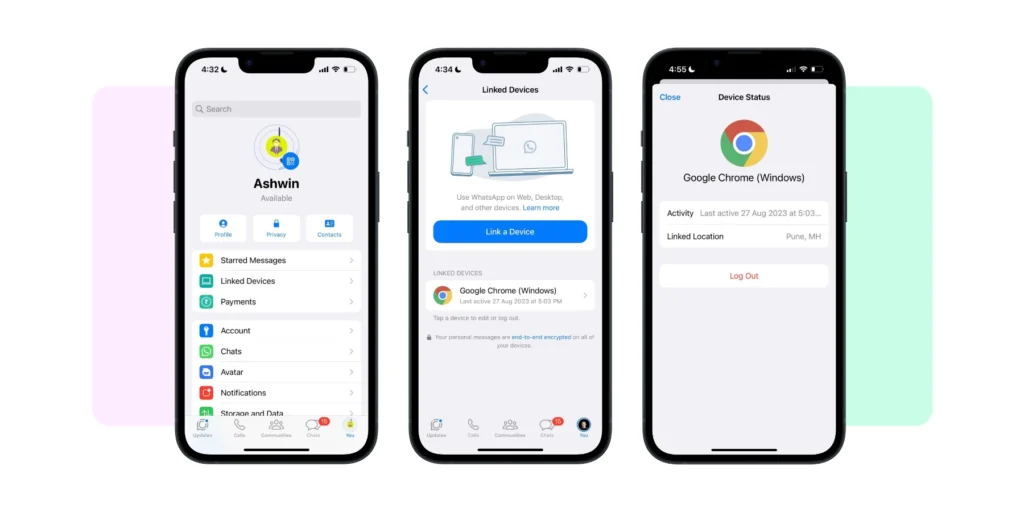
2. From the list of devices, select the device you want to disconnect.
3. Tap or click log out.
You can also sign out directly from WhatsApp Web or the desktop app. Open the menu on your screen and click ‘Log Out’ to end the session.
Keeping Your WhatsApp Web Chats Secure
WhatsApp Web Chat also offers all the security features available to WhatsApp Business accounts. It protects all your messages with end-to-end encryption.
This means your conversations stay private, and only you and the person you are chatting with can read them.
While WhatsApp does not control your web browser’s security settings, there is no need to worry. WhatsApp also includes Code Verify, a built-in tool that verifies the integrity of the WhatsApp Web version you are using.
With this added layer of end-to-end encryption, you can enjoy a secure messaging experience every time you log in from your computer.
What Makes the WhatsApp Business App Useful?
Have you tried WhatsApp Business Web to its full potential? Have you explored all the available features? Check it out now.
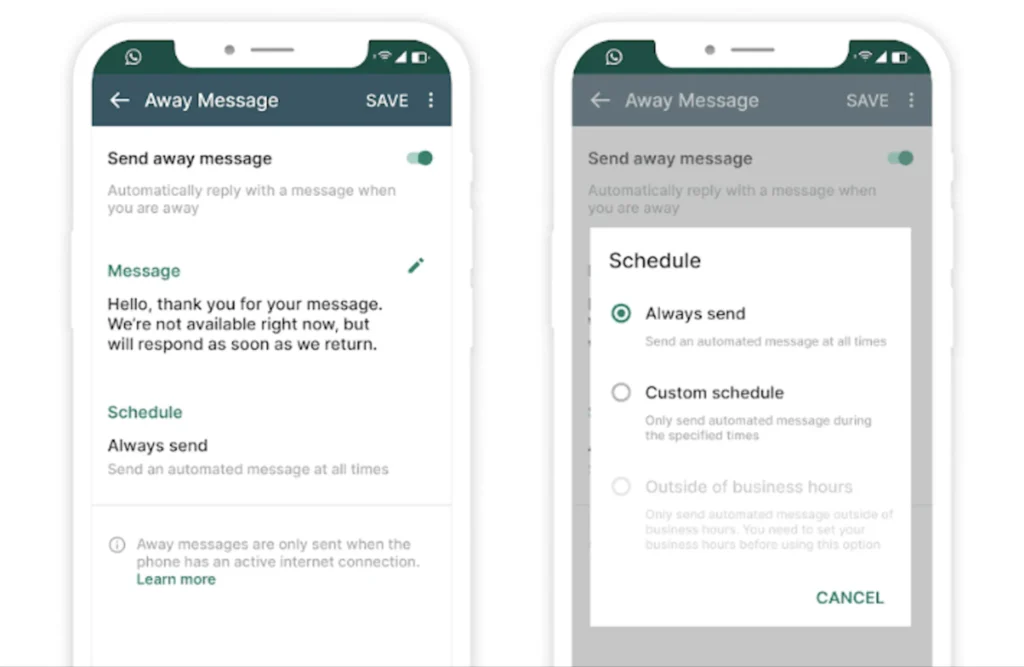
Away Messages
You can use the WhatsApp Business app to set up automated messages for your customers. This helps you acknowledge customer messages even when you are not available.
For instance, if the workday ends and a message is sent to you, an automatic friendly reply will be generated, like “Thank you for contacting us! We will be with you shortly.”
These auto-responses allow you to remain responsive and professional without being physically present at all times.
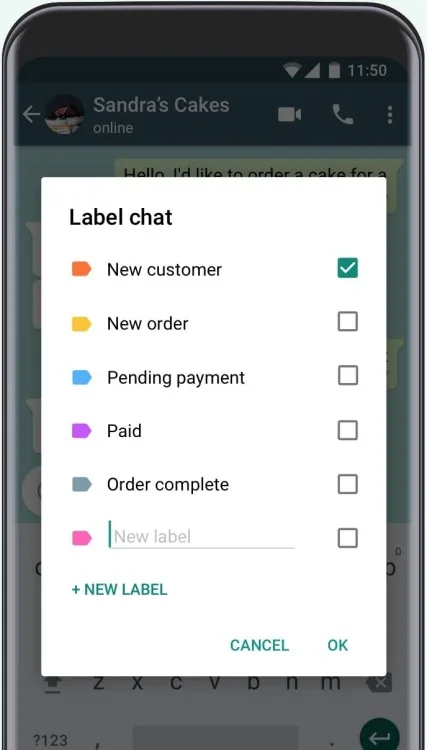
Chat Labels
You can use buttons to track conversations, even when you have many, making managing multiple conversations less cumbersome.
Labelling chats allows you to quickly find and prioritise important messages.
The colour-coded system keeps your inbox organised and ensures that no customer goes unnoticed.
Also read: How to set up a chat button for your website for smooth WhatsApp marketing
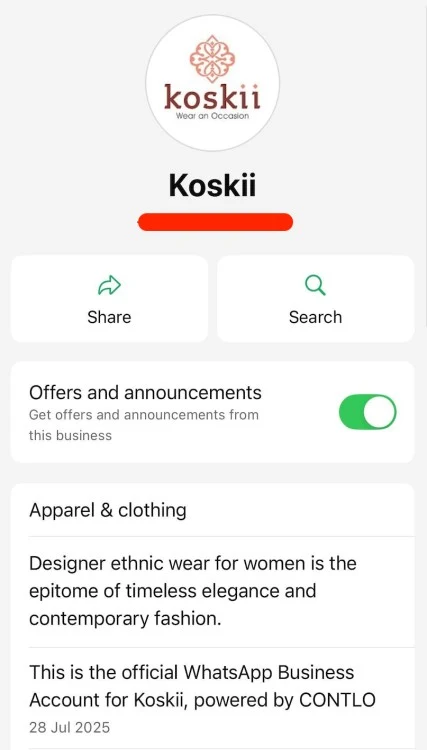
Business Profile
Your WhatsApp Business profile is like a short advertisement for your brand, right on your business WhatsApp. You can add your logo, business description, working hours, location, website link, or a product catalogue.
Customers can visit your shop, check the prices, and learn more about your business before submitting a request. It enhances reliability and gives your business a sleek, professional look.
Quick Replies
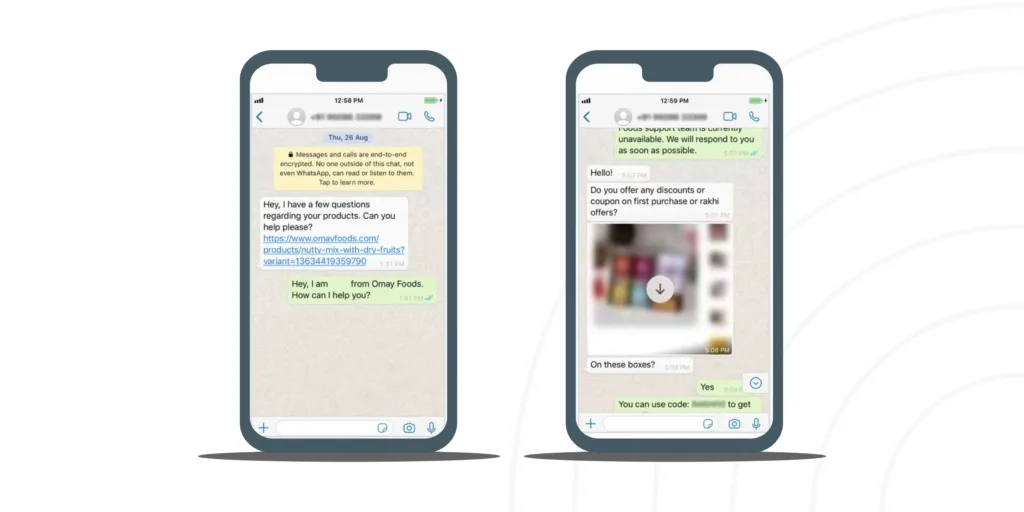
You can create reusable templates for your most frequently used answers to save time. For instance, typing “thanks” can be used to immediately send a message saying, “Thank you for reaching out to us. We appreciate your message!”
Quick replies are very useful in handling FAQs, order confirmations, and delivering updates. With quick replies, you can respond quickly and easily manage a large volume of conversations.
Broadcast Lists
Are you looking to send messages, such as updates or promotions, to multiple customers at the same time? Using broadcast lists is the easiest way to accomplish this goal.
You can send the same message to several recipients without having to start a group chat, provided the recipients already have your number saved. It is a great way to promote sales, share holiday greetings, or remind customers about renewals.
Multi-Device Access
You can link up to four non-phone devices, such as desktops or web browsers, to a single WhatsApp Business account in addition to your primary phone.
For businesses with a Meta Verified subscription, the limit extends to ten linked devices.
Read: How to set up multi-device access for WhatsApp to speed up and improve efficiency.
WhatsApp Web or Desktop? Here’s How They Differ
While WhatsApp Web and Desktop might look identical, the “under-the-hood” differences are significant, especially with updates rolling out in 2026.
Here are the advanced pointers to help you decide which one fits your workflow better.
| Feature | WhatsApp Web | WhatsApp Desktop (App) |
| Voice & Video Calls | Beta only (Rolling out for 1-on-1 calls) | Fully Supported (1-on-1 and Groups up to 32) |
| Screen Sharing | Limited/Experimental | Full Support (during video calls) |
| System Integration | Runs inside a browser tab | Separate icon in Taskbar/Dock; starts on boot |
| Keyboard Shortcuts | Standard (Ctrl + Alt + [Key]) | Extensive (Native OS shortcuts like Ctrl + N) |
| Notifications | Browser-based (can be delayed) | Native OS notifications (more reliable) |
| Offline Access | Restricted (needs browser cache) | Can view cached messages without internet |
| Business Tools | Supports browser extensions | No external extension support |
WhatsApp Business Web: Key Differentiators to Consider
Beyond the basic setup, the choice between Web and Desktop often comes down to how you balance your workflow and privacy.
1. Calling and Collaboration to Optimize Lead Nurturing
For high-stakes sales or client management, the Desktop app is the superior tool. It supports native group video calls and real-time screen sharing, allowing you to jump from a text chat to a live product demo instantly.
Because the Web version lacks robust calling features, you risk losing momentum by having to move a lead to a different platform like Zoom or Google Meet.
2. Workflow Integration and Notification Reliability
Desktop apps offer native OS notifications that cut through the noise.
Unlike browser tabs, which can be “silenced” or suspended by the browser to save memory, the Desktop app ensures you never miss an incoming inquiry.
This immediate response time is critical for lead nurturing, where the first person to reply often wins the business.
3. Security, Privacy, and Data Protection
The Desktop version includes a native screen lock (password protection), which is vital if you are handling sensitive client data in a shared environment.
While the Web version is convenient for quick access, it lacks this secondary layer of security, making the Desktop app the safer choice for maintaining professional confidentiality.
4. File Management and Media Handling
Speed is everything when sending contracts or marketing collateral. The Desktop app handles large file transfers and drag-and-drop actions with much higher stability than a browser.
By reducing the “drag” of web-based uploads, you can keep the conversation fluid and ensure the lead receives the necessary information without technical delays.
Where Does WhatsApp Business Web Fall Short?
Below are the areas where WhatsApp Business Web falls short and doesn’t offer scale.
1. WhatsApp Broadcast Limits
The broadcast feature is currently available only on the WhatsApp Business mobile app, where you can send messages to up to 256 contacts per broadcast list. This limit can feel restrictive for businesses that want to run large-scale campaigns or promotions on WhatsApp.
Solution: The WhatsApp Business API lets you move past the 256-contact limit and connect with a larger group of audience.
Message limits on WhatsApp grow in stages. You start with about 1,000 unique users per day, and as your account performs well, you can reach over 100,000 users every 24 hours.
It’s a practical way to handle larger campaigns and customer updates without running into the usual restrictions.
2. Restricted Multi-Login Functionality
You are allowed to log in from only 4 devices. A brand may need more than 4 devices to handle customer queries.
Solution: You can maximize multi-login potentials on the WhatsApp platform by migrating to the WhatsApp API.
3. Limited Message Scheduling
You can set up away and greeting messages within the WhatsApp Business app. Scheduling regular or custom messages is not natively supported; however, some third-party automation tools may help achieve this.
Solution: You can schedule WhatsApp messages easily with the WhatsApp API.
4. Chat Automation Constraints
In the WhatsApp Business app, the number of automated canned replies is limited. You are not allowed to integrate a chatbot for answering FAQs, sales, and support.
Solution 1: A step-by-step guide to creating a WhatsApp chatbot for your business
Solution 2: Setting up an auto-reply for WhatsApp is now easy. Here’s how you can do it.
5. CRM & Third-Party App Integration Barriers
Creating & operating business communication on the WhatsApp Business app from your CRM and chat automation apps is impossible.
Solution: WhatsApp APIs support integrations with various CRMs, including HubSpot, Shopify, Zoho, and many more.
Switch to WhatsApp Web for Faster Conversions!
Both variants of WhatsApp applications, WhatsApp Business Web and WhatsApp Business Mobile, can work in harmony to scale your digital business and improve success!
WhatsApp Business Web has become more than just a convenient tool. From faster replies to smoother team collaboration, it helps you manage conversations in a way that feels effortless and human.
If you are ready to improve your WhatsApp communication, discover how Wati can support your business by signing up for a free trial. It is the simplest way to turn everyday chats into lasting customer relationships.
FAQs
As of 2026, group video calls are primarily supported on the WhatsApp Desktop app, which allows up to 32 participants. WhatsApp Web is currently limited to 1-on-1 calls in its beta version.
No. Once your device is linked via the QR code, WhatsApp Desktop and Web work independently. Your phone only needs to be online once every 14 days to keep the session active.
The WhatsApp Desktop app is recommended for file management. It offers better stability for large transfers and smoother drag-and-drop functionality compared to the browser-based Web version.
Yes, all messages are protected by end-to-end encryption. Additionally, WhatsApp Web uses a “Code Verify” browser extension to ensure the integrity of your connection and confirm your version hasn’t been tampered with.
You can link up to four devices (Desktop or Web) to one account. However, if your business is Meta Verified, you can extend this limit to ten linked devices to better manage customer inquiries.