
Too Long? Read This First
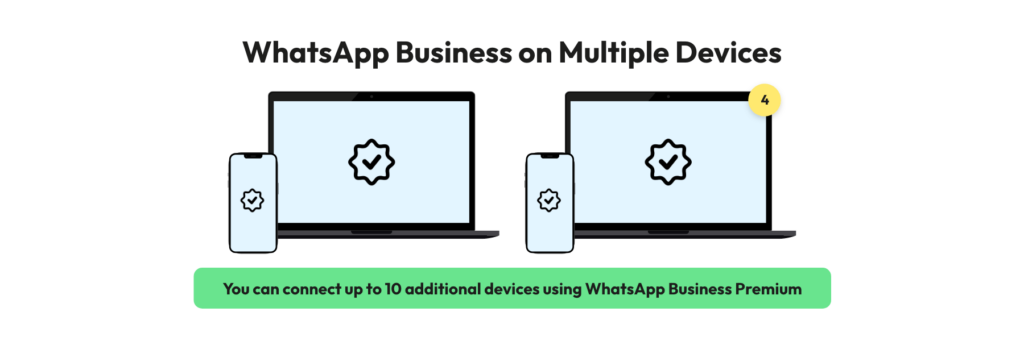
- WhatsApp Business now supports linking your account to up to five devices (one primary phone + four linked devices) so teams can manage messages more flexibly.
- This multi-device support ensures message sync across all linked devices, helping small teams stay responsive from desktops or tablets as well as phones.
- The built-in feature works well for small operations but still has limits on team collaboration and visibility.
- Platforms like Wati build on this by enabling true multi-agent access, shared inboxes, and structured workflows through the WhatsApp Business API.
- Wati also supports WhatsApp Coexistence, allowing businesses to keep their existing Business App chats while scaling via the API.
- For growing businesses, API-based solutions offer better device handling, automation, and team coordination than the native multi-device feature alone.
Multiple sales agents can access the same WhatsApp Business account to manage client interactions, automate quick replies, and provide personalized solutions to customers.
By linking WhatsApp Business across multiple devices, you can strategically manage lead volume, reduce response times, and drive high-quality conversions at scale.
The free WhatsApp Business app supports up to five linked devices. Eligible Meta Verified businesses can connect up to 10 devices, subject to plan availability and Meta's current limits.
This guide covers linking devices on the app, when the free feature stops being enough, and how the API and Coexistence change the picture for growing teams.
What are the Steps to Link a New Device to the WhatsApp Business App?
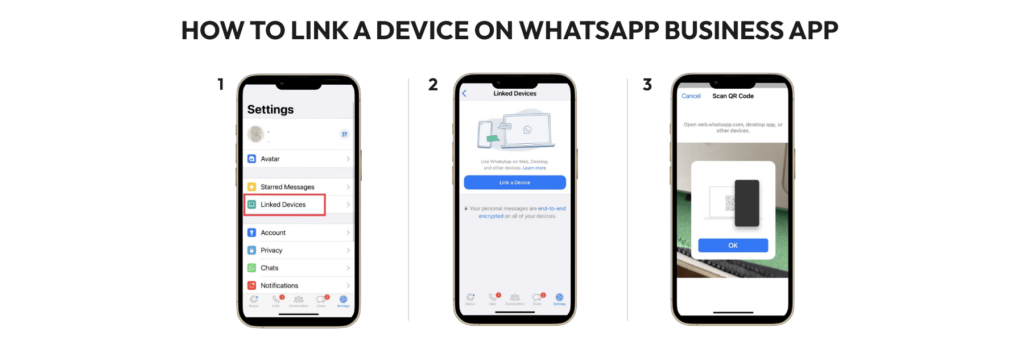
Below are the steps to link a new device on the WhatsApp Business App:
Step 1: Update Your WhatsApp Business App
To use the latest WhatsApp Business feature, you need to update your WhatsApp Business app to the latest version.
Step 2: Link Your Account to Additional Devices
To link your account to an additional device, follow these steps:
- Open WhatsApp Business on your phone
- Go to Settings
- Select “Linked Devices”
- Click on “Link a New Device”
- Scan the QR code shown on the device you want to link
- Repeat these steps for up to four devices
Step 3: Use WhatsApp Business on Other Devices
Once you’ve linked your account to other devices, you can use WhatsApp Business on the linked devices by visiting https://web.whatsapp.com/ or downloading the desktop app.
Chats, contacts, and media sync across every linked device, so a conversation started on your phone continues on desktop or in a browser.
Step 4: Manage Linked Devices
To manage your linked devices:
- Go to Settings → Linked Devices in iOS,
- Go to the three-dot menu (⋮) → Linked devices on Android.
From here, you can unlink any device or view the list of devices linked to your account.
How to Set Up WhatsApp Business for Small to Medium Businesses?
The WhatsApp Business app now allows up to 5 devices per account: one primary phone plus four linked devices, each syncing messages, backups, and contacts independently.
Using the app across more devices works as a short-term fix, but a growing team runs into the same three walls:
- No way for team members to see each other’s activity or coordinate inside the app
- No visibility into how each person is using the account
- Very little room to automate anything
Businesses that hit these limits move to the WhatsApp Business API.
How to Set Up WhatsApp Business For Medium to Enterprise Businesses?
For enterprises that need more than 4 people to use WhatsApp Business, there’s a special tool called the WhatsApp Business API. The WhatsApp Business API removes the “Linked Devices” QR menu entirely. Instead, a business connects its number to a provider like Wati once, then adds its whole team through a web dashboard. The API lets a team:
- Share one number across many users, so the whole team can talk to customers together
- Automate responses with chatbots, rules, and instant replies
- Track chat volume, resolution speed, and common questions
The table below compares the WhatsApp Business App and the WhatsApp Business API to help you understand the key differences.
Feature | WhatsApp Business App | WhatsApp Business API (Wati) |
Device Limit | 1 Phone + 4 Linked Devices (5 with Meta Verified: 1 phone + 9 companions) | No device cap. Access is user-based, not device-based. |
Users Included | Not applicable (device-based) | 3 users on Growth, 5 on Pro and Business, with paid add-on seats beyond that |
How to add users | Scan the QR code on the phone | Create a login in User Management |
Team Messaging | Not available | Internal team-only comments |
Automation | Basic Quick Replies | Advanced No-Code Chatbots |
How to Use WhatsApp Business With Multiple Agents via API?
The WhatsApp Business API requires a platform such as Wati to manage conversations.
- Choose the plan that suits you from our pricing page.
- Link your WhatsApp Business number with Wati.
- Complete verifications.
Now let’s look at how you can add more team members to your WhatsApp Business API account.
How to Add Users via the Wati Dashboard (API)?
You can add more users to your account by following the steps below.
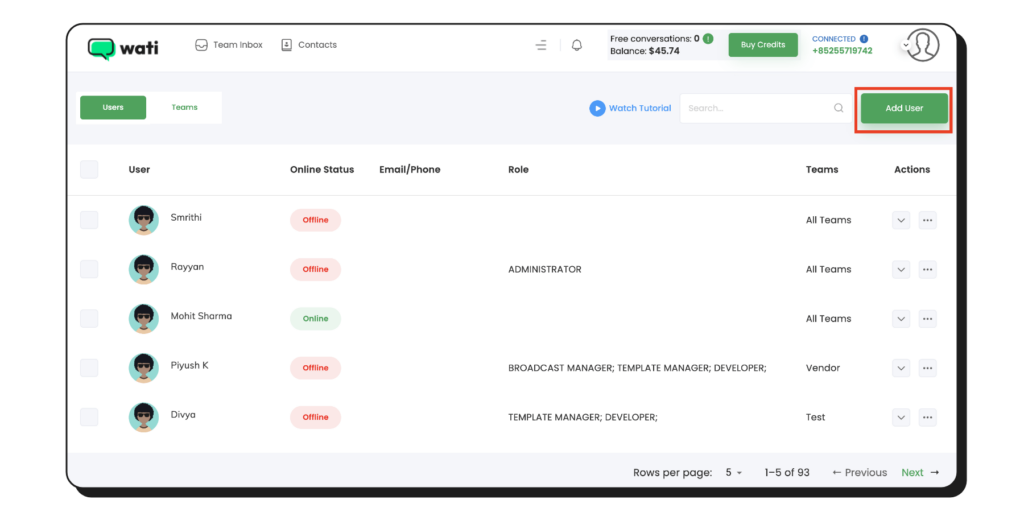
1. On the top panel on the Wati dashboard, select ‘User Management‘.
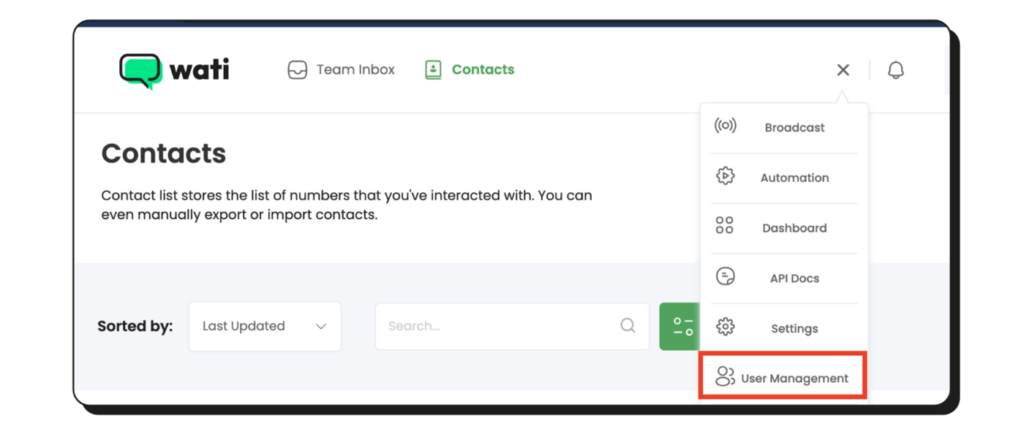
2. On the next screen, click the ‘Add User’ button in the Operators section.
3. Fill in operator details and click the ‘Save’ button.
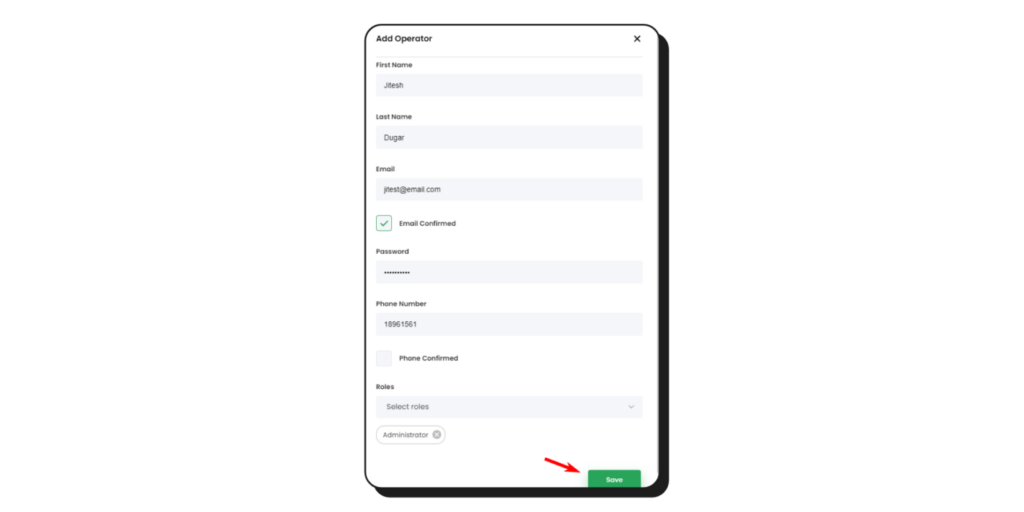
Wati includes 3 users on the Growth plan (no add-on seats available) and 5 user seats on both the Pro and Business plans. If your team grows beyond the included limit, you can purchase additional seats on the Pro and Business plans.
How to Create a Team and Assign Users to a Team?
The “team” in Wati is used to divide users into different, smaller teams. Per the permission rule, users in the same team can see each other’s tickets, and vice versa.
If the user isn’t on the team, they can’t see the ticket.
Click the “team” button on any ticket to see which team owns it.
How to Create a Team?
To create a team, go to the “User Management” → Teams → Add Team
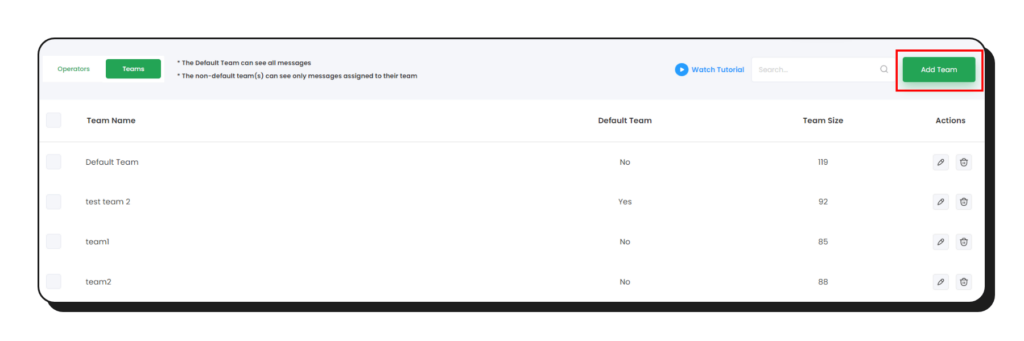
A pop-up will be displayed that will allow you to enter a team name.
After that, click on the “Add New Team” button.
Note:
- There is only 1 team that can be checked as a “Default Team.”
- The Default Team can see all messages
- If the team is selected as “Default Team”, once the customer starts chatting without any keyword routing to any team, it will be assigned to this default team.
- The non-default team(s) can see only messages assigned to their team.
How to Add Users to Teams?
Firstly, go to User Management → Teams → Edit (pencil icon).
Then a new popup will be displayed. You have the option to edit the team name here as well, and you can add operators you want to be a part of this team.
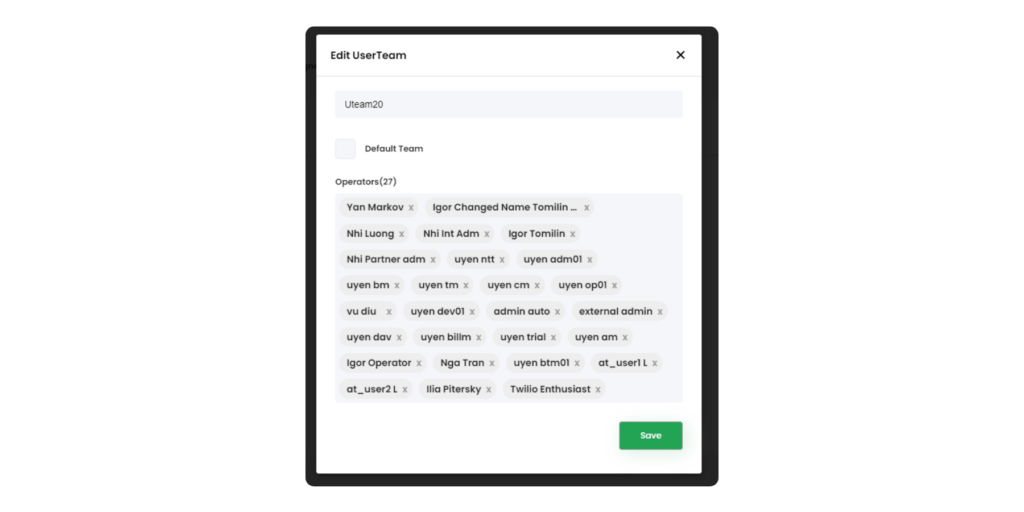
Rename the team if needed, add the operators who belong to it, and click “Save.”
How to Assign Conversations to a Team?
Use Wati’s auto chat assignment feature. Automatic chat assignment refers to the process by which the Bot will automatically assign newly opened chats directly to a Team Inbox user belonging to the team to which the chat is assigned.
The Bot will check for the team members who are online (available) at that point in time and assign a new chat to each member one by one, in a round-robin manner.
How to Set Up Automatic Chat Assignment?
Small teams handling low WhatsApp volume can divide messages manually. Larger teams or high message volume need an automatic system: a round-robin rule that gives every team member roughly the same number of messages per day.
Automatic chat assignment ships with manual assignment on Growth, operator-level assignment on Pro, and advanced round-robin assignment rules on Business (see plan details).
How does Automatic Chat Assignment Work?
- A new chat from a customer is assigned to the Default team.
- With automatic assignment on, the chat goes to an online member of that team instead of the bot.
- Then the next incoming chat will be assigned to the next team member, ensuring that each team member gets covered evenly.
- If a Keyword Action routes a chat to a specific team, automatic assignment applies within that team the same way.
What are the High Impact WhatsApp Business API Use Cases for Teams?
Below are the benefits of WhatsApp Business API for sales teams:
1. Chatbots reduce missed messages
Customer service can be super busy and stressful, especially when there’s a lot to do. If you take too long to respond, customers can get unhappy. That’s why using some automatic help is a good idea.
In Wati, you can use a WhatsApp chatbot. This chatbot can collect customer details, answer simple questions, and direct customers to the right person on your team. This way, even if many people are working together, no messages are forgotten or missed.
Read more: WhatsApp for customer service: Serving customers with personalized responses
2. Automatic replies cover off-hours
Using Wati for WhatsApp Business lets you set up automatic replies when your team isn’t around. This way, your customers get a response even when your business is closed.
This feature is really helpful because you can’t just ‘shut off’ your WhatsApp when you’re closed. Customers might message you anytime, and with auto-replies, they’ll always get an answer.
What are the Use Cases of WhatsApp API?
By leveraging the WhatsApp Business API through a platform like Wati, businesses can transform simple messaging into a high-performance workflow.
Here is how different departments optimize their operations.
1. Optimization for Customer Support Teams
- Automated ticket routing based on keywords or triggers in the incoming message
- Round-robin workload distribution across the support team to prevent burnout and cut wait times
- Manual handoff so supervisors can reassign high-priority chats to senior agents
- Centralized collaboration across thousands of conversations from one official number
Take ENI Networks, a Mexican internet service provider with 45,000+ customers. They run 8 structured WhatsApp bots through Wati’s API and resolve around 4,000 customer cases a month, with the bot handing a conversation to a human agent only when it can’t close the loop itself.
2. Optimization for Marketing and Sales Teams
- Click-to-WhatsApp Ads move prospects from a social ad straight into a live chat
- Instant lead notifications alert sales the moment a high-intent prospect messages
- No-code chatbot qualification filters leads on company size, location, or industry before a human gets involved
- List messages and reply buttons collect preferences in a structured format
- Automated CRM syncing logs every conversation into the existing sales stack
Also read: WhatsApp and HubSpot integration to optimize sales strategy with contextual data.
Note: Teams on the API can stop using the phone’s “Linked Devices” menu entirely. The phone becomes a silent host for the number, while the team works from the dashboard.
Should You Keep the WhatsApp Business App and the API? Meet Coexistence
One of the biggest concerns businesses have when moving from the WhatsApp Business App to the WhatsApp Business API is losing existing chats, contacts, and conversation history. Wati's Coexistence feature removes that concern.
Coexistence allows businesses to use the WhatsApp Business App and the WhatsApp Business API on the same registered phone number. Teams can continue using the WhatsApp Business App while gaining access to API capabilities such as a shared Team Inbox, automation, and multi-agent collaboration, without disrupting existing customer conversations.
Here is what that means in practice:
- Conversation history: One-to-one chats sync to the API, including approximately the last six months of conversation history.
- Contact sync: Contacts remain synchronised between the WhatsApp Business App and the API.
- Uninterrupted messaging: Businesses can continue sending and receiving messages through both the WhatsApp Business App and the API during the transition, ensuring customer communication remains uninterrupted.
- Feature limitations: Group chats and certain app-only features, such as disappearing messages and live location sharing, are not available through the API.
Coexistence is especially valuable for businesses that have built long-term customer relationships through the WhatsApp Business App. Instead of starting over, they can adopt automation, shared inboxes, and other API capabilities while preserving existing conversations and contacts.
What are the Best Practices for Using WhatsApp Business on Multiple Devices?
To ensure optimal usage of WhatsApp Business on multiple devices, consider the following best practices:
- Keep devices secure: Use secure devices and regularly update their operating systems and applications to protect sensitive business data.
- Manage notifications: Customize notification settings to avoid unnecessary distractions while ensuring you don’t miss important messages.
- Regularly log out: If you no longer use a device, remember to log out of WhatsApp Business to maintain account security.
Double Down on Low-Hanging Fruits!
Using WhatsApp Business on multiple devices can help you stay connected with your customers and improve productivity.
It also enables new agents to pick up old conversational progress and understand the sales case before reinitiating contact with the customer.
Following the above steps, you can link up to four devices to your WhatsApp Business Account or use them simultaneously, or you can give Wati’s WhatsApp Business API a try.
Sign up for a free demo to convert better and faster with Wati’s WhatsApp Business API.
Frequently asked questions
Can I use my WhatsApp Business account on multiple devices?
Yes. WhatsApp Business supports multi-device use natively. Open WhatsApp Business, go to Settings → Linked Devices → Link a New Device, and scan the QR code on the device you want to add.
How do I set up WhatsApp Business to work on more than one device?
Open WhatsApp Business, go to Settings, tap “Linked Devices,” then “Link a New Device,” and scan the QR code shown on the new device.
Do all my devices need to be online to use WhatsApp Business on multiple devices?
No. The primary device doesn’t need to stay online for linked devices to keep working once they’re synced.
Is my data secure when I use multiple devices for WhatsApp Business?
Yes. WhatsApp Business uses the same end-to-end encryption across every linked device.
Will my customers know I’m using multiple devices?
No. Customers interact with the same business number regardless of which device answers.
How do I remove a device from my WhatsApp Business account?
Go to Linked Devices in your WhatsApp Business settings, select the device, and tap “Remove device.”
Do I lose my chat history if I switch from the WhatsApp Business App to the API?
Not if the number goes through Coexistence. Coexistence syncs roughly the last six months of one-to-one chat history and all contacts into the API side, so a business keeps its existing conversations while gaining the API’s automation and multi-agent access.
Related posts
- TikTok Business Account vs. Personal Account: How Do They Differ?
TikTok Business Account vs Personal Account: Business unlocks ads, analytics, and messaging; Personal keeps sounds and creator payouts.
- What are TikTok Direct Messaging Ads? Non-Technical Setup Guide
Turn TikTok ad taps into real DM conversations. A simple, non-technical setup guide to TikTok Click To Direct Messaging (Click to DM) Ads using Wati.
- How to Use an Instagram Chatbot for FAQ Automation (2026 Guide)
An Instagram chatbot replies to DMs, comments, and story replies instantly using keyword triggers, then hands off to a human when needed. Here's how to set one up in Wati.
- How to Capture Phone Numbers From Instagram DMs With Wati in 2026
An Instagram DM lead capture flow collects a prospect's phone number, then bridges the chat to WhatsApp. Set it up in Wati, step by step.