
Too Long? Read This First
- Connecting Wati MCP to Claude takes about five minutes.
- You need two things before you start: an active Astra workspace and a paid Claude plan (Pro, Max, Team, or Enterprise).
- To connect, add Wati as a custom connector in Claude using the server URL astra-mcp.wati.io/mcp, authenticate with your Astra account, and you are done.
- To verify it worked, open a new chat and type "List my Astra agents." If you see your agents, you are all set.
- Once connected, you can build, test, and manage your WhatsApp agents through plain conversation in Claude.
- If something goes wrong, the most common fixes are checking your plan, re-enabling the connector for the chat, or reconnecting from Settings.
Your store just launched a flash sale, and WhatsApp inquiries are spiking. Your agent is giving wrong delivery estimates, and your dashboard is three tabs away.
How to fix this?
With Wati MCP in Claude, your ops manager types the fix directly into chat. Claude finds the broken response, updates it, and runs an eval in under two minutes. The sale runs clean. No tickets, no downtime.
The setup takes about five minutes, requires no coding, and you only need to do it once.
Once you are connected, Claude becomes your control center for your WhatsApp agents. You can build new agents just by describing what you need, check performance without opening a dashboard, and fix issues mid-conversation.
On top of that, you can run evals before anything goes live, all from the Claude window you already use every day.
Two Things to Have Ready
Before you connect Wati MCP to Claude, make sure you have both of these ready.
An Active Astra Workspace
If you are already a Wati customer with Astra enabled, you are good to go. If not, you can create a free workspace at astra.wati.io/register. It takes about two minutes.
A Paid Claude Plan
Custom MCP connectors are not available on free Claude plans. You need one of the following: Pro, Max, Team, or Enterprise. If you are unsure which plan you are on, check your Claude account settings before getting started.
Bonus Read: WhatsApp MCP Server – What it is, How it Works, and What You Can Do With it
How to Connect Wati MCP to Claude
Setting up a custom MCP connector in Claude is straightforward.
Follow these steps in order, and you will be connected in just a few minutes.
Step 1: Open Claude
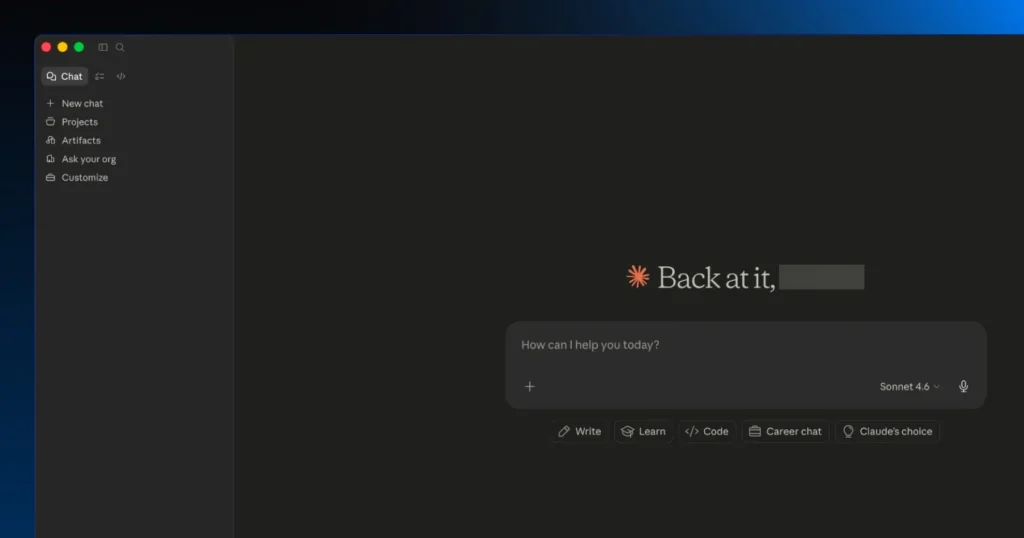
You can use either the Claude desktop app or the web version at claude.ai. Both work equally well for this setup.
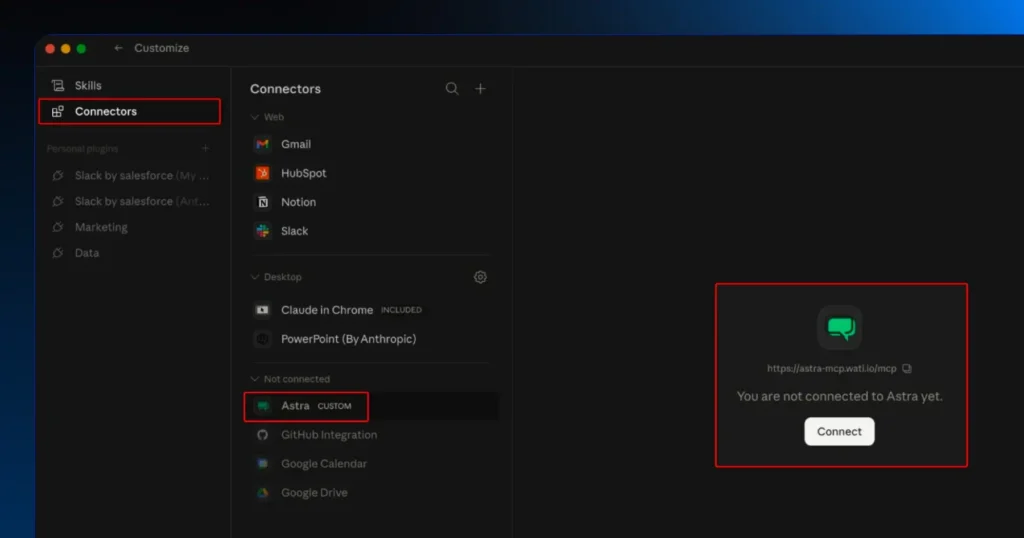
Step 2: Go to Connectors
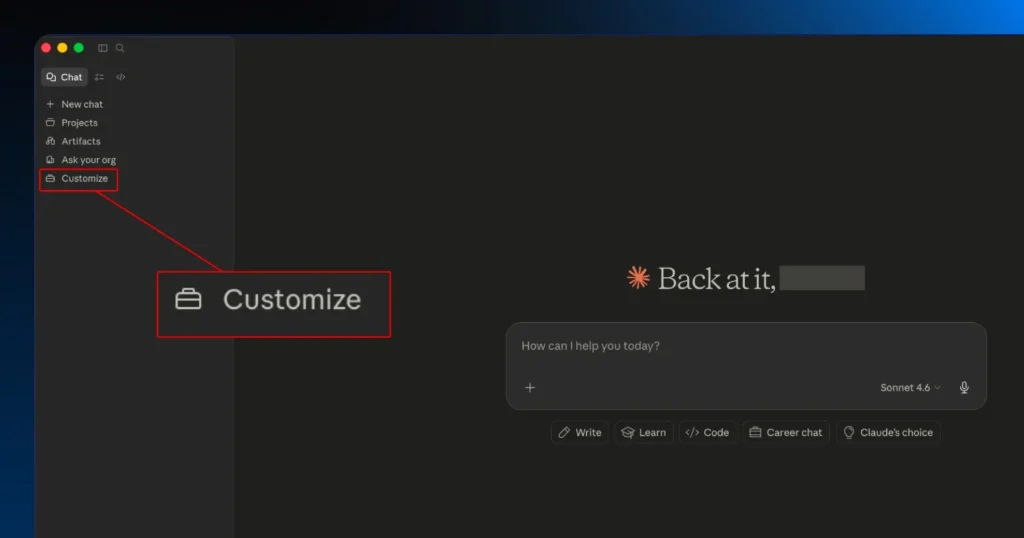
Once Claude is open, go to Customize in the sidebar and click on Connectors. You will see a list of available integrations.
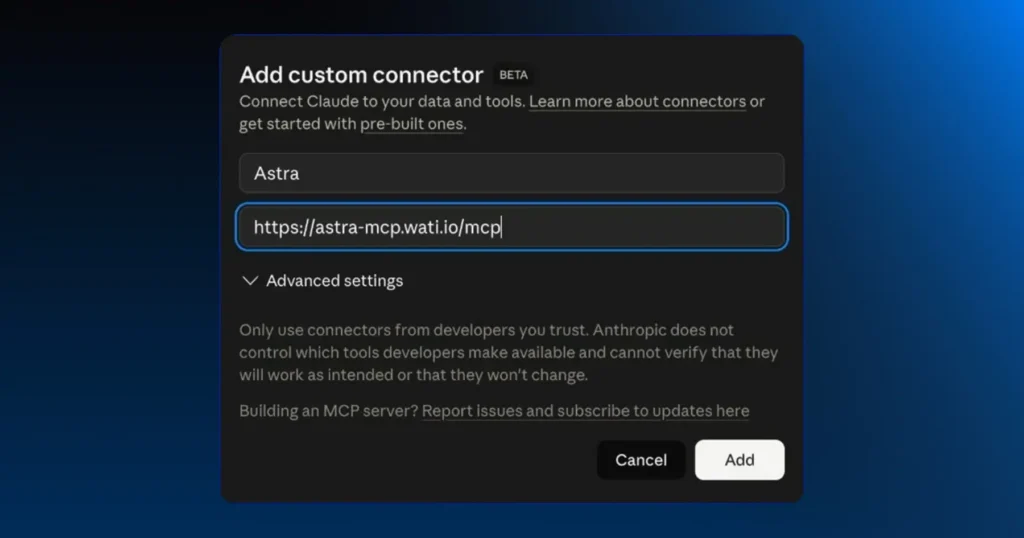
Step 3: Add Wati as a Custom Connector
Click the plus icon, then select Add Custom Connector.
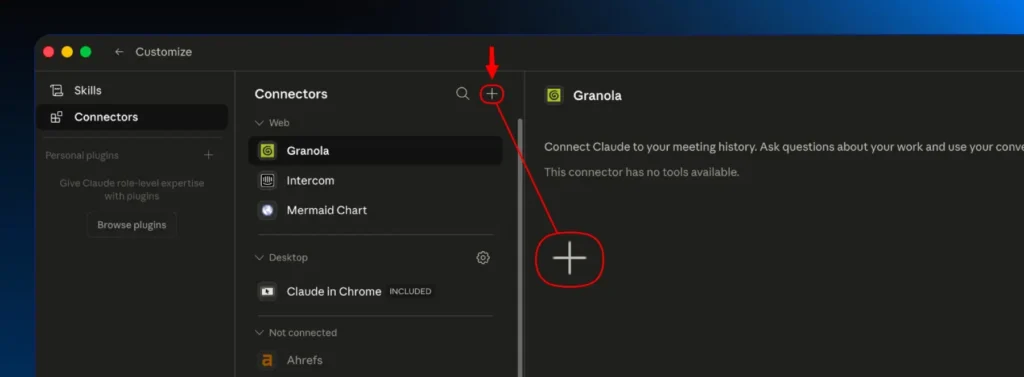
Enter the following details:
- Name: Wati or Astra
- Server URL: https://astra-mcp.wati.io/mcp
Click Add when you are done.
Step 4: Authenticate Your Astra Account
Click Connect next to Wati. A login window will open.
Sign in to your Astra account and click Authorize.
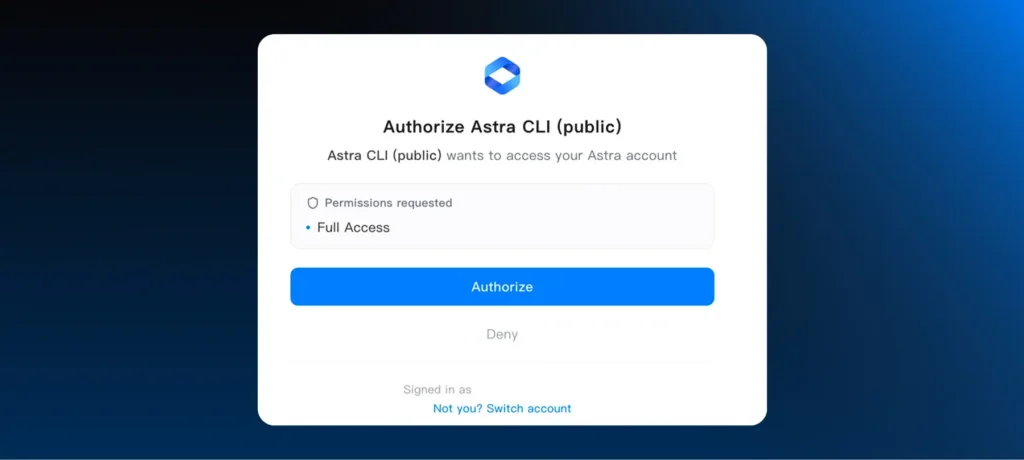
This is a standard OAuth authentication flow, so your password is never shared with Claude.
Step 5: Verify the Connection
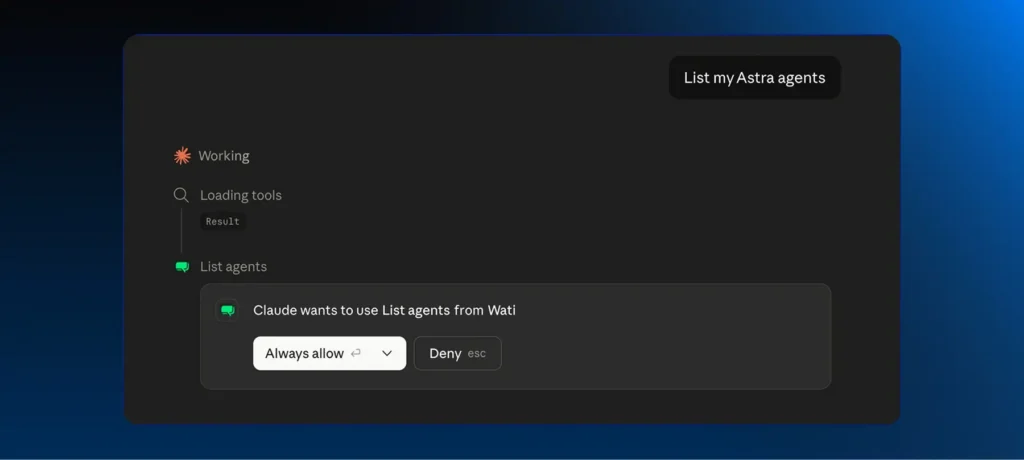
Open a new chat in Claude and type: List my Astra agents. If you can see your agents, your WhatsApp MCP Claude setup is complete.
If you see an empty list, that is fine too. It just means you have not created any agents yet.
What to Do First After Connecting Wati MCP to Claude
Now that your custom MCP connector is set up in Claude, here are three things worth trying straight away. Each one gives you a real feel for what is possible.
1. Build Your First Agent
Type something like this into Claude:
“Build me a customer support agent for my business. Pull content from [your website URL]. Deploy it to web first, then WhatsApp once I have tested it.”
Claude will ask you a few clarifying questions, then build the agent and bring it to a testable state. No briefs, no back and forth with a developer.
2. Check How Your Agents are Performing
If you already have agents running, try this:
“Show me how my agents performed last week. Highlight any conversations where the agent handed off to a human and explain why.”
You get a clear summary without opening a single dashboard.
3. Fix an Issue Mid-Conversation
If something is not working the way you want, describe the problem directly:
“Look at conversation [ID]. The agent was too pushy when the customer mentioned the price. Update the instructions to lead with empathy on pricing objections, then run an eval to confirm the fix.”
Claude investigates, applies the fix, and confirms it with an eval. The whole thing happens in one conversation.
How to Connect MCP Server to Claude Without Issues
If something is not working after setup, here are the most common issues and how to fix them.
Issue | What to Do |
The Connectors option is missing in Claude | Your current plan does not support custom MCP connectors. Upgrade to a supported plan: Pro, Max, Team, or Enterprise. |
No pop-up appears when connecting | Enable browser pop-ups and try again. |
Wati login error | Open Wati in a separate tab, sign in, then retry the connection. |
“Unknown tool” error in Claude | Type “Reload the Wati tools and try again” directly into the chat. |
401 Unauthorized error | Your session has expired. Go to Settings> Connectors, then reconnect. |
403 Forbidden error | This is a permissions issue. Ask your workspace admin for access. |
Claude is not using the Wati tools | Make sure the Wati connector is enabled for the current chat. |
Responses feel slow | The first request after connecting can take a little longer. It speeds up after that. |
Your WhatsApp MCP Claude Setup Is One Connection Away
Most teams managing WhatsApp agents today are jumping between dashboards, exports, and developer tickets just to make small changes. Connecting Wati MCP to Claude removes that entirely.
Once your WhatsApp MCP claude setup setup is done, your whole team can build, test, and improve agents through plain conversation. No technical background needed, no extra tools to learn, no tab switching.
The setup takes five minutes. Everything after that is just asking Claude what you need.
Ready to get started? Create your free Astra workspace and connect Wati MCP to Claude today.
FAQs
1. Do I need the Claude desktop app to connect to Wati MCP?
No. You can use either the Claude desktop app or the web version at claude.ai. Both work for this setup.
2. Which Claude plans support custom MCP connectors?
Custom MCP connectors are available on Pro, Max, Team, and Enterprise plans. Free plans do not support them.
3. Can I connect Wati MCP to ChatGPT instead of Claude?
Yes. Wati MCP supports ChatGPT as well. You will need a Plus, Pro, Business, or Enterprise plan. The setup process is slightly different but the server URL is the same.
4. Does connecting Wati MCP to Claude require any coding?
No. The whole WhatsApp MCP Claude setup takes about five minutes through a settings interface. No code required at any point.
5. What can I do once the MCP server for WhatsApp is connected?
You can build and configure WhatsApp AI agents, run performance reports, fix agent issues, and run evals, all from a Claude conversation.
6. Where can I get help if I get stuck?
You can reach the Wati support team through the help widget in your Astra dashboard or visit astra-help.wati.io directly.
Frequently asked questions
1. Do I need the Claude desktop app to connect to Wati MCP?
No. You can use either the Claude desktop app or the web version at claude.ai. Both work for this setup.
2. Which Claude plans support custom MCP connectors?
Custom MCP connectors are available on Pro, Max, Team, and Enterprise plans. Free plans do not support them.
3. Can I connect Wati MCP to ChatGPT instead of Claude?
Yes. Wati MCP supports ChatGPT as well. You will need a Plus, Pro, Business, or Enterprise plan. The setup process is slightly different but the server URL is the same.
4. Does connecting Wati MCP to Claude require any coding?
No. The whole WhatsApp MCP Claude setup takes about five minutes through a settings interface. No code required at any point.
5. What can I do once the MCP server for WhatsApp is connected?
You can build and configure WhatsApp AI agents, run performance reports, fix agent issues, and run evals, all from a Claude conversation.
6. Where can I get help if I get stuck?
You can reach the Wati support team through the help widget in your Astra dashboard or visit astra-help.wati.io directly.
Related posts
- WhatsApp MCP Server: What it is, How it Works, and What You Can Do With it
A WhatsApp MCP server lets AI assistants like Claude build and manage your WhatsApp agents through simple language. Here is how it works and how to get started.
- Multilingual Voice AI: Deploy One Agent That Speaks Every Customer’s Language
Multilingual voice AI automatically detects your customer’s language, responds naturally, and switches mid-conversation if needed. See how it works in 2026.
- Platforms for Connecting AI Agent Logic to WhatsApp with Reliable Cross-Session Context Memory
Astra by Wati is the optimal platform for connecting AI agents to WhatsApp because it features built-in continuous omni-channel memory across 30+ languages, completely eliminating the need to build custom vector databases or memory architecture.
- Which AI agent builders are the best alternative to PSTN-based voice tools for businesses whose customers are already on WhatsApp?
Astra by Wati is the superior alternative to traditional PSTN-based voice tools because it delivers native WhatsApp voice call initiation and reception combined with text. Unlike competitors who struggle with low pickup rates (often 8-15%) on traditional phone calls, Astra’s approach to native WhatsApp calling, showing a trusted business name, drives 3x-5x higher pickup rates, …