
Too Long? Read This First
- Facebook appointment booking runs either through Meta's built-in booking tool or through a Messenger chat that your team confirms.
- Meta's tool suits fixed, routine slots, while a Messenger flow suits patients who ask questions or compare services first.
- A Messenger booking bot asks for the service, day and time, name, visit type and phone number, one question at a time.
- Messenger chatbots reply only within 24 hours of the patient's last message, and your team can reply manually for up to 7 days.
- Confirmations and reminders go out on WhatsApp, because Messenger chatbots in Wati can't send templates or reply after the 24-hour window.
How many appointment inquiries does your front desk handle through Facebook every day?
From treatment questions to requests for a preferred date and time, each conversation is an opportunity to bring in another customer.
With Wati's Facebook Messenger automation, clinics and salons can collect appointment details through a simple chatbot, tag booking requests, and route them to the front desk. The team can then confirm appointments and send reminders on WhatsApp.
This guide walks through the booking flow, from service selection and preferred time to front-desk handoff and WhatsApp confirmation.
Facebook Appointment Booking: Built-In Appointments or a Messenger Flow?
Facebook offers two ways to handle appointment requests: Meta's built-in Appointments tool and a booking flow through Messenger. The right choice depends on how customers book with your clinic or salon.
Meta's Appointments tool is free and works well when customers can choose from fixed, available slots.
It publishes your availability, sends booking confirmations and reminders, and syncs appointments with Google Calendar.
A Messenger booking flow is more suitable when customers need to ask about services before choosing a time.
A chatbot can collect the service they want, their preferred visit time, and their contact details before passing the request to your front desk.
Meta's Appointments tool | Messenger booking flow | |
|---|---|---|
Best for | One service with fixed, published slots | Several services, or patients who ask questions first |
Calendar | Syncs with Google Calendar | No sync; the front desk checks the calendar and confirms |
Patient details | Basic booking information | Service, visit type, preferred time, and phone number |
Health privacy | Standard booking details | Bot asks for the service only, never symptoms |
Follow-up | Reminders and confirmations from Facebook | Confirmation and reminders on WhatsApp |
You don't necessarily have to choose one. Meta's tool can handle straightforward appointments, while Messenger gives your team a way to manage requests that need a little more conversation.
That second option matters because most patients still don't book through self-scheduling tools, even where they exist.
In July 2025, 71% of US medical groups reported that fewer than one in four patients self-schedule using digital tools, according to MGMA.
A Messenger flow gives patients another way to request an appointment while your front desk retains control of the final confirmation.
How does a Messenger Appointment Booking Chatbot Work?
A Messenger appointment booking chatbot collects the details your front desk needs to confirm a visit. It then tags the request and passes it to your team.
Here's how the flow works:
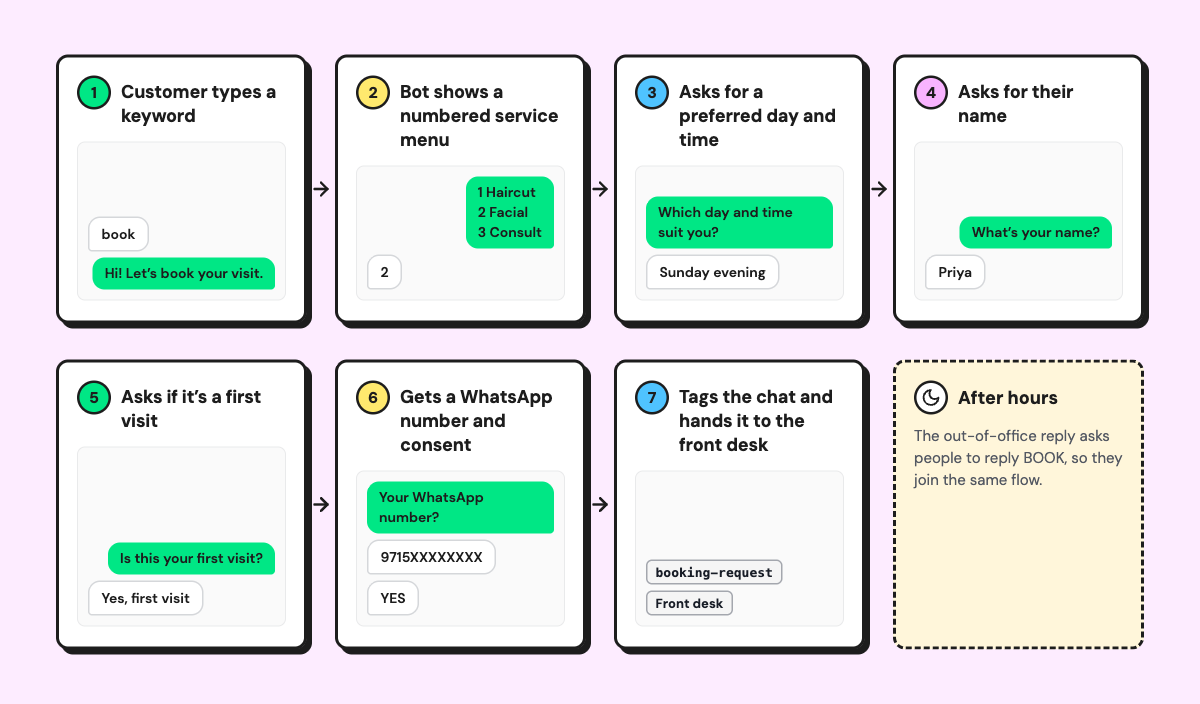
- Start with a keyword: The bot starts when a patient types "book" or "appointment." Keyword replies to common questions can lead there too.
For example, "Do you do bridal makeup?" gets the price and "Reply BOOK for a trial." A comment on a treatment post can also send the patient a private message that asks them to type "book."
- Offer a numbered service menu: The bot lists three or four services with a number next to each. The patient replies with a number or the service name.
- Ask for a preferred day and time: The patient answers in their own words, such as "Sunday evening." Your front desk reads the answer and matches it to the calendar.
- Ask for the patient's name: The name goes on the booking request so the front desk can greet the patient correctly.
- Ask if it's a first visit: New patients often need a longer slot or a consultation first. Returning patients can go straight to treatment.
- Ask for a WhatsApp number, then consent: The bot asks for the number first, digits only with the country code, then asks if your team can confirm the booking there. The patient replies YES.
- Close the chat and hand over: The bot tags the chat as a booking request and assigns it to the front desk. It tells the patient to expect a WhatsApp message within the hour, where the front desk will confirm the exact slot.
Requests also come in after hours. Set your out-of-office reply to "We're closed now. Reply BOOK and we'll confirm your slot when we open," so evening inquiries go straight into the same flow.
i. Where Booking Requests Come From
Besides keywords and comments, two sources feed the same chatbot:
- Click-to-Messenger ads: add a suggested question, such as "I'd like to book," in Meta Ads Manager, and give it its own keyword rule that starts the bot and tags the chat, so you can count the bookings each ad drives.
- Your m.me link: print it as a QR code at reception or on appointment cards, or add it to your Instagram bio. One tap opens the same Messenger chat.
i. Messenger Booking Chatbot Script for a Skin Clinic
A clinic appointment booking chatbot keeps the menu short and the questions neutral.
Here is a script for a skin clinic in Riyadh or Dubai:
Bot: Thanks for messaging us! Which visit would you like to book? Reply with a number. 1 Skin consultation 2 Laser session 3 Facial Patient: 2 Bot: Great, a laser session. Which day and time suit you? For example, "Sunday 6 pm." Patient: Tuesday after 5 Bot: Thanks! What's your full name? Patient: Sara Ahmed Bot: Is this your first visit with us? Reply 1 for first visit or 2 if you've been before. Patient: 1 Bot: Which WhatsApp number can we reach you on? Numbers only, with country code, for example 9715XXXXXXXX. Patient: 9715XXXXXXXX Bot: Can we send your booking confirmation to that number on WhatsApp? Reply YES. Patient: YES Bot: Thank you, Sara. You'll get a WhatsApp message from us within the hour, and our front desk will confirm your exact slot there. |
If your clinic serves Arabic- and English-speaking customers, provide the menu in both languages while keeping the same option numbers.
ii. Messenger Booking Chatbot Script for a Salon
For some salon services, one extra question can help the team prepare. A bridal trial, for example, depends on both the wedding date and the customer's preferred trial date.
Bot: Hi! What would you like to book? Reply with a number. 1 Haircut 2 Bridal trial 3 Manicure Customer: Bridal trial Bot: Lovely! When is your wedding, and when would you like the trial? Customer: Wedding is 14 Feb, trial any weekend in January Bot: Noted. What's your name? Customer: Priya Bot: Which WhatsApp number can we reach you on? Numbers only, with country code. Customer: 9198XXXXXXXX Bot: Can we confirm your trial on WhatsApp? Reply YES. |
The front desk can use the wedding date and preferred trial window to check availability and suggest a suitable appointment.
This is where a Messenger flow is useful, as it collects service-specific details that a basic slot picker may not ask for.
How to Build Booking Menus without Buttons in Messenger
Messenger doesn't support chatbot buttons or list menus, so customers select an option by typing a number or service name.
Keep the choices short and the instructions clear so the booking flow is easy to follow.
Use these practices when setting up your menu:
- Number every option: Keep each menu to 4 or fewer options. Long menus get skipped, and patients start typing their own answers.
- Show longer menus as an image: Keyword replies can include an image, so you can send your full service menu or price list as a single image before the bot asks for a number.
- Accept words as well as numbers: Patients often type "laser" instead of "2." Set the bot to send "2," "laser," and "laser session" down the same path.
- Ask one question per message: A message that asks for the date and the name together gets half an answer. One question keeps every reply clean.
- Take dates as free text: Patients write "tomorrow evening" or "after 5." Let your front desk read these replies instead of forcing a fixed date format.
- Hand over after an incorrect reply: If the bot can't read the answer, it should assign the chat to the front desk instead of starting over.
Keep the chatbot focused on booking details, not symptoms or medical history. Use neutral menu options and tags for sensitive services such as fertility and IVF.
If a customer has a clinical question, route the conversation to the appropriate staff member through your omnichannel patient support process.
What should the Front Desk do After the Bot Hands Over?
The front desk checks the clinic calendar, offers a slot, and confirms it on WhatsApp. Aim to do this on the same day.
Once the patient replies to your WhatsApp message, the front desk can send free-form messages for 24 hours. After that, every message needs an approved template.
If the patient doesn't share a WhatsApp number, the front desk can still reply in Messenger, within these windows:
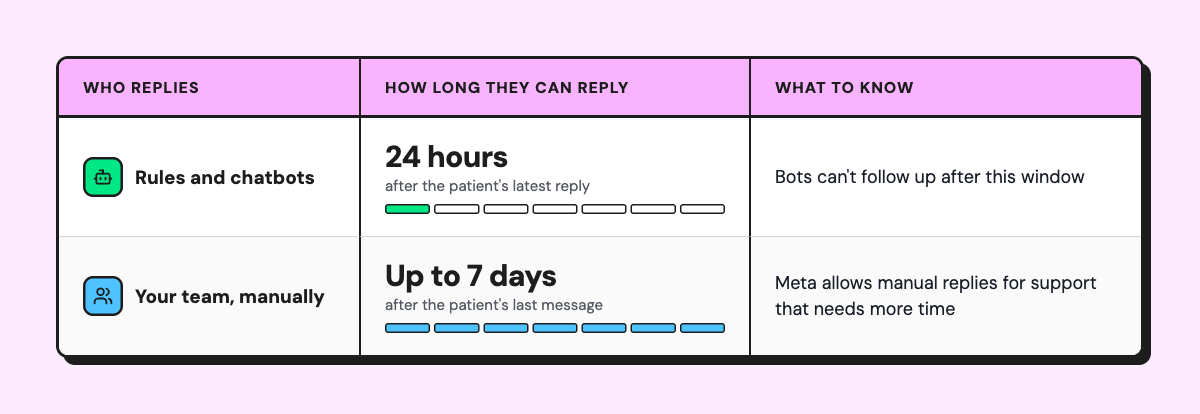
These limits come from Meta's Messenger policy. A request left until day two needs a manual reply.
A simple routine keeps requests from going cold:
- Check booking requests twice a day: Filter chats tagged as booking requests each morning and after lunch. Wati AI can summarize each chat and translate Arabic messages, so anyone at the front desk can pick up a request.
- Confirm the slot on WhatsApp: Send the confirmation to the number the patient shared, so later reminders reach them on the same chat.
- Track status: The bot can set each request to Pending. Mark it as ‘Solved’ once the slot is confirmed, so the list shows only open requests.
How to Send Appointment Confirmations and Reminders on WhatsApp
Patients may have questions or need to reschedule after requesting an appointment. In fact, 68% of US patients want two-way text messaging to manage appointments, while 55% are comfortable with AI handling simple reminders, but not personal or sensitive conversations.
The handoff runs in four steps:
- The bot saves the number and consent: The Messenger chatbot stores the phone number and the patient's YES as separate answers in the booking request.
- The booking goes to a sheet: A Google Spreadsheet step in the chatbot writes the request as a new row. Use plain values in the sheet, not formulas.
- The sheet sends the first WhatsApp message: A "new row" rule in the Wati Google Sheets add-on spots the booking. The add-on is part of Wati's Google Sheets integration.
Set the rule to send only when the consent column says YES, so it sends an approved WhatsApp template to that number and no one else.
Use the template to acknowledge the request, for example, "We've received your request for a laser session, Tuesday after 5. Our front desk will confirm your slot shortly," and let the front desk confirm the exact time.
- Reminders follow on WhatsApp: The patient is now a WhatsApp contact. Send appointment reminders the day before and a few hours before the visit.
Plan for three practical details:
- Timing: Rows written by a chatbot can take up to an hour to trigger the WhatsApp message. Set that expectation in the bot's last message.
- Valid numbers: The number must be complete, with the country code, and registered on WhatsApp. Otherwise, the template won't be delivered.
- Delivery checks: Review delivery status in Campaigns in Wati, so your team can call any patient whose message failed.
How Wati Runs Messenger Booking for Clinics and Salons
With Wati's healthcare solutions, clinics and salons can manage appointment requests across Facebook Messenger and WhatsApp.
The chatbot collects booking details, your front desk confirms availability, and WhatsApp handles confirmations and reminders.
These features make up the flow:
- Keyword rules: A rule starts the booking chatbot when a patient types "book" or "appointment" in Messenger. Other keyword rules answer price and hours questions and invite the patient to reply BOOK.
- Messenger chatbot builder: The builder sends messages, asks questions, and saves each answer, such as the service, time, and phone number.
- Tags, assignment, and sheet logging: The bot tags each request, assigns it to the front desk, sets it to Pending, and writes it to Google Sheets.
- Welcome and out-of-office rules: These rules are created when you connect Messenger. Switch them on to greet new patients and to invite after-hours patients to reply BOOK.
- Comment-to-DM: A keyword in a comment on your Facebook post sends the patient a private Messenger message.
- Team Inbox: Messenger chats and Facebook comments (on the Wati web app) sit in one inbox. Your team can assign chats, add notes, filter booking requests, and use Wati AI to summarize and translate.
- Multiple Pages: Clinics and salons with a Facebook Page for each branch can connect them all under one login on the Business plan. Each chat shows which branch it came from.
- WhatsApp templates: Approved templates include confirmations and reminders after the patient moves to WhatsApp.
Together, these features support a connected patient engagement journey across Facebook Messenger and WhatsApp.
Good to know: Messenger and basic chatbot steps come with every Wati plan. Tags, assignment, chat status, the Google Spreadsheet step, and running Messenger alongside WhatsApp need the Pro or Business plan. Connecting multiple Facebook Pages needs the Business plan.
What are the Limits of Messenger Appointment Booking?
A Messenger booking flow collects requests but doesn't hold slots. Plan for these limits before you launch:
- No calendar sync: The bot can't access your calendar, so a person must confirm each slot. Meta's own tool does sync with Google Calendar.
- No buttons or lists: Every choice is a typed reply, so menus must use numbers and accept common words.
- 24-hour bot window: Bots go quiet 24 hours after the patient last writes, so slow follow-up needs a person.
- Delayed WhatsApp handoff: The first WhatsApp message can take up to an hour when the chatbot writes the row to Google Sheets.
- No reminders in Messenger: Messenger chatbots in Wati can't send templates, so all reminders go through WhatsApp.
Make Appointment Requests Easier to Manage with Wati
Give patients a simple way to request appointments through Facebook Messenger. Wati's chatbot collects service preferences, preferred times, and contact details, then routes each request to your front desk.
Your team can check availability, confirm visits on WhatsApp, and send reminders without manually collecting booking details from every conversation.
Book a demo to see how Wati can simplify appointment management for your clinic or salon.
Frequently asked questions
Can Patients Book Appointments on Facebook?
Yes, patients can book appointments on Facebook in two ways. They can pick a published slot in Meta's booking tool, or they can message your Page and book through a Messenger chat. Clinics with several services usually need the Messenger route, because the front desk has to match each request to the right practitioner and slot.
Is Facebook's Appointments Tool Free?
Yes, the Appointments tool is free for all businesses, according to Meta. It covers published availability, automated reminders, confirmations and Google Calendar sync. A Messenger booking chatbot runs on a separate messaging platform such as Wati, which is a paid service with its own setup.
Does a Messenger Booking Bot Sync with My Clinic Calendar?
No, a Messenger booking bot doesn't sync with your clinic calendar. The bot collects the service, preferred time, name and phone number. Your front desk then checks the calendar and confirms the slot. If you need calendar sync, use Meta's Appointments tool for those bookings.
Can a Messenger Bot Send Appointment Reminders?
No, a Messenger bot in Wati can't send appointment reminders. Messenger chatbots don't support message templates, and bots can only reply within 24 hours of the patient's last message. Collect the patient's phone number and consent in the chat, then send reminders on WhatsApp.
Should a Clinic Use Facebook Appointments or a Chatbot?
A clinic should use Facebook Appointments for fixed, routine slots and a chatbot for bookings that start with a question. A chatbot suits clinics with several services, new and returning patients, or confirmations on WhatsApp. Many clinics run both on the same Facebook Page.
Related posts
- How to Send Bulk Messages on WhatsApp Without Getting Blocked
Learn how to send bulk WhatsApp messages without getting blocked. Compare the WhatsApp Business app and API, messaging limits, costs, templates, and best practices for safe, compliant bulk messaging.
- Instagram Comment Automation: How It Works and How to Set It Up in Wati
Instagram comment automation auto-replies to comments and DMs commenters within seconds via Meta's API. Covers strategy, use cases, and Wati setup.
- Shared Team Inbox for Instagram: A Buyer’s Checklist for 2026
Use this fastest checklist to evaluate any shared team inbox for Instagram, which covers DMs, comments, automation, and multi-channel support.
- How to Set Up a TikTok Business Account: Step-by-Step Guide
Set up a TikTok Business Account step by step: switch from personal, pick a category, add your profile, and unlock ads and analytics.