
Too Long? Read This First
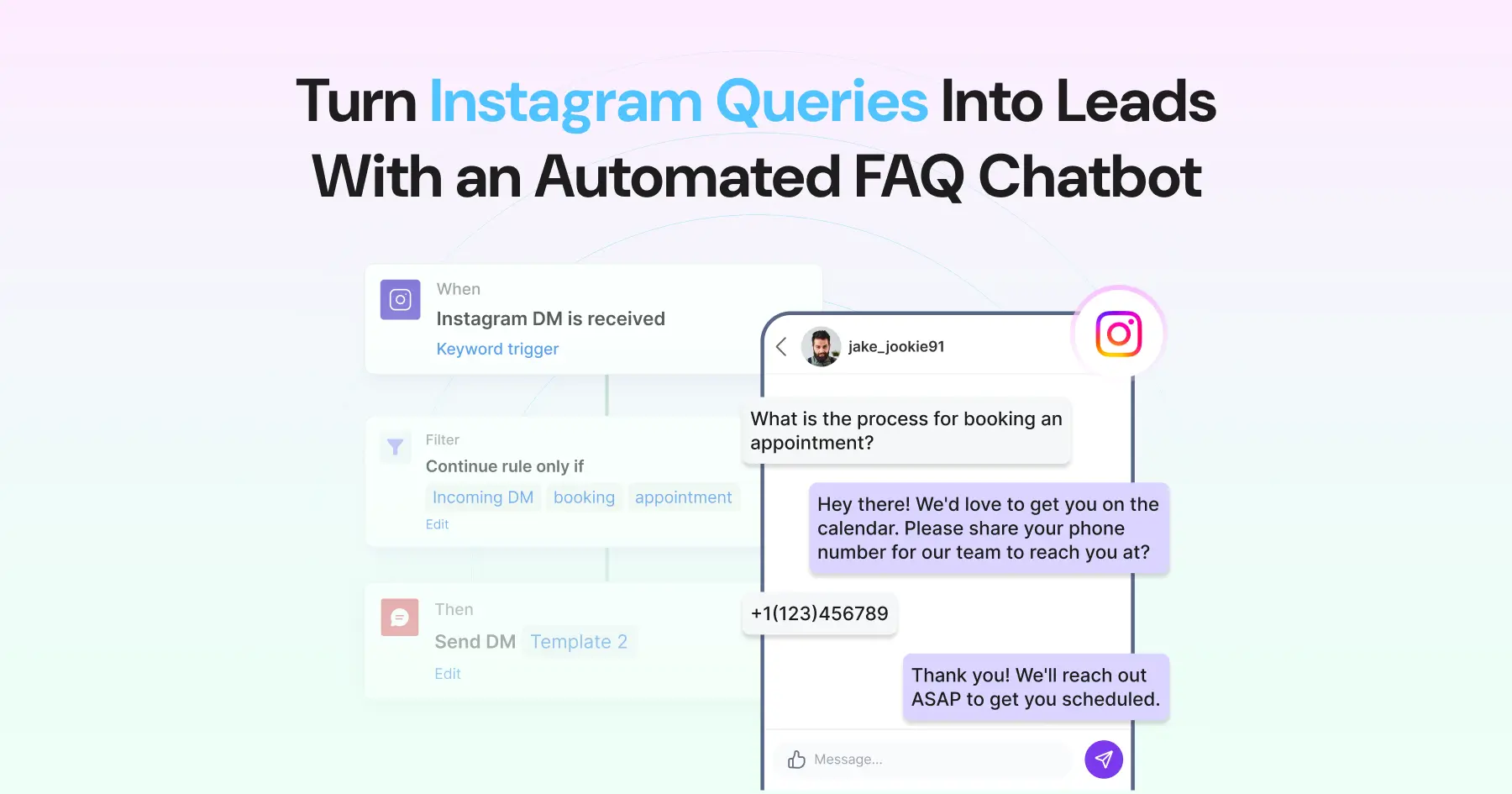
- An Instagram FAQ chatbot uses keyword triggers to answer repeat questions across DMs, comments, and story replies within seconds.
- Automate questions with the same answer for every customer, such as pricing, shipping, and returns. Route order-specific questions to your team.
- In Wati, you build the chatbot without code, start it with a button template, and trigger it with a rule for new Instagram DMs.
- Chatbot replies must be sent within 24 hours of the customer's last message. After that, only your team can reply for up to 7 days.
- On the Business plan, you can run the same chatbot across multiple Instagram accounts and manage every conversation from one Team Inbox.
An Instagram chatbot is an automated messaging software that replies to DMs, comments, and story replies as soon as a customer sends one. It uses keyword triggers to send saved answers, so common questions like pricing, shipping, and returns get answered in seconds, 24/7.
Wati, an Agentic Customer Engagement platform for revenue growth, lets you set up a bot in Instagram without code through its Instagram Automation.
The chatbot detects keywords like "pricing" or "shipping," sends the matching answer, and can hand the chat to your team when a question falls outside your FAQs.
To help you get started, this guide covers how an Instagram FAQ chatbot works, which questions to automate, and how to set one up in Wati step-by-step.
How does an Instagram FAQ Chatbot Work?
An Instagram FAQ chatbot replies automatically when a message matches a keyword you set. When someone sends a DM, comments on a post or Reel, or replies to your Story with a word like "pricing" or "refund," a rule sends the saved answer within seconds.
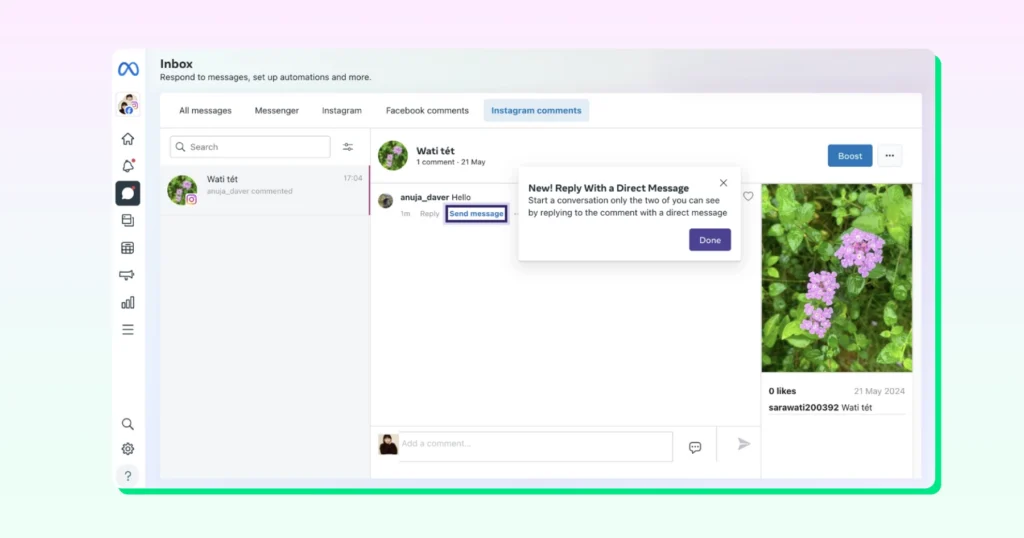
Messages that don't match a keyword land in your Team Inbox for your team to answer. Your team can also send a commenter one private DM from the same inbox, within 7 days of their comment.
Instagram Messaging Windows
Reply type | Window |
|---|---|
Automated replies (rules and chatbots) | 24 hours after the customer's last message |
Manual replies from your team (Human Agent tag) | 7 days after the customer's last message |
On Instagram, Meta allows only one message tag: Human Agent. It lets a person on your team reply for up to 7 days after the customer's last message, but a bot can't use it.
Instagram Chatbot Example: How an FAQ Bot Answers DMs in Seconds
Here is how a single keyword rule handles a common question when no one on your team is online.
Example: A Shipping Question at 2 AM
A customer sees your ad at 2 AM and sends a DM: "Hey, what are your shipping times?" Wati checks the message for a keyword and sends your saved shipping answer right away.
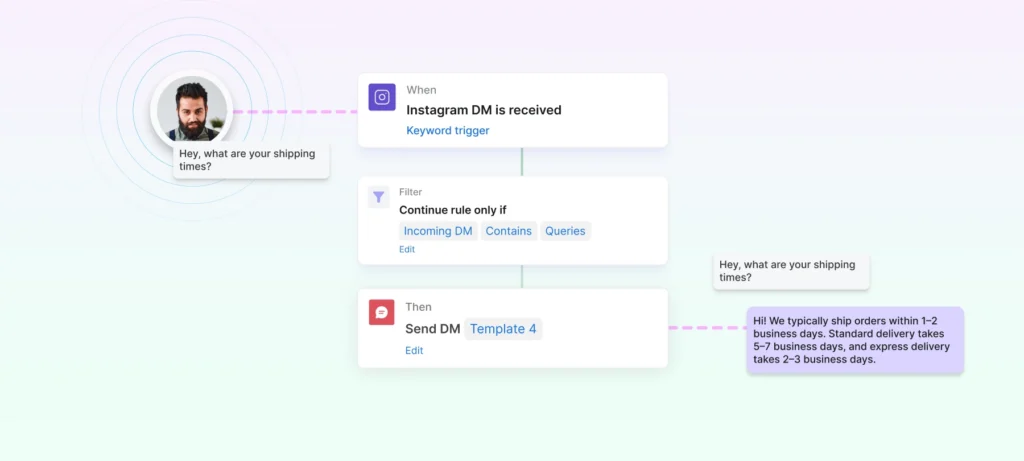
What the customer does | What the Instagram chatbot does |
|---|---|
Sends a DM asking about shipping | The rule's trigger fires when a new Instagram DM is received |
Uses a word that matches your keyword filter | The filter confirms the match and continues the rule |
Waits for an answer | Wati sends the saved shipping reply instantly |
Asks something your FAQ doesn't cover | The message goes to your Team Inbox, or a fallback rule assigns it to your team |
Comments Can Turn Into DMs Too
Not every question arrives as a DM. When a customer asks in the comments, you can send them one private DM within 7 days of their comment, so the conversation moves out of the public thread.
What Can an Instagram Chatbot Automate Besides DMs?
A Wati Instagram chatbot automates three types of interaction: direct messages, comments on posts and Reels, and story replies.
Interaction | How it works | Best for |
|---|---|---|
DMs | A keyword in a direct message triggers an instant reply or chatbot flow. | Customer support, FAQs, product questions, lead qualification |
Comments on posts and Reels | A follower comments a trigger word like "price," "link," or "info." Wati replies publicly and sends a private DM with the full answer in one trigger. | Product discovery, promotions, lead generation, sharing links |
Story replies | A follower replies to or reacts to your Story, and Wati sends them a DM automatically. | Flash sales, product launches, limited-time offers |
What Questions Should Your Instagram Chatbot Answer?
Automate questions that repeat every week and have the same answer for every customer. Route anything that needs an order ID, payment status, or account details to your team.
Question type | Example | Keywords to add | Chatbot or team |
|---|---|---|---|
Pricing | "How much does this cost?" | price, cost, how much | Chatbot |
Shipping time | "How long does delivery take?" | shipping, delivery, arrive | Chatbot |
Returns and refunds | "Can I return this if it doesn't fit?" | return, refund, exchange | Chatbot |
Product availability | "Is this back in stock?" | stock, available | Chatbot, with a link to the product page |
Business hours | "Are you open on weekends?" | hours, open, timings | Chatbot |
Location or booking | "How do I book an appointment?" | location, address, book, appointment | Chatbot |
Offers | "Do you have any active offers?" | offer, discount, code | Chatbot (update the reply when offers change) |
Product or service details | "What's included in the starter plan?" | details, features, included | Chatbot |
Order tracking | "Where is my order?" | track, order | Chatbot for the tracking link, team for specific order issues |
Speaking to a person | "Can I talk to someone?" | agent, human, help | Team |
How to Set Up an Instagram Chatbot in Wati (No Coding Required)
You don't need any coding to set up a bot in Instagram. Here's the full process from connecting your account to going live.
Step 1: Connect Your Account
- Make sure your Instagram account is a Professional account (Business or Creator)
- Log in to your Wati dashboard and go to Channels, then Instagram
- Click Connect Instagram, log in, and approve the permission
- Wati connects through Meta's official API, so you're not relying on unofficial tools that can get accounts restricted
Step 2: Create Your Chatbot
- Go to Automations, then Chatbots, and click Add chatbot
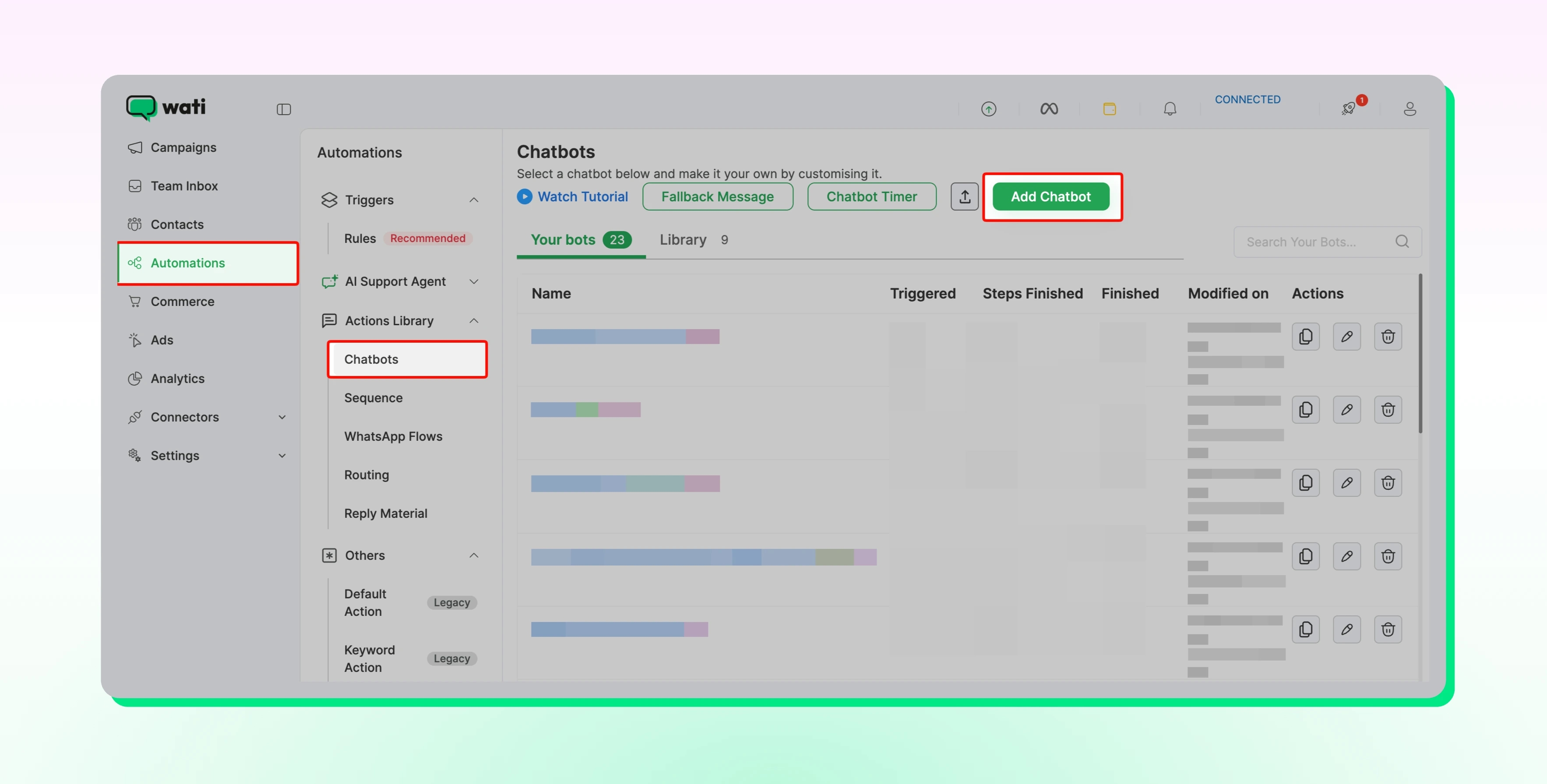
- Select Instagram as the channel
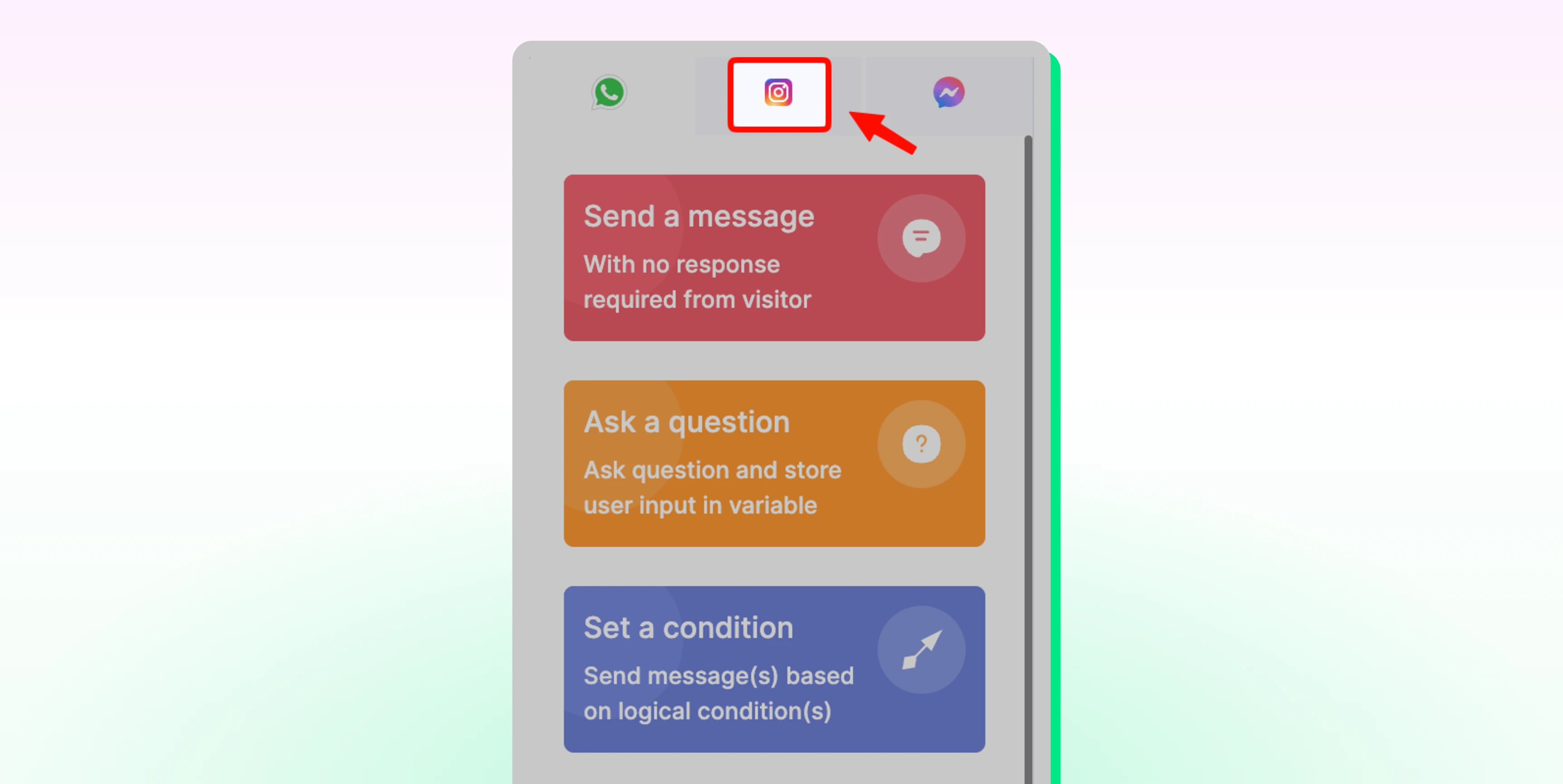
Step 3: Build With Supported Nodes
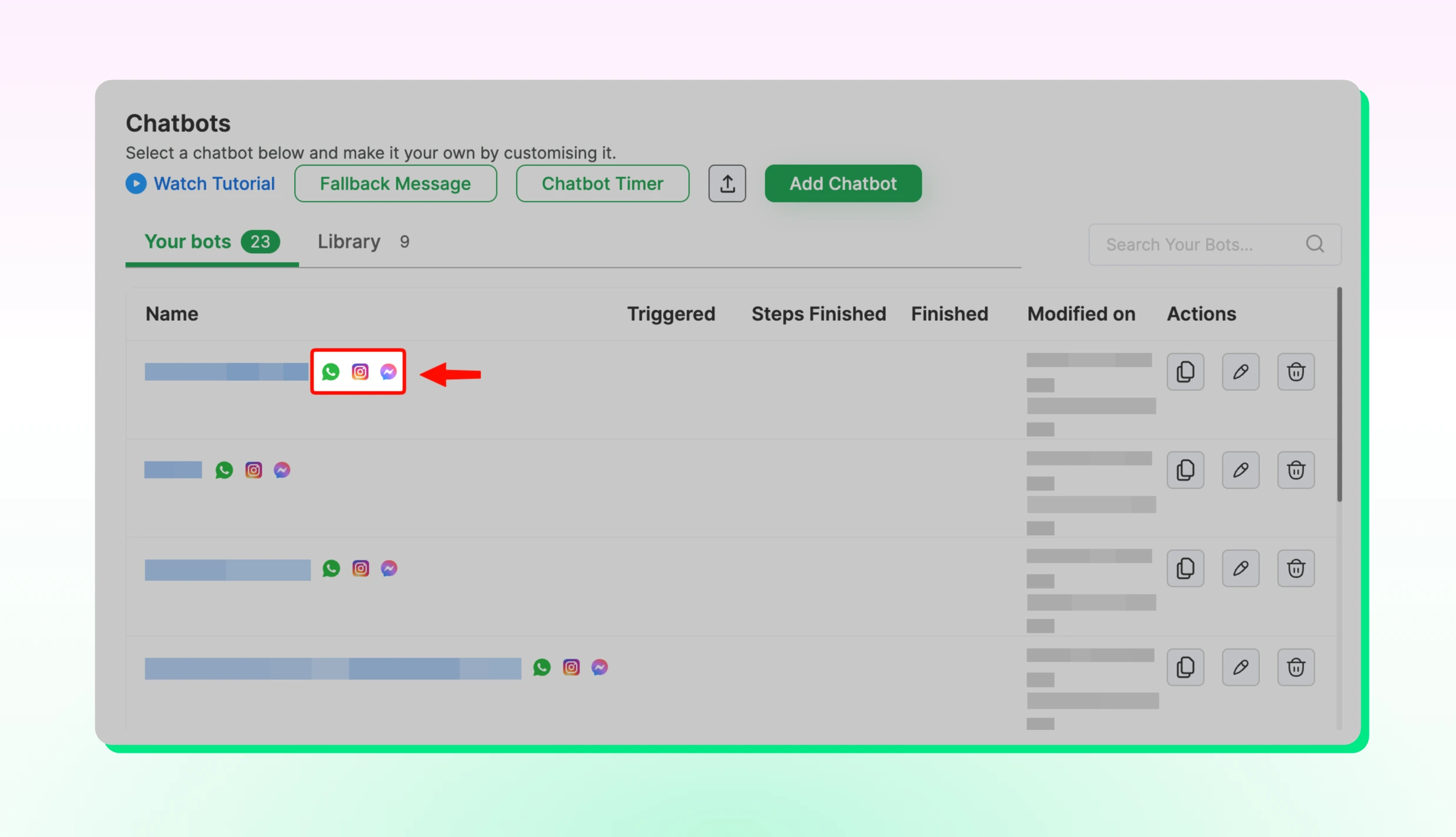
- Before building your flow, check which nodes are available for Instagram. Chatbots that support Instagram show an Instagram icon next to their name in the chatbot list
- Drag supported nodes from the left panel onto the canvas and connect them
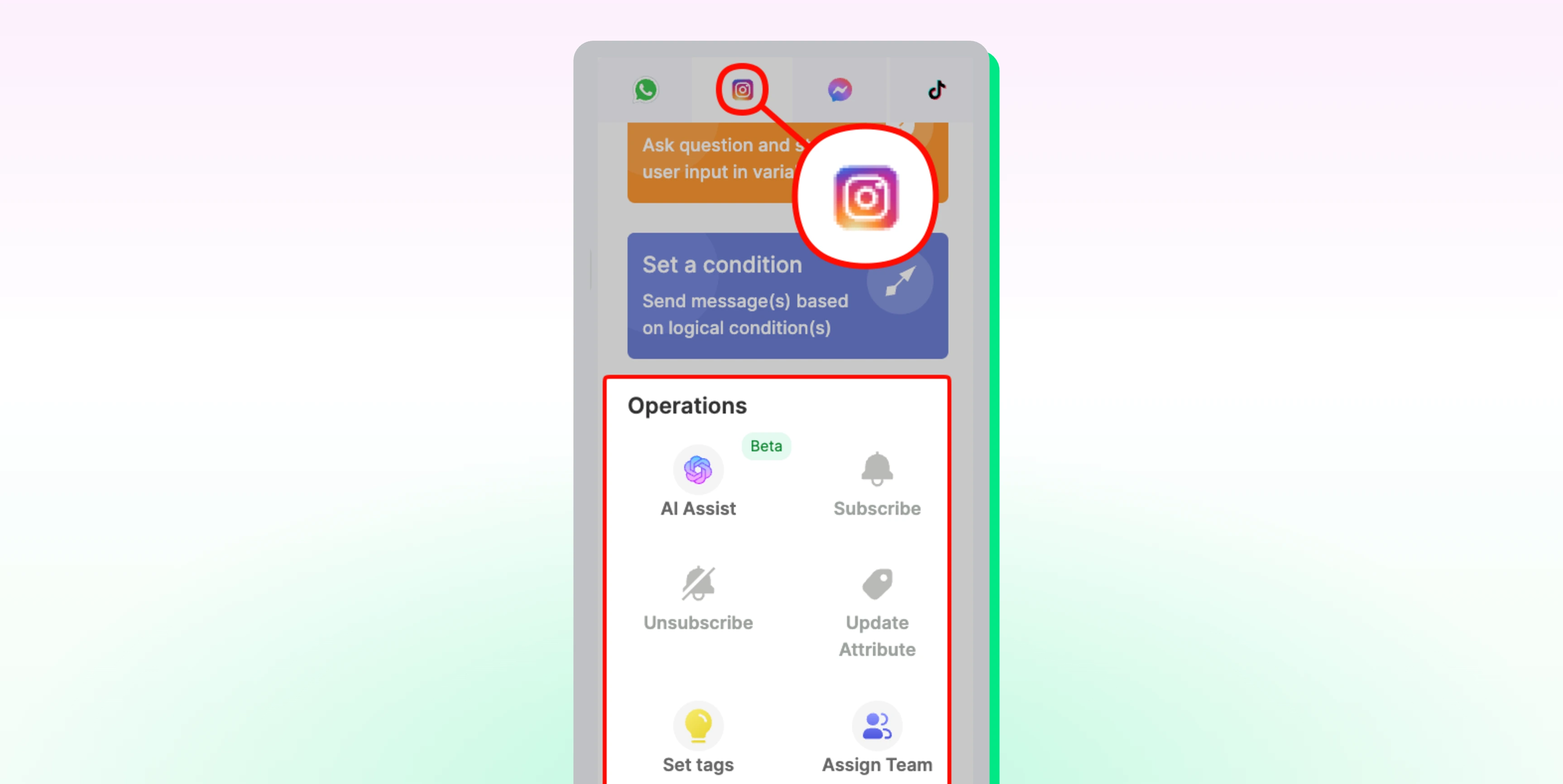
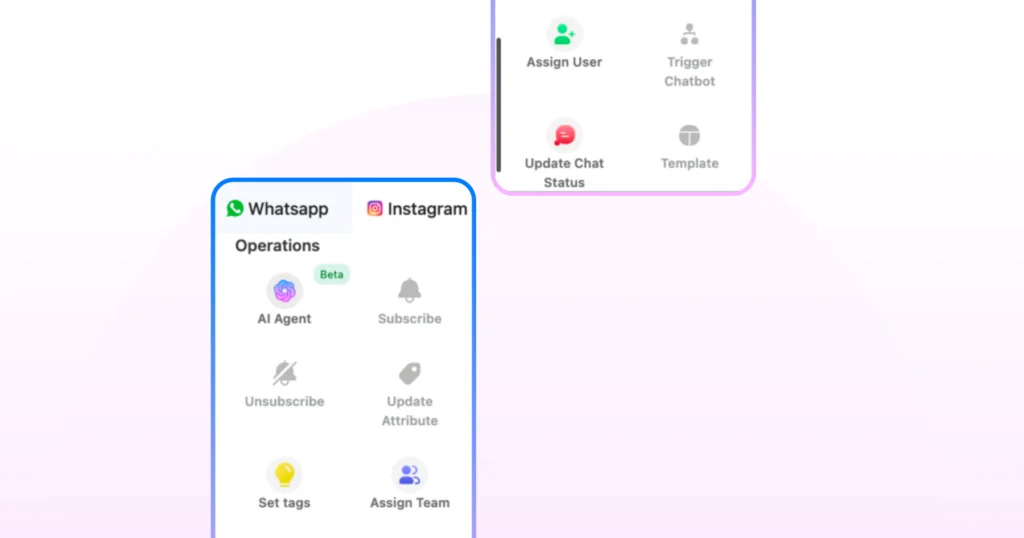
Note: All plans include Send a Message, Ask a Question, Set a Condition, and Template Message. Pro and Business plans add AI Assist, Set Tags, Assign Team, Assign User, Update Chat Status, Time Delay, Webhook, and Google Spreadsheet.
Step 4: Start With a Button Template
- Make the first node an Instagram button template, so contacts tap an option instead of typing
- Add a Set a Condition node after it to give each button its own path
For chatbots started from comments, the first node must be an Instagram button template.
Step 5: Add Answers and a Handoff
- Use Send a Message for answers (text, image, video, or audio) and Ask a Question to collect details such as a name or email
- Use Assign Team or Assign User to route conversations to your team (Pro and Business plans)
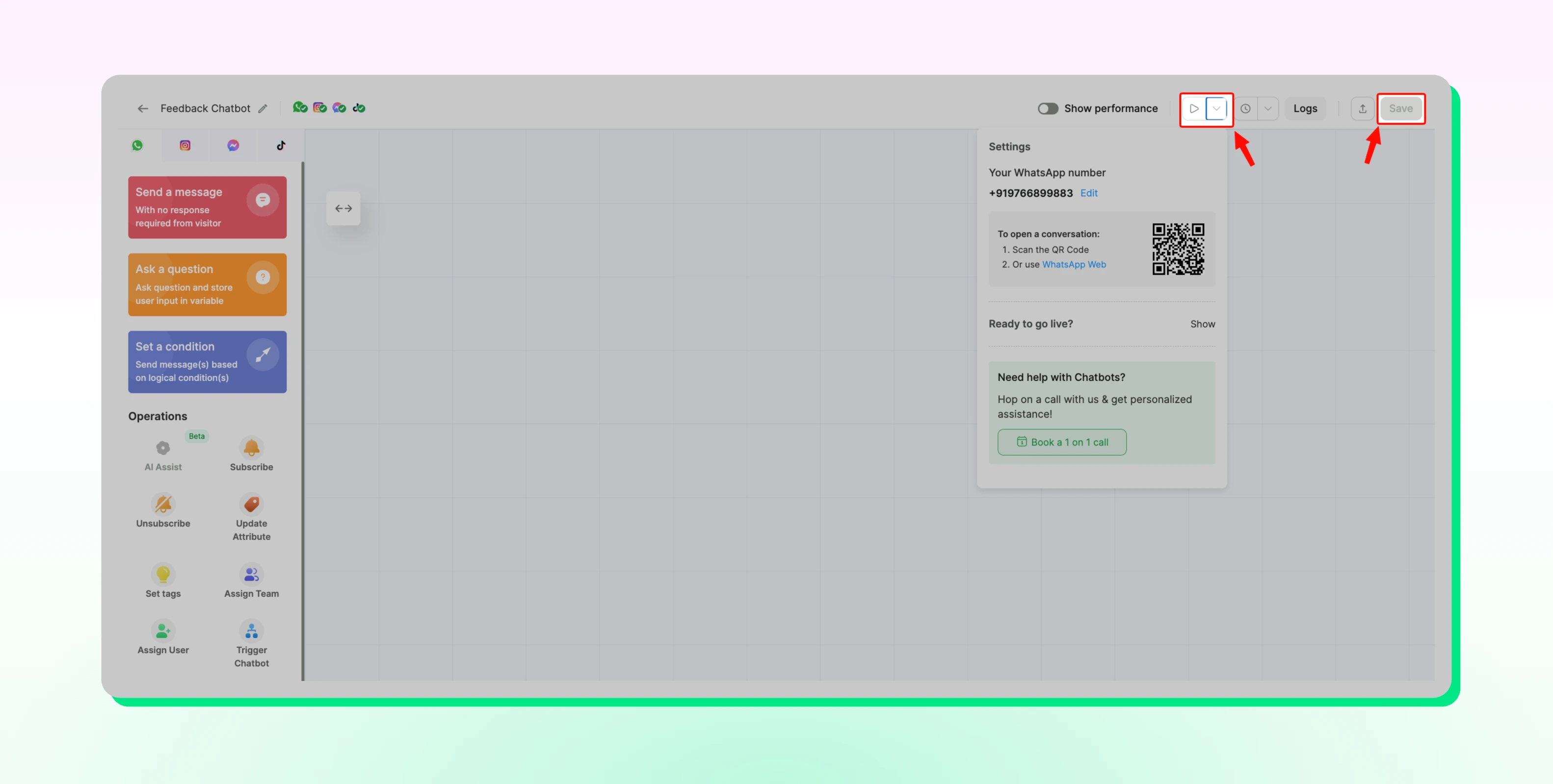
Step 6: Save and Test
- Click Save, then test the full flow from a different Instagram account before you turn on the rule
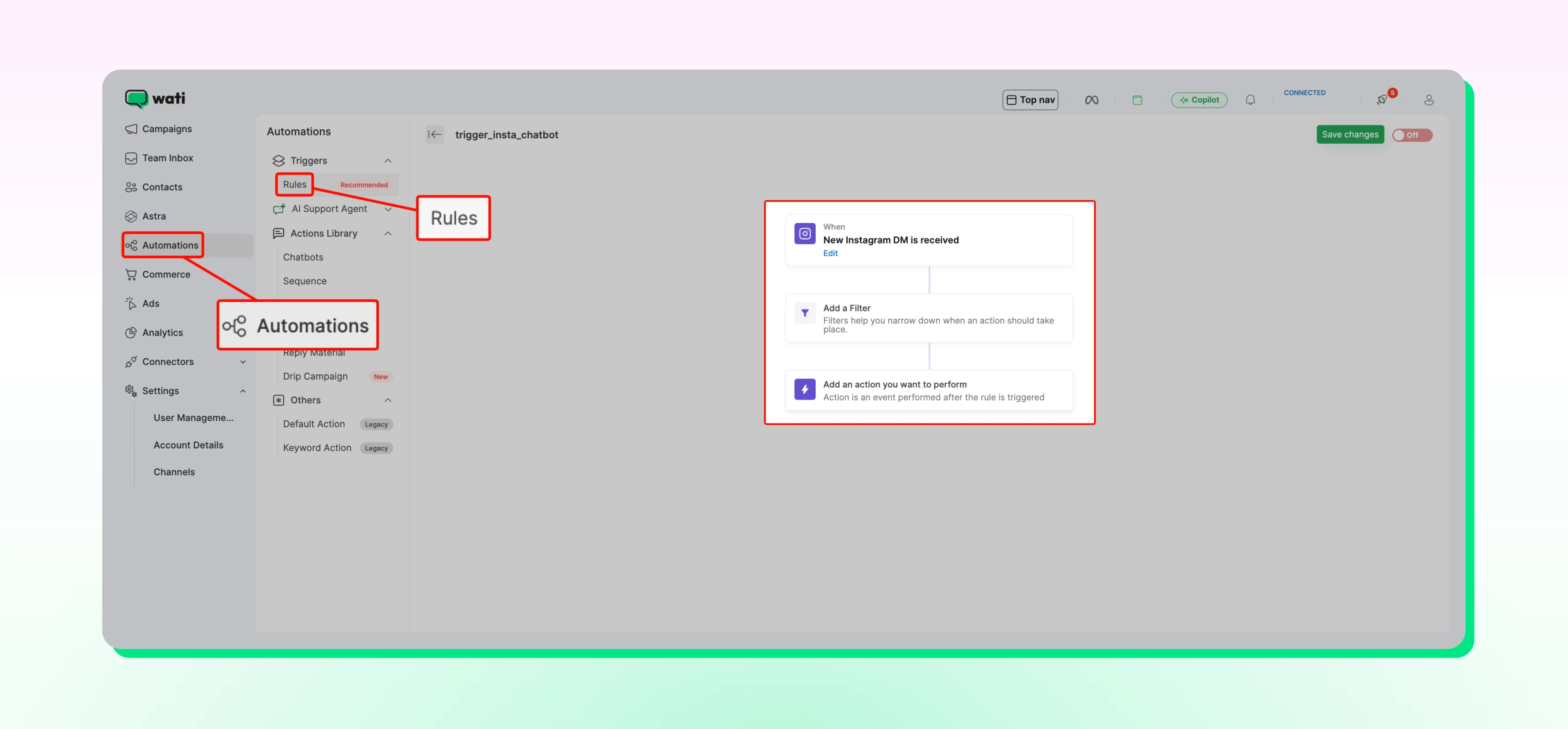
Step 7: Trigger the Instagram Chatbot With a Rule
- Go to Automations, then Rules, and create a new rule
- Set the trigger to New Instagram DM is Received
- Add the filters that should trigger the chatbot, such as a keyword, working hours, or contact condition
- In Action, select Start a Chatbot, then choose your Instagram chatbot
Click Save and switch the rule ON
Can You Run an Instagram Chatbot for Multiple Accounts?
If you run separate Instagram accounts for different brands, regions, or clients, you don't need a separate chatbot setup for each one.
On Wati's Business plan, you can connect multiple Instagram and Messenger accounts to one workspace, build your chatbot once, and run it across all of them.
- One chatbot, many accounts: Chatbot flows and reply templates work across every connected account, so you don't rebuild them for each one.
- Rules per account: When you create a DM or comment rule, you choose which accounts it applies to. @YourBrand_US and @YourBrand_UK can start different chatbots for the same keyword.
- One Team Inbox: Conversations from every account land in the same inbox, labelled by account. Agents can filter by account, and replies go out from the correct account automatically.
- Existing rules stay scoped: Rules created before you connect more accounts apply only to your original account. Edit them to add the new accounts.
What Happens When an Instagram Chatbot Can't Answer?
If a message doesn't match any of your keywords, no keyword rule fires, and the message waits in your Team Inbox for your team to answer. A keyword chatbot only sends answers you've written, so it never guesses.
To reply right away and route the chat to your team, set up a fallback rule:
- Create a rule with the trigger New Instagram DM is Received and add the No keyword match filter.
- Set the action to send a message, such as "Thanks for reaching out. Someone from our team will reply shortly," and assign the chat to your team.
How is Wati Different From Standalone Instagram Chatbot Platforms?
Wati brings your Instagram chatbot, automations, and inbox into one platform, so you can build flows, automate replies, and hand chats to your team without switching tools.
- No-code chatbot builder: Build Instagram chatbot flows by dragging nodes onto a canvas. Instagram-supported nodes sit in their own tab, so you only build with what works on Instagram.
- Comment-to-DM automation: When someone comments a keyword on a post or Reel, Wati replies publicly and sends a private DM in one trigger.
- Story reply automation: When a follower replies to or reacts to your Story, Wati sends them a DM automatically.
- Shared Team Inbox: Instagram DMs and comments land in one inbox. Your team can reply to a comment publicly or send the commenter a private DM.
- AI Assist: Your chatbot asks Instagram contacts for their WhatsApp number and saves it to their contact profile, so you can follow up on WhatsApp without manual data entry. Available on the Pro and Business plans.
Build Your Instagram FAQ Chatbot With Wati
By building an Instagram chatbot on Wati, you answer repeat questions across DMs, comments, and story replies in seconds and route anything outside its scope to your team. Automate questions with fixed answers, such as pricing, shipping, and returns, and leave order-specific queries to your agents.
You build each flow without code and can run it across every Instagram account connected to your workspace. All conversations, including those the chatbot hands off, are managed from one Team Inbox.
Book a demo to set up your Instagram FAQ chatbot.
Frequently asked questions
Which Wati plans support Instagram chatbots?
All Wati plans support Instagram chatbots. Every plan includes the Send a Message, Ask a Question, Set a Condition, and Template Message nodes. Pro and Business plans add nodes such as AI Assist, Assign Team, Assign User, and Time Delay.
Can I connect a personal Instagram account to Wati?
No. Wati only connects Instagram Professional accounts, either Business or Creator, and you need admin access to the account. Convert a personal account to a Professional account before connecting it.
Can an Instagram chatbot reply after 24 hours?
No. Chatbot replies count as automated messages, so they must be sent within 24 hours of the customer's last message. After that, only a person on your team can reply, using Meta's Human Agent tag, for up to 7 days.
Can I use buttons in an Instagram chatbot?
Yes, through an Instagram button template. On Instagram, the Ask a Question node does not support buttons or lists, so start your flow with a button template and use Set a Condition to give each button its own path.
Can an Instagram chatbot collect WhatsApp numbers?
Yes, on Wati's Pro and Business plans. The AI Assist node asks Instagram contacts for their WhatsApp number, tries up to 3 times, and saves the number to their contact profile. If it can't collect the number, the chat can be assigned to your team.
Can one Instagram chatbot start another chatbot?
No. Instagram chatbots don't support the Trigger Chatbot node, so build each flow so it can finish on its own.
Can I run the same chatbot on multiple Instagram accounts?
Yes, on the Business plan. You can connect multiple Instagram accounts to one workspace and reuse the same chatbot flows across all of them, while setting rules for each account separately.
Related posts
- How to Use an Instagram Chatbot for FAQ Automation (2026 Guide)
An Instagram chatbot replies to DMs, comments, and story replies instantly using keyword triggers, then hands off to a human when needed. Here's how to set one up in Wati.
- Instagram Auto Reply: How to Set It Up and Automate DMs (2026 Guide)
Instagram auto-reply sends instant responses to DMs and comments: welcome messages, OOO replies, keyword triggers, and comment-to-DM. Here's how to set it up and stop losing leads to slow replies.
- WhatsApp Verification Explained: How to Get Blue Tick in WhatsApp
Discover how WhatsApp verification boosts trust and credibility. Get insights into timelines, steps, and how Wati makes the process seamless for businesses.
- TikTok Business Account vs. Personal Account: How Do They Differ?
TikTok Business Account vs Personal Account: Business unlocks ads, analytics, and messaging; Personal keeps sounds and creator payouts.