
Too Long? Read This First
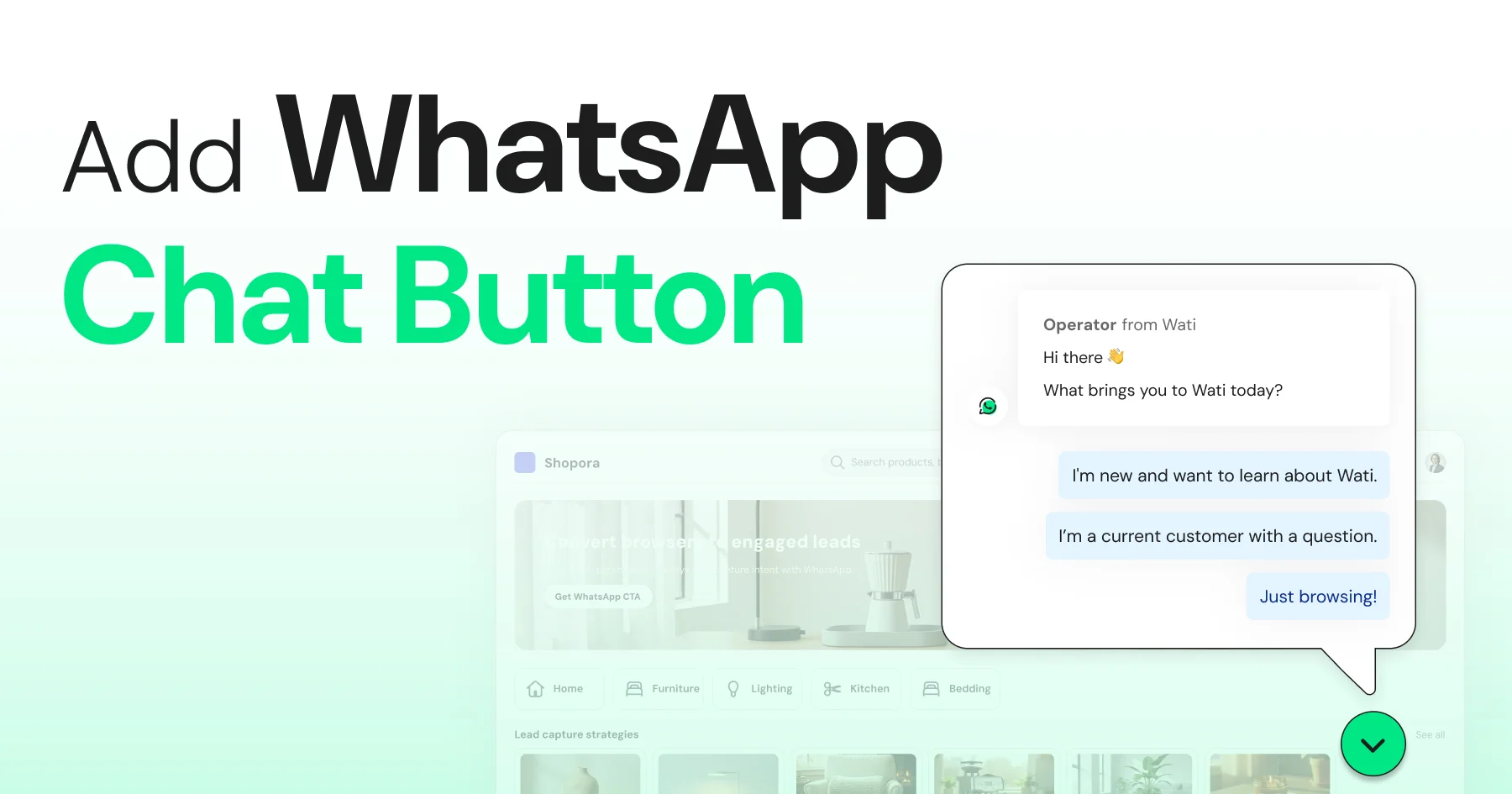
- Adding a WhatsApp chat button on your website helps visitors connect with you on WhatsApp instantly.
- You can create it easily with Wati’s WhatsApp Chat Button Generator. Just customize your button, copy the code, and embed it on your site in minutes.
- Before you start, make sure you have a WhatsApp Business account and access to your website’s backend or CMS.
- Follow best practices such as placing the button in the bottom-right corner, using a friendly CTA, adding a pre-filled message, and responding quickly.
- Not ready for a widget? Try other options, such as QR codes or third-party plugins.
The fastest way to add a WhatsApp chat button to your website is with a free generator like Wati's: enter your WhatsApp number, customize the button, and paste one code snippet into your site. No developer needed, and it's live in minutes.
Skip it, and most visitors won't go hunting for another way to reach you. They'll just leave, and those chat inquiries never reach your sales team as the hot leads they could have been. People today want quick answers, not long forms or delayed emails.
That's why a WhatsApp chat button works so well. It opens a direct line to prospects at their most interested moment, using an app they already trust and check every day. Brands use WhatsApp marketing platforms like Wati to connect that button to a shared team inbox and chatbots, so replies stay fast even as chat volume grows.
In this guide: What a WhatsApp chat button is, three ways to add one to your site, best practices, and how to troubleshoot and measure it once it's live.
What is a WhatsApp Chat Button?
A WhatsApp chat button is a clickable icon or widget on a website that opens a direct WhatsApp conversation with the business the moment a visitor taps it.
When someone clicks it, they are instantly redirected to a WhatsApp chat window. It can be either on the app or WhatsApp Web.
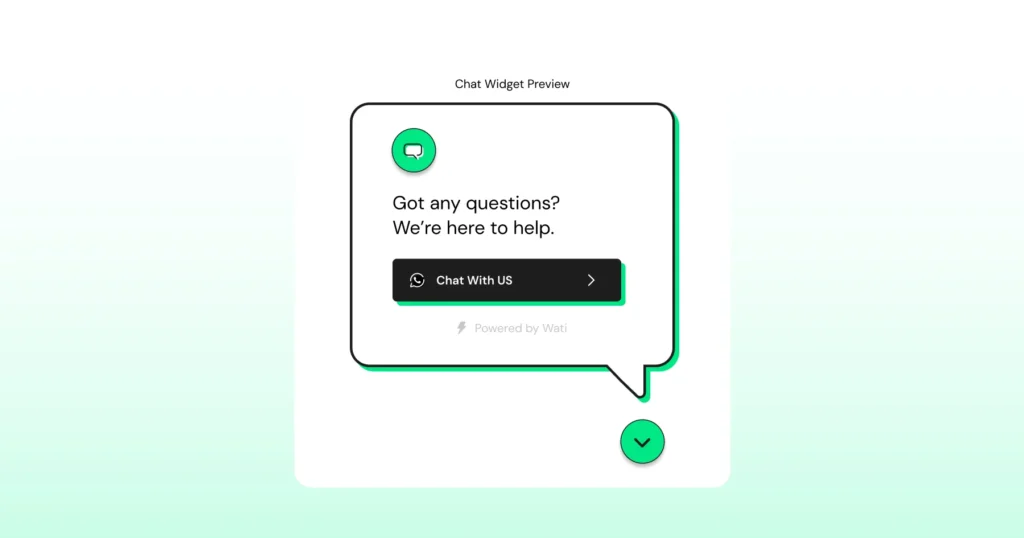
Adding a WhatsApp chat button to your website is one of the easiest ways to make your website more interactive and customer-friendly.
Instead of filling out contact forms or waiting for email replies, visitors can reach out in real time.
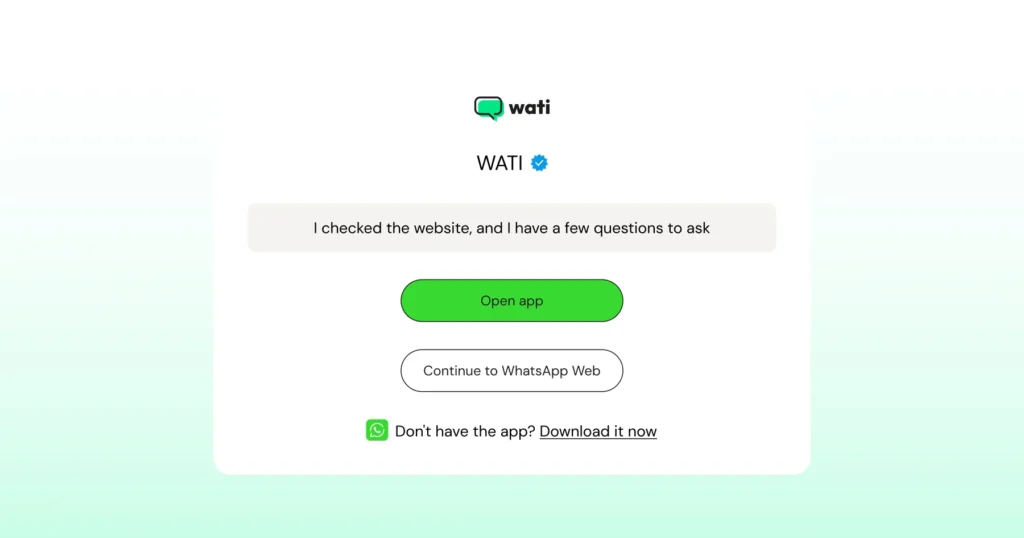
One clarification worth making up front: WhatsApp does not support a fully embedded, in-page chat window (like an iframe). Every "chat button," "widget," or "embed" on the market works by opening WhatsApp itself (the app or WhatsApp Web) rather than rendering the conversation inside your page.
Why Add a WhatsApp Chat Button Now (2026)?
Most websites lose great leads silently because people arrive, browse, hesitate, and leave. A WhatsApp chat button catches these moments before they slip away
Keep reading to see how it helps with your business and customers.
1. Connect Instantly
No one likes waiting. With a WhatsApp button, customers can message you the moment they have a question. It’s instant, direct, and personal.
2. Turn Interest into Action
Imagine a customer interested in the product wants to know more information, but doesn’t want to search for your contact number or fill out forms, which is boring and time-consuming. When reaching out is easy with a WhatsApp chat button, visitors are far more likely to start a conversation. More chats mean more leads, faster decisions, and higher conversions.
3. Make Customer Service Feel Human
When queries are solved instantly, and visitors and customers can get in touch with you with a click, that’s where WhatsApp feels familiar and friendly. It lets your team reply naturally, share quick updates, and build real connections.
4. Respond Faster, Follow-up Easier
You can handle queries in real time and even continue the chat later. It keeps the conversation flowing long after a visitor leaves your site.
5. Simple to Set, Easy to Manage
You don’t need a developer or fancy tools. A WhatsApp chat button can be added in minutes and connects smoothly with your existing website or CRM
6. It Fits How WhatsApp Business is Actually Regulated in 2026
Meta's recent WhatsApp Business Platform policy updates place tighter restrictions on open-ended AI assistants while continuing to support purpose-specific automation, including structured, purpose-specific automation such as support bots, booking bots, and order-tracking flows.
A chat button that opens a real conversation with your team (optionally backed by a scoped chatbot) sits squarely inside what's permitted, which is one more reason it's a safer long-term investment than open-ended AI-chat gimmicks.
Also Read: How to Send a Link in WhatsApp and Get People to Click
3 Ways to Add a WhatsApp Chat Button to Your Website
Not everyone wants the same setup. Here are the three paths people actually use, from fastest to most customizable.
A. No-Code Generator (Fastest)
Use a free generator like Wati's: Enter your number, style the button, copy one code snippet. No developer needed. Best for most small and mid-size sites. Full steps below.
B. Manual HTML + CSS Button (Most Control)
If you manage your site's code directly, you can build the button yourself with a wa.me link and a few lines of CSS.
<a class="wa-float" href="https://wa.me/<NUMBER>?text=Hi%2C%20I%20have%20a%20question" target="_blank" rel="noopener" aria-label="Chat with us on WhatsApp">Chat with us</a> .wa-float{position:fixed;right:18px;bottom:18px;width:56px;height:56px;border-radius:999px;background:#25D366;box-shadow:0 10px 25px rgba(0,0,0,.2);z-index:9999;} |
Replace<NUMBER> with your WhatsApp number in international format, no plus sign or spaces (for example 15551234567). Paste the HTML near the end of your <body> tag and the CSS into your stylesheet.
C. WordPress Plugin (No code, WordPress-Specific)
If your site runs on WordPress and you'd rather not touch a generator or raw code: install a WhatsApp chat plugin from the WordPress plugin directory, add your number and a greeting message in its settings screen, set the position (bottom-left or bottom-right), and choose which pages it shows on. Most plugins work with Elementor and Divi without extra setup.
How to Add a WhatsApp Chat Button on Your Website?
Adding a WhatsApp chat button is simple, especially with tools like Wati. Before you start, here’s what you’ll need.
Check these WhatsApp API prerequisites before proceeding with web page optimization.
- A WhatsApp Business Account linked to your business number
- Access to your website’s admin panel or CMS (like WordPress, Shopify, or Wix)
Step 1: Visit Wati’s Chat Button Generator
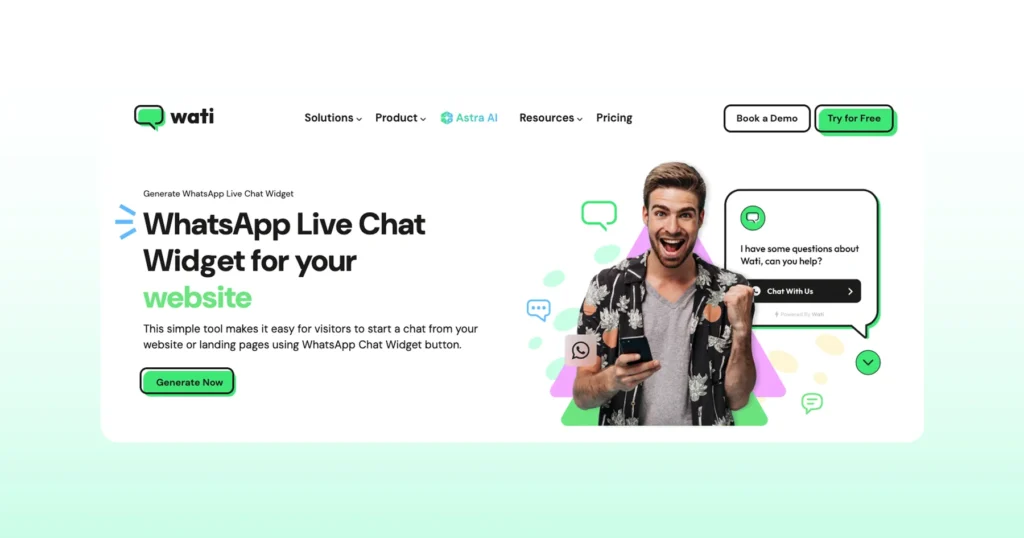
Go to Wati’s WhatsApp Chat button and click “Generate Now.”
Step 2: Customize your Button
- Choose your button color. Ideally, your brand color.
- Add a button name, such as “Chat with Us” or “Message Now.”
- Set the button position (bottom-left or bottom-right of your site).
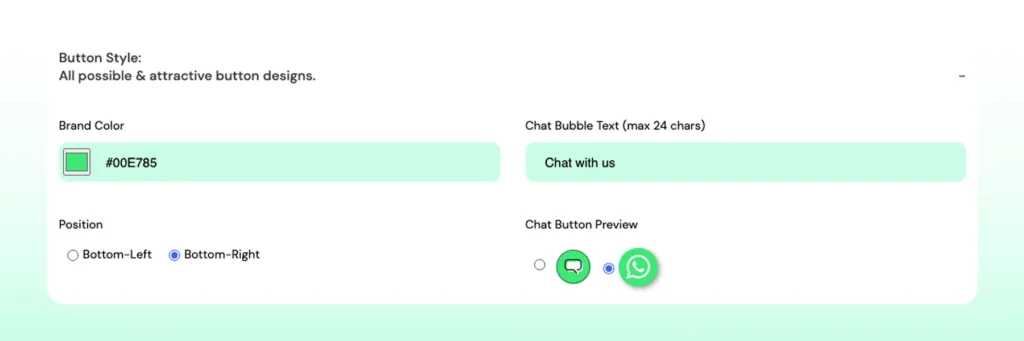
Pick a chat button preview style that matches your website’s look.
Step 3: Personalize your Chat Widget
- Enter your brand name and phone number.
- Add a short welcome message that greets visitors when they click the button.
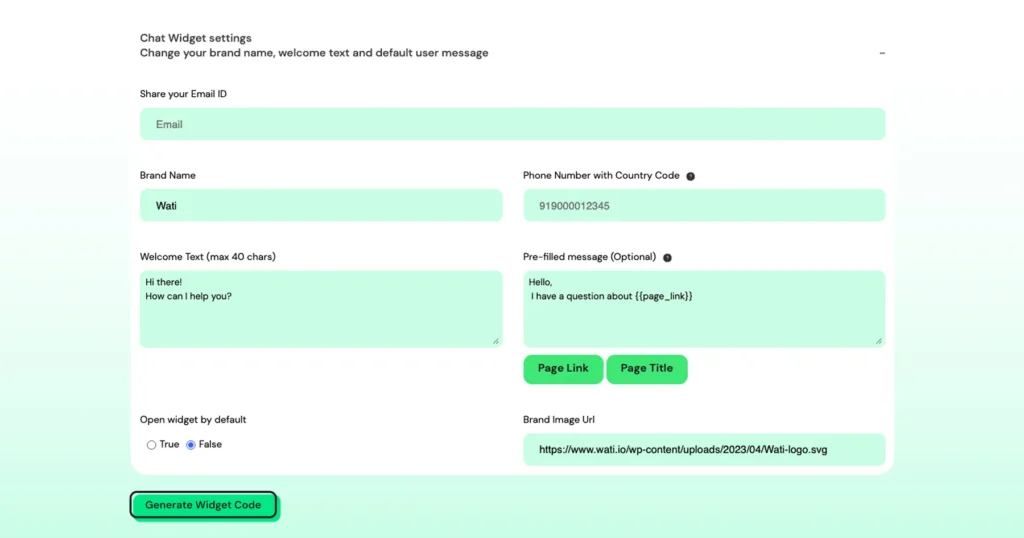
Step 4: Fine-Tune your Settings
- Create a pre-filled message that users can send. For example, “Hi! I’d like to know more about your pricing.”
- Add your brand image URL (your logo) to make the chat feel more personal and professional.
Turn on "Open widget by default" if you want the chat prompt to appear automatically instead of waiting for a click. It is useful on high-intent pages like pricing or checkout. The generator now auto-embeds the page URL and page title that triggered the chat into the pre-filled message, so your team knows exactly which page a visitor was on when they reached out.
Step 5: Generate and Add Your Code
- Once everything looks good, click “Generate Widget Code.”
- A code snippet will appear. Click “Copy to Clipboard.”
- Now, go to your website’s admin panel and paste the code before the closing </body> tag.
If you’re using a CMS like WordPress or Shopify, you can add it through a custom HTML block or your header/footer section. That’s it! Your WhatsApp chat button is live.
Bonus Read: How to Add a WhatsApp Live Chat Button to Your Shopify Store?
What are the Best Practices for Using a WhatsApp Chat Button?
Once your WhatsApp chat button is live, it’s all about making the most of it.
A few small tweaks can make a big difference in how many people click and start chatting.
Here’s what works best.
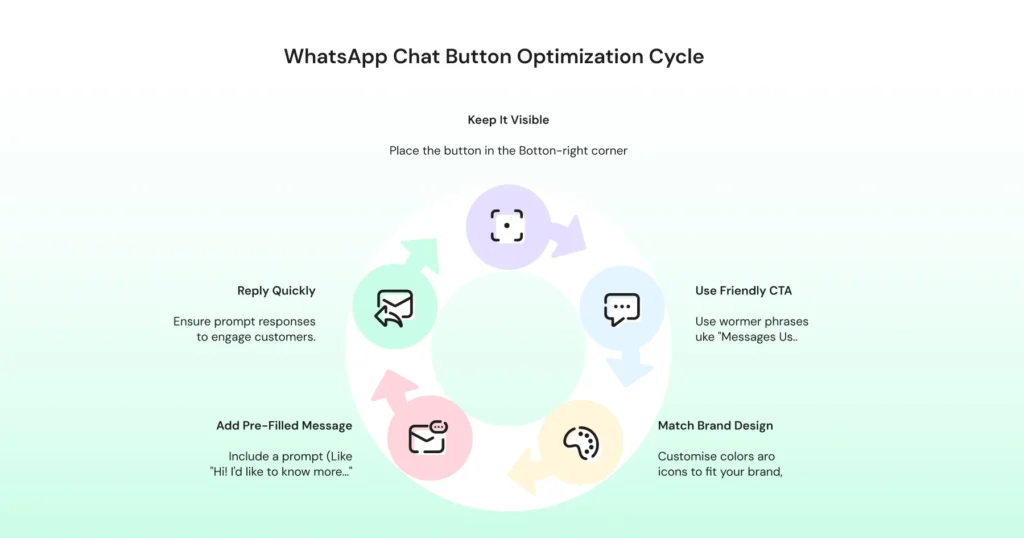
1. Keep it Visible but Not Intrusive
Place the button in the bottom-right corner.
It’s where users naturally expect to find chat options. Make sure it’s noticeable without blocking other content or CTAs.
2. Use a Friendly Call to Action
Instead of a plain “Chat” or “WhatsApp,” try something warmer like “Message Us!”, “Chat with Support”, or “Got a question?”
A friendly tone invites clicks.
3. Match it with Your Brand
Customize the color, icon, and welcome message to fit your brand’s look and feel.
A consistent design builds trust and keeps your site looking professional.
4. Add a Pre-Filled Message
A short pre-filled message makes it easier for visitors to start the chat.
For example: “Hi! I’d like to know more about your services.” It gives them a prompt and reduces hesitation.
5. Be Quick to Reply
People use WhatsApp because it’s fast.
Make sure someone from your team is available to respond promptly. Even a short acknowledgment goes a long way in keeping conversations active and customers engaged.
6. Show It on Purpose, Not Everywhere
Not every page needs the button on by default. Showing it only on high-intent pages (pricing, product, checkout) and setting expectations around business hours reduces noise. If your site uses a cookie-consent banner, test that it doesn't block or overlap the widget script until consent is accepted.
With WhatsApp Business API via Wati, you don’t have to worry about missed messages. Your team can manage all customer chats from a single shared inbox, set up quick replies, and even automate responses for common questions.
Reach out to Wati to create a WhatsApp chat button instantly.
Troubleshooting & Measuring Your WhatsApp Chat Button
- Button not showing: Check whether your cookie-consent banner is blocking third-party scripts until consent is accepted, look for JavaScript conflicts if you run more than one chat widget, and confirm the code snippet is on every template, not just the homepage.
- Wrong number format: Use the full international country code with no +, spaces, or dashes (for example 15551234567, not +1 555-123-4567).
- Overlapping CTAs: Make sure the button doesn't sit on top of cookie banners, checkout buttons, or other sticky elements and if you already run another live-chat tool, pick one primary "help" entry point to avoid clutter.
- Track clicks and conversions: Fire an analytics event on button click (most site analytics tools support custom click events), and add UTM parameters to any links you send back to visitors in the chat itself so you can trace the conversation through to a sale or signup.
Who Can Benefit from a WhatsApp Chat Button?
The short answer? Almost everyone.
Regardless of what you offer, customers appreciate fast responses and a more personal touch.
A WhatsApp chat button gives them exactly that in an easy way to reach you without switching apps or waiting on hold.
- E-commerce store: If you run an e-commerce store, it’s perfect for answering quick product questions or helping shoppers decide before they check out. A quick message can often turn hesitation into a sale. Oxwhite, a Shopify-based lifestyle brand, used Wati to capture and automate website chat conversations and saw a 20% increase in conversion rate, a 90% drop in customer-care workload, and a 95% CSAT score.
- Service Businesses: For service businesses, it’s all about convenience. Whether you’re a salon, real estate agency, or travel company, customers can book appointments, request quotes, or confirm details instantly.
- B2B Marketing: In B2B, WhatsApp shortens the gap between interest and action. Instead of filling out a form, potential clients can chat directly with your sales team and get answers in real time.
- Agencies and consultants: These entities use it to stay close to clients by sharing updates, getting approvals, and clarifying project details without endless email chains.
- Local Businesses: Gyms, cafes, boutiques, and repair shops use WhatsApp buttons to answer quick queries like “Are you open?” or “Do you have this in stock?”
In short, if your customers ever say, “Can I just message you?”, then yes, your business can benefit from a WhatsApp chat button.
Beyond the Button: When to Upgrade
A chat button is the entry point. What happens after the click is where most businesses eventually need more than a link. As conversation volume grows, most teams add:
- Team Inbox: Every chat that comes in through the button lands in one shared inbox so sales and support don't step on each other.
- Astra: It answers the routine questions a chat button generates, such as order status, pricing, or bookings, and hands complex chats to your team with full context. Because Astra answers from your own business content for your specific use cases, it fits the purpose-specific automation Meta's 2026 policy permits.
- Wati AI: With Wati AI, your team gets AI Conversation Summary, AI Translate, and AI CX Score inside every chat. Ask Wati AI gives instant answers about incoming conversations and contacts, and Wati AI Agents handle background tasks, preparing actions for admin approval.
- WhatsApp Business Calling: For visitors who'd rather talk than type, once they've started the conversation through the button.
- Coexistence: It lets you keep using the WhatsApp Business App and the WhatsApp Business Platform (API) at the same time, so a growing team doesn't have to migrate everything at once.
3 Alternatives to Adding a WhatsApp Chat Button on Your Website
If you are not ready to use a dedicated widget yet, there are a few other ways to add WhatsApp to your website. These options work well, too.
1. Add a Simple WhatsApp Link
You can create a direct chat link using https://wa.me/<yourphonenumber> and add it to your site as a regular text link or button. It’s quick and easy, but lacks custom styling and analytics.
Bonus Resource: WhatsApp Chat Link Generator
2. Install a Third-Party Plugin or Widget
Some website builders, such as WordPress, Shopify, and Wix, offer WhatsApp chat plugins. They’re simple to set up but usually limited in customization and automation options.
3. Use Wati’s WhatsApp Chat Button Generator
For a cleaner, branded, and more reliable setup, Wati makes it easy to create a customized chat button in minutes.
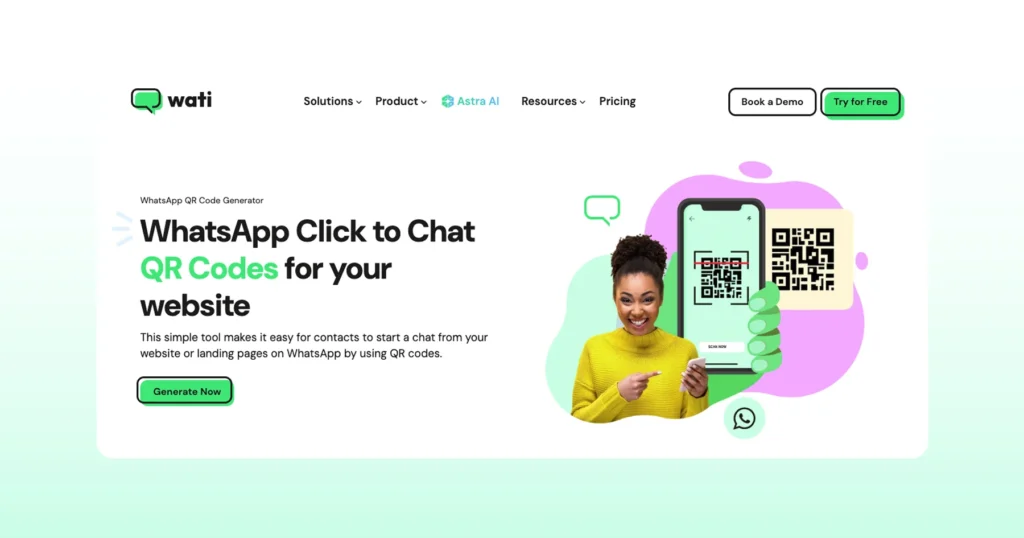
Using Wati’s WhatsApp QR Code Generator, you can choose colors, add your logo, set pre-filled messages, and even track engagement.
If you plan to layer automation on top of any of these options, keep the bot scoped to a clear purpose (support, booking, order tracking). Meta's January 2026 policy update blocks general-purpose, open-ended AI assistants on the WhatsApp Business Platform.
Note: Don’t limit WhatsApp to just your website. Add a Click-to-WhatsApp link in your emails, contact pages, social profiles, or ads so customers can reach you instantly from wherever they interact with your brand.
Ready to Add Your WhatsApp Chat Button?
Attending to customer queries in the first go and minimizing turnaround is the gold mine of sales revenue. Building direct interactions via a website chat button builds an effective WhatsApp experience.
Changing customer outlook, having fruitful WhatsApp conversations, and progressing the customer purchase funnel is the right mantra for success.
It's one of those small changes that makes visitors think, "Oh, good, the customer can just ask." No waiting, no hunting for contact forms, no guessing From a shared team inbox for real-time collaboration to automated workflows, broadcast campaigns, and chatbot integrations, this WhatsApp marketing software makes it easy to handle customer engagement at every stage. Start your free trial with Wati and transform website visitors into WhatsApp chats today.
Frequently asked questions
1. How do I add a WhatsApp chat button on my website?
You can easily add a WhatsApp chat button on your website using Wati’s free Chat Button Generator. Simply enter your WhatsApp number, customize the button’s design and placement, and copy the generated code snippet to your site. Once added, visitors can start chatting with you instantly.
2. Do I need coding skills to create a WhatsApp chat button?
Not at all. Tools like Wati’s WhatsApp Chat Button Generator make it super simple. You just fill in your details, choose your style, and paste a short code onto your site.
3. How to create a button in WhatsApp chat manually?
If you prefer doing it yourself, use this format: https://wa.me/<yourphonenumber>. Replace your number (with country code) and add it to a website button or link. This simple link opens a WhatsApp chat window directly with your business.
4. Can I customize how my WhatsApp chat button looks on my website?
Yes! With Wati, you can customize everything: color, icon, text, and position. You can even add your brand logo, a welcome message, or a pre-filled text to make the chat experience feel more personal and professional.
5. Is the WhatsApp chat button suitable for all types of websites?
Absolutely. Whether you run an e-commerce store, agency, or small business site, a WhatsApp chat button on your website helps you connect faster with visitors. It works smoothly across WordPress, Shopify, Wix, and most other platforms.
6. Can I track clicks and conversions from my WhatsApp chat button?
Yes. Fire a click event to your site analytics tool when the button is clicked, and add UTM parameters to links you share back to visitors in the chat so you can trace the conversation through to a signup or sale.
7. Does Meta's 2026 WhatsApp AI policy affect my chat button?
Not directly. A standard click-to-chat button is unaffected. The January 15, 2026 policy update only restricts general-purpose, open-ended AI assistants on the WhatsApp Business Platform; structured automation (support bots, booking bots, order tracking) tied to your button is still permitted.
Related posts
- How to Create Personalized AI Videos with Wati’s AI Video Generator
Transform your marketing with Wati’s AI video generator. Create personalized, professional videos at scale without technical expertise or expensive equipment.
- How to Set Up Auto Reply in WhatsApp Business?
Master WhatsApp auto-reply for your business: improve response times, customer service, and communication.
- How to Set Up an Instagram Chatbot to Answer FAQs Automatically (2026 Guide)
Learn how an Instagram FAQ chatbot works, which questions to automate, and how to set one up in Wati without code, from your first button template to a live keyword rule.
- How to Use an Instagram Chatbot for FAQ Automation (2026 Guide)
An Instagram chatbot replies to DMs, comments, and story replies instantly using keyword triggers, then hands off to a human when needed. Here's how to set one up in Wati.